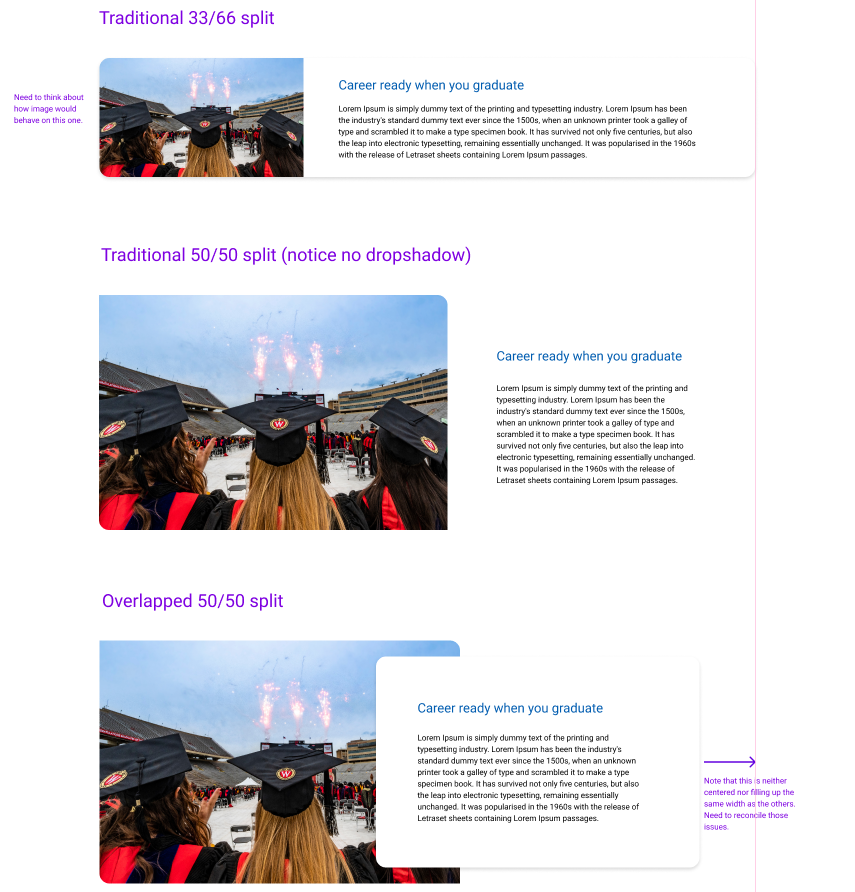
Use this block when you have a large image next to some text.
Only use this layout when you have a small amount of copy (< 250 characters total). Too much copy will break the layout (the card will extend above and below the image), so test the block with the content in it at every breakpoint (screen size).
You can also use this layout when the image is not as important or does not have small details that are important to see.
To create this layout, open the card configuration accordion and select 33/66 under Image Width.
This layout can be used anytime you need an image next to copy. This is the default layout of the block.
This layout can be used anytime you need an image next to short or medium length copy. Ideally, the text box should not extend above and below the image next to it.
To use this layout, toggle the Overlap Text field in the block configuration.
Use this to dynamically pull in an existing blog, news, or spotlight post to fill the block. You won't be able to fill out the other fields once you select a post in this field.
Use this to dynamically pull in an existing spotlight post to fill the block. You won't be able to fill out the other fields once you select a post in this field.
You will need to update the excerpt in the spotlight to have the person's name (degree 'year) in bold (use <b> tags).
You will need to add the link to the spotlight and the text read "Read person's first name's story".
The card title. You can select the heading size in the card configuration.
The card subtitle.
Use large, high-quality images.
The card micro title.
The supporting copy. This should not be more than 1 paragraph or 4 sentences. Make sure the amount of copy in the card looks good. If not, cut some of it or ask a writer to cut some of it.
The URL.
The text will have a shadow and overlap the image.
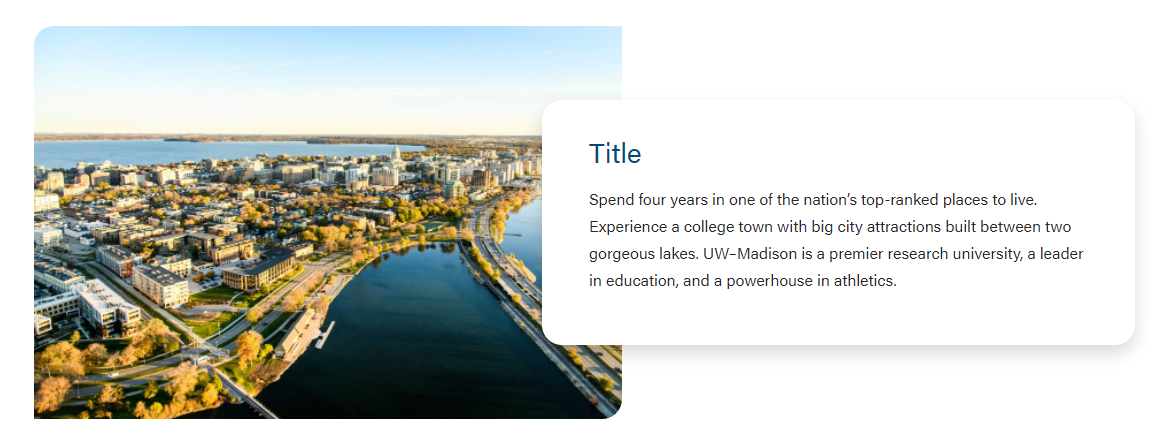
The text will become stretched and has the raised hover effect. In addition, the title will become the link location with an outline effect when tabbed.