This documentation is for people who've done the training, but need a refresher on each specific part of the email with more detailed breakdowns.
Once you've opened the email you want to create, you'll see many parts to it:

General editing guidelines
- Delete what you don't need. Templates include more options than you need, so just get rid of what you don't want. Select an item and click the trash can icon.
- Note: don't delete something if you aren't sure. You can use the undo button to get something back, but other than that, it's gone from the email once it's deleted.
- If you need multiple of things, use the copy function (select an item, click the copy icon)
- You can copy/delete a single item, you can tell it's selected when it's outlined in purple/blue (copy/delete buttons on the right side of the page)

- To select an entire row ("layout"), hover your mouse a little to the right or left of a row until you see the orange outline, then click. You can tell it's selected when it's outlined in orange (copy/delete buttons on the right side of the page.)

- In most cases, you'll want to be copying the entire row, rather than a single item.
- You can move items or rows by selecting the item, then clicking and dragging the tab on the left. Note that moving things is a little unwieldy and may be tricky at first.


- You're allowed to move any item in between the Header and the Footer
The Header
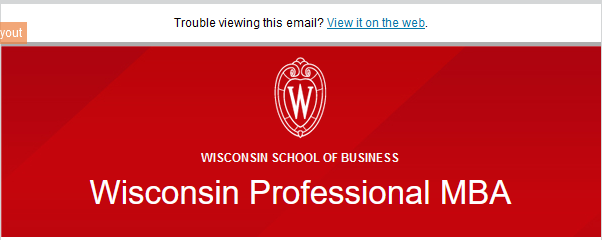
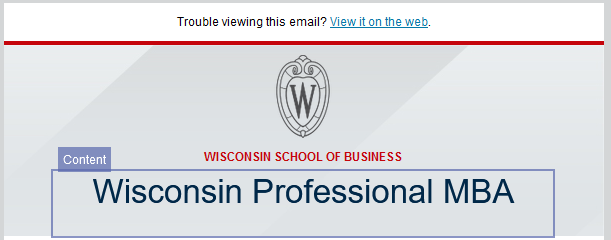
The header includes the "Trouble viewing this email?" message (which will open up the email on the web), followed by the WSB Crest, "Wisconsin School of Business" and the name of your program.
- There are two versions of the header -- one red and one gray. Depending on which template you open, you will get one or the other.
Rules on editing:
- We recommend you don't edit the header at all, although it might be appropriate to tweak the program name in specific cases, in which case you can just edit the text.
- Do not edit any of the formatting -- the color, font size, crest, or background image of the header! The colors were specifically chosen to both follow brand and accessibility guidelines.
- Do not, delete, copy, or move the header or its contents!
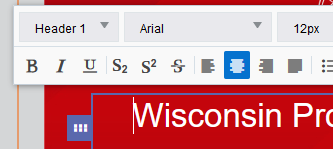
Your program name will be formatted as a "Header 1". Do not use the Header 1 formatting anywhere else on the page.
Intro Paragraph
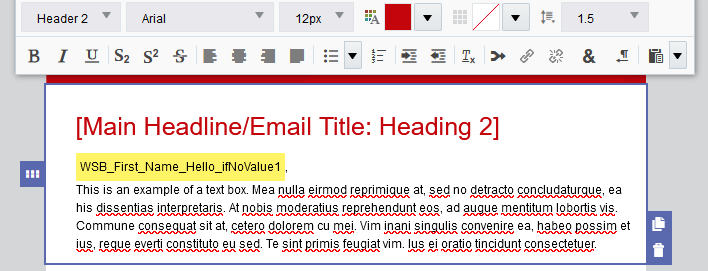
Next on your template is your first paragraph. It includes a red Header 2 for the main headline/title of your email, followed by a First Name variable, then paragraph text.
Rules on editing:
Editing the text:
- Type/paste in whatever content you need for your email. You can also insert links by highlighting the text you want linked and selecting the hyperlink button in the toolbar. Unfortunately, links will not paste over (if you drafted the email in a word doc, for instance), so you will need to add them within the email again. Note: make sure to follow accessibility rules on links.
You are free to delete any portion of this if you don't need it:
- Emails do not necessarily need a big header at the beginning, so feel free to remove it and start with your greeting.
- Variables (highlighted in yellow in your email), called "Field Merges" in Eloqua, only work when contacts are uploaded as Custom Data Objects. Using a variable for someone's name is entirely optional, and many users prefer to address their emails as "Dear Students," or "Dear Alumni and Friends" instead of using the names. In that case, go ahead and delete the variable and write something else.
- You may not even need the intro paragraph.
Editing the formatting:
- Avoid changing the color or size of the text. If you'd like to emphasize text, we recommend using bold formatting
- Do not use underlined text, because underlines should be reserved for links only.
- Italics are okay, but bold is preferred because it's easier to read.
- Do not edit the color/formatting of the Headers, with one exception: you may change the Header 2 from the color red, to the color gray: #494949. You can edit this color by selecting the text, clicking the color, clicking "Custom Color", and enter 494949 in the hex value field:
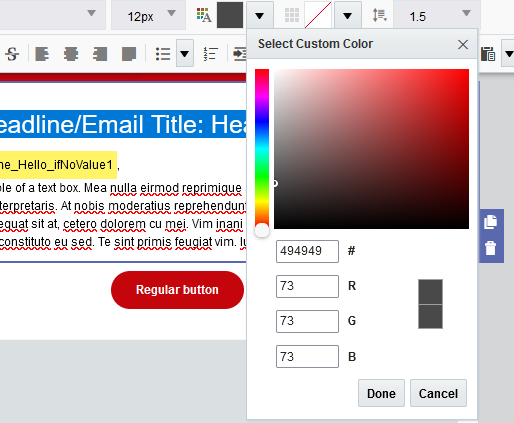
- This can be done on any Header 2 on the page, not just the first one.
Buttons
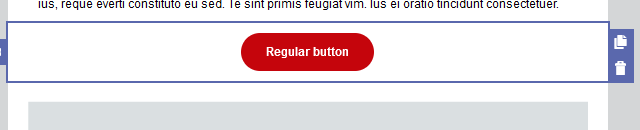
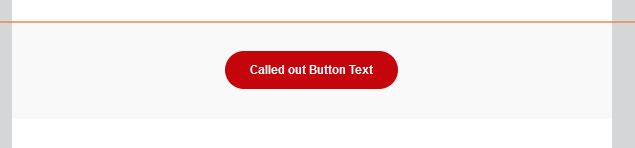
There are two types of buttons, regular buttons and "called out" buttons. They are appropriate when you want to send the user to an important link. You probably don't want to have more than 2 buttons in an email, less important links should just be text links.
The main difference between the two types is that Called Out buttons have a background color, and have more spacing (padding) around them to make them more prominent.
Rules on editing:
You may only edit the text, and the hyperlink in a button.
- Edit the text: select the button, double click the text, and write something else. We recommend using sentence case (capitalize only the first word) for the text.
- Edit the link: select the button, and paste in the link into the "Web Address URL" field of Hyperlink Properties (in the left panel). Double check the link is entered correctly.
Do not edit the color, or any other properties of the button, with the possible exception of:
- "Outer Padding" if you need to edit the spacing around the button
- "Alignment" the button may be left aligned instead of centered, but we recommend centered.
Don't insert a new button within the editor, if you want another button, copy an existing one, so the formatting stays correct.
- (advanced) In case you mess up the formatting, you can edit it in the button properties in the left sidebar
- Button Color: #C5050C
- Corner Radius: 30
- Width: Fit to text
- Alignment: Centered
- Button Padding: top, bottom: 10. Left, right: 25
- (called out button only) Background color: #F9F9F9
Articles
Each article includes a photo, a Header 3 for the title, a paragraph, and a link.
Rules on editing:
- Do not edit the color or size of the headers.
- If you have different sections of articles, you may want to add some Header 2s to group them.
- Paragraphs can be edited like other paragraphs, including adding links/bolding text.
- You can make the links bold if you want to better emphasize them.
- Feel free to edit the main link's text. It's actually better for accessibility if you replace "read the article" with something more specific, like "read about our faculty's research" or "learn more about the new policies" etc.
There are a few formats for articles:
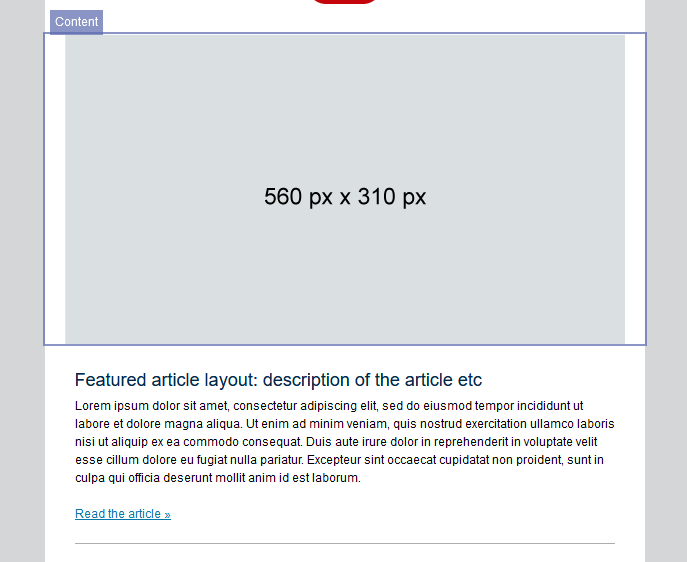
Featured Article
This should only be used for the first article in your email, if at all, with the rest of the articles in the formats below. The width of the featured photo should be at least 560px, but can be wider (the photo will auto resize).
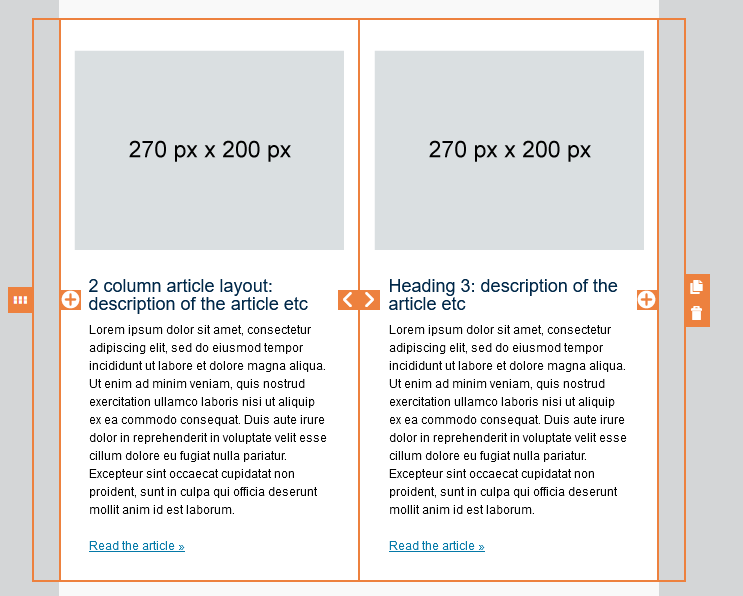
2 column article layout
Should only be used if you have an even number of articles (not including the featured article, if you choose to use it). Make sure the images you use for these are the same size if they're in the same row (270px by 200px is suggested, but just an approximation). To add more articles to your email, select the entire row ("layout") and click the copy icon.
It works best with shorter paragraph text (a couple sentences, for example)
Do not combine with the horizontal article layout, use one or the other.
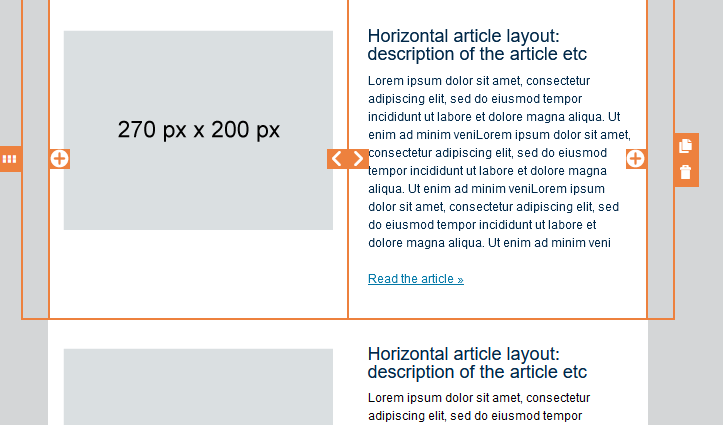
Horizontal article layout
Can be used with any number of articles.
It works best with longer paragraph text, to match the photo next to it. Of course, you can opt for a shorter (in height) image to better match the size. To add more articles to your email, select the entire row ("layout") and click the copy icon.
Do not combine with the 2 column article layout, use one or the other.
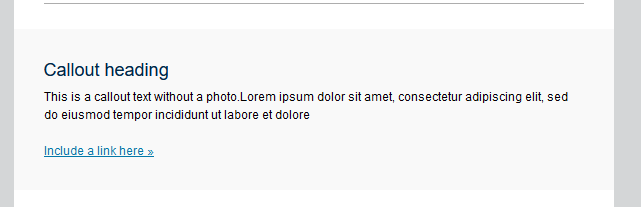
Callouts
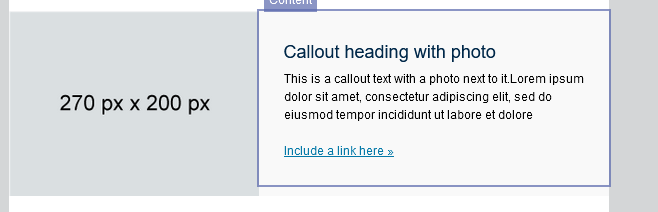
Callouts can be used for announcements, or other important information. They include a gray background color, a paragraph with a Header 3 title and a link, and sometimes a photo.
Rules on editing:
- You can remove any part of the callout paragraph-- the heading, paragraph text, and link are all optional
- Don't change the colors.
- If you use the callout with photo, keep the text short so it doesn't go past the photo. The photo size of 270x200 is a suggestion, and you can use a different photo size if it fits.
Testimonial/Quote
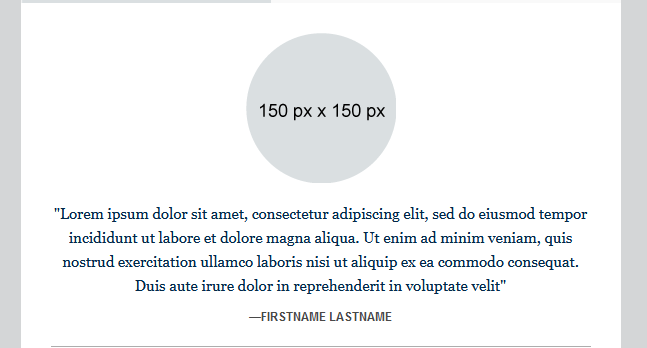
Testimonials are used for when you have a quote you want to include in the email. It consists of a circle photo of the person's headshot, their quote, and their name.
Rules on editing:
- You can delete the photo if you don't have one, the quote can go on it's own.
- The photo doesn't need to be exactly 150x150, but it works better if it is.
- The photo must be a circle image. There is no function in eloqua for this, you will need to upload your photo already circle cropped. Here's a quick tutorial on circle crops. If you're having trouble, send in a ticket to the web team and they will help.
- Do not change the color or formatting of the quote.
Signature
Rules on editing:
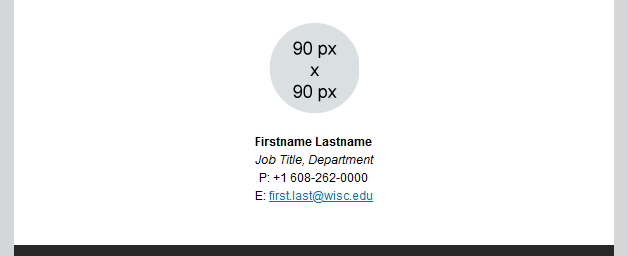
- You can delete the photo if you don't have one (or want one)
- If your headshot is not in the media library (under WSB > 1_all_WSB_Common > Signature Headshots), ask the web team to upload one.

- The signature is just text. You can edit whether or not you include your phone/email/etc, but we recommend formatting your name in bold, and your job title in italics.
- To link your email, type in your email as text, select it, and select the hyperlink button in the toolbar.
- Then, change "Link Type" to "New Email Message" and type your email into the "Email Address" field.
- Make sure to test your link!
- Your signature doesn't have to be at the bottom, you can always move the row higher on the page if it makes more sense somewhere else.
- If you need multiple signatures, ask the web team for assistance with formatting them. Some templates come with a multiple signature option.
Horizontal dividers
Called "dividers" in Eloqua, these lines help to separate different sections of your email.

Rules on editing:
- If you need them, we recommend moving/copy existing ones rather than inserting new ones, as the formatting of the ones in the template is preferred
- Feel free to copy/move/delete as much as needed to section out your email.
- Avoid editing the existing color (other shades of gray are acceptable, but we recommend #ADADAD) or thickness(1px is all you need). You can edit the Divider Padding as needed for the spacing to look good.
- (advanced) In case you mess up the formatting, you can edit it in the button properties in the left sidebar
- Line style: solid
- Line thickness: 1
- Color: #ADADAD
- No background color or border.
The Footer
The footer includes your department logo (and that info in text form), and the legally required information.
- There are two versions of the footer, black, and red, which coordinated with the headers.

Rules on editing:
- We recommend you don't edit the footer at all, although it might be appropriate to tweak the program name in specific cases, in which case you can just edit the text. If you need a custom department logo, let us know.
- Do not edit any of the formatting- the color, alignment, images of the footer! The colors were specifically chosen to both follow brand and accessibility guidelines.
- Do not, delete, copy, or move the footer or it's contents!
- The links/address at the bottom are not editable, and for good reason- that info is legally required for sending marketing emails.