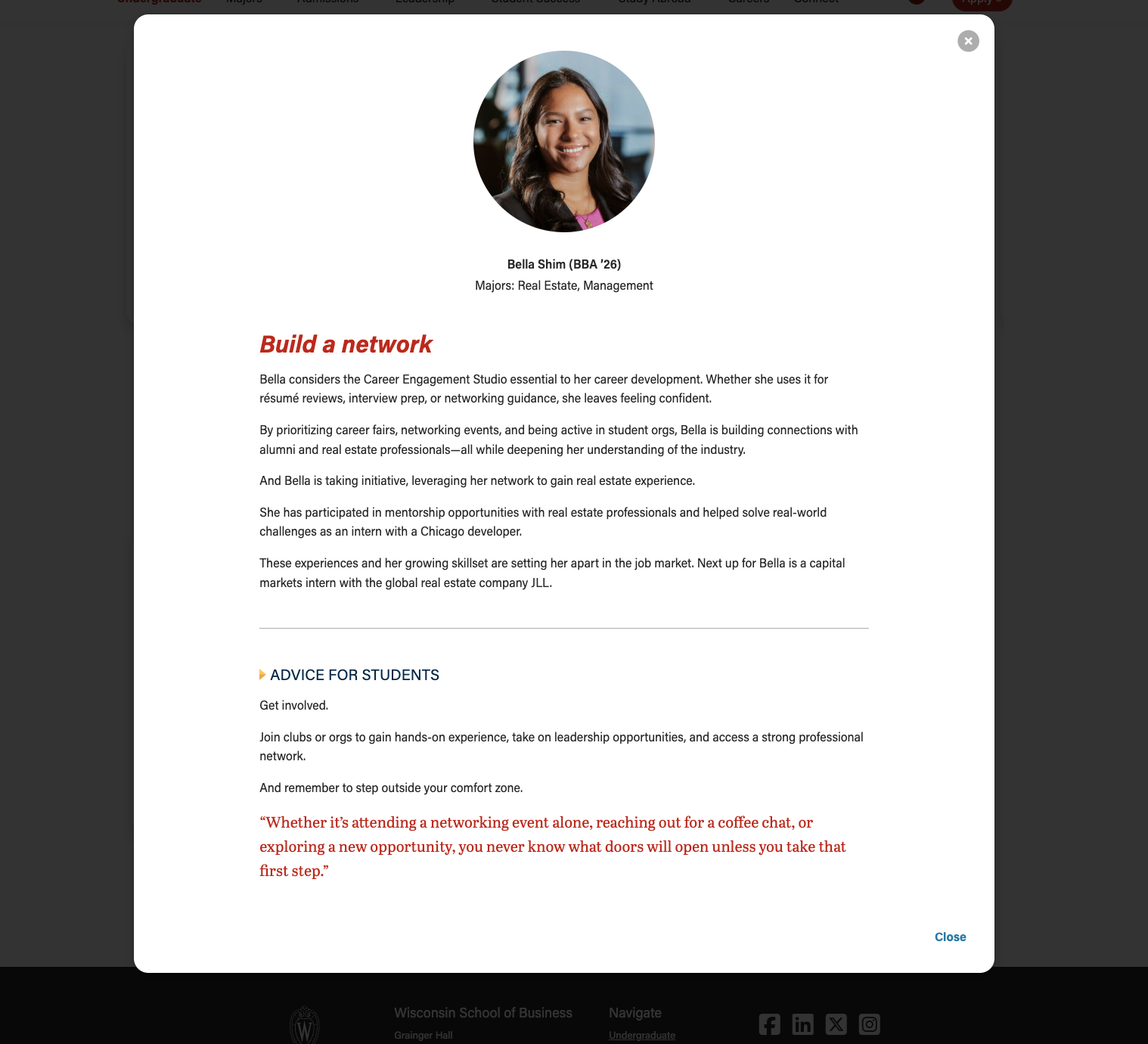
Example 1 - Cards with headshots
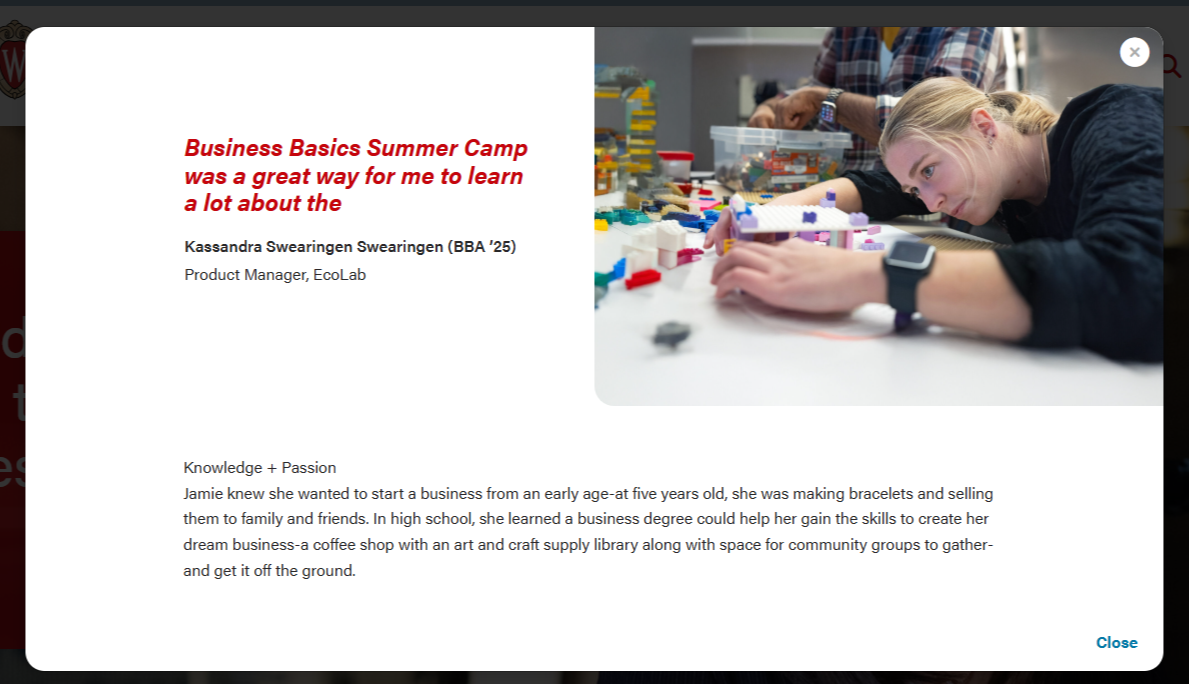
Modal popup
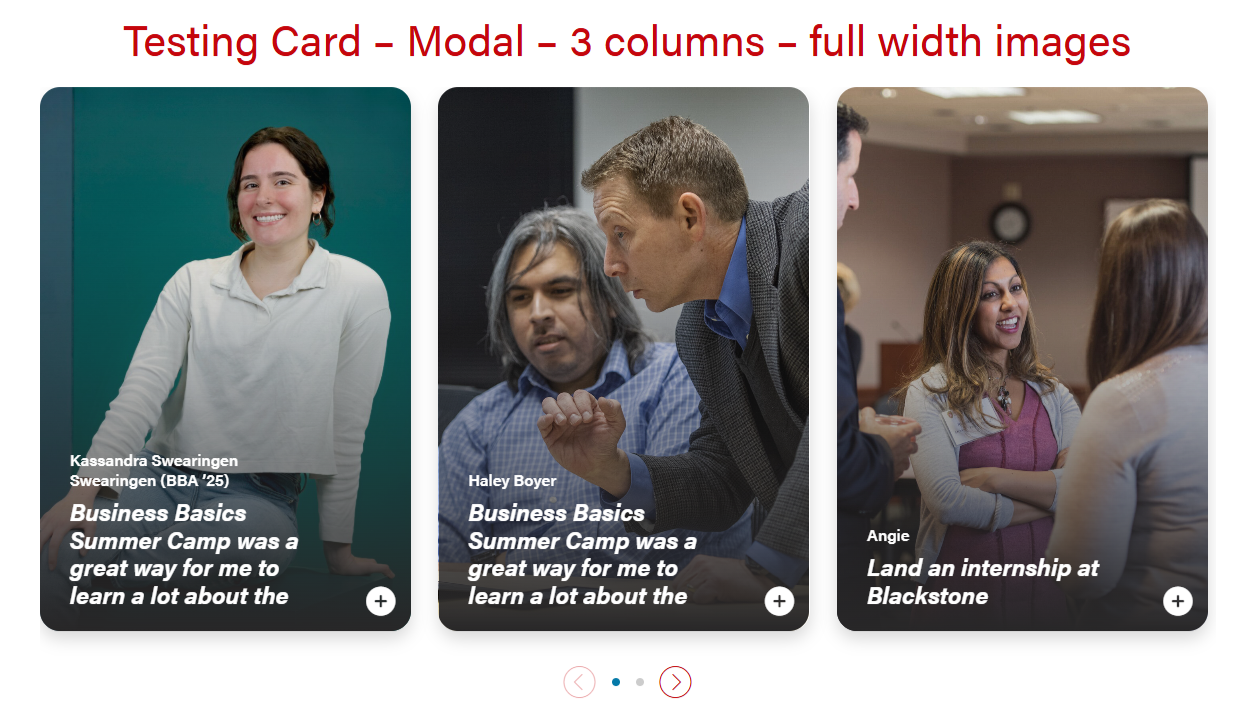
Example 2 - Cards with environmental or portrait photos
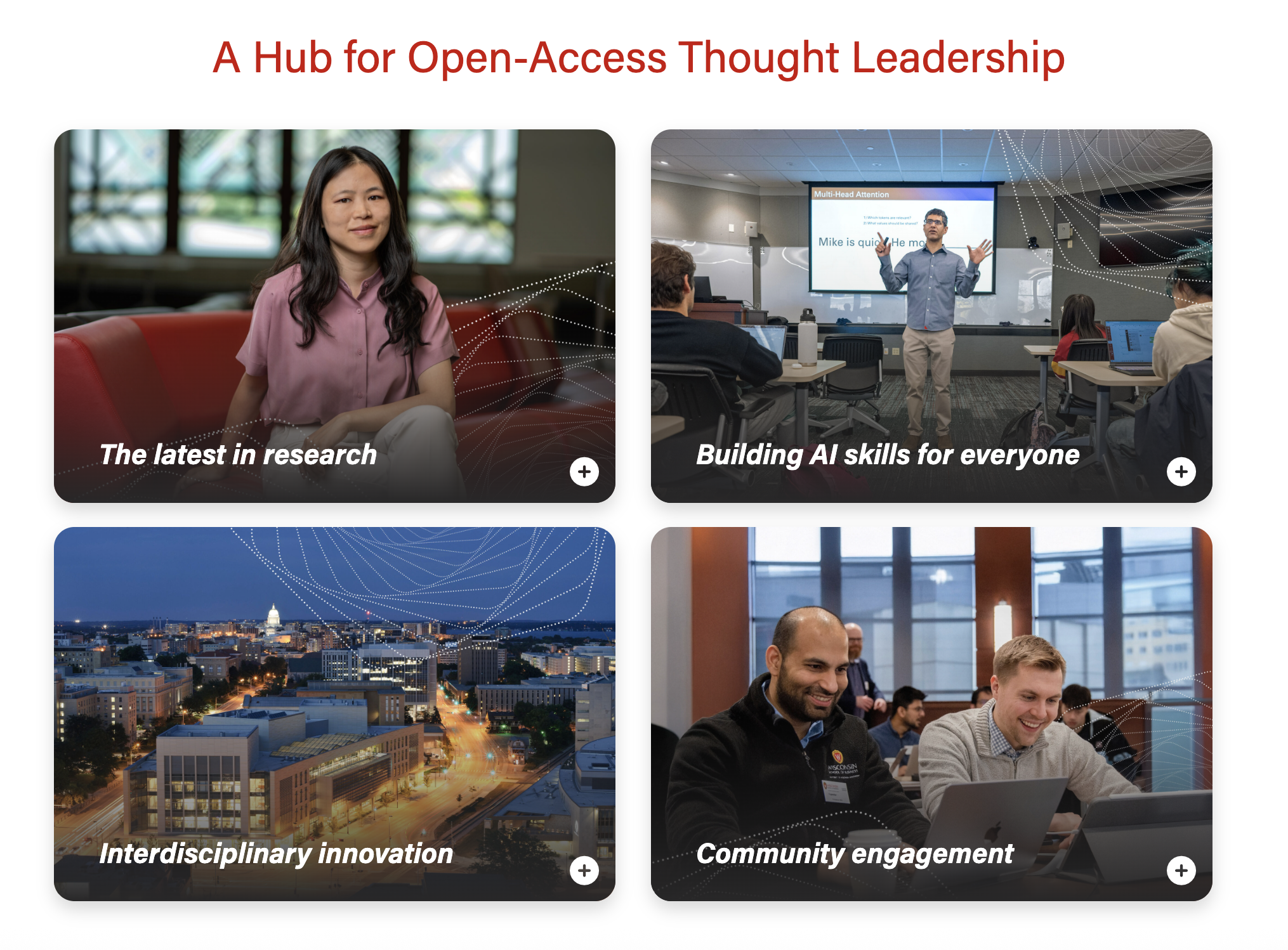
Modal popup
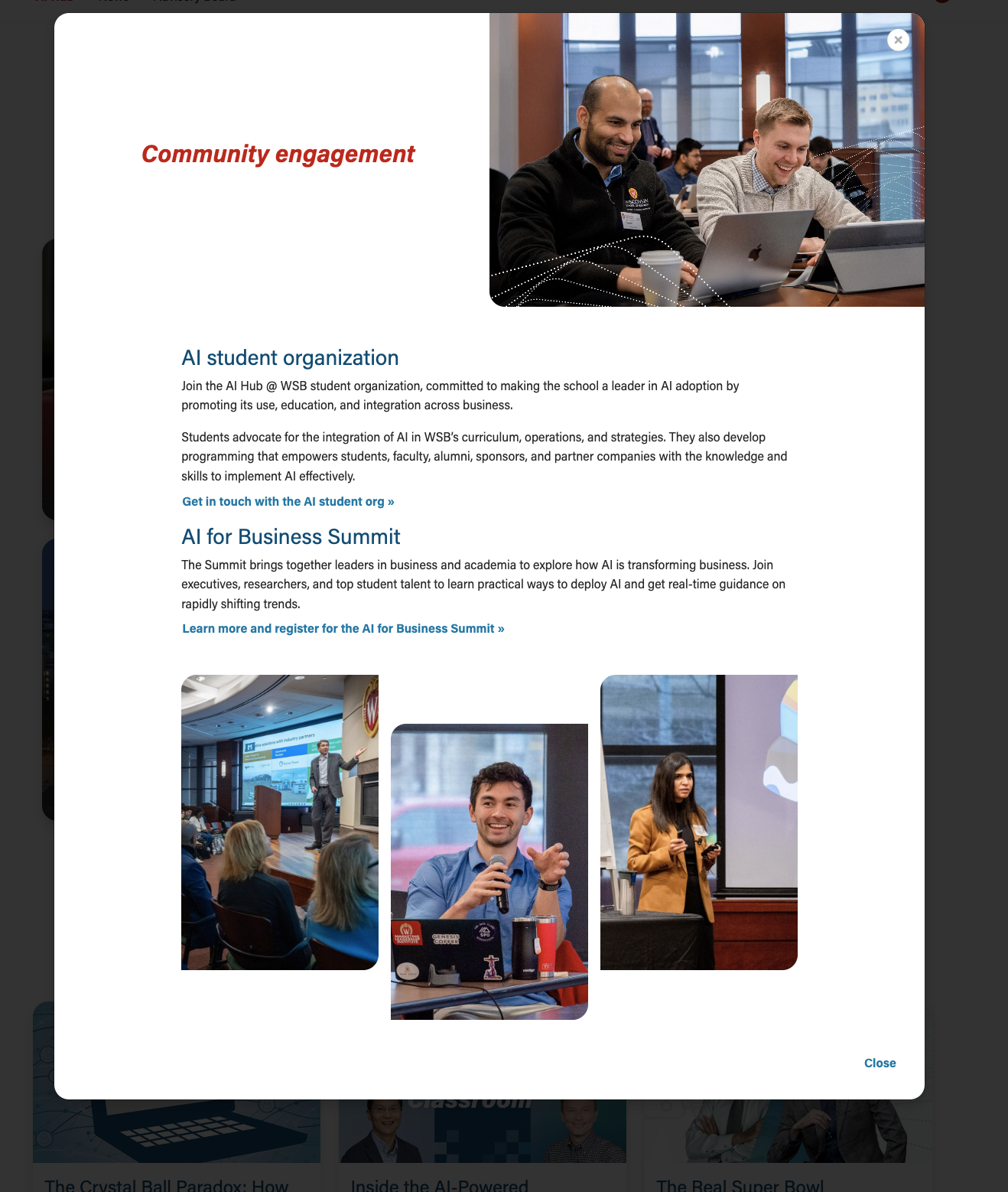
Also known as: card with popup
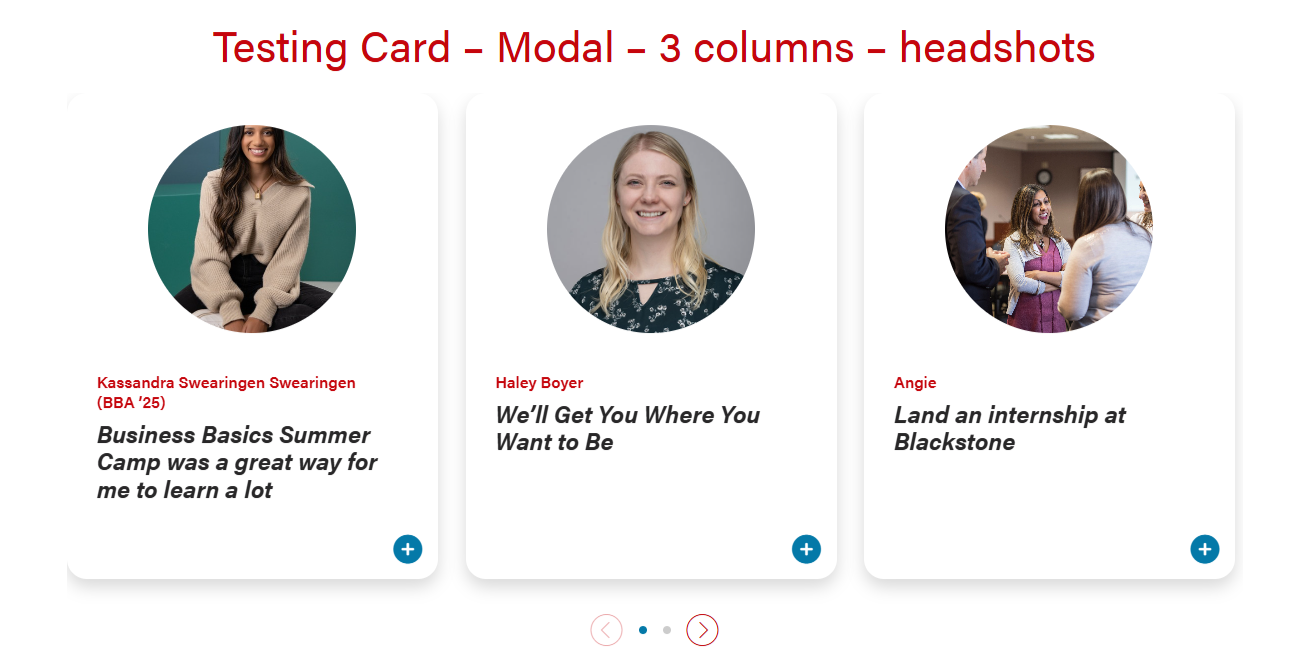
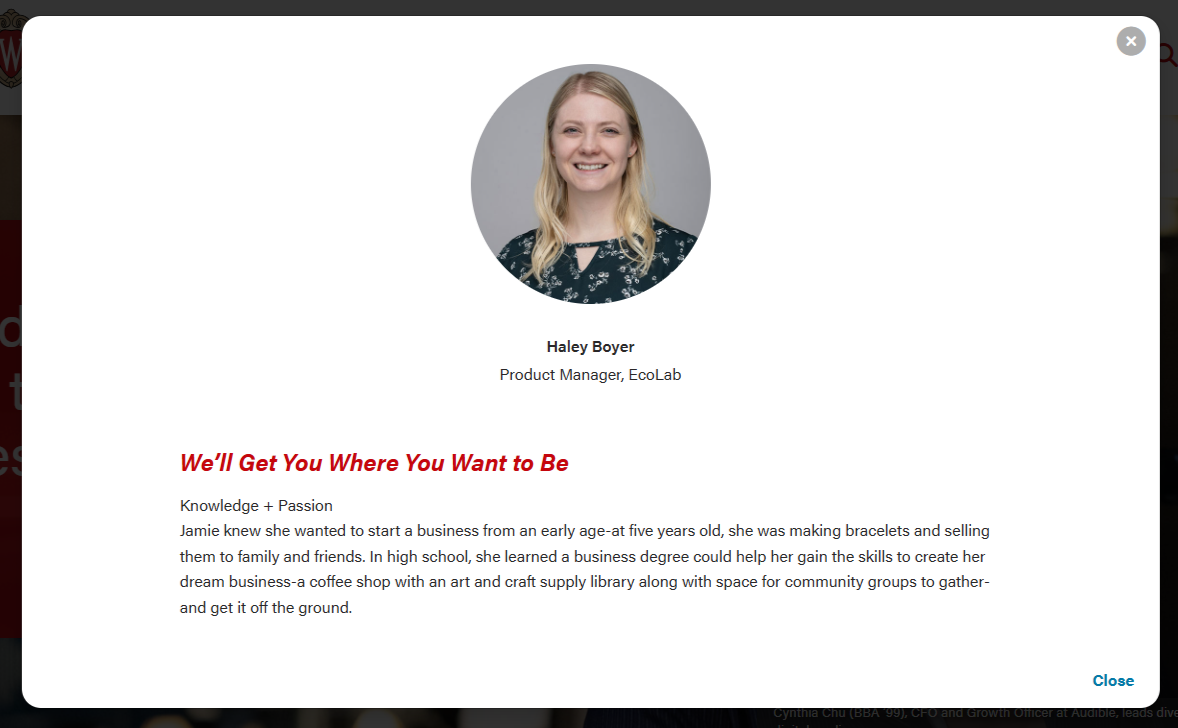
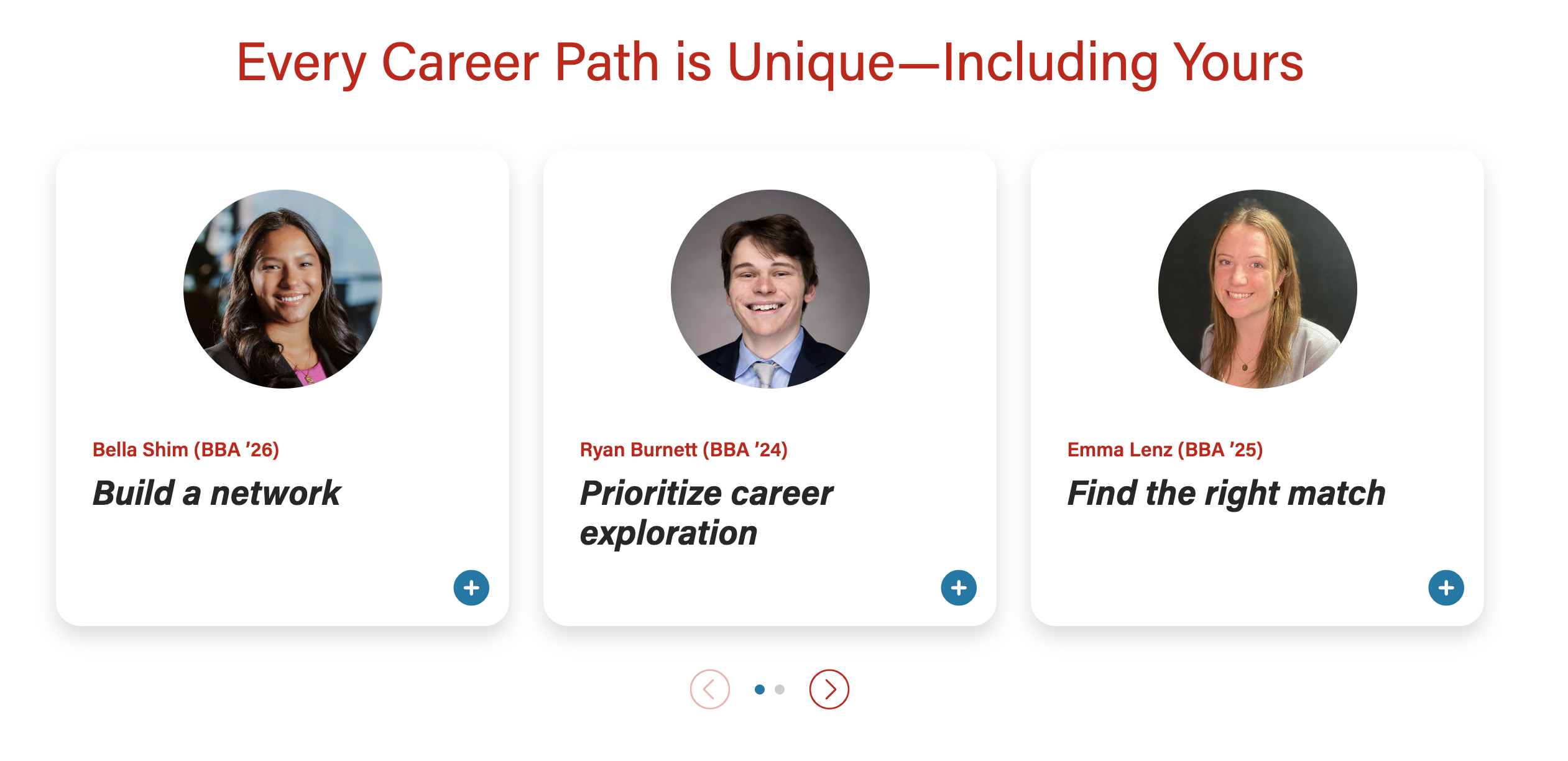
A card displaying a photo and brief teaser copy. When selected, the card opens a modal popup with more details about the topic or person.
Example 1 - Cards with headshots
| Modal popup
|
Example 2 - Cards with environmental or portrait photos
| Modal popup
|
Limit the amount of copy in the cards, since more detail will be shown in the modal.
Variations (more screenshots showing additional features)
ACF Fields
Other technical details we already include
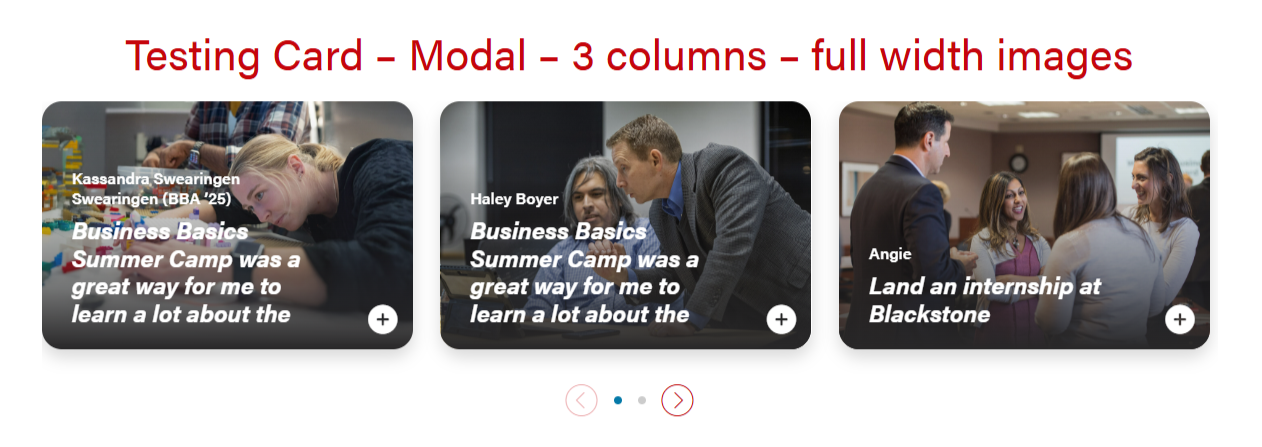
Card with full-width or circle headshot images that can open into a modal for more information. There are options for 1, 2, or 3 columns.
There is an open modal button on the lower right corner of the cards that can be a stretch link. There are two modal close buttons in the modal popups (upper right corner and bottom right corner).
| Examples of full-width and headshot modal cards and 1, 2, 3 columns | |
|---|---|
|
|
| 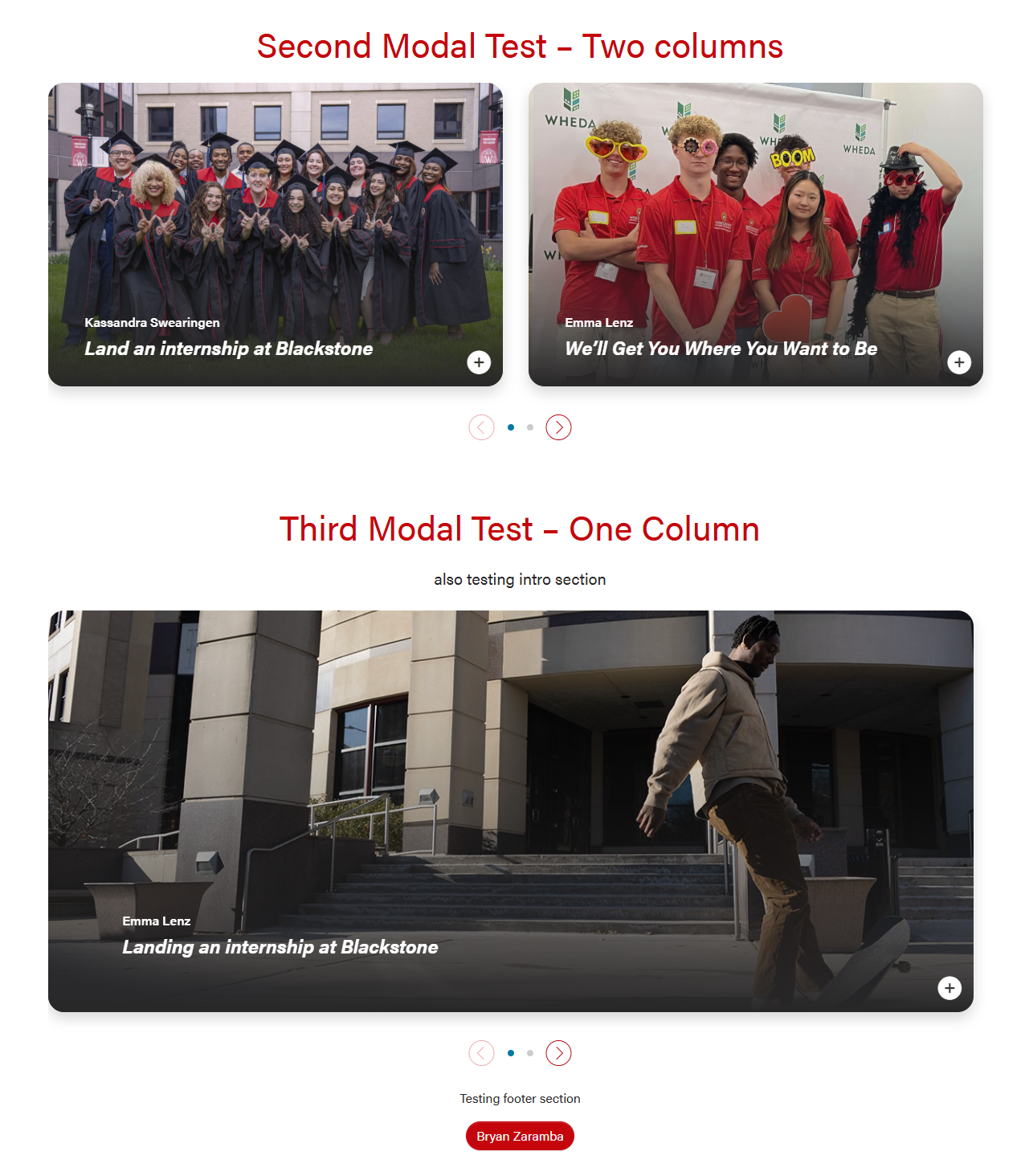 |
Default Modal style. The header will be 50/50 for desktop and tablet, and full-width for mobile.
| Modal for circle crop headshot. The layout will be the same in desktop, tablet, and mobile.
|
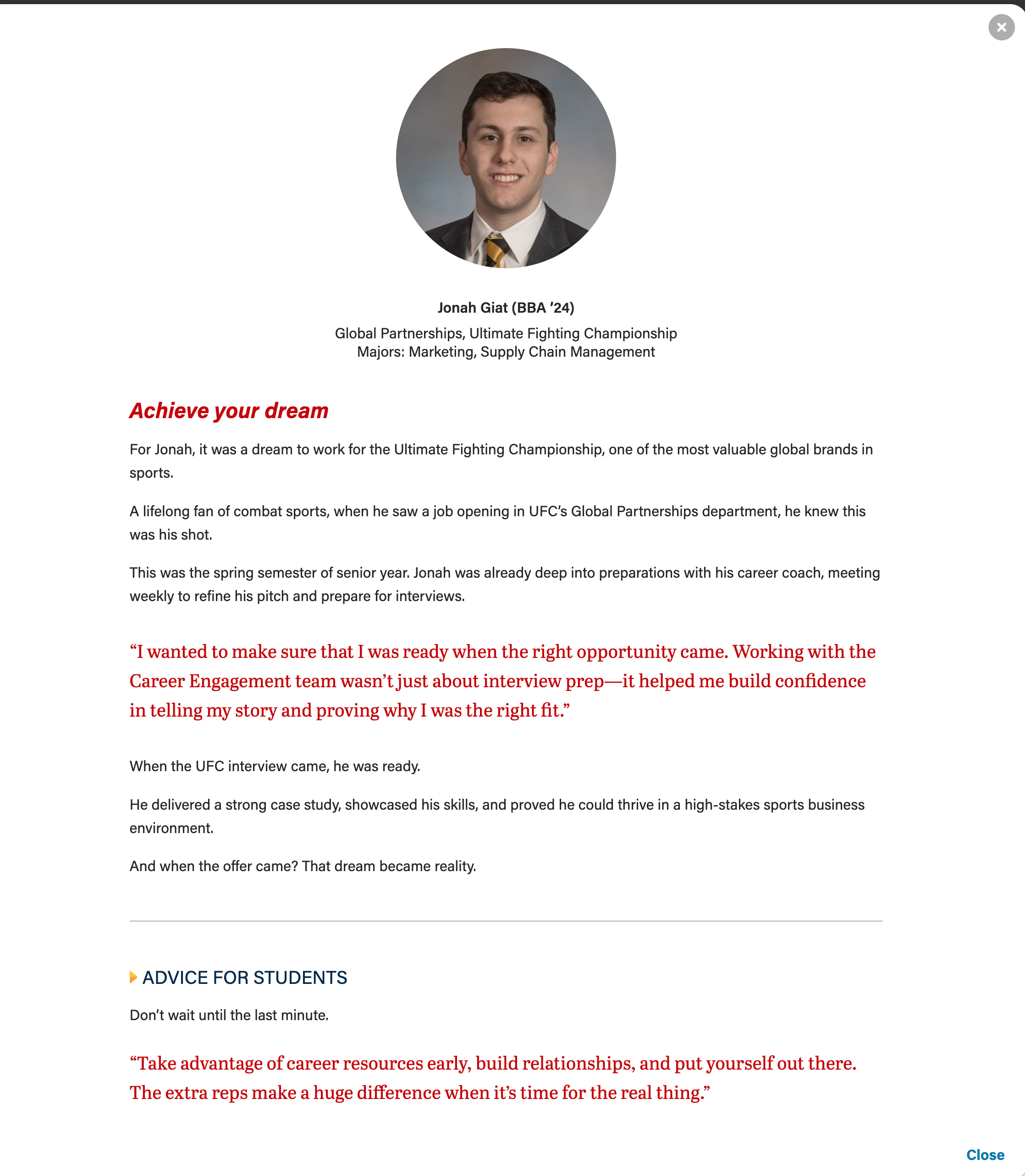
Modal with full-width image. Text overlaps image, with a dark gradient for contrast. Mobile/tablet sizes just have smaller text.
| |
Limit the amount of copy in the cards, since more detail can be shown in the modal.
Modal content is added in a WYSIWYG field, so you'll need to add HTML elements with classes for styling. Copy the code below for the content you need:
Modal with pullquote, horizontal rule <hr>, and microtitle styling for last subhead |
|---|
These styles can be used on any heading level.
<h3 class="microtitle mb-3"><img class="microtitle-arrow" alt="" src="/wp-content/uploads/2024/10/Two-toned-yellow-arrow-digital-100x164-1.png" width="9" height="15" aria-hidden="true" /> Subheading</h3> |
<hr class="hr-gray my-5" /> |
Can adjust or remove "my-4" class if needed. Author and cite elements are optional.
<figure class="wsb-pullquote mx-0 my-4">
    <p class="quote">add quote here</p>
    <p class="author"><cite> add speaker name here</cite></p>
</figure> |

Just add the "career-points" class to any ul to get this styling.
<ul class="career-points"> <li>Point 1</li> <li>Point 2</li> <li>Point 3</li> </ul> |

Where it says <img />, just use the Add Media button and add whatever photo you like. You do not need to edit the default classes wordpress adds.
Don't skip the divider element! If you forget it, the image won't appear.
<div class="name-title-company"> <div class="text-wrapper"> <p> <span class="name">Name</span> Title/Company Location </p> </div> <div class="divider"></div> <div class="image-wrapper"> <img /> </div> </div> |

<div class="modal-image-text image-right"> <div class="image-wrapper"> <img /> </div> <div class="text-wrapper"> <p>Text Here.</p> <p>Second paragraph.</p> </div> </div> |
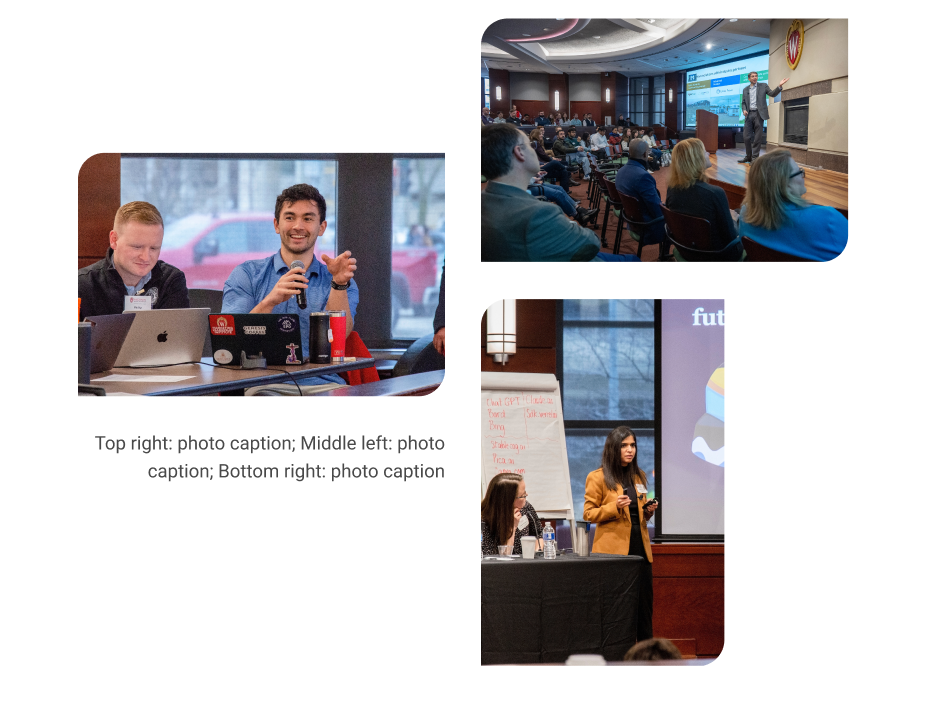
Staggered image collage
| Mixed image collage
|
|---|
	<div class="staggered-wrapper mt-5">
		<div class="staggered-image-one image-one">
			<img decoding="async" class="image" src="" alt="" aria-describedby="staggered-collage-caption">
		</div>
		<div class="staggered-image-two image-two">
			<img decoding="async" class="image" src="" alt="" aria-describedby="staggered-collage-caption">
		</div>
		<div class="staggered-image-three image-three">
			<img decoding="async" class="image" src="" alt="" aria-describedby="staggered-collage-caption">
		</div>
		<div class="caption" id="staggered-collage-caption">
      		<p class="mobile-caption mt-0">Mobile Caption</p>
      		<p class="desktop-caption mt-1 text-center">Desktop Caption</p>
   		</div>
</div> |
<div class="staggered-wrapper mt-5 mb-0 pb-0"> <div class="staggered-image-one image-one"> <img decoding="async" class="image" src="" alt=""> </div> <div class="staggered-image-two image-two"> <img decoding="async" class="image" src="" alt=""> </div> <div class="staggered-image-three image-three"> <img decoding="async" class="image" src="" alt=""> </div> </div> </div> |
<div class="mixed-layout-collage">
   <div class="image-one">
      <img decoding="async" class="image brand-border-radius" src="" alt="" aria-describedby="mixed-collage-caption">
   </div>
   <div class="image-two">
      <img decoding="async" class="image brand-border-radius" src="" alt="" aria-describedby="mixed-collage-caption">
   </div>
    <div class="caption" id="mixed-collage-caption">
      <p class="mobile-caption pt-2">Mobile Caption</p>
      <p class="desktop-caption text-end">Desktop Caption</p>
   </div>
   <div class="image-three">
      <img decoding="async" class="image brand-border-radius" src="" alt="" aria-describedby="mixed-collage-caption">
   </div>
</div> |
<div class="mixed-layout-collage">
   <div class="image-one">
      <img decoding="async" class="image brand-border-radius" src="" alt="">
   </div>
   <div class="image-two">
      <img decoding="async" class="image brand-border-radius" src="" alt="">
   </div>
   <div class="image-three">
      <img decoding="async" class="image brand-border-radius" src="" alt="">
   </div>
</div> |