Also known as: card with popup
A card displaying a photo and brief teaser copy. When selected, the card opens a modal (popup) with more details about the topic or person.
Examples
Example 1 - Cards with headshotsSource: BBA Careers 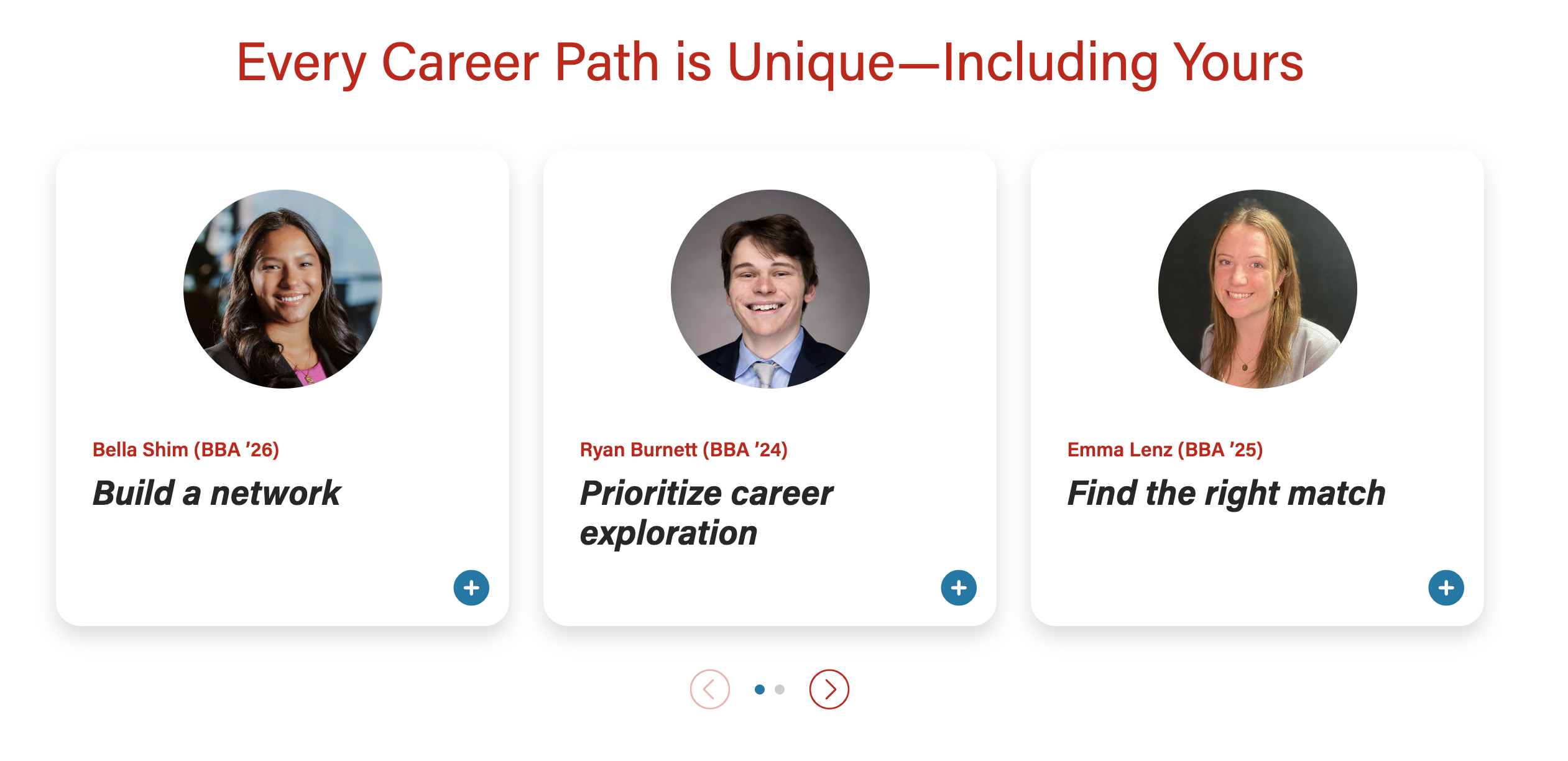
| Example 1 - Modal open 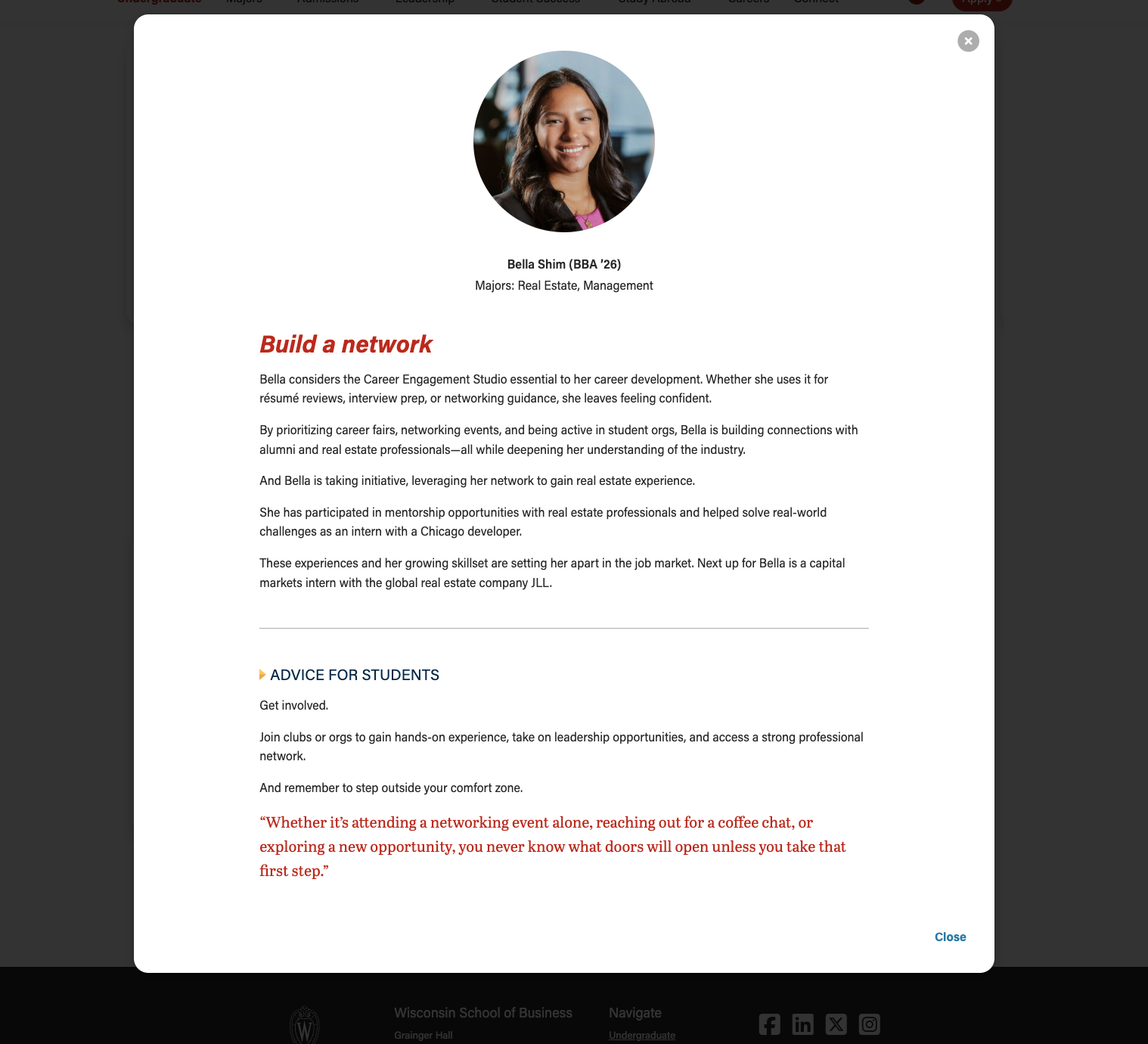
|
Example 2 - Cards with environmental or portrait photosSource: AI Hub 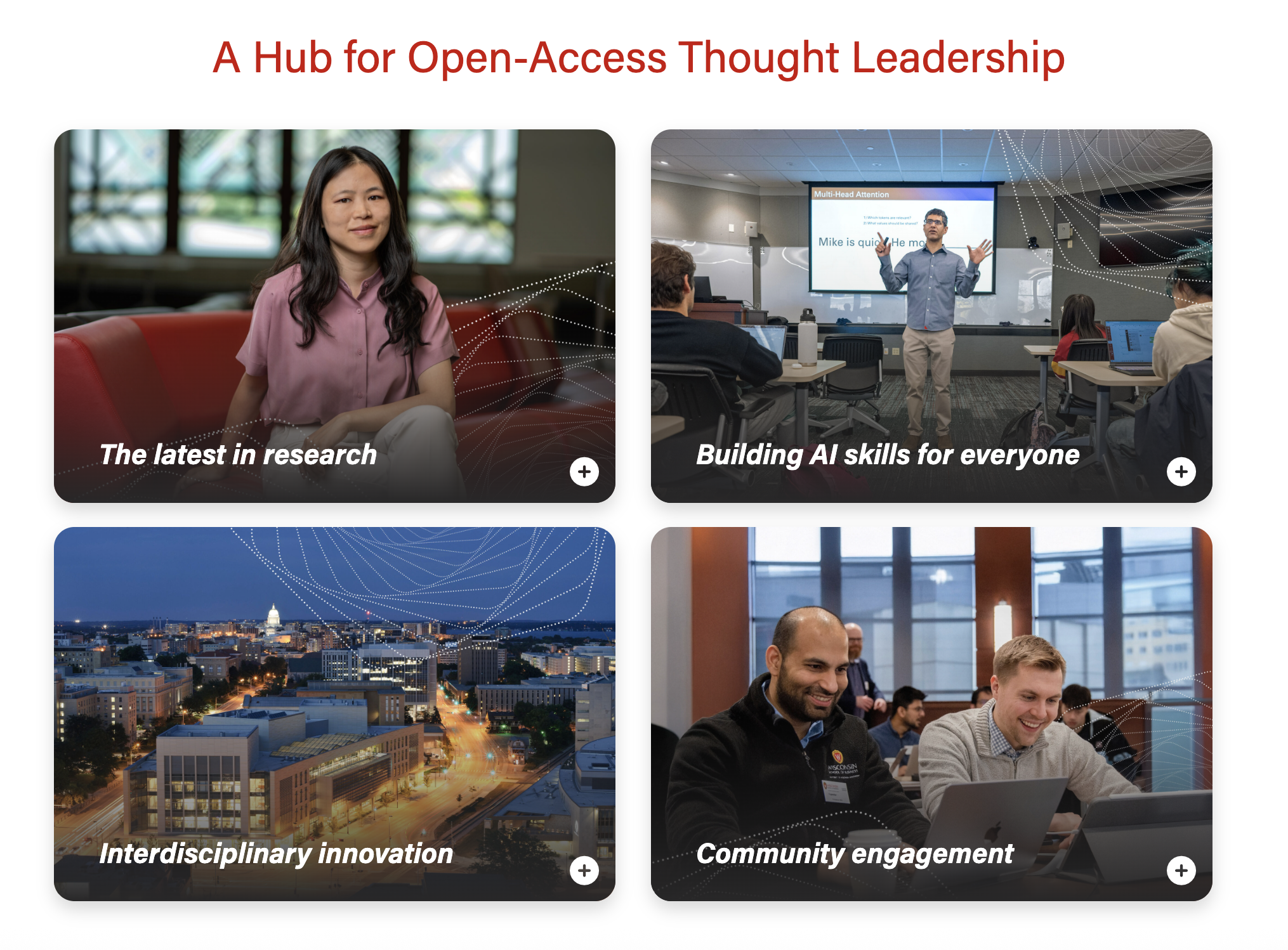
| Example 2 - Modal open 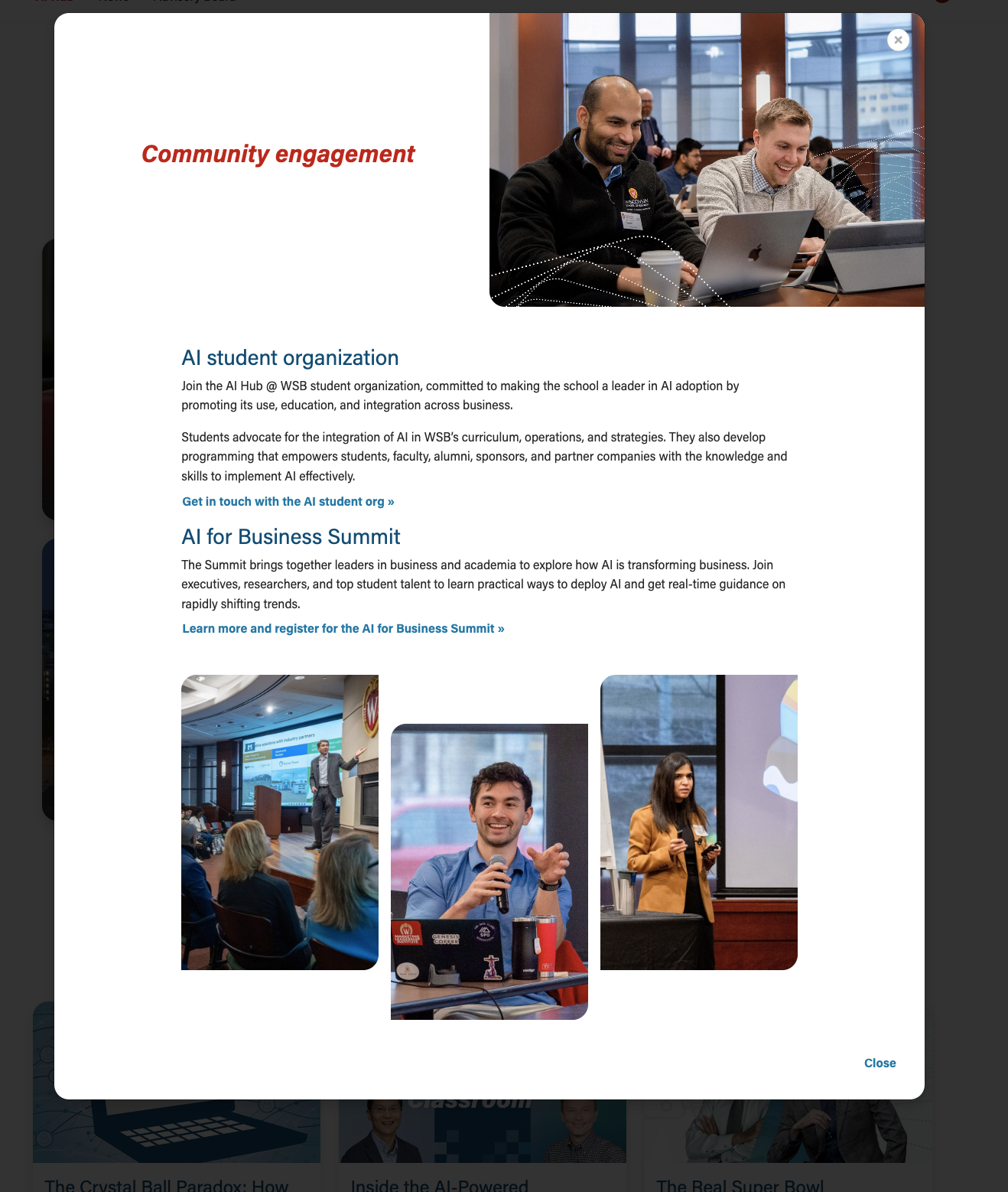
|
Use When
- Storytelling; sharing a person's profile or career background (examples: BBA Careers, Companies and Recruiters)
- A single card can display multiple details or subtopics for a single topic (example: AI Hub page)
- You have content to fill at least 2 cards and their modals (this component doesn't look as nice when there is only one card)
- This component works great when you have varying amounts of details for each topic. (e.g. when you have 2 detail paragraphs for topic A and 4 paragraphs for topic B)
- There needs to be enough quality content such that interacting with the modal feels worthwhile to the user.
- Don't just fill the modal with fluff to try to make this component work. If it is a struggle to create enough content for each of the cards, consider using a different component with less copy and/or organizing the content differently.
Editorial Guidelines
For the cards
For the modals
Modal header
- Microtitle (optional)
- Card microtitle can be displayed here or hidden
- Title (required)
- Card title can be displayed here or overridden with a slightly longer title
- Character limit: 50 characters
- Supporting detail (optional)
- Brief copy to display job titles, company, and/or majors
- Character limit: 100 characters
Modal body
- No character limit, but keep the length within reason. Typically, modal content spans 3 to 6 short paragraphs.
- Follow web best practices for keeping content easy to digest and scannable
- Use subheadings if you include more than 2 paragraphs
- We can include a variety of content here, such as:
- paragraphs
- pullquotes
- supporting images
- photo collages
- an embedded YouTube video
Design + Images
Card photo (required)
- Circle crop photo
- Square photo with face centered; use a headshot or another type of photo where the person is facing the camera
- 500x500px or 1000x1000px
- Full-width photo
- Standard horizontal photo; use a portrait or environmental shot
- Face should be in top 1/3 of image so it doesn't get covered by text at the bottom
- We can add vertical images to make the cards taller, if desired. But all photos for cards in the same row/block should have the same dimensions.
Modal header photo (optional)
- If the card photo will not work for the modal header photo, we can add an override for the modal
- Use case: You have a great, zoomed out shot of a professor teaching a class that works well in the modal header. But a different, zoomed-in shot works better for the card.
- Match the specs for the card photo provided.
- Note that this photo should be similar to the card photo (same person, similar pose, same outfit) so we don't cause user confusion. A similar photo will reassure the user that they opened the content and are seeing something they expect to see.
Modal supporting images (optional)
- We have a lot of layout flexibility in the modal body. Work with a web developer if you have a layout idea that you don't see below.
Company Logo

DEV NOTES
* Where it says <img />, just use the Add Media button and add whatever photo you need.
* You do not need to edit the default classes WordPress adds to the image.
* Don't skip the divider element! If you forget it, the image won't appear.

CODE
<div class="name-title-company">
   	<div class="text-wrapper">
		<p>
			<span class="name">Name</span>
   			Title/Company
   			Location
		</p>
	</div>
   	<div class="divider"></div>
   	<div class="image-wrapper">
		<img />
	</div>
</div> |
Image beside text
- Image can be on right or left side
- (optional) Text can be styled as a quote
- Text can include multiple paragraphs next to a larger image
- Layout created for T2L4

DEV NOTES
* The "image-right" class can be removed if you want the image on the left instead.
* Where it says <img />, just use the Add Media button and add whatever photo you need.
* You do not need to edit the default classes WordPress adds to the image.
* Make sure to include <p> tags around any text.
* Add the "modal-quote" class if you want quote styling like in the photo above: <p class="modal-quote">

CODE
<div class="modal-image-text image-right">
	<div class="image-wrapper">
		<img />
	</div>
	<div class="text-wrapper">
		<p>Text Here.</p>
		<p>Second paragraph.</p>
	</div>
</div> |
Staggered image collage
- Requires 3 vertical photos.
- Recommended size: 700x1000px
Detailed view Source: AI Hub 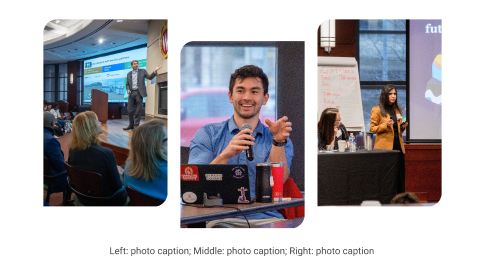
| Within modal 
|
DEV NOTES
* Images two and three are hidden for mobile screens.
* Can use a single caption for all three images for desktop. The mobile caption should just be for image one, since the others are not visible at that point.

CODE - WITH CAPTION
	<div class="staggered-wrapper mt-5">
		<div class="staggered-image-one image-one">
			<img decoding="async" class="image" src="" alt="" aria-describedby="staggered-collage-caption">
		</div>
		<div class="staggered-image-two image-two">
			<img decoding="async" class="image" src="" alt="" aria-describedby="staggered-collage-caption">
		</div>
		<div class="staggered-image-three image-three">
			<img decoding="async" class="image" src="" alt="" aria-describedby="staggered-collage-caption">
		</div>
		<div class="caption" id="staggered-collage-caption">
      		<p class="mobile-caption mt-0">Mobile Caption</p>
      		<p class="desktop-caption mt-1 text-center">Desktop Caption</p>
   		</div>
 	</div>


CODE - NO CAPTION
	<div class="staggered-wrapper mt-5 mb-0 pb-0">
		<div class="staggered-image-one image-one">
			<img decoding="async" class="image" src="" alt="">
		</div>
		<div class="staggered-image-two image-two">
			<img decoding="async" class="image" src="" alt="">
		</div>
		<div class="staggered-image-three image-three">
			<img decoding="async" class="image" src="" alt="">
		</div>
</div> |
Mixed image collage
- Requires 3 images; 2 horizontal and 1 vertical
- Horizontal image specs: 2400x1600px, smaller images with the same aspect ratio will also work, such as 512x341px or 1024x682px
- Vertical image specs: 512x768px
Detailed view 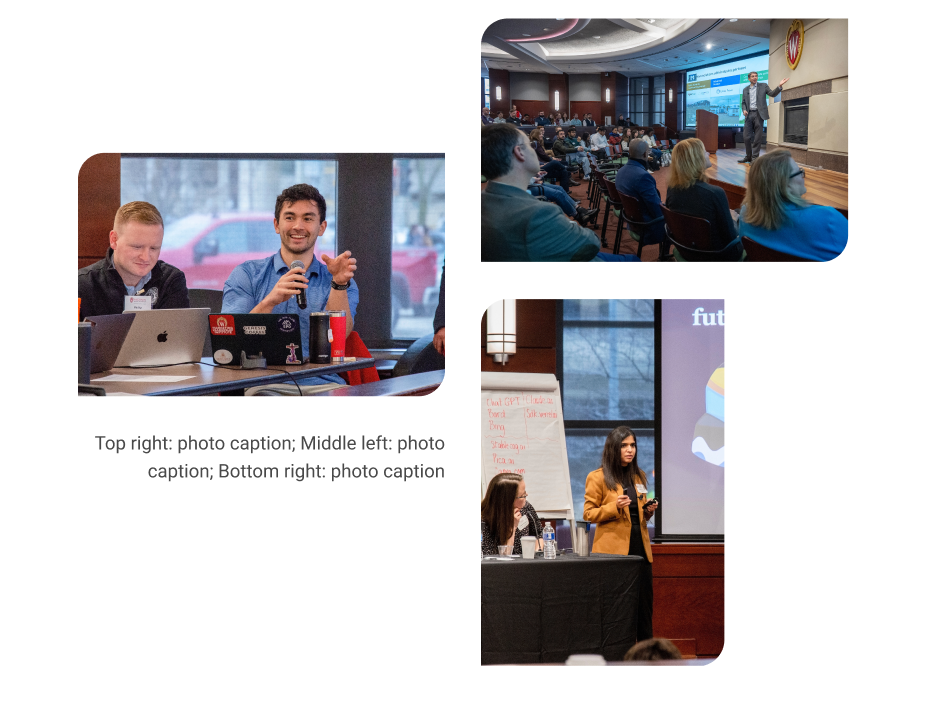
| Within modal 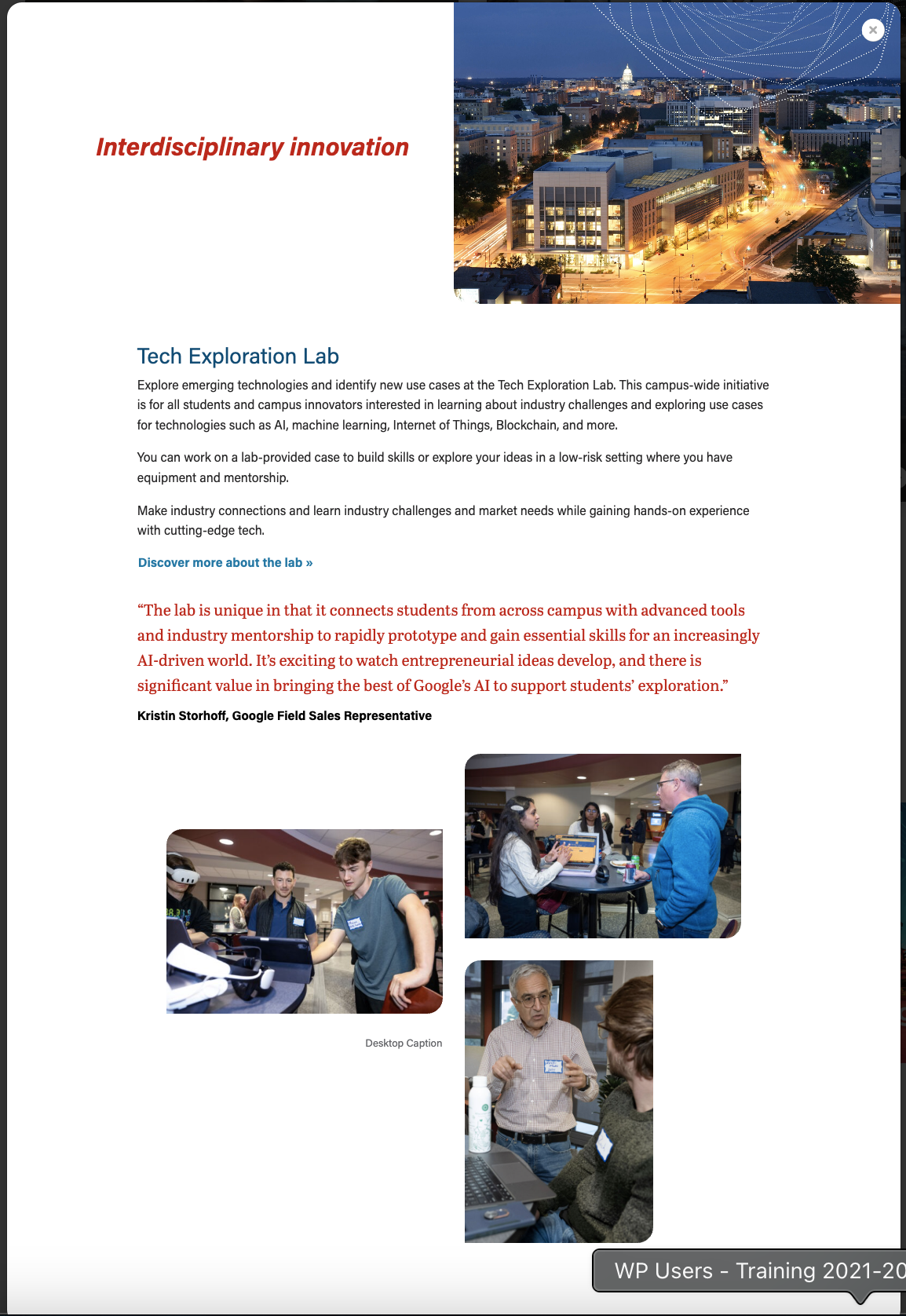
|
DEV NOTES
* Image one and two must be horizontal, image three vertical
* Image two and three are hidden for mobile screens.
* Can use a single caption for all three images for desktop. The mobile caption should just be for image one, since the others are not visible at that point.

CODE - WITH CAPTION
<div class="mixed-layout-collage">
   <div class="image-one">
      <img decoding="async" class="image brand-border-radius" src="" alt="" aria-describedby="mixed-collage-caption">
   </div>
   <div class="image-two">
      <img decoding="async" class="image brand-border-radius" src="" alt="" aria-describedby="mixed-collage-caption">
   </div>
    <div class="caption" id="mixed-collage-caption">
      <p class="mobile-caption pt-2">Mobile Caption</p>
      <p class="desktop-caption text-end">Desktop Caption</p>
   </div>
   <div class="image-three">
      <img decoding="async" class="image brand-border-radius" src="" alt="" aria-describedby="mixed-collage-caption">
   </div>
</div>

CODE - NO CAPTION
<div class="mixed-layout-collage">
   <div class="image-one">
      <img decoding="async" class="image brand-border-radius" src="" alt="">
   </div>
   <div class="image-two">
      <img decoding="async" class="image brand-border-radius" src="" alt="">
   </div>
   <div class="image-three">
      <img decoding="async" class="image brand-border-radius" src="" alt="">
   </div>
</div> |
Implementation (in progress)
Variations
- Cards can be stacked or in a swiper
- When card images are full-width, the modal header can have a 50/50 or full-width image
Modal with full-width image – text sits on the image, with a dark gradient overlay for contrast. 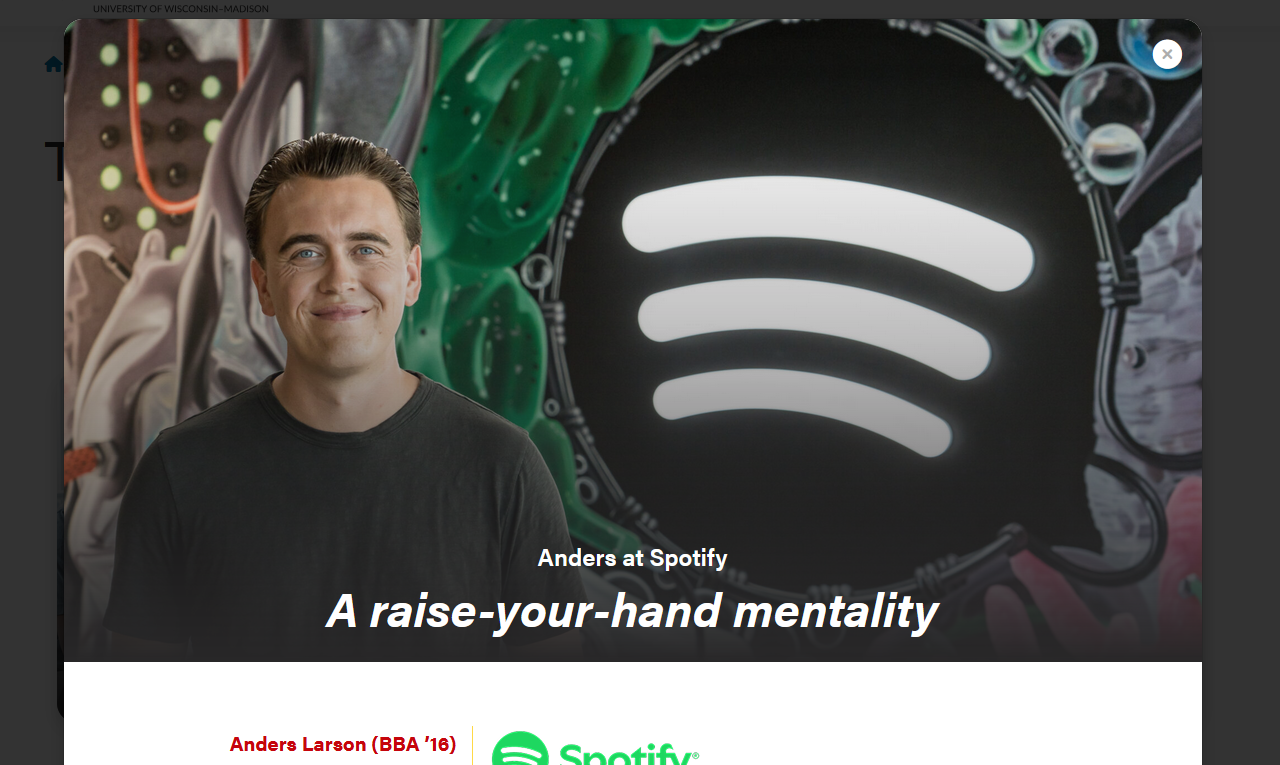
|
Additional modal text content options:
- pullquote
- gray horizontal rule
- microtitle (yellow triangle, subhead styled as all caps and dark blue)
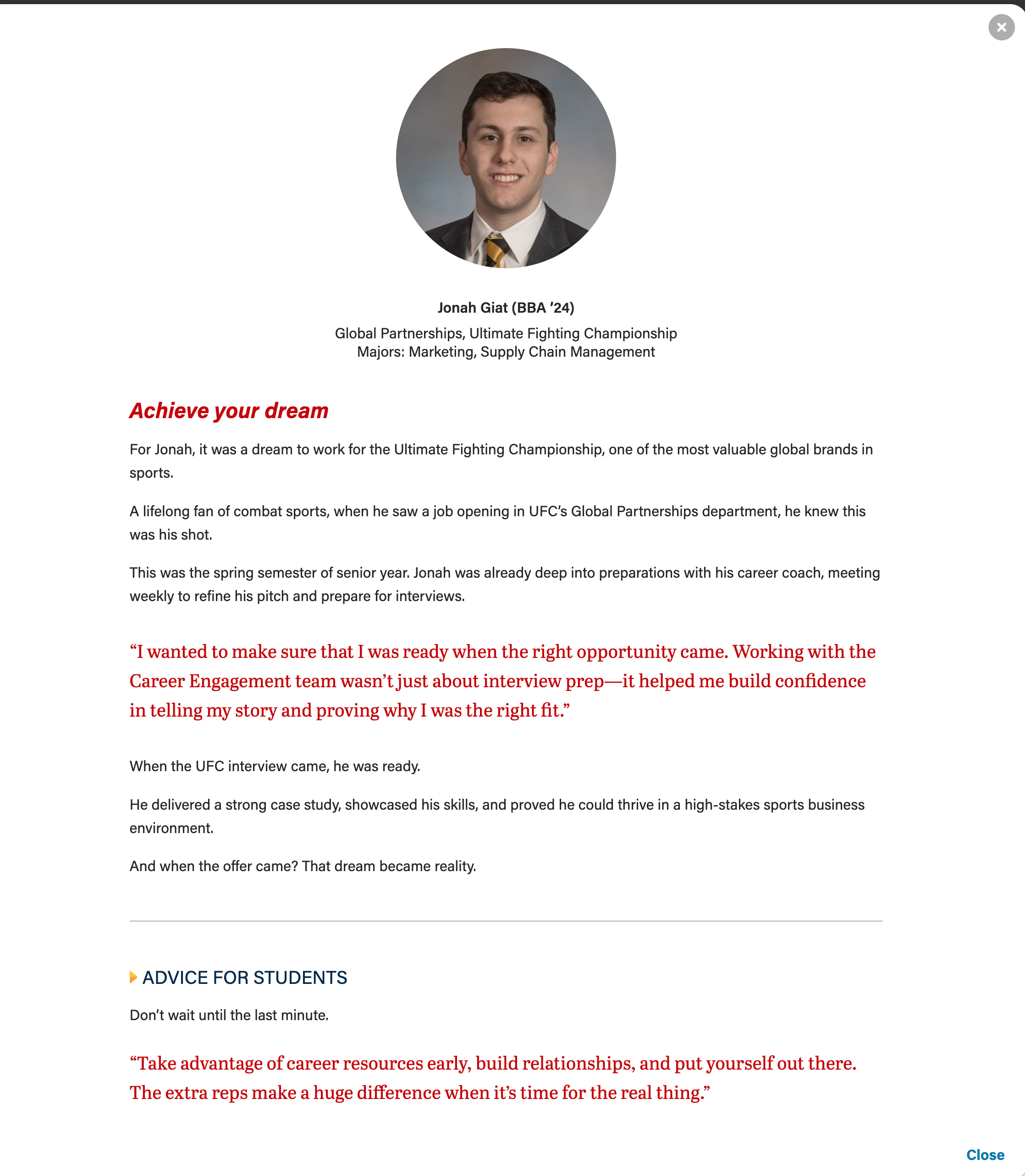
|
ACF Fields
Card
Remind writer/strategist to limit the amount of copy in the cards, since more detail can be shown in the modal. This is especially true for the full-width photo layout, since we don't want the copy to wrap and be so tall it covers faces in the card photos.
- Microtitle (optional) - Keep this short.
- This content will display in the modal header by default. Set the "Display card microtitle in modal header?" field to "no" if you want to hide it in the modal
- Title (required) - This field must have content so the card has an html heading
- This content will display in the modal header by default. Add content to the "Modal Title Override" field to replace it.
- Card Supporting Copy (optional) - Used sparingly.
- Use this field OR the microtitle field, especially for cards with full-width background images.
- This content will not be displayed in the modal
- Card Image
- For circle crop - face must be centered in a square photo
- For full-width image - face should be in top 1/3 of the image
- If using a vertical photo for the card, you will need to add a horizontal version to the modal image override field for the image to display correctly at the top of the modal.
- Crop image to circle? - use for square images, including headshots
Modal Popup
- Display card microtitle in modal header? - true/false, pulls Microtitle subfield from Card and displays in modal above title.
- Full width image? - makes image full width inside the modal header instead of half width.
- Recommend using Modal Image Override field with this, to ensure the card image and modal image work well with each other.
- Modal Title Override - Use this to override the card title with different text for the modal header. This field can have more characters than the card title, but it's still best practice to keep the title short.
- Supporting Details - WYSIWYG for job titles, company, or majors
- Modal Image Override - Use this to override the full-width card image. It is unlikely you will need this field for circle crop images.
- Modal Text - WYSIWYG for modal copy. You will need to use inline HTML and CSS classes for styles.
Configuration
- Number of columns - you can select one, two, or three columns. Three columns is the default.
- The headshot/circle crop style should only be used with two and three column layouts. (The image looks too small for a card in a single column layout)
- If you run into issues with card copy being too long, either ask the copywriter to shorten the copy or
- Stretch link? - this will make the modal open when a user selects anywhere on the card. Checked is the default.
Introduction and Footer
- These are standard sections for our custom blocks.
Code Templates for Modal Content
Modal content is added in a WYSIWYG field, so you'll need to add HTML elements with classes for styling. Copy the code below for the content you need:
Modal with pullquote, horizontal rule <hr>, and microtitle styling for last subhead
|
|---|
Microtitle styles for subheads (with yellow triangle)
These styles can be used on any heading level.
<h3 class="microtitle mb-3"><img class="microtitle-arrow" alt="" src="/wp-content/uploads/2024/10/Two-toned-yellow-arrow-digital-100x164-1.png" width="9" height="15" aria-hidden="true" /> Subheading</h3> |
Horizontal rule
<hr class="hr-gray my-5" /> |
Pull quote
Can adjust or remove "my-4" class if needed. Author and cite elements are optional.
<figure class="wsb-pullquote mx-0 my-4">
    <p class="quote">add quote here</p>
    <p class="author"><cite> add speaker name here</cite></p>
</figure> |
Career Points (for T2L4)
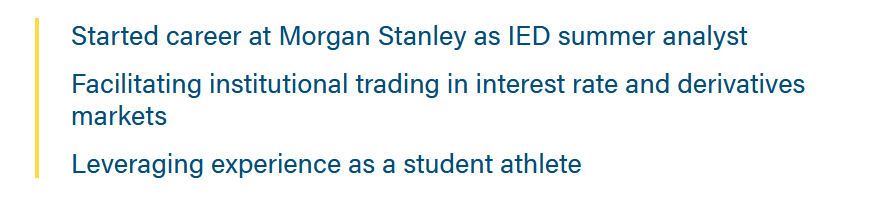
Just add the "career-points" class to any ul to get this styling.
<ul class="career-points">
 	<li>Point 1</li>
 	<li>Point 2</li>
 	<li>Point 3</li>
</ul> |
Resources
- link to component mockup in Figma