Also known as: video swiper, card swiper, social videos
A multi-purpose block that displays multiple cards/panels in a swiper. Can showcase videos, text, and/or images.
Examples
Use When
- Displaying multiple chunks of content with optional images and/or badges
- Displaying multiple videos
Editorial Guidelines
Follow our general Web Copy General Guidelines in addition to the following:
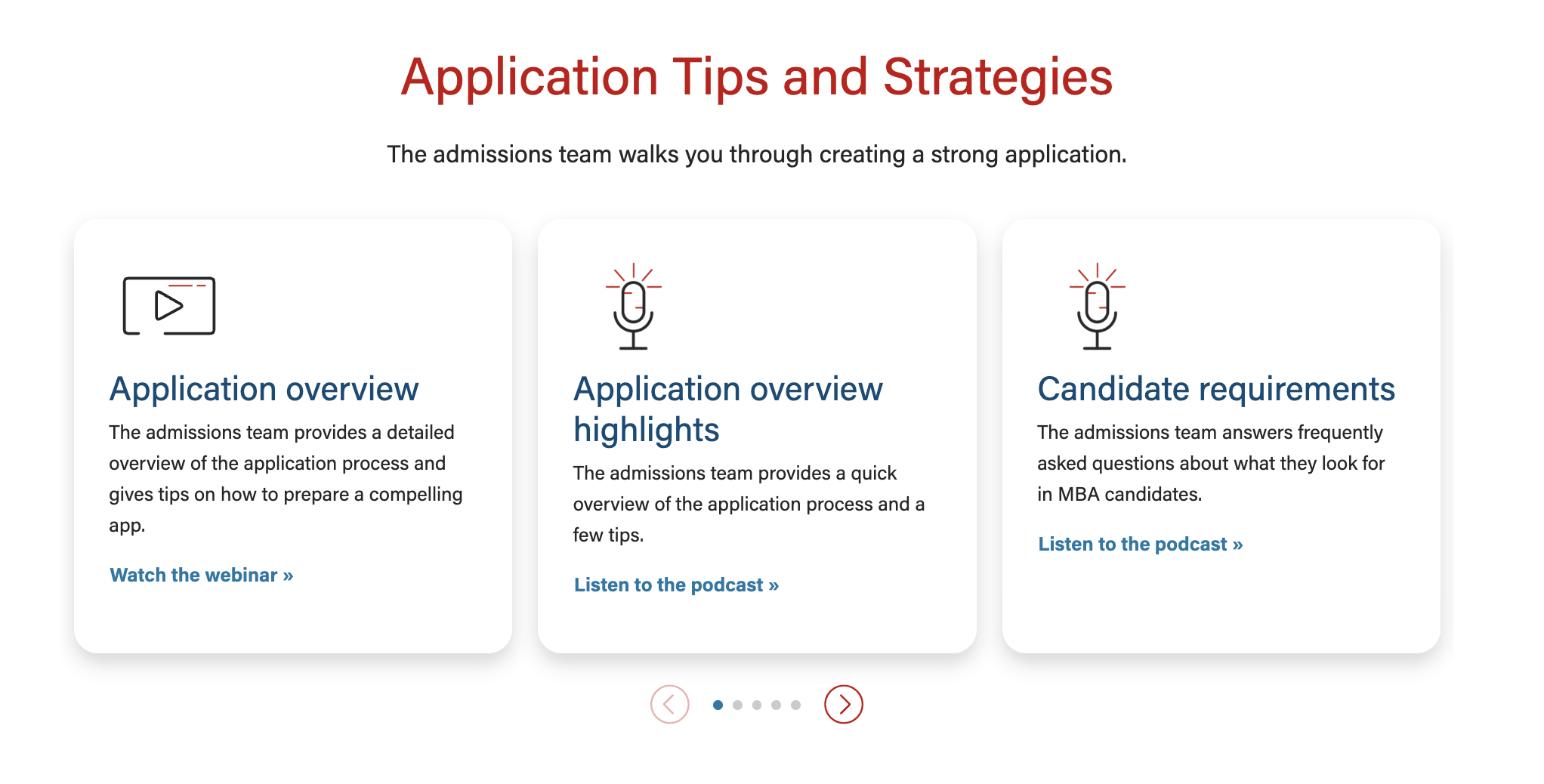
For text/image cards
- Badges (optional)
- Small navigational buttons displayed above the cards that feature a word or two to indicate the topic of each card in the swiper
- Character limit: 30 characters
- Cards must have similar amounts of copy
- Images are optional, but if one card has a photo, they all need to have a photo
- Card title (recommended)
- If using badges, the card title should match or contain the badge copy for continuity
- Card content
- Ideal length is one or two short phrases or 3-4 bullet points
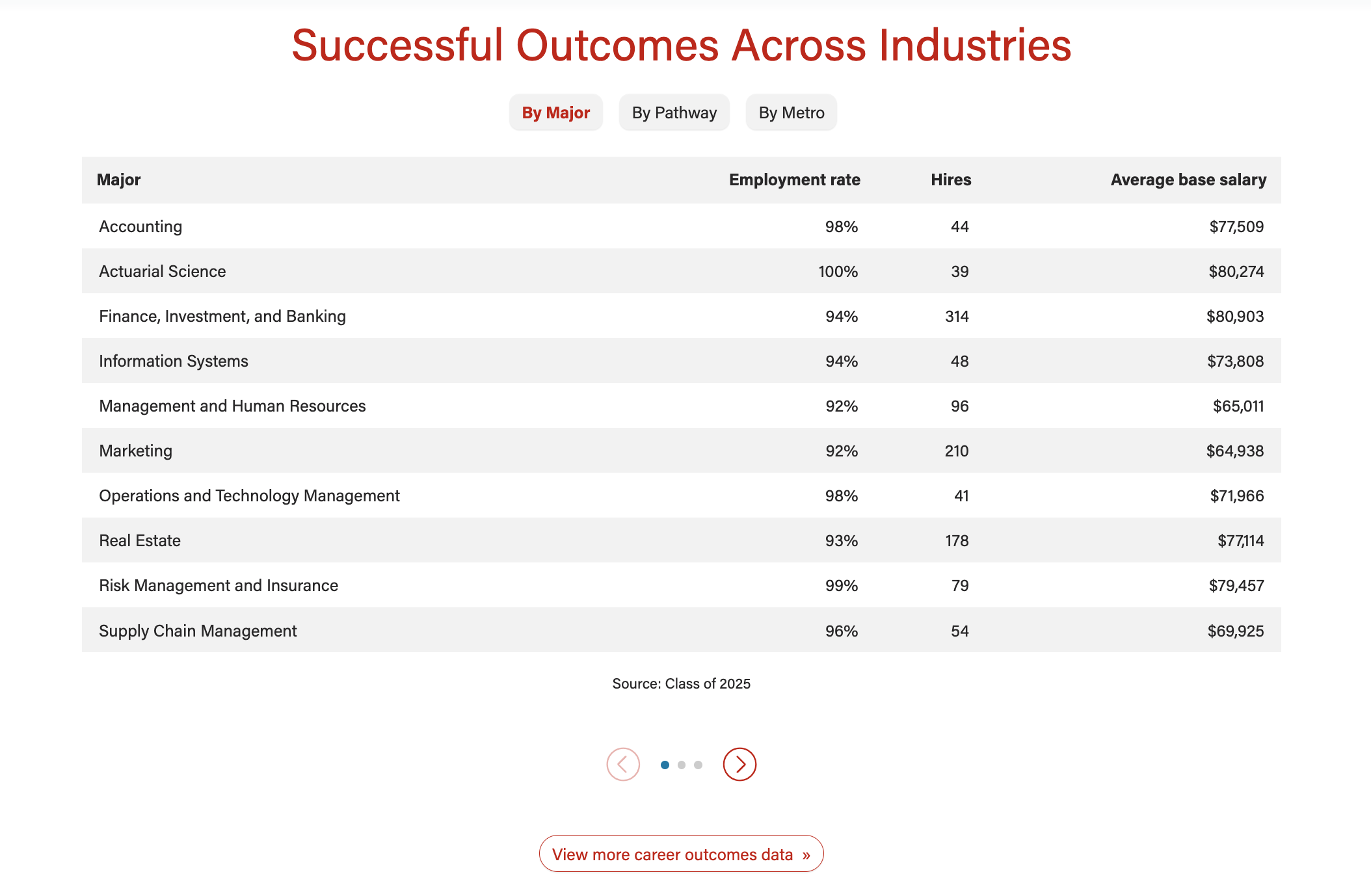
- For data tables, limit number of rows to ~10
- Card button/link (optional)
- Link text should be specific to each topic/card
For videos
- Videos must be uploaded to YouTube and captioned accurately. Share the YT link with the web developer when ready.
- Badges (optional)
- Small navigational buttons displayed above the videos that feature a word or two to indicate the topic of each video in the swiper
- Character limit: 30 characters
Traditional Videos (landscape)
- Video title (required for all videos)
- Character limit: 30 characters
- Recommend matching (or shortening) the title of the video on Youtube
- When you want the video to appear next to some copy
- Card title (required)
- If using badges, the card title should match or contain the badge copy for continuity
- Card content (optional)
- Ideal length is one or two short phrases or 3-4 bullet points
- Give users a few highlights from the video
- Card button/link (optional)
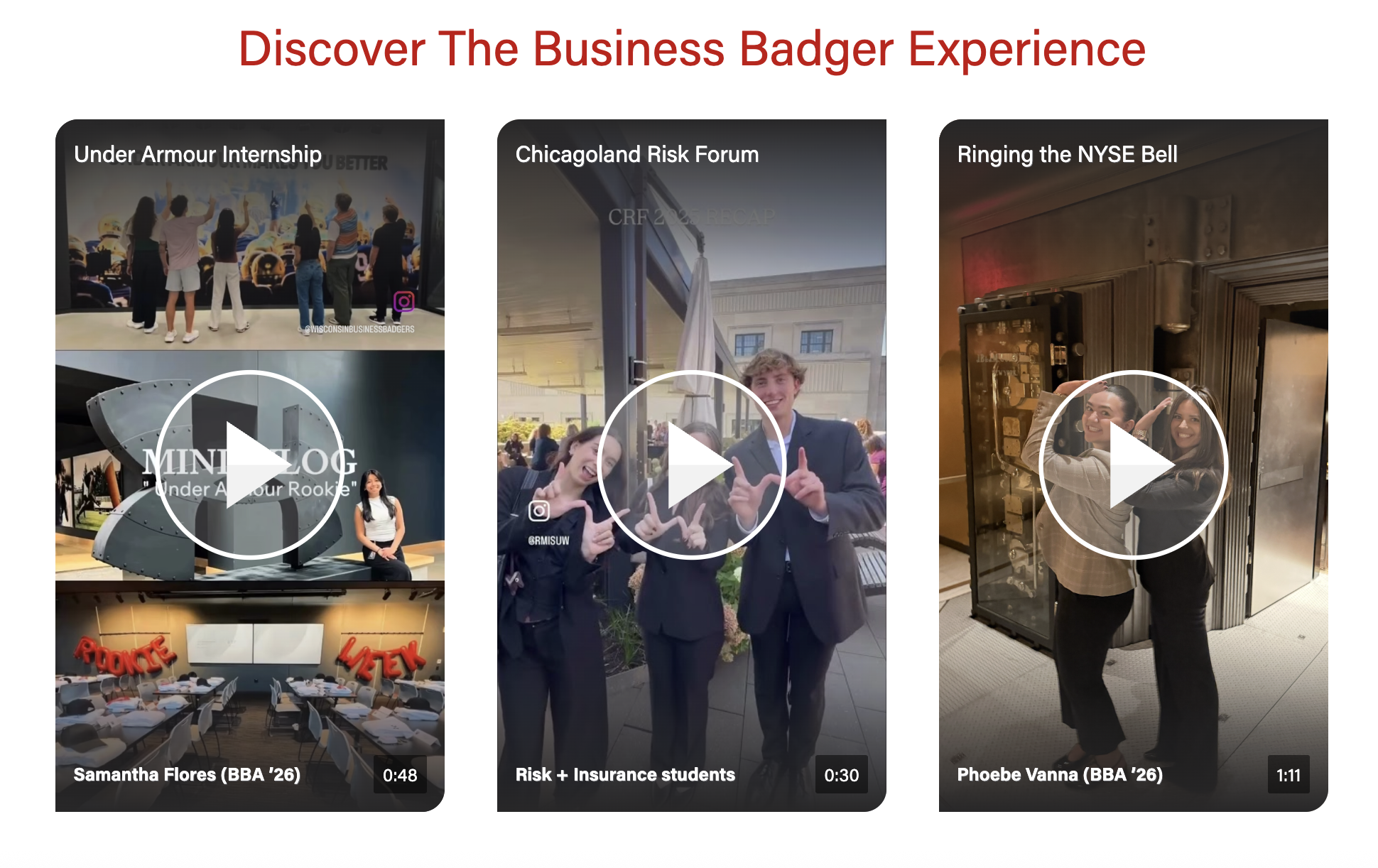
Social Videos (vertical)
- These are typically Instagram Reels uploaded as Shorts to our YouTube channel.
- Need 3 or more videos for this layout.
- Note that we cannot show a mix of content (e.g. we can't show a YT Short next to a photo with some copy)
- Video title (required for all videos)
- Character limit: 30 characters
- Recommend matching (or shortening) the title of the video on Youtube. Can move subjects name to the bottom text for length
- Bottom text (optional)
- Character limit: 30 characters
- Used to display name, grad. year, major, or other details about the video's subject(s)
Design
Images
Card image (optional)
- Photo - jpeg file; standard horizontal size
- Dimensions: 2400x1600px
- We can choose the aspect ratio for card photos, options:
- Icon - svg file
Videos
- Videos must be uploaded to YouTube.
Video cover image
- We can use the cover image from YT or upload a different one to override it
- Cover image override - jpeg
- Face should not be perfectly centered, as it will be covered by the play button. We recommend cropping so the face is in the top third of the image.
- For traditional, landscape videos
- Dimensions: 1176x662px
- Aspect ratio: 16:9
- For vertical, social videos
- Dimensions: 1170x1807px or 585x904px
- Aspect ratio: 9:16
Variations
Columns
- Choose to display 1, 2, 3, or 4 columns for desktop
- Smaller screens will automatically have fewer columns
Badges
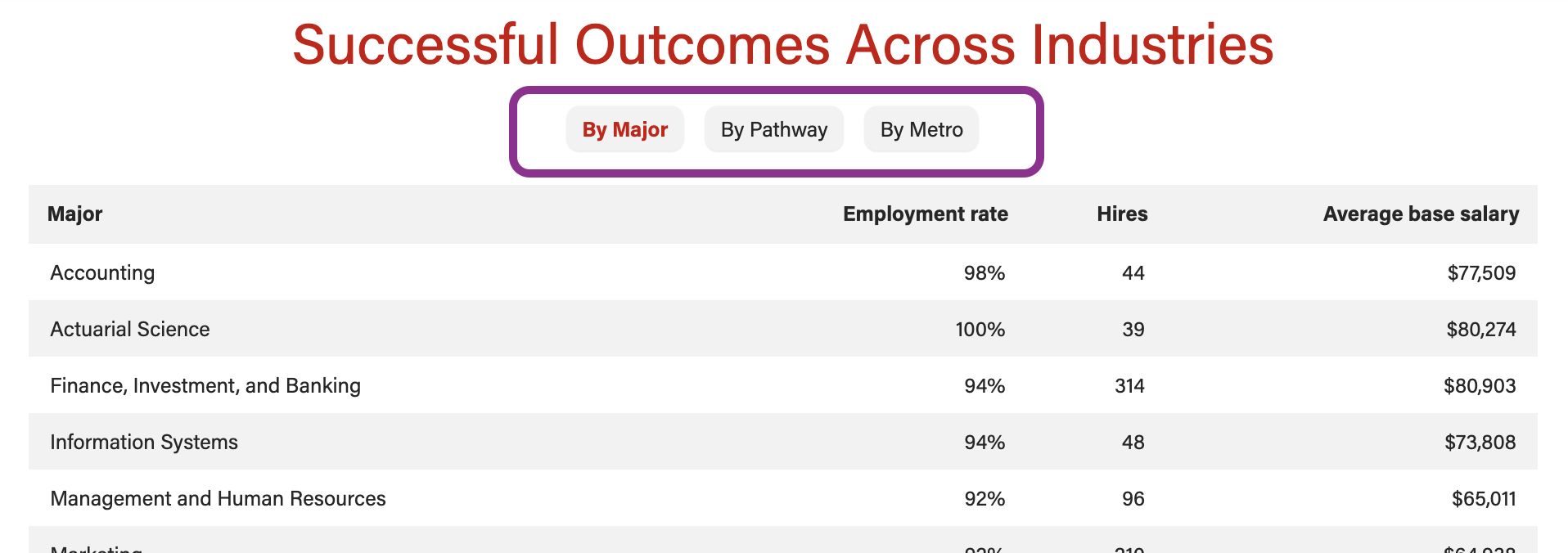
- Show users teaser text for each card in the swiper
- Badges are like small navigational buttons displayed above the swiper cards and feature a word or two
- Available for the single column layout only
- For mobile, badges can be listed out or collapsed into a dropdown
Card shadow
- Display or hide card outline and shadow
- Examples:
- Only available for text/image layout (not for videos)
Video player type
- Embed video on the page or have it open in a modal (popup window)
- Embedded video - use when a video is displayed large or for social videos
- Video modal - use when overflow layout is selected, when you want the video watching experience to have more impact, or when the video is better viewed full screen
Video layout options
Implementation
Dev Notes
- The block displays swiper arrows and creates swiping functionality when the content requires it.
- Click and drag swiping is disabled for video content on desktop.
ACF Fields
Content type
- First you will need to select the type of content from two options: text/image or video
- This block has many conditional fields that depend on the content type chosen
Display badges?
- Yes or no
- Only works with a 1 column layout with more than one card
Mobile layout for badges
- Dropdown (default) or stacked
- Only choose stacked when you have 7 or fewer cards and the stacked badges look good on mobile
Mobile video
- Only appears with Video content type selected
- Crops videos to 9:16
Lazy load (video)
- Only appears with Video content type selected
- Doesn't currently work with landscape videos
- Sets video to a lazy load embed instead of inside a modal
Show Overflow
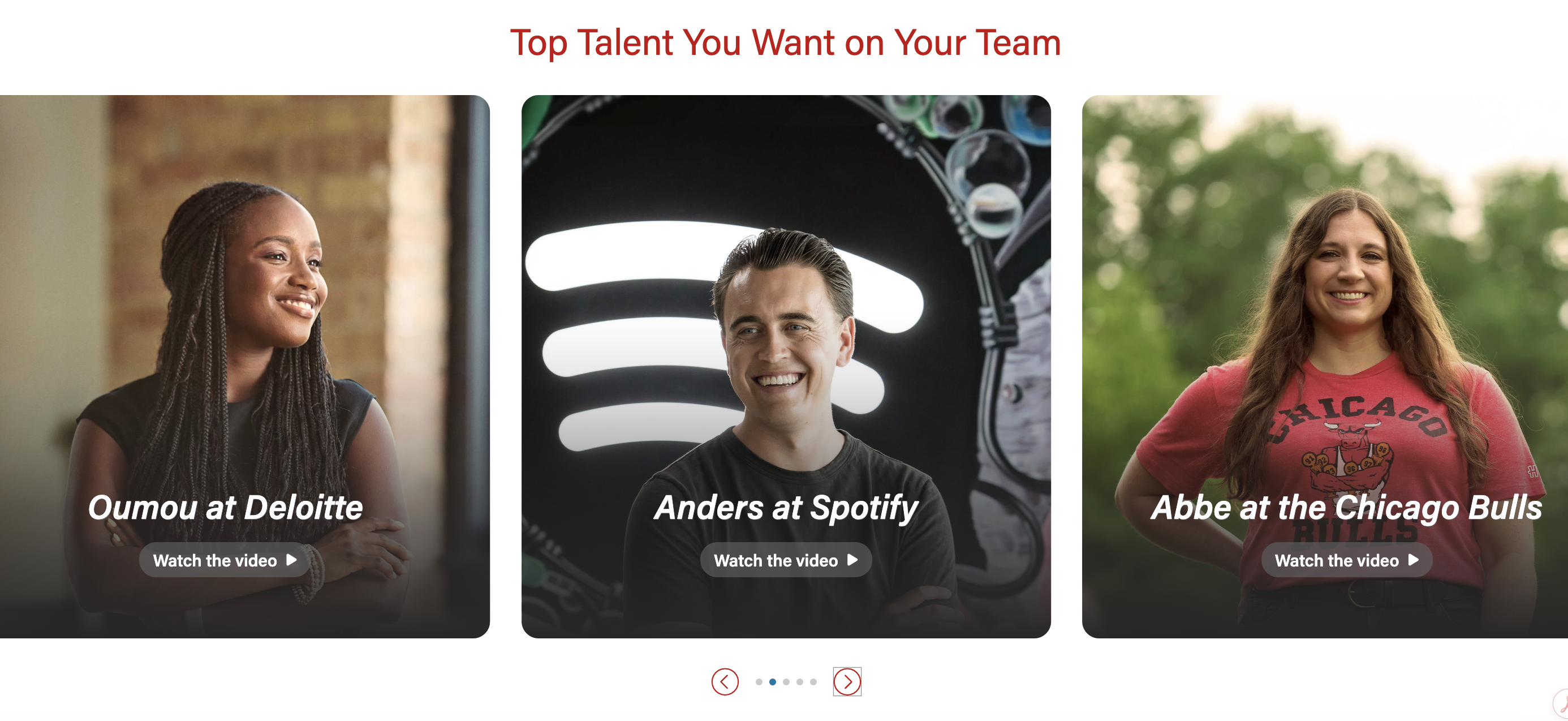
- Video columns expand to fill the width of the page, parts of the left and right cards will overflow off the page
- Randomize Order? - only available when Show Overflow is toggled to yes.
- When checked, the order of the videos will be randomized.
- Adaptive autoheight is not necessary as the override images should always be the same size.
Add/Edit Cards
Card image- Image field
- Select the photo or icon you would like to display
- Be sure to choose an appropriate image aspect ratio under the block configuration tab.
Title (required)- Text field
- Text that displays inside badges (if shown) and title for the card
- For badges layout: this content will go inside the badge, so keep this as short as possible; recommend no more than 30 characters.
- For show overflow: the title is toward the bottom of the card
Hide title in card?- Yes or no
- This field is only visible if Display badges? is checked
- Allows the title field to show in the badge only, so you can have a different title or no title in the card.
Content- WYSIWYG
- Add text and/or HTML code for content displayed in the card
CTA LinkCTA Style- Select your preferred button style
|
Youtube Embed Code- Insert embed code from YouTube. Example: CqZeezv9xqw.
Video length- Displays in the lower right corner of the video thumbnail/placeholder image. Disappears when video is played
Video title- For modal videos - Used for aria labels, but does not display on the page
- For lazyload videos - The title displays on video, near the top
Image Override- Tooltip: Image will override YouTube thumbnail. Make sure video image dimensions are the same for all cards in the block. Youtube thumbnails are 1176x662px
- TIP: Recommend using an image with 4:3 aspect ratio if there is a lot of text content next to the video. Dimensions of 1024px by 768px have worked well before.
- Image (Array)
- If Show Overflow is toggled yes, make sure all the images are the same size.
- The images can be vertical or horizontal
Image Alt text- Describe what’s in the youtube thumbnail image. Not necessary if you use the Image Override.
Play Button Color- Select: dark, light, or red
- Red Button is only used for low contrast, grayscale images where light and dark buttons won't work.
- Play button colors won't apply when Show Overflow is toggled to yes
- Instead, the play button says "Watch the video" with an arrow
Play Button Alt Text- Aria-label for the play button. Defaults to “play video”. Example: “Watch Sennai’s video”
|
Introduction
- Includes standard block intro fields
- Section Title
- Section paragraph
Footer
- Includes standard block footer fields
- Footer content
- Footer CTAs
ColumnsEnable card shadowsAdaptive autoheight- Yes or no
- Default is Yes
- Toggle to no if Show Overflow is toggled yes
Card image ratio- If adding an image to any cards, select an appropriate aspect ratio
- Default - 16x9
- Options:
Center icons- Yes or No
- When image ratio is set to "icon", this field will appear
- Default - No (icon will be left aligned)
- If Yes, icon will be centered and a small gray horizontal rule will appear between the icon and the other card content
Anchor IDBlock Wrapper Classes |
Resources