Card pulling a post (will also display featured image if there is one)
Card with stretch link and no CTA
Card without stretch link and no CTA (no use cases yet)
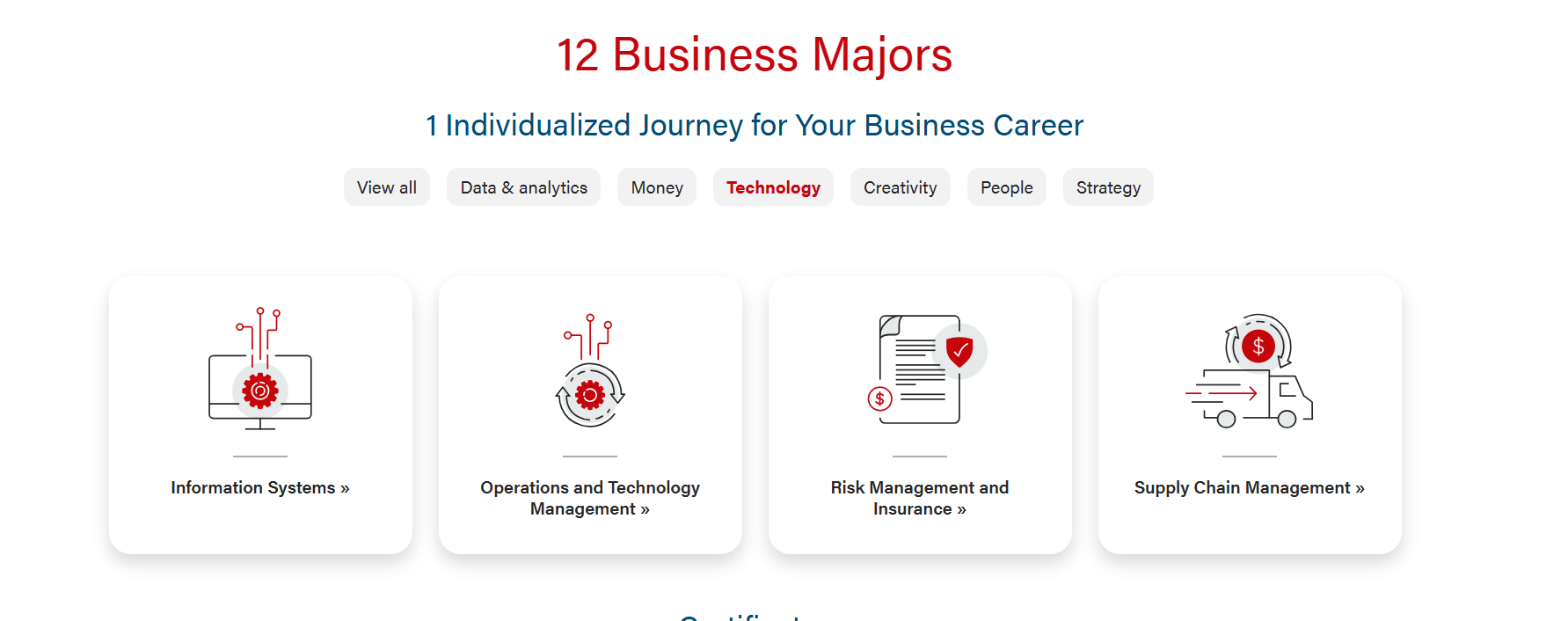
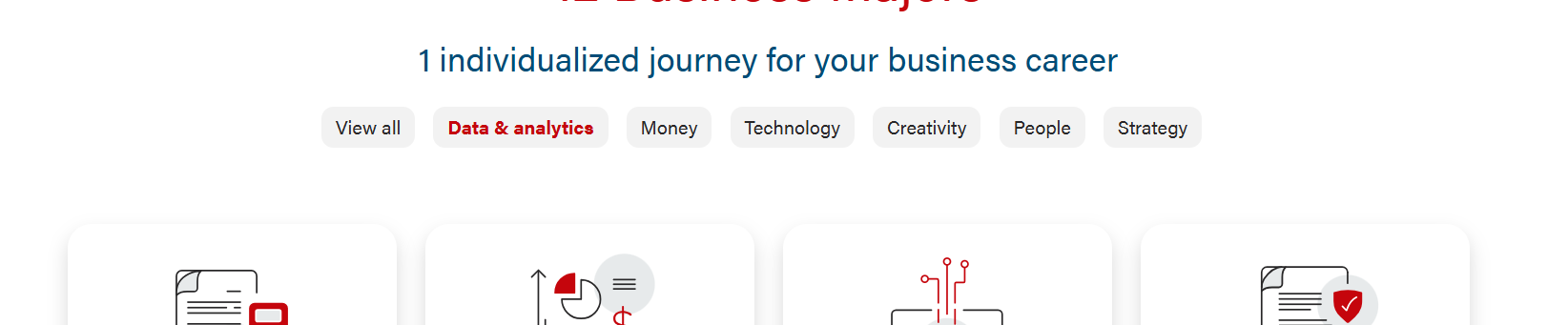
Filtered cards
Use Cases
Use when displaying content.
Organizing multiple chunks of information
Linking to other resources/pages
Fields
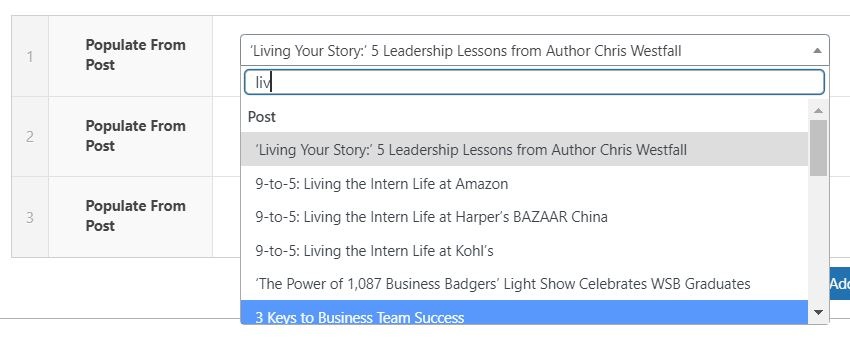
You can manually select a post from the dropdown. Since the dropdown pulls all posts, you can type the title of a post to filter through them.
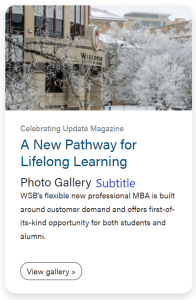
Note: When pulling a post, a CTA is automatically created. The CTA text is "Read full article", with an aria-label on the link that says "Read full article: {Article Title]"
Check the "Stretch Link" and "Remove CTA" checkboxes in Configuration for better accessibility/less redundancy when using Populate From Post.
Title
Add the title of the card.
Note: The class of the title depends on the Title Heading Size under Introduction. For example, if Title Heading Size is h2, the card title will be h3.
Note: If you check "Remove CTA" in the Configuration, you must have something in this field for the link to work.
Subtitle
You can add a subtitle to the card. This subtitle is displayed below the card title.
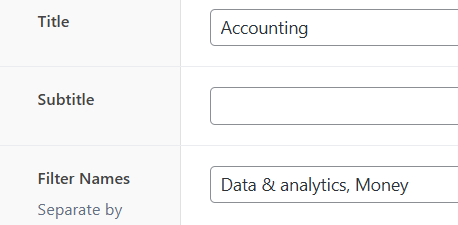
Filter Names (hidden)
Text field that's revealed if "Add Filters?" in Configuration is checked
Content of this field is not displayed anywhere- it is in the data of the card's html element.
Add the list of filters, separated by commas, you want the card to be included in.
These filter names must be ones already listed in "All Filter Names" in Configuration.
All cards are automatically included in "View all", so you don't need to include that one.
There's no minimum or maximum number of filters per card, but you'll probably want there to be at least one filter per card.
Image
You can add an image from the Media Library to the card.
Microtitle
You can add a microtitle to the card. This microtitle is displayed above the card title.
Content
Add the content of the card.
Link
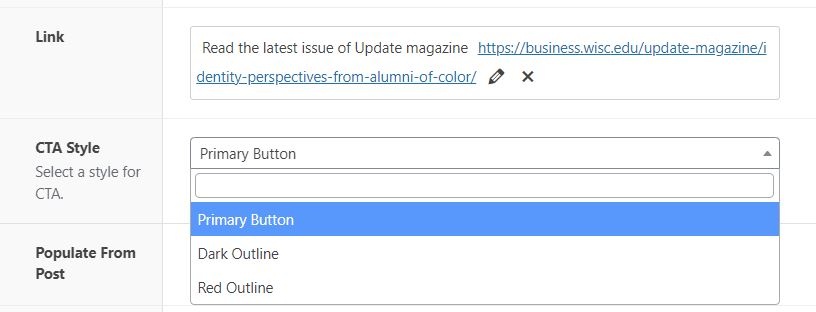
You can add a link to a card.
CTA Style
Select the style of the CTA of the card and footer CTA. Default style is primary.
Configuration Fields (affects all cards in a component)
You can adjust the ratio of the image. Default ratio is 16x9.
Icon
This option should be selected when svg icons are added to the image field of the cards
This will style the icon so that it is centered vertically and horizontally in the top of the card
It also adds a subtle gray accent line (or <hr>) below the icon
Note: do not mix icons and photos in cards within the same block; a cards within the same group should have icons or no images OR photos or no images
Stretch Link
Check to add hover effect to the card and make whole card clickable.
Remove CTA
Check to remove CTA from the bottom, linking the header/title field instead
Enable Card Shadows
Adds shadow around cards
Add Filters
Check to add filters to the card component. When checked:
Adds filter buttons below the Introduction and above the cards.
Automatically adds "View all" button, and any filter buttons listed in "All Filter Names"
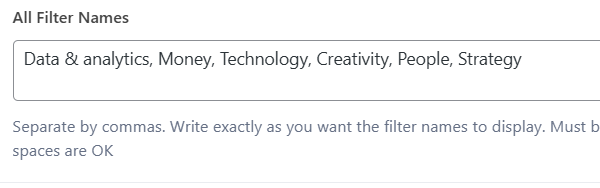
All Filter Names (hidden)
Text field that's revealed if "Add Filters?" is checked
Add the names of the filter buttons, in order as you want them to be displayed (case sensitive), separated by commas
Special characters/numbers are okay but each name must start with a letter.
The "View all" filter is added automatically as the first button and cannot be edited.
Coding Notes
02/2024 Changes:
Added "Remove CTA" functionality
Fixed "Populate From Post" link
Removed aria-role=button from CTA
To implement a Remove CTA option on other cards:
Add a "Remove CTA?" checkbox to the ACF fields in configuration. You'll want it to default to false to avoid issues with changing existing blocks.
Add line in php for the block that defines the variable
$remove_cta = get_field('remove_cta');
Edit the line of code that displays the $title of the card
Add if statement checking that there is a link, and that $remove_cta is true (checked)
Add <a> element around the title. (You can basically copy the <a> element from the CTA in the card-footer, but remove the btn class and add a class for styling and remove the $link_title)
Add a class onto the heading itself for styling- using if statement that checks for the $link_url, $remove_cta, and $stretch_link (class will be used to add »)
Example:
<?php if ($link_url && $remove_cta) : ?><a href="<?php echo esc_url($link_url); ?>" class="<?php if ($stretch_link) : ?>stretched-link stretch-link-heading<?php endif; ?> " <?php if ($link_target) : ?>target="<?php echo esc_attr($link_target); ?>" rel="external nofollow noreferrer" <?php endif; ?>><?php endif; ?>
    <?php if ($title) : ?><h<?php echo ($section_title_heading_size + 1); ?> class="card-title <?php if ($link_url && $remove_cta && $stretch_link) : ?>heading-link<?php endif?>"><?php echo $title; ?></h<?php echo ($section_title_heading_size + 1); ?>><?php endif; ?>
<?php if ($link_url && $remove_cta) : ?></a><?php endif;  //if remove CTA is checked, place link around title/heading and add 'stretch-link-heading' class to the link and 'heading-link' class to the heading for styling?>
Edit the line of code that displays the CTA
Add '&& !$remove_cta ' to the if statement checking if there's a link, so that it only adds the CTA if remove_cta isn't checked
<?php if ($link_url && !$remove_cta) : //if remove CTA is NOT checked, add CTA link at the bottom?>
       <div class="card-footer">
            <a href="<?php echo esc_url($link_url); ?>" class="btn <?php the_sub_field('cta_style'); ?> <?php if ($stretch_link) : ?>stretched-link<?php endif; ?>" <?php if ($link_target) : ?>target="<?php echo esc_attr($link_target); ?>" rel="external nofollow noreferrer" <?php endif; ?>  <?php if ($post_object) : ?>aria-label="Read the full article: <?php echo $title ?>"<?php endif; //added aria label for more accessible link text?>><?php echo esc_html($link_title); ?></a>
       </div>
<?php endif; ?>
Test the code on the front end to make sure it works.