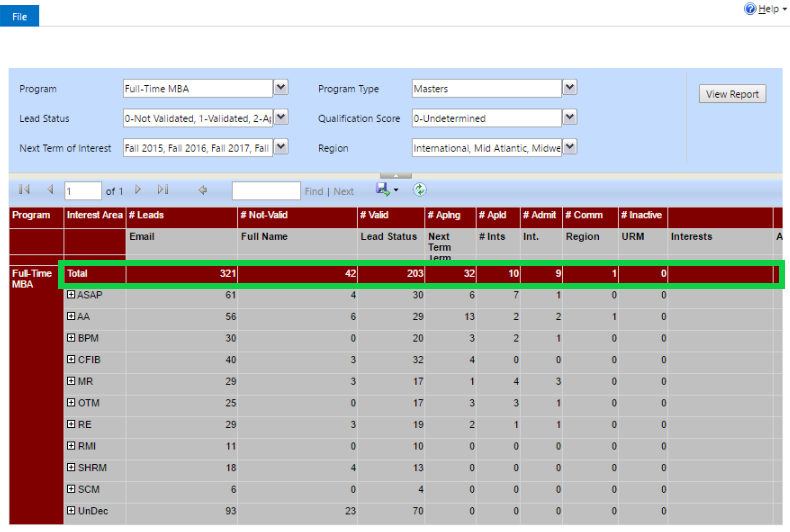
How to access the leads report.
This leads report presents information on the status of your program's lead pool.
To access the report:
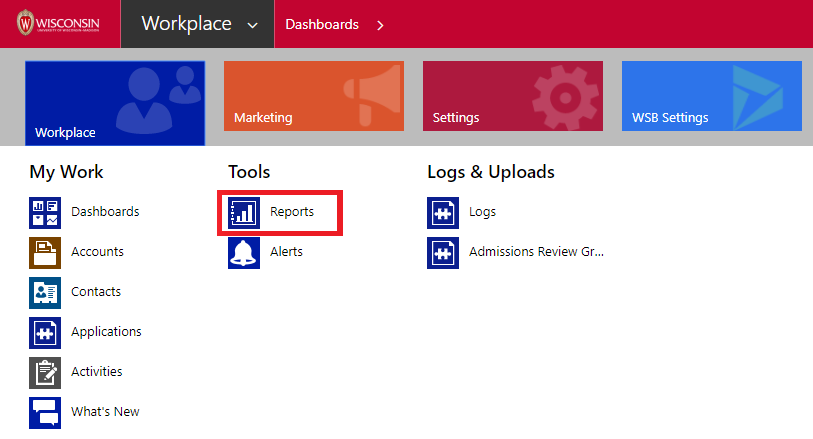
1. Dashboards > Leads Dashboard: Tabular View
- You can also access this report via Reports > Leads Dashboard: Tabular View
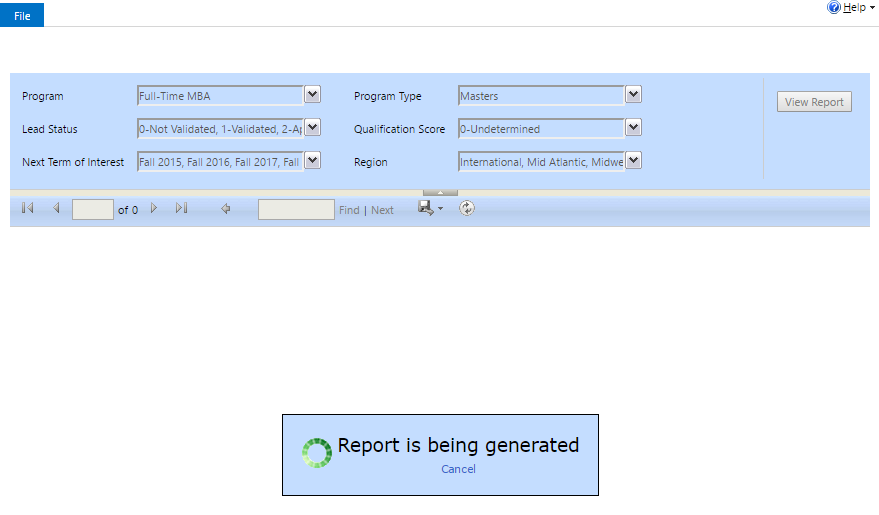
2. When you access the report, you will see a message “Report is being generated” > Cancel this message, so that you can adjust the report query details.
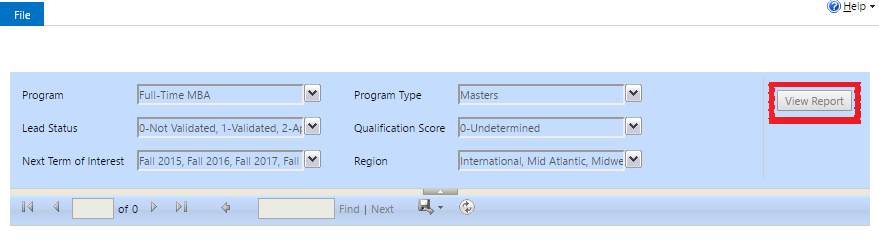
3. Adjust the query details to filter the report on the following attributes as necessary:
- Program
- Lead Status
- Term of Interest
- Program Type
- Qualification Score
- Region
4. Click View Report
5. Please be patient as the report data loads. This could take several minutes, as there is a lot of data for the report to cycle through.
Understanding the Report
The gray column headings provide information on the specific person:
- Lead Status
- Term of Interest
- Number of Interests
- International status
- Region
- URM
- Specific Interests
- Current Applications
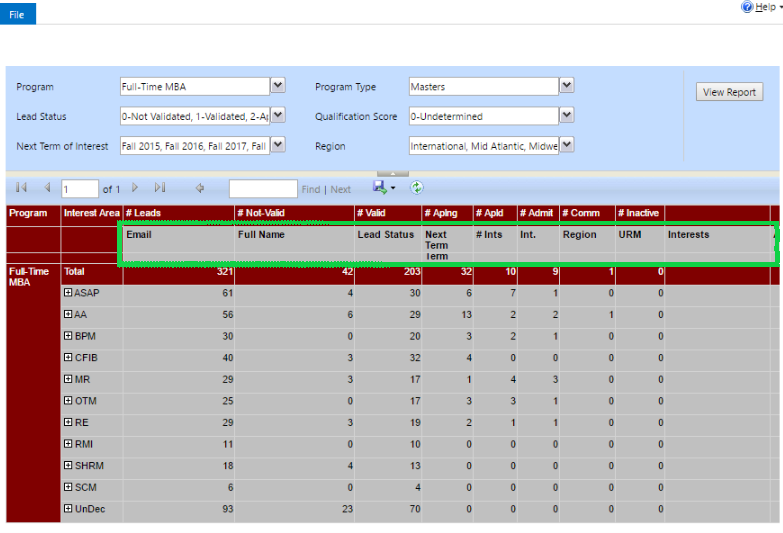
The red column headings provide counts on the entire data set:
- Number of Leads
- Number of Not Validated Leads
- Number of Validated Leads
- Number of Applying Leads
- Number of Applied Leads
- Number of Committed Leads
- Number of Inactive Leads