
Design and Layout:
Please be aware of proper contrast between text and the background (color or image) the text is on. Proper contrast is shown by using dark colors (black, blue, and gray) on white or light gray backgrounds, or by using light colors (white and light gray) on dark backgrounds.
Template Use:
Please begin each email with a provided template. This ensures the new brand stays consistent across all emails and provides a cohesive look and feel for the School’s communications as a whole.
Template Components:
The specs listed below are set as the default in all WSB email templates.
...
Circle Images
• Circle images are intended as the format for all events and headshots
• It is recommended, but not required, to upload images at one of the templated placeholder sizes:
460px x 460px, 230px x 230px, 150px x 150px
• To manipulate a square image into a circle, follow instructions below
• It is ideal to use a consistent naming convention. Begin the image name with the acronym or abbreviated name for the department, center, or program. Then a brief description of what the image entails. Followed by the month and year. Save the image in the Component Library by clicking Components, Images, and then searching for your specific department/center/program folder and then the corresponding year and month of the email the image is being used for.
...
Footers
• Logos and program footer info provided in template
– Logos can also be found in the common folder for each department/program/center
• Darker Gray (#282728) or Red (Hex #C5050C)
Alternate Background Headers:
There are two different background header designs provided in the generic email templates. A red with large circle design and a gray with diagonal lines design. There are additional header design options, both in red and gray, available in the component library: Components/WSB/1_all_WSB_Common_Background Headers. You can change out the background headers in any of the provided templates as you choose. **It is critical that if you would like to replace a red background header, you begin with a red background template, and similarly, if you would like to replace a gray background header, you begin with a gray background template.** The red background header pairs with the darker gray footer and the gray background header pairs with the red footer. The designated Headline 1 text color also pairs with the corresponding background header color.
To switch out a background header:
1) Open an email template that uses the same color as the background header that you would like to replace
2) Click on the background header layout so it is highlighted with the orange box
3) On the left panel, under General Properties, click the "Replace" button
4) Navigate to Components/WSB/1_all_WSB_Common_BackgroundHeaders and find the preferred replacement header
5) Click on the preferred background header and click the "Choose" button in the lower right
6) The replacement header will load into your email
There are also non-specific templates that have been created where the Headline 1 text reads "Wisconsin School of Business". Those are available in a red background, and a gray background, and can be found in: Template Manager/WSB Templates/wsb-generic-template-red-wsbheader and wsb-generic-template-gray-wsbheader
| Anchor | ||||
|---|---|---|---|---|
|
It is recommended, but not required, to upload images at one of the templated placeholder sizes:
460px x 460px, 230px x 230px, 150px x 150px
...
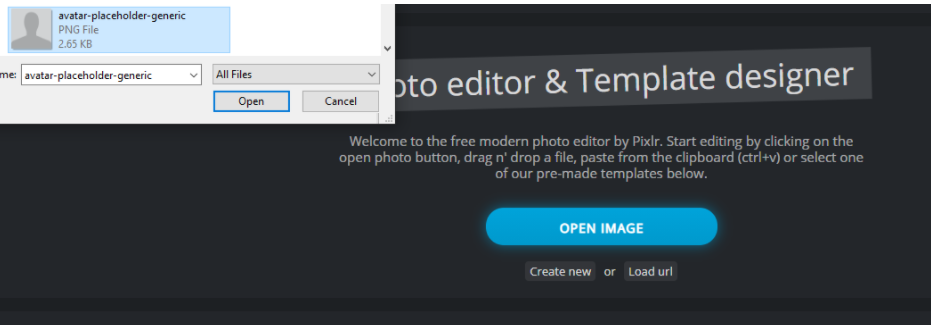
- Go to https://pixlr.com/x/ and select “Open Image” and select the photo you want
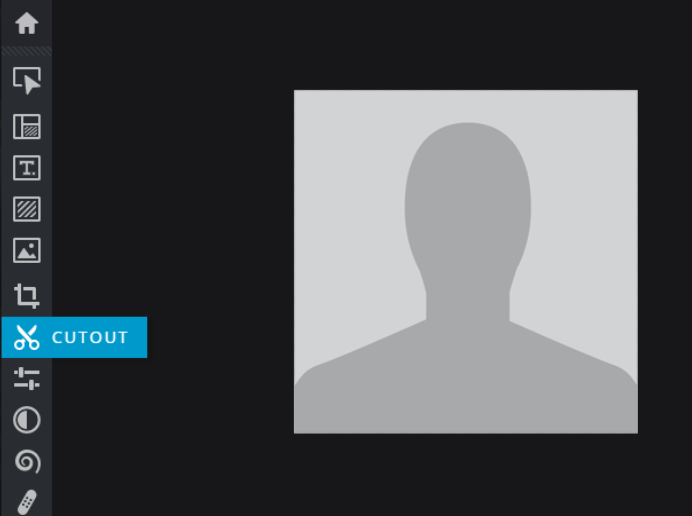
- If it’s not already, Crop your image to a square.
- Select the scissors icon “Cutout” in the left sidebar
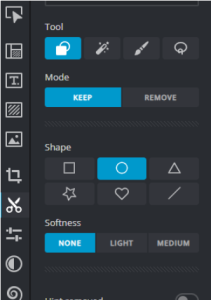
- Select the circle icon under “Shape”. Everything else can be left at the default.
- Place your cursor near the top left corner of the image, then click and drag to the bottom right corner. You should see the outline of a circle around your image.
- Let go of the cursor, and it will automatically crop the photo to the circle. If you aren’t happy with how it looks, click undo and try again.

- Note: there isn’t a way within the basic pixlr editor to make sure it’s a perfect circle, but as long as it’s close, don’t worry about it looking perfect.
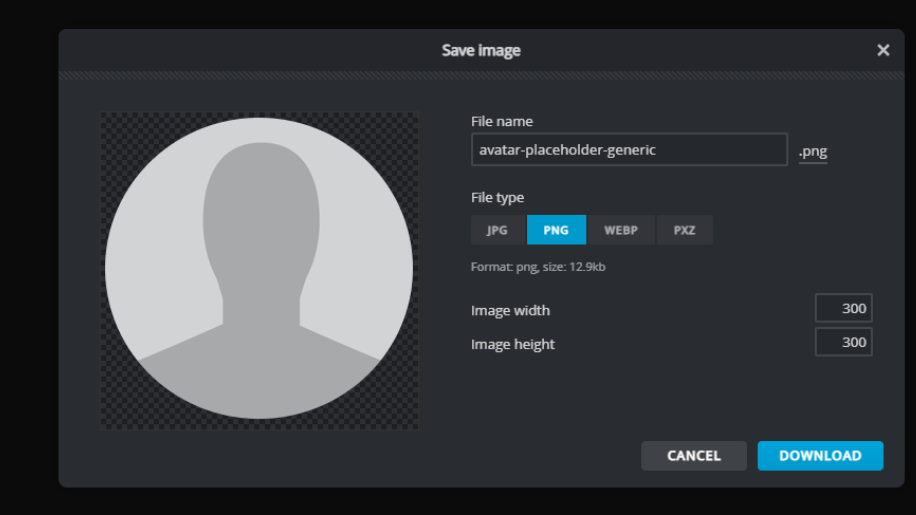
- Click save. It should default to PNG. rename your file and adjust the image size as needed, then download.
Email File Naming:
It is ideal for those creating emails to use a consistent naming convention for emails. Begin the email with the acronym or abbreviated name for the department, center, or program. Then a brief description of what the email entails. Followed by the month and year.
...