
...
Add a high-quality image to display with your event details in event listings (such as the main events calendar and program/dept/center event pages) and at the top of your event page (this is optional).
Featured image dimensions: 1200px wide x 450px tall (this image size is only for featured images for events)
- Add your image by clicking the box that says Set featured image and following the directions above for selecting or uploading images to the media library.
- Check your image in a preview window to make sure it looks good.
- Images must have alt text – this is a requirement for accessibility.
- Alt text should include a brief description of what is in the image
- If the image has text in it, alt text must include all of that text for accessibility (someone using a screenreader needs to be able to access the text in the image – alt text is the only way to do that).
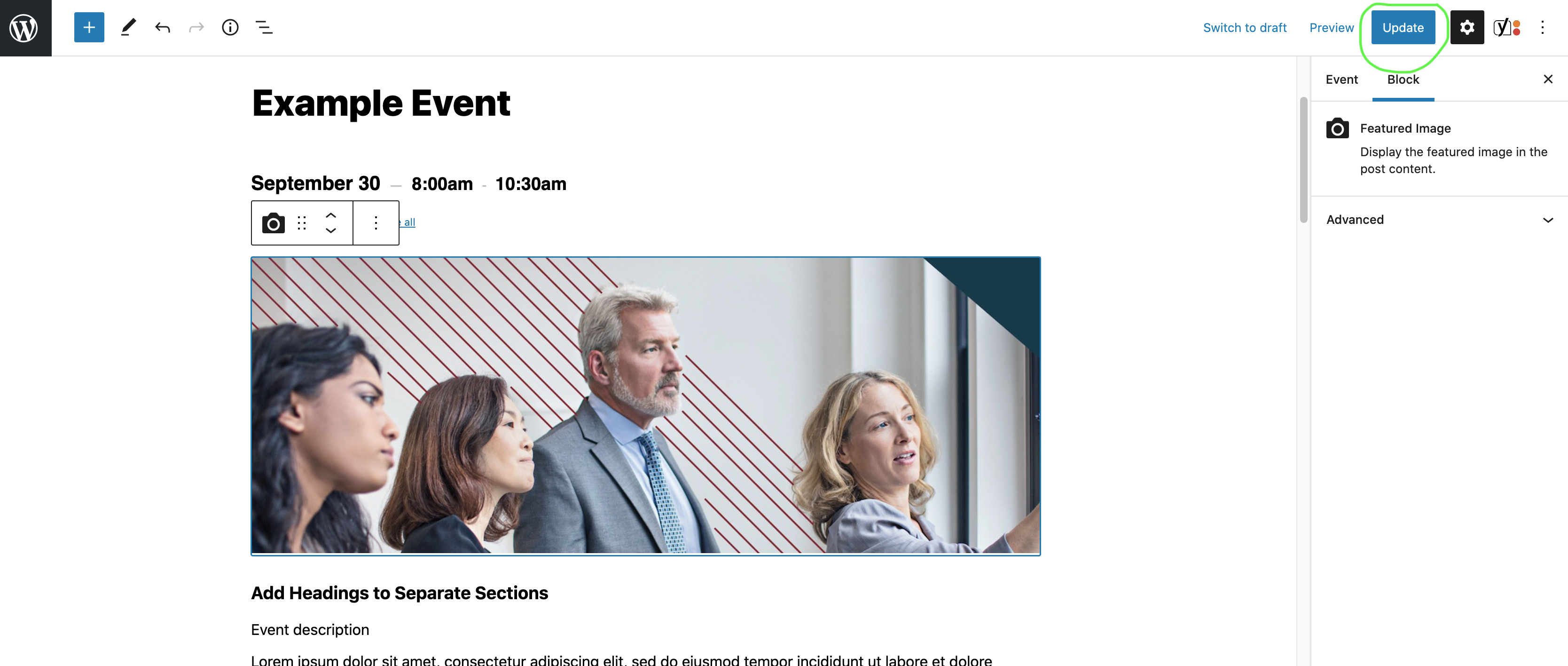
- To display the featured image at the top of an event detail page
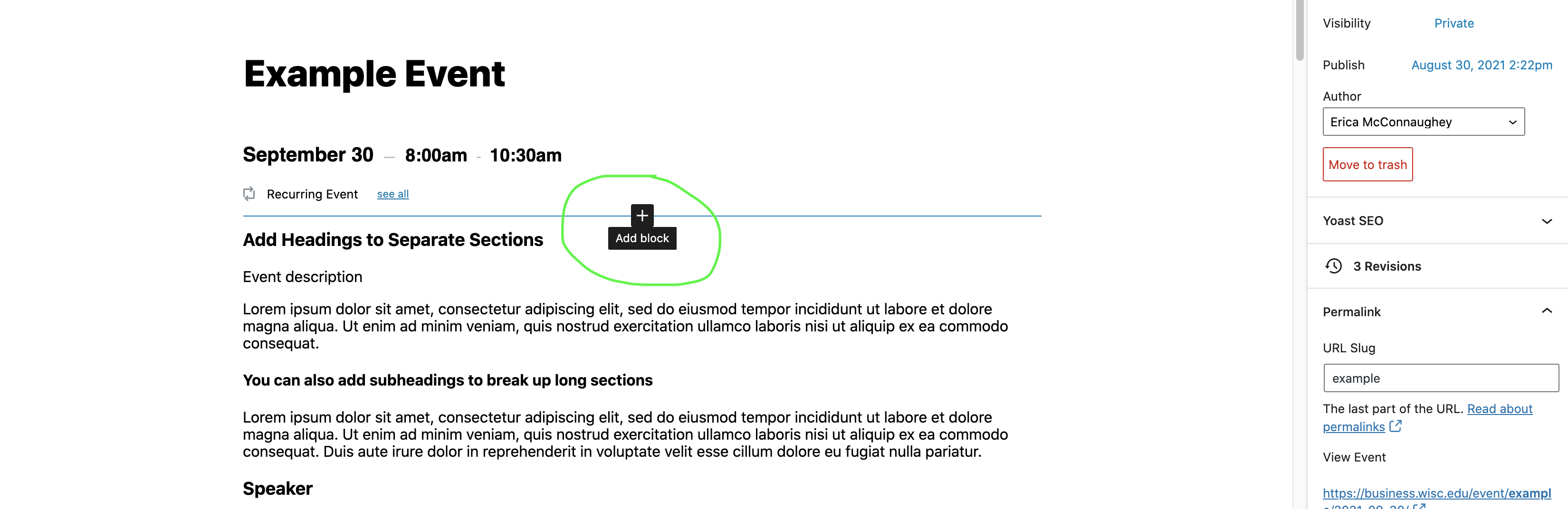
- In the event editor, hover your cursor just below the event date and time until you see a plus button and horizontal line appear. Click the plus button to add a block.
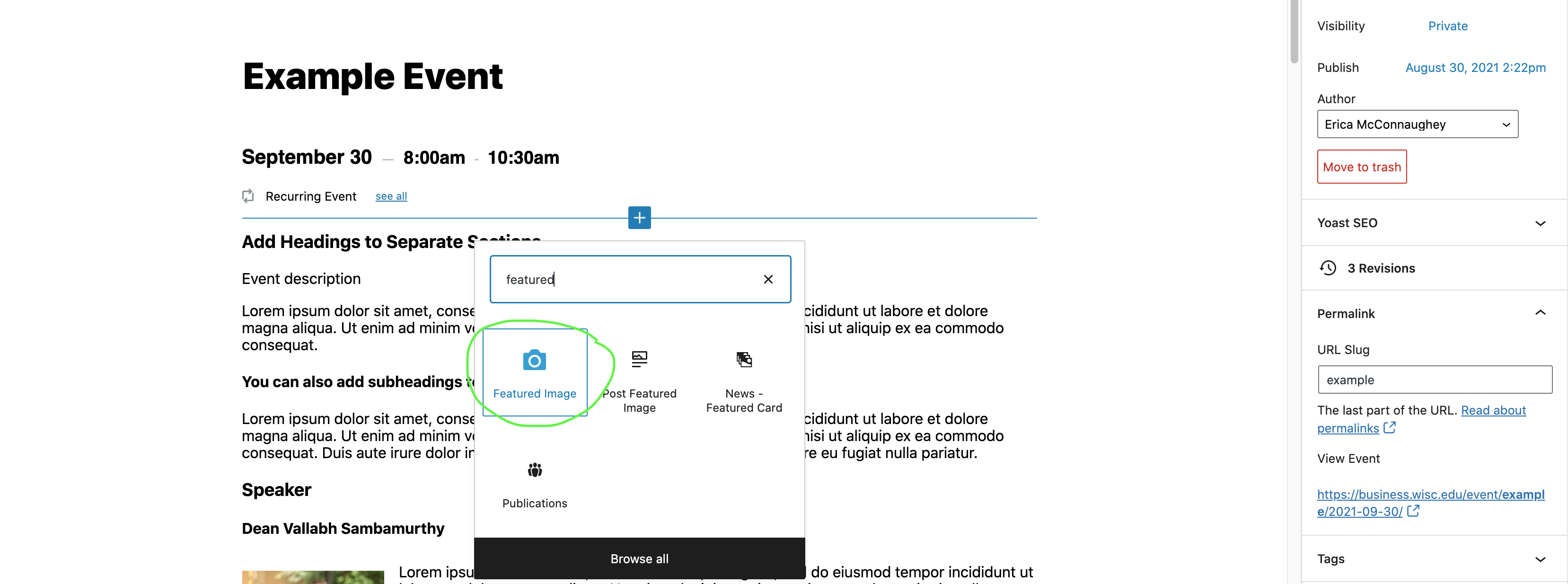
- In the pop-up window, type "featured image" and select that block from the list.
- Be sure to save your draft, publish your event, or update your published event so the featured image is viewable on the event page. These options are in the upper right hand corner.
Preview an Event
...