
...
- Go to business.wisc.edu/wp-admin (bookmark this page for easy access).
- Click "Sign in with your Net ID" button. Login using Duo.
- Typing in your Net ID with the associated password will not work on this login page.
Add a New Blog Post
...
- Aside callouts
- Click the plus sign button or type a forward slash and search for "aside".
- Select the aside callout block.
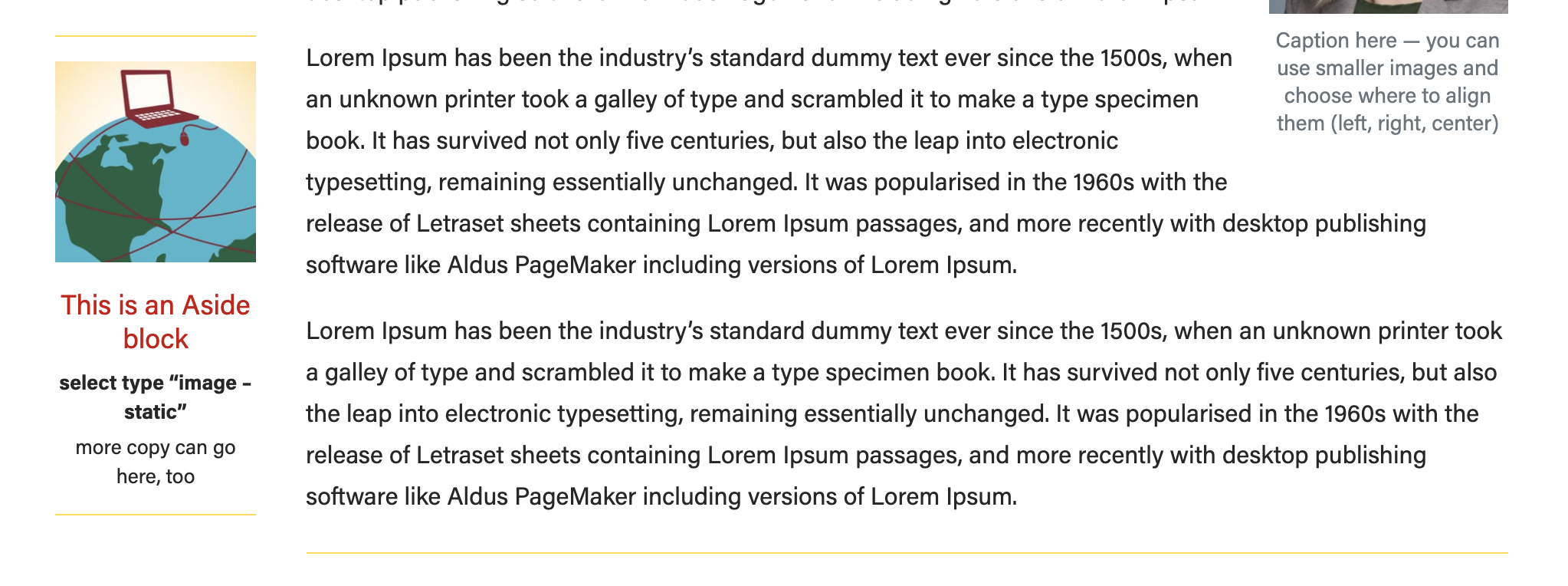
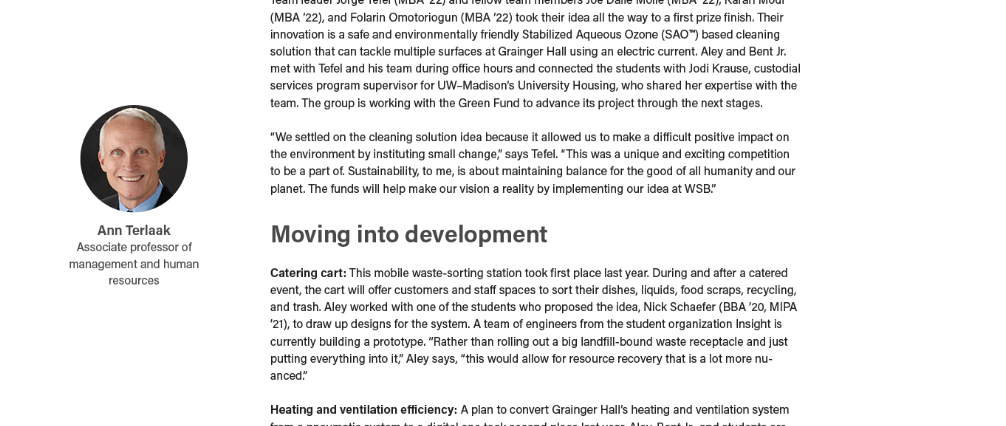
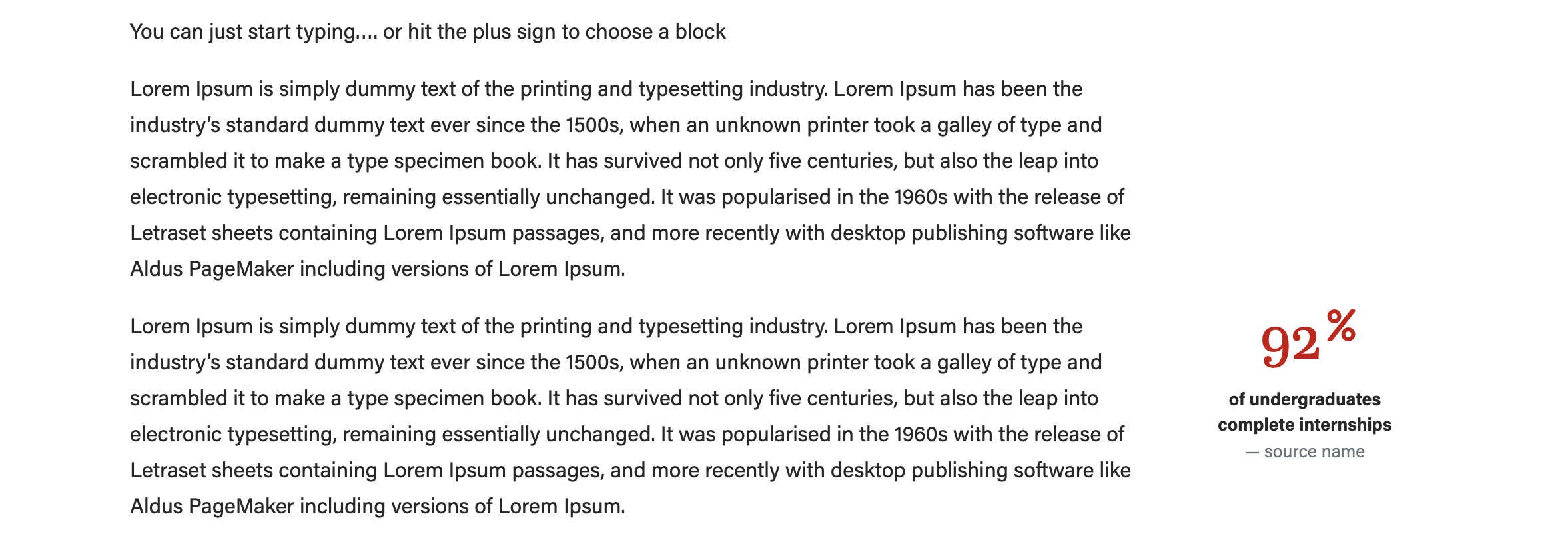
- Select which type of aside block you need. When you change the type of aside, different fields will pop up, so be sure to choose the type first.
- Image - statistic (use an icon)
- Image - person (use a square headshot)
- Ranking (no image)
- Image - statistic (use an icon)
- Add the image (if applicable) and copy. We recommend using a square image for this block. The "image - person" layout will crop your image to a circle for you.
Be sure to preview your content to make sure the aside is not overlapping with footer content on the page
- Click Preview > Preview in a new tab
- If the aside is overlapping other content, move the aside block up higher on the page.
...