
...
When you upload a list of contacts, it creates a Shared List.
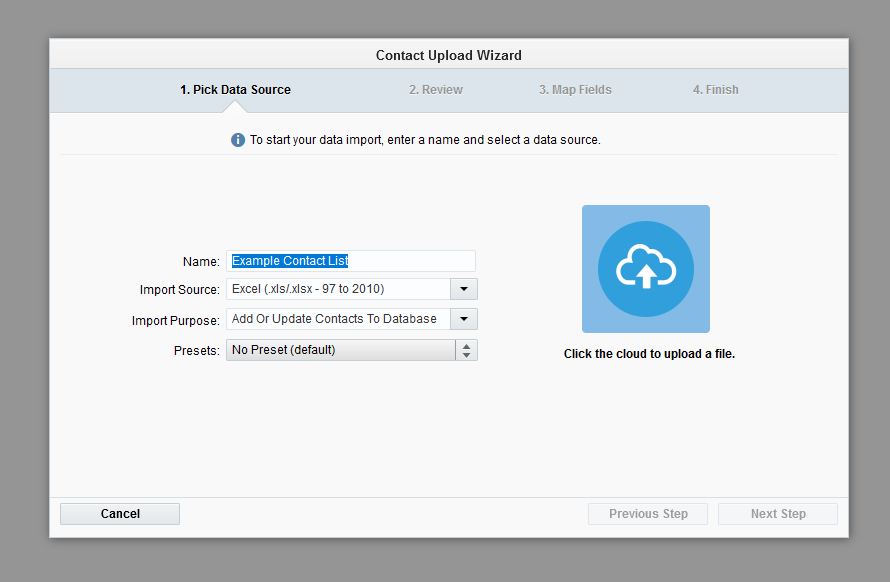
Make sure to name your list clearly prior to uploading, and save the list in your department folder.to clicking the upload icon (otherwise you'll have to rename it later).
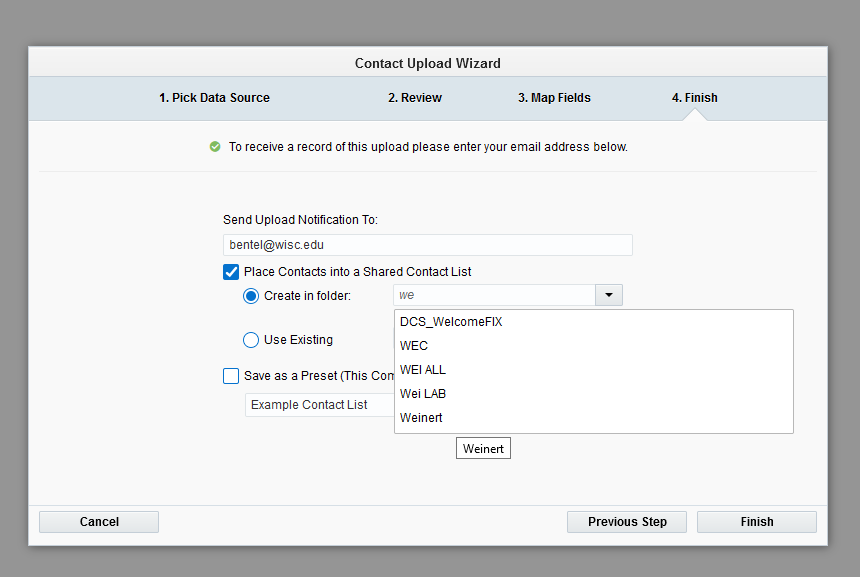
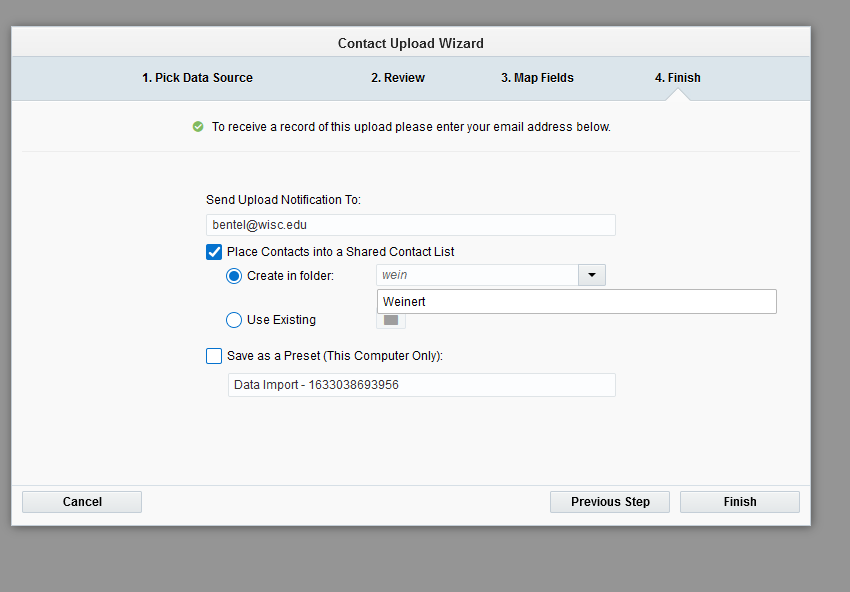
On Step 4 of the Contact Upload Wizard, make sure to select your department folder in the "Create in folder" dropdown. If you can't find your folder, at least select the "WSB" folder.
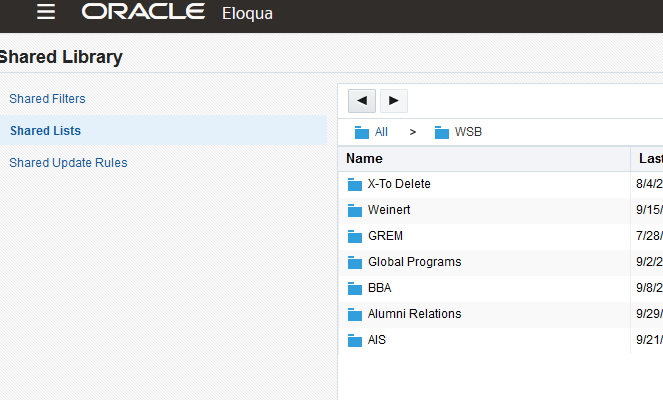
After you upload your contacts, you can find your shared list by going to Audience>Tools>Shared Lists>WSB and further organize them within your department folder as needed.
If you upload a new list every time you send an email, use the year>month structure. If you're reusing your lists, you can keep them in your main department folder, but make sure to name them clearly.
...