
This page is a work in progress.
| Info |
|---|
Note: You must complete WSB WordPress (WP) training before you will be granted access to the WP media library. |
...
Upload an Image to the WP Media Library
- Save the file somewhere on your computer (desktop, documents, etc.)
- Login to WP at business.wisc.edu/wp-admin
The remaining steps can be done multiple ways:
From a Blog Post or Event
recommended if you are currently working on the post or event
From the Media Library
...
- On the left side, select Media
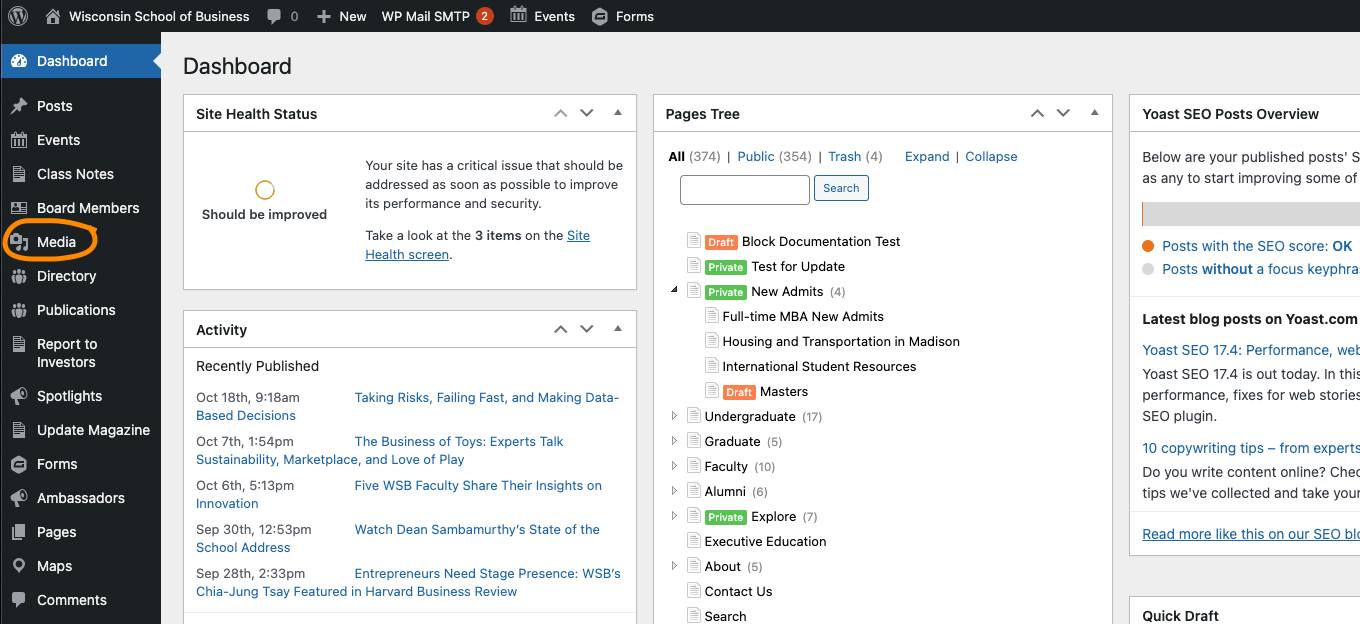
- Select Add New
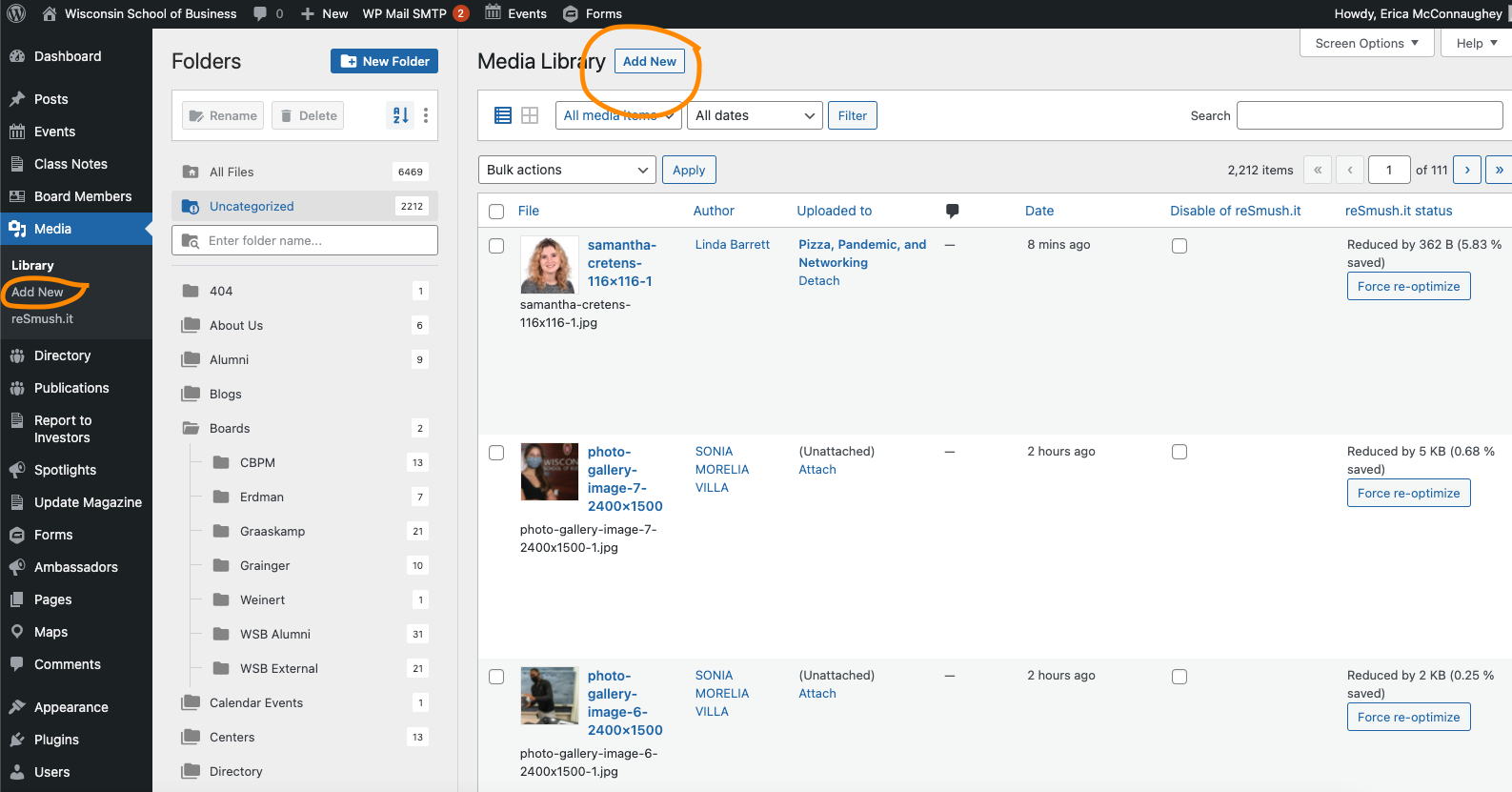
- (1) Select the media folder your image(s) should live in. (2) Drag your image(s) to the page or click the Select Files button and search for your image(s) on your computer.
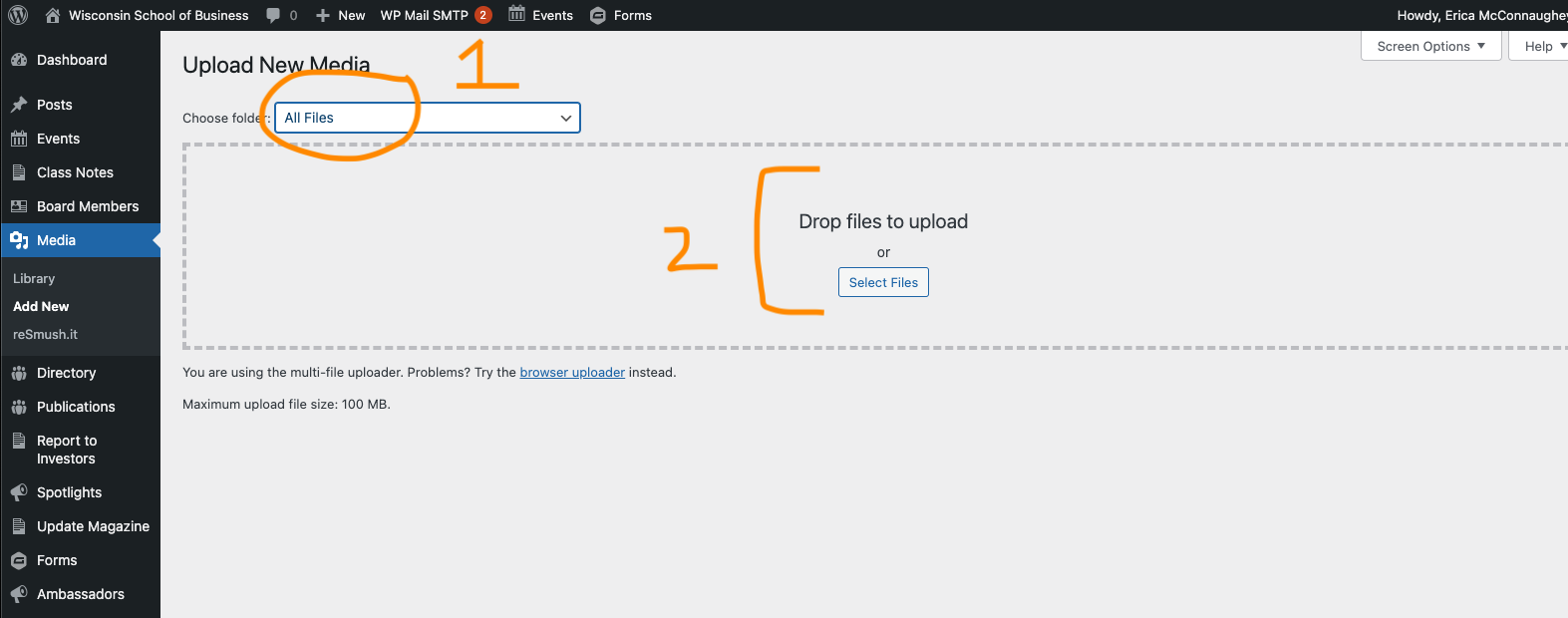
- Wait for your image(s) to upload, then click Edit next to each. (Tip: When uploading multiple images, right click on Edit and open the link in a new browser tab so you don't lose track of the images you need to edit.)
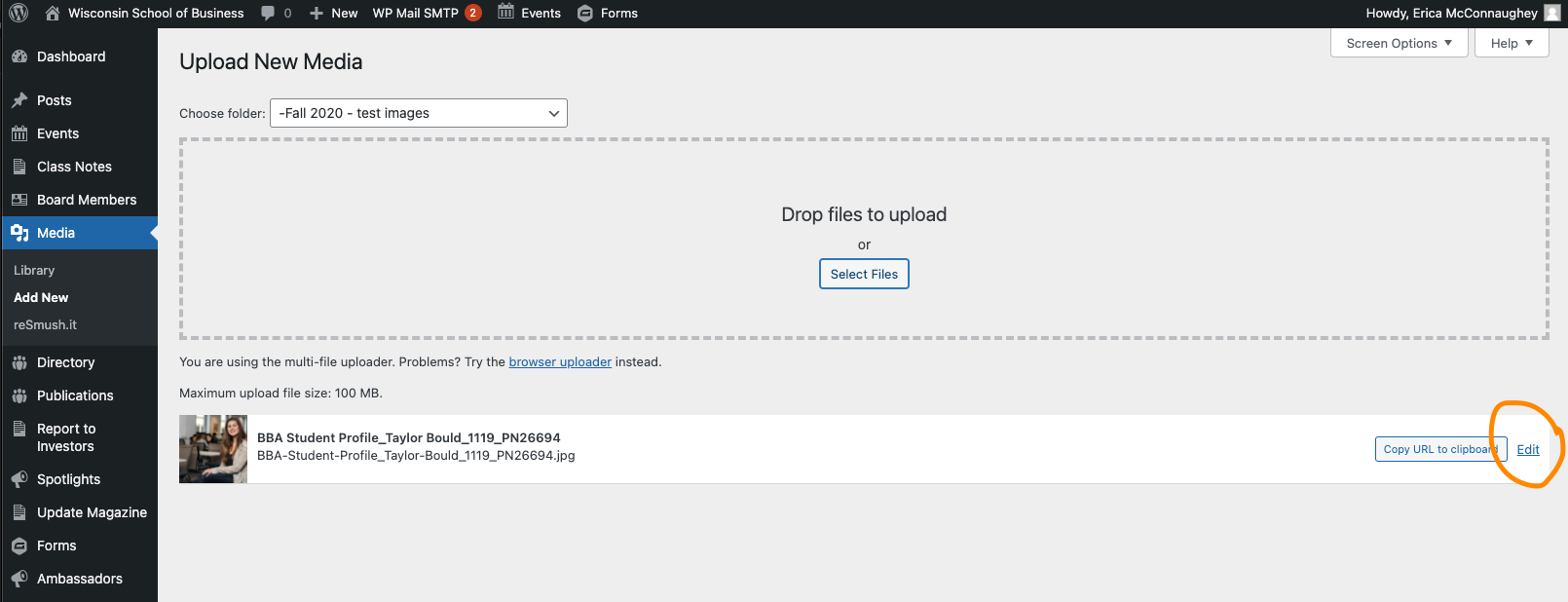
- You must add alt text to all images
Find an Image in the Library
...
| Info |
|---|
| Remember: alt text is an accessibility requirement for all images in our WordPress library |
...
Move Images to the Correct Folder
Delete an Image from the Media Library
Related articles
| Content by Label | ||||||||||||||||||
|---|---|---|---|---|---|---|---|---|---|---|---|---|---|---|---|---|---|---|
|
...