
...
| Table of Contents | ||||
|---|---|---|---|---|
|
General editing guidelines
- Delete what you don't need. Templates include more options than you need, so just get rid of what you don't want. Select an item and click the trash can icon.
- Note: don't delete something if you aren't sure. You can use the undo button to get something back, but other than that, it's gone from the email once it's deleted.
- If you need multiple of things, use the copy function (select an item, click the copy icon)
- You can copy/delete a single item, you can tell it's selected when it's outlined in purple/blue (copy/delete buttons on the right side of the page)

- To select an entire row ("layout"), hover your mouse a little to the right or left of a row until you see the orange outline, then click. You can tell it's selected when it's outlined in orange (copy/delete buttons on the right side of the page.)

- In most cases, you'll want to be copying the entire row, rather than a single item.
- You can move items or rows by selecting the item, then clicking and dragging the tab on the left. Note that moving things is a little unwieldy and may be tricky at first.


- You're allowed to move any item in between the Header and the footer
The Header
The header includes the "Trouble viewing this email?" message(which will open up the email on the web), followed by the WSB Crest, "Wisconsin School of Business" and the name of your program.
...
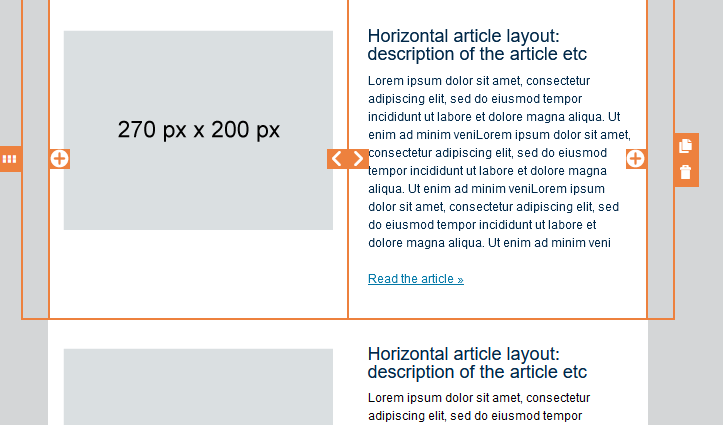
Each article includes a photo, a Header 3 for the title, a paragraph, and a link.
Rules on editing:
- Do not edit the color or size of the headers.
- If you have different sections of articles, you may want to add some Header 2s to group them.
- Paragraphs can be edited like other paragraphs, including adding links/bolding text.
- You can make the links bold if you want to better emphasize them.
- Feel free to edit the main link's text. It's actually better for accessibility if you replace "read the article" with something more specific, like "read about our faculty's research" or "learn more about the new policies" etc.
There are a few formats for articles:
Featured Article
This should only be used for the first article in your email, if at all, with the rest of the articles in the formats below. The width of the featured photo should be at least 560px, but can be wider (the photo will auto resize).
...
Do not combine with the 2 column article layout, use one or the other.
Callouts
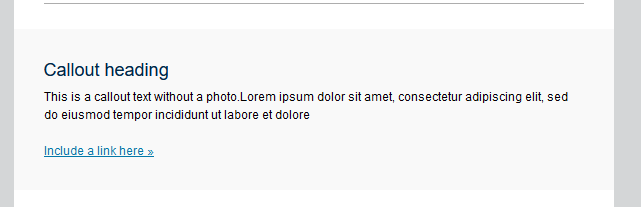
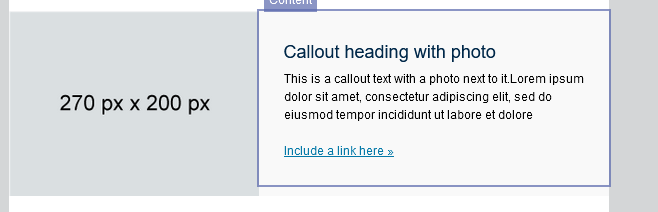
Callouts can be used for announcements, or other important information. They include a gray background color, a paragraph with a Header 3 title and a link, and sometimes a photo.
Rules on editing:
- You can remove any part of the callout paragraph-- the heading, paragraph text, and link are all optional
- Don't change the colors.
- If you use the callout with photo, keep the text short so it doesn't go past the photo. The photo size of 270x200 is a suggestion, and you can use a different photo size if it fits.
Testimonial/Quote
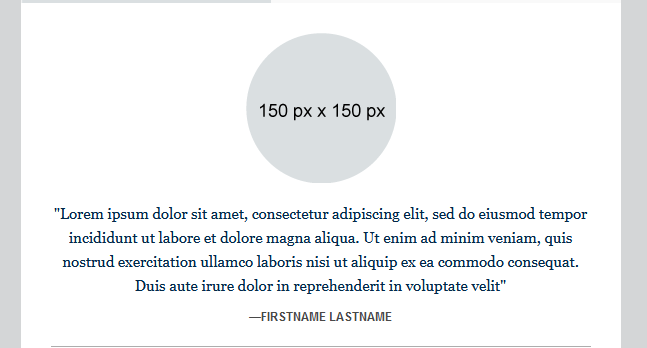
Testimonials are used for when you have a quote you want to include in the email. It consists of a circle photo of the person's headshot, their quote, and their name.
Rules on editing:
- You can delete the photo if you don't have one, the quote can go on it's own.
- The photo doesn't need to be exactly 150x150, but it works better if it is.
- The photo must be a circle image. There is no function in eloqua for this, you will need to upload your photo already circle cropped. Here's a quick tutorial on circle crops. If you're having trouble, send in a ticket to the web team and they will help.
- Do not change the color or formatting of the quote.
Signature
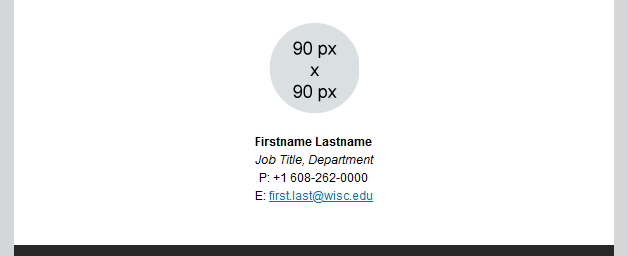
Rules on editing:
- You can delete the photo if you don't have one (or want one)
- If your headshot is not in the media library (under WSB > 1_all_WSB_Common > Signature Headshots), ask the web team to upload one.

- The signature is just text. You can edit whether or not you include your phone/email/etc, but we recommend formatting your name in bold, and your job title in italics.
- To link your email, type in your email as text, select it, and select the hyperlink button in the toolbar.
- Then, change "Link Type" to "New Email Message" and type your email into the "Email Address" field.
- Make sure to test your link!
- Your signature doesn't have to be at the bottom, you can always move the row higher on the page if it makes more sense somewhere else.
- If you need multiple signatures, ask the web team for assistance with formatting them. Some templates come with a multiple signature option.