
...
- For the website, we use photos taken by WSB's professional photographer or UW's professional photographers. You can view those images on the Photo Shelter accounts: WSB Photo Shelter, UW Photo Shelter.
- Partners may submit other images for consideration, but we might not accept them if they do not meet our standards. We require original, in color, and uncropped images in JPEG format. They must fit in with the school's brand and tone standards. Do not pull images from social media. Approximate dimensions of 2400px width by 1600px height are required.
- Always Export for Web when using Adobe.
- Images must be less than 5MB.
Detailed standards
Hero Photos, Jumbotron Photos, and Other Un-Stylized Photos (e.g. Photos for blocks like the Horizontal Card block)
Photos
...
should be
...
2400px
...
by 1600px. This the standard Photo Shelter "large" size. (The height may vary slightly. UW's ratio puts the height at 1597px for large and WSB's ratio puts it at 1661px for large.) 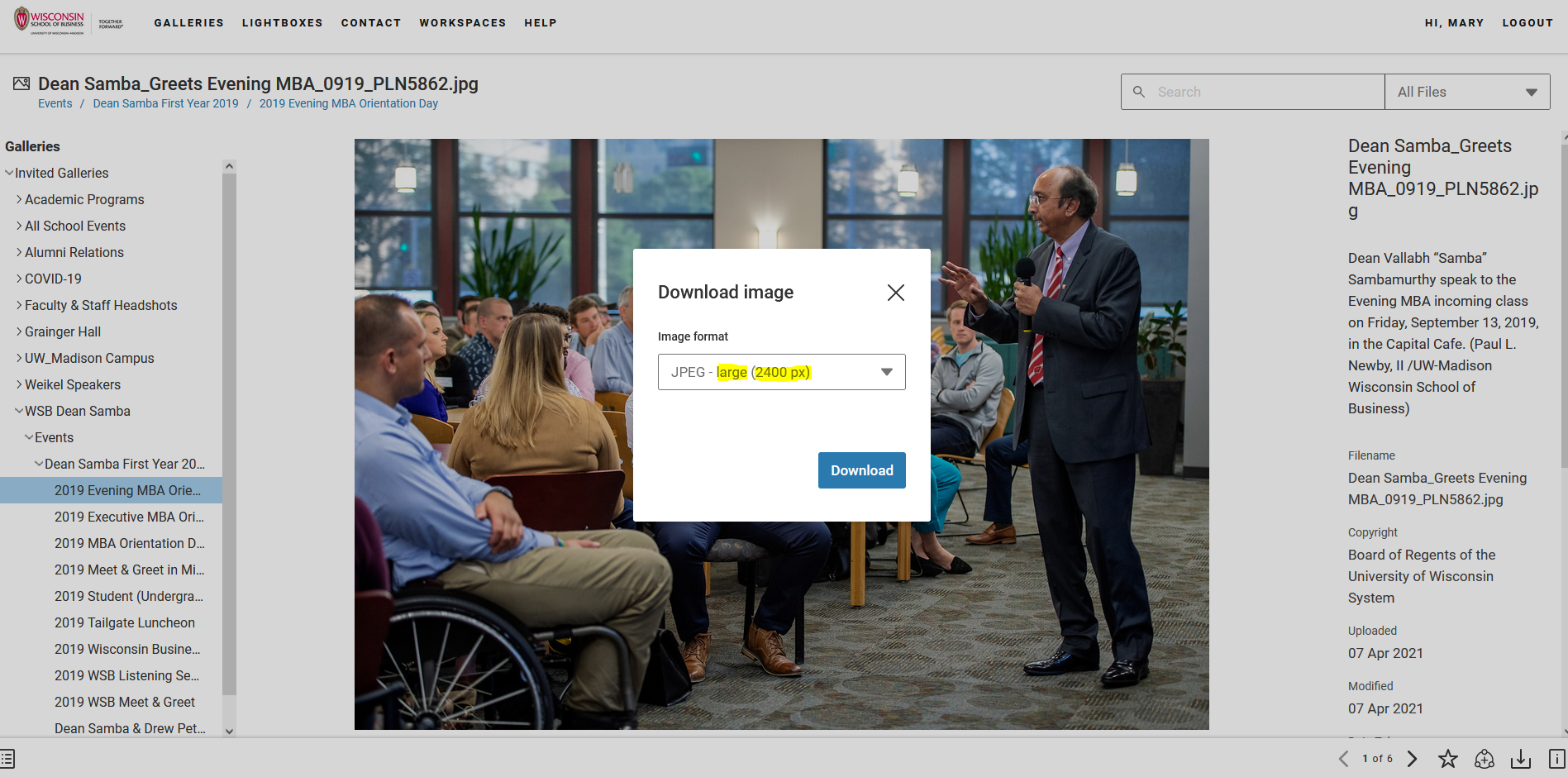
...
Directory Photos
These are cropped into a circle via CSS, so the uploaded photo must be a square. The square should be 512 x 512px.
Stylized Headshots
The gray-background stylized headshot should be 512 x 512px
...
.
Logos
Company logos (for employment/career sections) should be 512px in width.
(Note: 512px was chosen because it is the WordPress "large" image width.)
Process for Acquiring Images
- For designers/others sourcing photos for the website, share the link to the Photo Shelter page with the web developer / make a lightbox and send share the link to with the developer in the relevant Jira ticket.
- Web developer, download the large size from the Photo Shelter link and then upload it to WordPress.
- If the photo is not in Photo Shelter yet or is one that needed to be cropped to a square, please upload the photo to the proper folder (Images may be attached to the relevant Jira ticket. If it's a lot of photos (that aren't in Photo Shelter), then uploading them to a Google Drive folder works. For MSC members, use MSC Web → Design/Visual → Assets → Images and then find the proper folder based on what page it's going on) in the Images folder in the Assets folder of the MSC Web Google Drive: https://drive.google.com/drive/folders/1KMnVunAwjqtJrZG8y_d4Vy--1R2aYkm-?usp=sharing MSC Web → Design/Visual → Assets → Images
Adding Images to WordPress
- Upload all images to the correct folder in the Media library. Folder structure mirrors page structure.
- Do not change the name of the image file because we want to be consistent with what the designers/photographers use.
...