
...
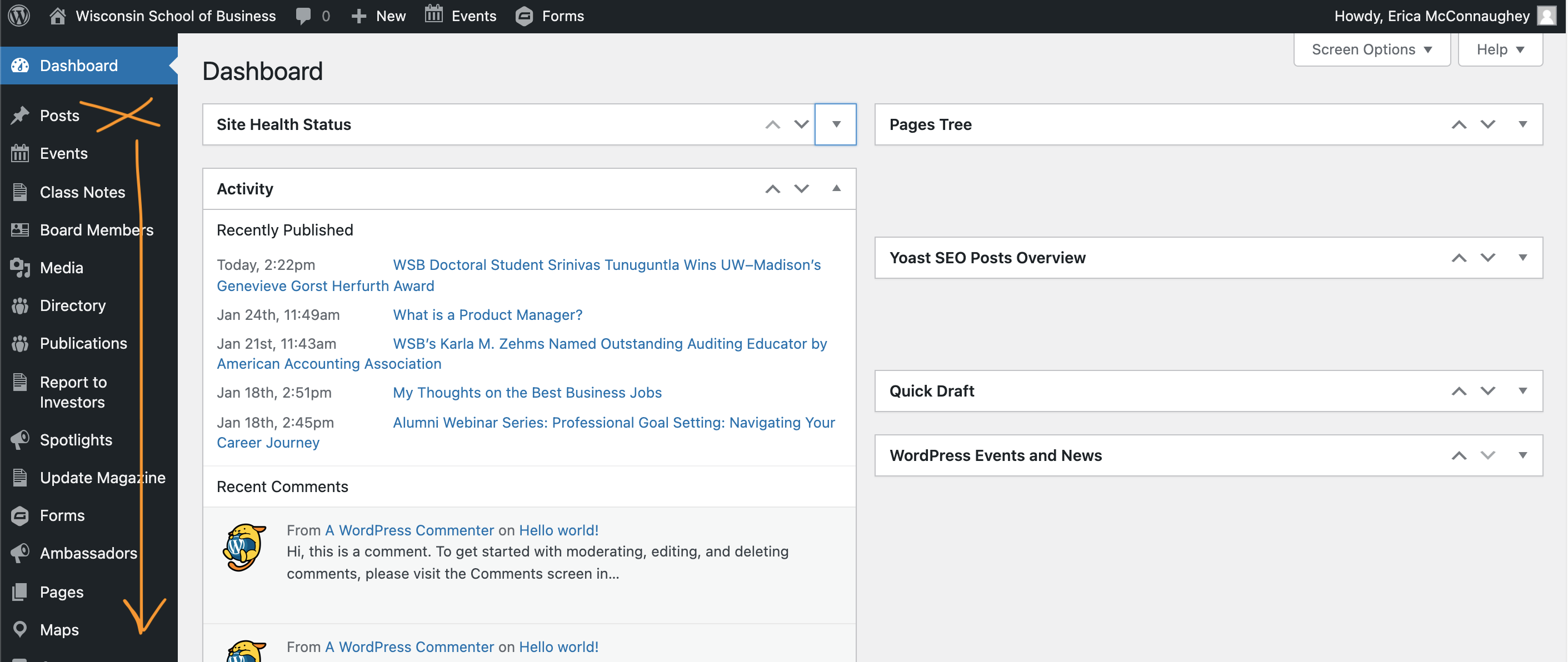
- Important: Navigate to your specific blog in the left menu. DO NOT select POSTS. That post type is only for WSB news editors.
- You may need to scroll down to find your blog. Look for the abbreviated name of your dept. or center (e.g. A.C. Nielsen CTR)
Do not click on POSTS
| Scroll down to find your specific blog
|
|---|
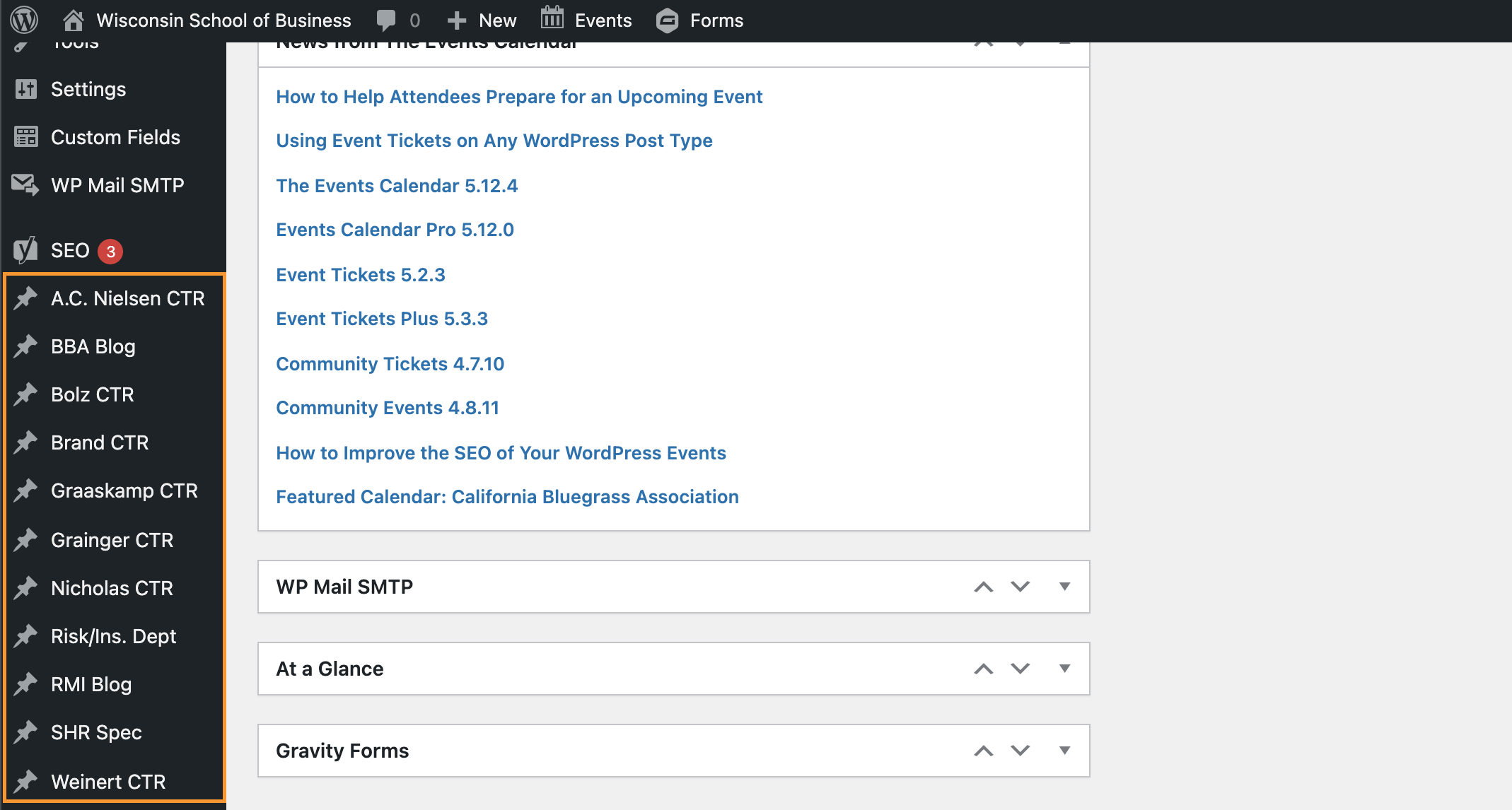
- If you scroll all the way to the bottom, and still don't see your blog, you will need to request access from the web team.
- Click Add New at the top of the page.
...
- You can ignore the message that says "Type / to choose a block" and click on it to add a cursor and start typing whatever you want. Or you can copy and paste your text from another document.
- You can also click the button with a plus sign to add a paragraph block or a heading. You may need to type "paragraph" or "heading" in the search bar to find the right block.
- Formatting your copy:
- Click on or highlight the text you want to format.
- A small box should appear above the selected copy.
- In this box, you can edit text alignment (use left or center), bold, underline, hyperlink, etc.
- You can choose any other text formatting options that make sense for your content, except text color. You should not change the text color because it won't match our brand colors.
Adding Media
- Images
Basic standards
- For the website, we use photos taken by WSB's professional photographer or UW's professional photographers. You can view those images on the Photo Shelter accounts: WSB Photo Shelter, UW Photo Shelter.
- Partners may submit other images for consideration, but we might not accept them if they do not meet our standards. We require original, in color, and uncropped images in JPEG format. They must fit in with the school's brand and tone standards. Do not pull images from social media.
- Always Export for Web when using Adobe.
- Images must be less than 5MB.
- Images must be a jpg file type unless there are transparent parts, then png file type may be used.
- These instructions are for adding supporting images within your blog post. If you only want to add a cover or featured image, please see those instructions below.
- Image dimensions will vary. You should upload the original image (max size 2400px wide) so it will be high quality.
- Recommended minimum image sizes:
- headshots - 250x250px
- group shots or images with more detail - 1,000x1,000px
- Recommended minimum image sizes:
- WordPress creates different sizes of every image you upload and allows you to crop the image or resize it as necessary. You'll see instructions for this below.
- Adding/Selecting an Image
...