
...
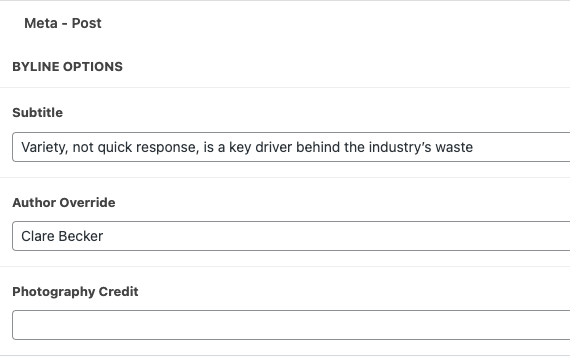
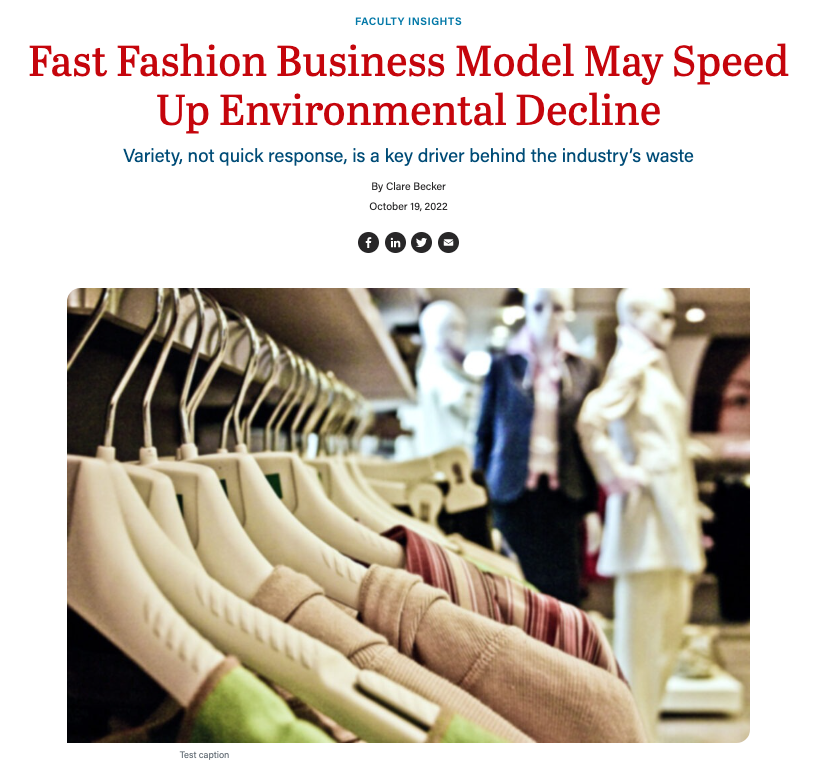
- You can add a Subtitle to the post. It will appear as an H2 on the post, directly below the title (or H1).
- You can add an Author Override if needed. If you do not credit an author under Author Override, your post's byline will credit the selected author in the upper right-hand side of the editor.
- You can credit a photographer(s) under Photography Credit.
Example - Byline options
| Post appearance
|
|---|
Featured Image Options
- You can add a Featured Image. This image is pulled with the article title to display on any pages that list news articles (such as the Newsroom landing page).
- While the featured image can be added in the right side menu, the featured image options are found in the meta - post field group.
- Options include:
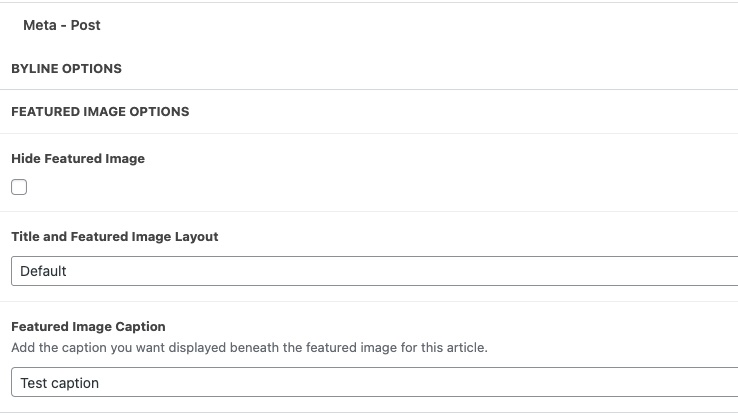
- Hide featured image - Yes or No (if checked, the next two fields will be hidden)
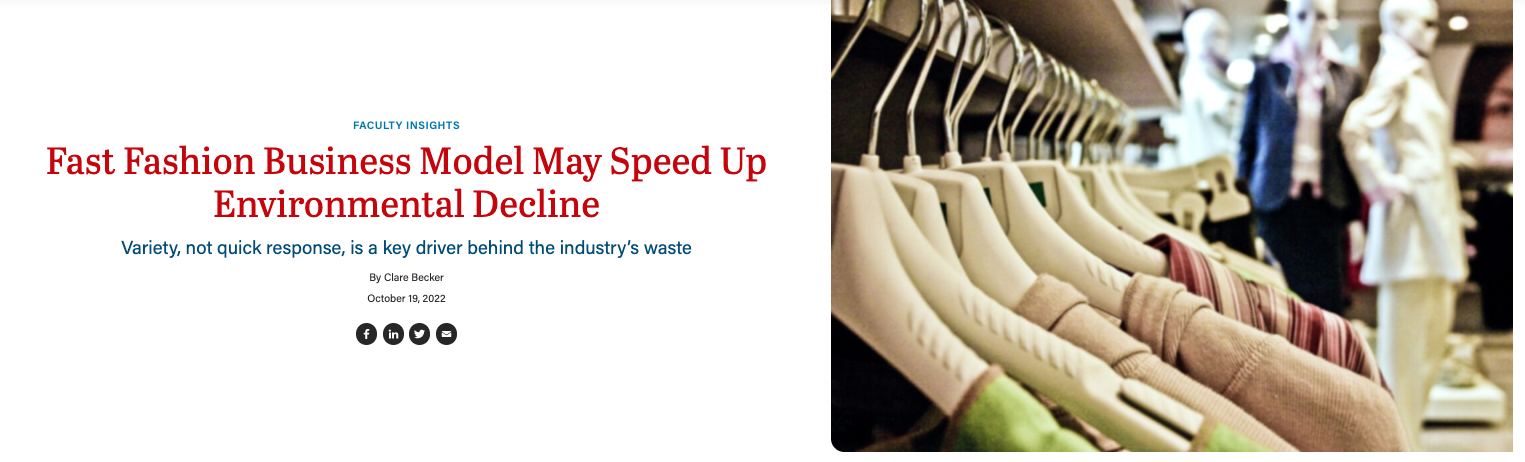
- Title and Featured image layout - 3 options: Default, 50-50 split, or Full-width image
- Image caption - field will only appear if featured image is not hidden and default layout is selected
- Options include:
- While the featured image can be added in the right side menu, the featured image options are found in the meta - post field group.
- Use Case 1: For some posts, the featured image is the same as the post's main image. In this case, do not check Hide Featured Image.
- You can add a caption to a featured image when Hide Featured Image is unchecked. You should see a Featured Image Caption field beneath Hide Featured Image. Enter the caption, save your edits, and you should see the image with its caption displayed on the post/article.
- Use Case 2: For some posts, the featured image is different from the post's main image. In this case, check Hide Featured Image and add the post's main image with an Image block.
- Use Case 3: For some posts, there is a featured image to display on the card that pulls the post, but the post itself does not have an image. In this case, check Hide Featured Image.
Example
Examples - Featured Image Options
| Post appearance - Default
|
|---|---|
Post appearance - Full-width image
| Post appearance - 50-50 split
|

Research Citation Options
...
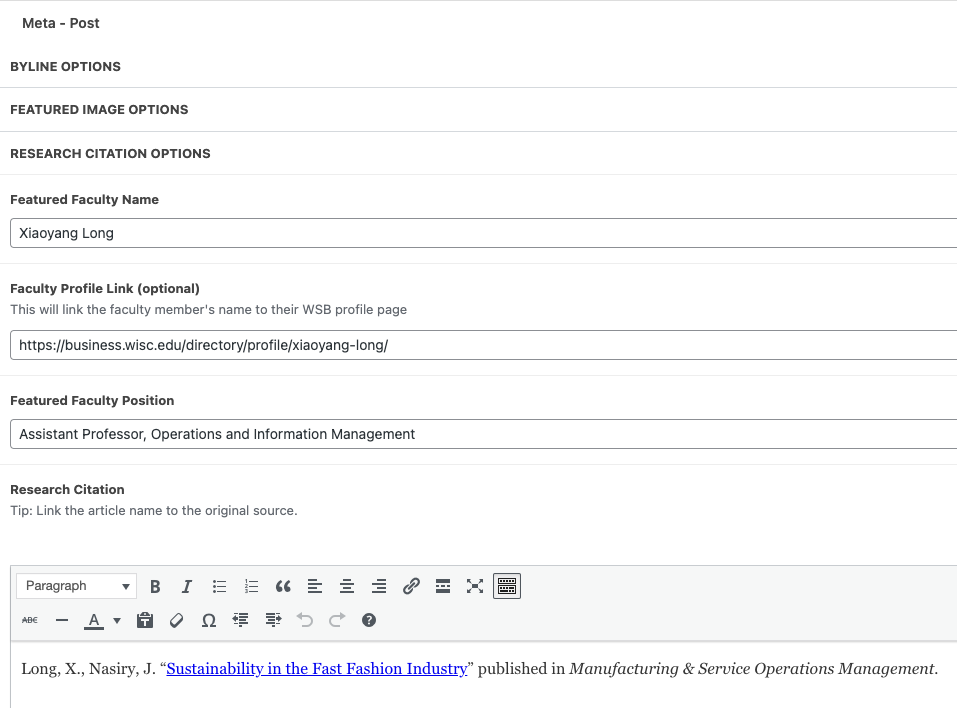
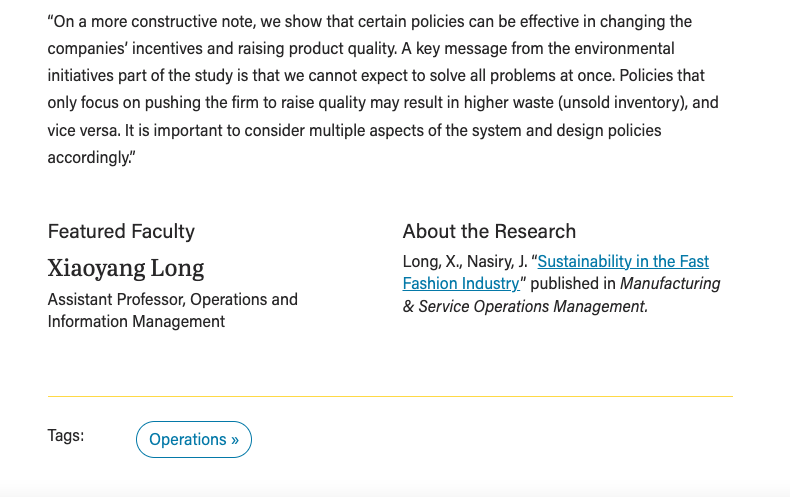
- Add the faculty name (first and last)
- Optional: add a link to the faculty profile page (e.g. https://business.wisc.edu/directory/profile/faculty-member-name )
- Add the faculty's position
- Add the citation for the research mentioned in the article
- Tip: link the article name to the original source
Example - Research Citation Options
| Post appearance
|
|---|
Related Stories
- Under Related Posts, you can search for and manually select three posts to display under Explore More Stories.
- The posts you have selected will appear to the right of the list of posts
- Tip: Select taxonomy drop-down allows you to search for posts with a specific category or tag.
- If you don't select any posts, WP will automatically choose 3 recent posts with similar categories/tags.
...