
...
- Click the button with a plus sign and type "image" to search for the image block and select it. (Or hit the enter key to start a new line and type "/image" and select the option that pops up.)
- Select "Media Library"
- If you or a team member already uploaded the image to the WP media library, search for and select the image.
- Tip: When searching the media library, be sure to select "All Files" on the left side before you search so that WordPress looks through the entire media library. Alternatively, if you know which folder the image is in, you can drill down through the path of image folders to get to your image.
- Make sure the image has alt text describing what is in the photo, including all visible text, to meet accessibility requirements.
- Otherwise, click the Upload Files tab to add your image to the correct media library folder.
- Under Choose Folder, click on "Uncategorized". In the dropdown, look for "blogs" folder and then select your blog's folder below it.
- Tip: before selecting the Upload Files tab, find the folder you need to add images to in the Media Library tab and select it. When you navigate to the Upload Files tab, your folder will be selected for you.
- Drag and drop the image from your computer or click "Select Files" and find your image on your computer.
- Under Choose Folder, click on "Uncategorized". In the dropdown, look for "blogs" folder and then select your blog's folder below it.
- Once the image has loaded, you must add alt text describing what is in the image. This is an accessibility requirement for any image that provides readers important context (especially images that have text in them).
- You can also add a caption if you like.
- Tip: Adding the caption to the image in the media library means it will display under the image every time it is used. If you might use the image multiple times and don't always want the caption displayed, you will need to add it to the image block in the event editor instead.
- If you or a team member already uploaded the image to the WP media library, search for and select the image.
- Select "Media Library"
- Click the button with a plus sign and type "image" to search for the image block and select it. (Or hit the enter key to start a new line and type "/image" and select the option that pops up.)
- Editing an Image
- Click on the image to see editing options.
- Above the image you can:
- choose an alignment option (left, center, right) – click the three horizontal lines (with the middle one being thicker than the others) in the toolbar. This will show you the different image alignment options.
- choose an alignment option (left, center, right) – click the three horizontal lines (with the middle one being thicker than the others) in the toolbar. This will show you the different image alignment options.
- Above the image you can:
- Click on the image to see editing options.
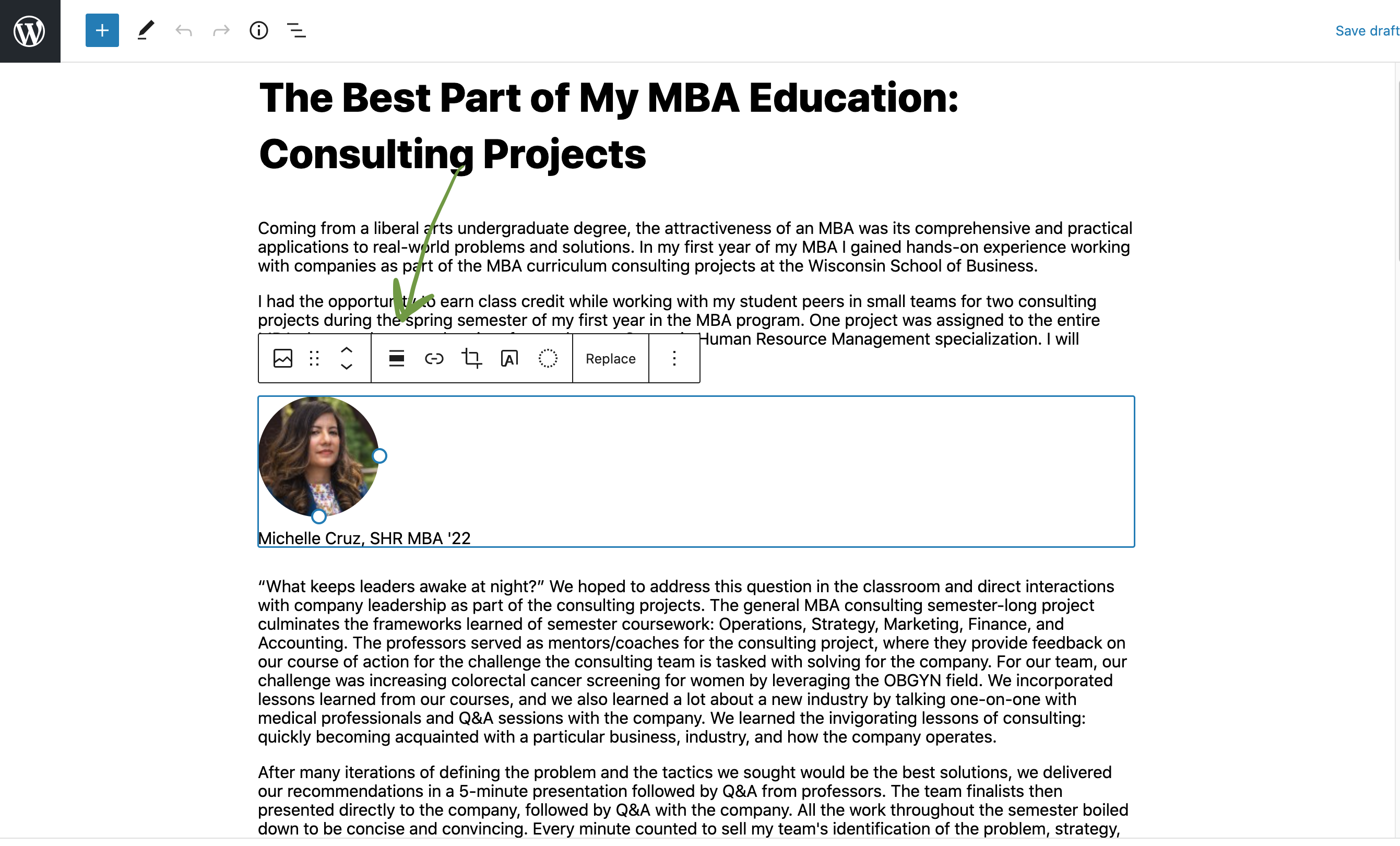
- crop the image
- add a hyperlink to the image
- move the image to a higher or lower position on the page
- On the right side of the screen, when the image is selected, you can:
- add alt text (remember this is required for every photo)
- edit the image size (select a predetermined size created by WordPress or reduce the size)
- Make sure you don't stretch or squash the image. You can adjust height and width but must keep their proportions the same. If you need the proportions to be different, you have to crop the image. (see above)
- Below the image you can add an optional caption. (This is the recommended location for adding a caption, if you would like one displayed.)
- Deleting an Image
- Use one of the following methods:
- From a blog post, click on an image block and click "replace" if you already have an image added to the block. From there, find the image to delete and click "Delete permanently" (this will be under the image on the right side of the screen).
- Go to the WP login dashboard and click Media in the left side menu. Find your image by searching or going through the media library folders and hover over it. Click "Delete permanently".
- Use one of the following methods:
...
Additional Features
Aside callouts
- Guidelines:
- Aside blocks are meant to be used with a very small amount of copy. (~100 characters or fewer)
- Asides should be used sparingly in a single article. Use 3 asides max in one article.
- If using more than one aside, they should be separated by at least one paragraph.
- The aside block cannot be the last item in your post (this will push it down to overlap the footer content)
- Adding/editing asides:
- Click the plus sign button or type a forward slash and search for "aside".
- Select the aside callout block.
- Select which type of aside block you need. When you change the type of aside, different fields will pop up, so be sure to choose the type first, before you fill in the fields.
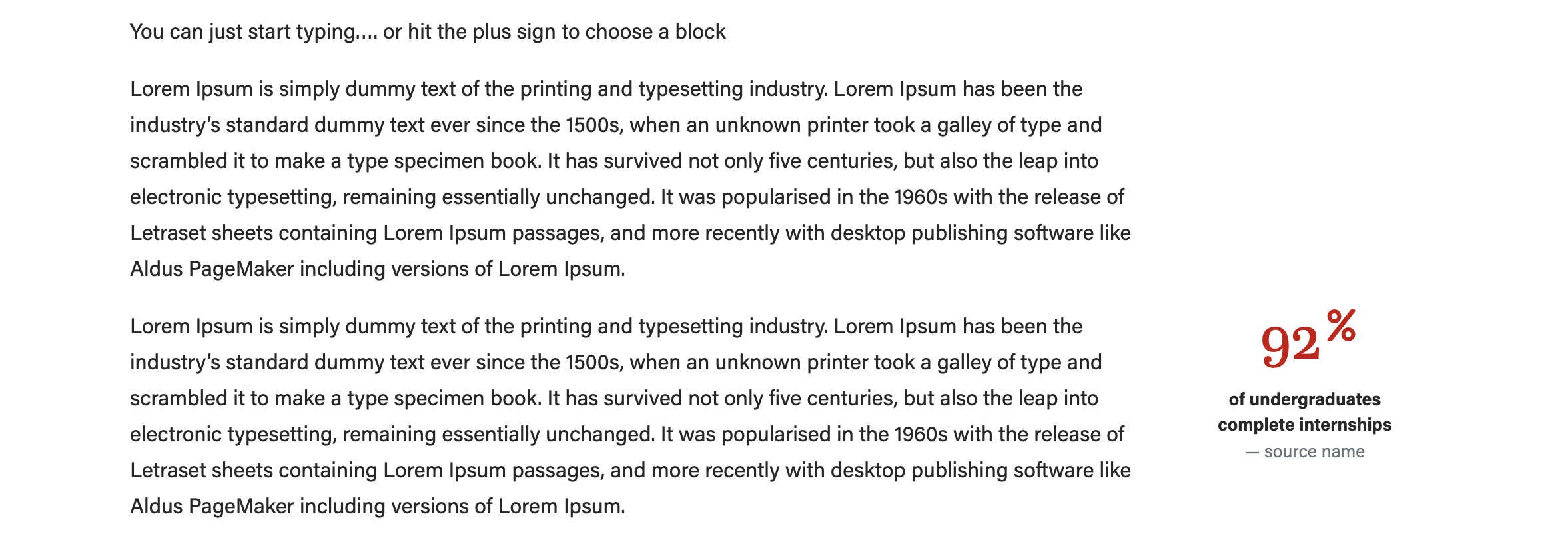
- Image - statistic (use an icon or no image)
- Image - statistic (use an icon or no image)
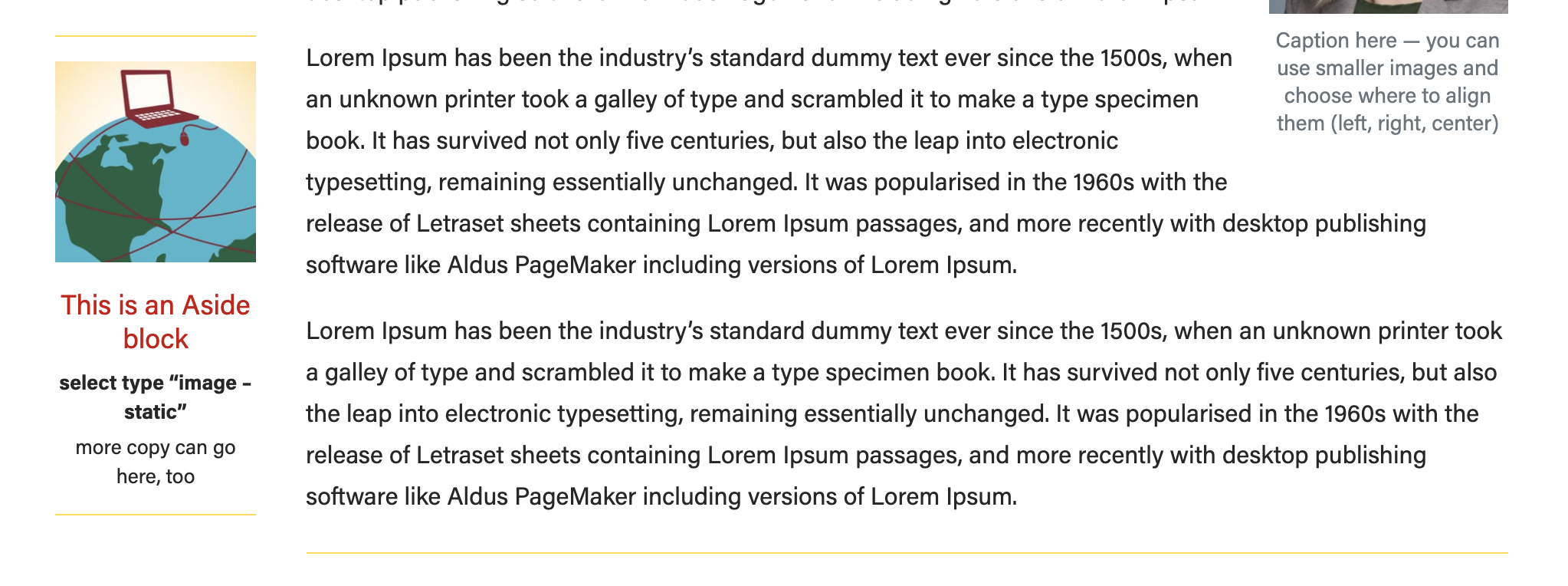
- Image - person (use a square headshot)
- Ranking (no image)
- Image - person (use a square headshot)
- Add the image (if applicable
- Click the plus sign button or type a forward slash and search for "aside".
- Select the aside callout block.
- Select which type of aside block you need. When you change the type of aside, different fields will pop up, so be sure to choose the type first, before you fill in the fields.
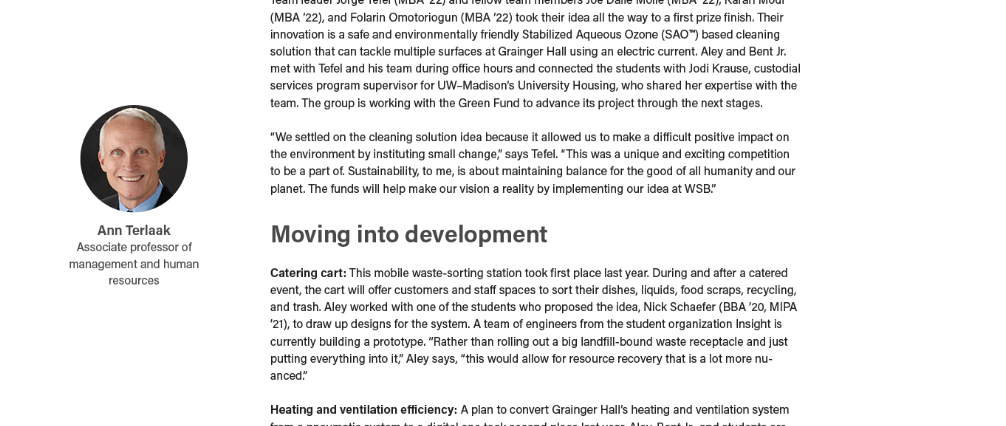
- Image - statistic (use an icon or no image)
- Ranking (no image can be added)
Be sure to preview your content to make sure the aside is not cutting into content or overlapping with footer content on the page.
- Click Preview > Preview in a new tab to check this. Resize your browser to as skinny as possible to mimic the view on a mobile device. Or you can publish the changes and pull up the post on your phone to see how it looks.
- If the aside is overlapping other content, or splitting up content, or making the article difficult to read, move the aside block up or down the page and preview again to make sure the issue is resolved.
- Aside blocks are meant to be used with a very small amount of copy. (~100 characters or fewer)
- Asides should be used sparingly in a single article. Use 3 asides max in one article.
- If using more than one aside, they should be separated by at least one paragraph.
- If the aside is overlapping other content, or splitting up content, or making the article difficult to read, move the aside block up or down the page and preview again to make sure the issue is resolved.The aside block cannot be the last item in your post (this will push it down to overlap the footer content)
Meta Fields
These optional fields can be found below your post content. If you don't see subtitle, author override, etc. you need to click the arrow next to Meta to expand this section.
...