
...
Aside callouts
- Guidelines:
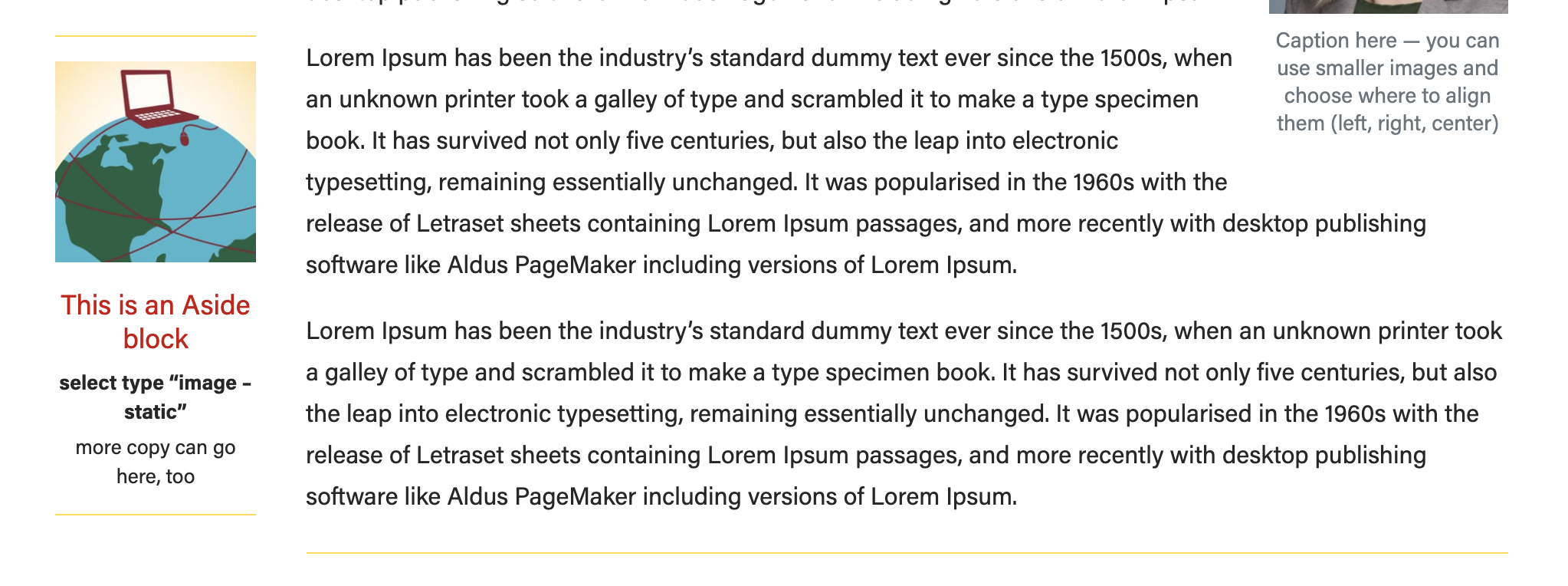
- Use to display a small amount of copy and an optional, small image (a headshot or icon) next to the post content.
- Use the top-most text fields
- Top level text goes in the "headline" field, even if it isn't a heading (e.g. person's name can go here)
- If you have 2 levels of content, use the top two fields (headline and subtitle). Only use the 3rd field if you have already filled in the first two levels.
- Aside blocks are meant to be used with a very small amount of copy, ~100 characters or fewer.
- Asides should be used sparingly in a single article . Use – use 3 asides max in one article.
- If using more than one aside, they should be separated by at least one paragraph.
- The aside block cannot be the last item in your post (this will push it down to overlap the footer content and mess up formatting on the page)
- Move it above some of the copy to fix this issue
- Be sure to preview your article to make sure there are no formatting issues
- Adding/editing asides:
- Click the plus sign button or type a forward slash and search for "aside".
- Select the aside callout block.
- Select which type of aside block you need. When you change the type of aside, different fields will pop up, so be sure to choose the type first, before you fill in the fields.
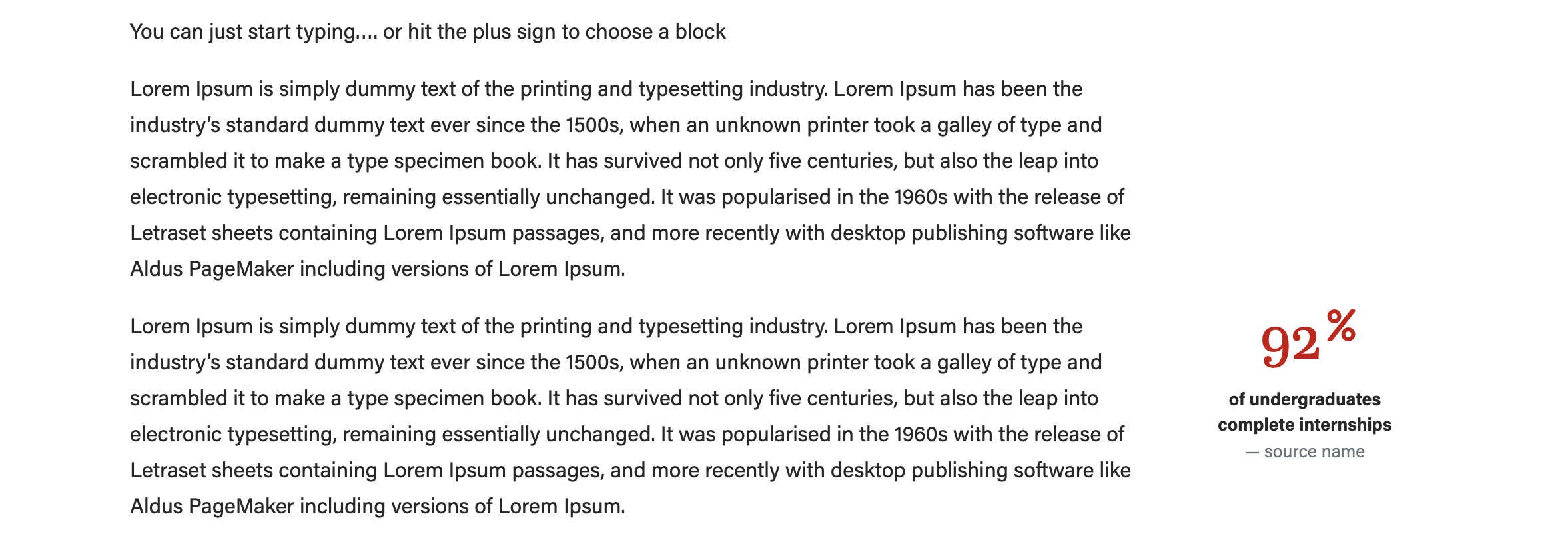
- Image - statistic (use with an icon or no image)
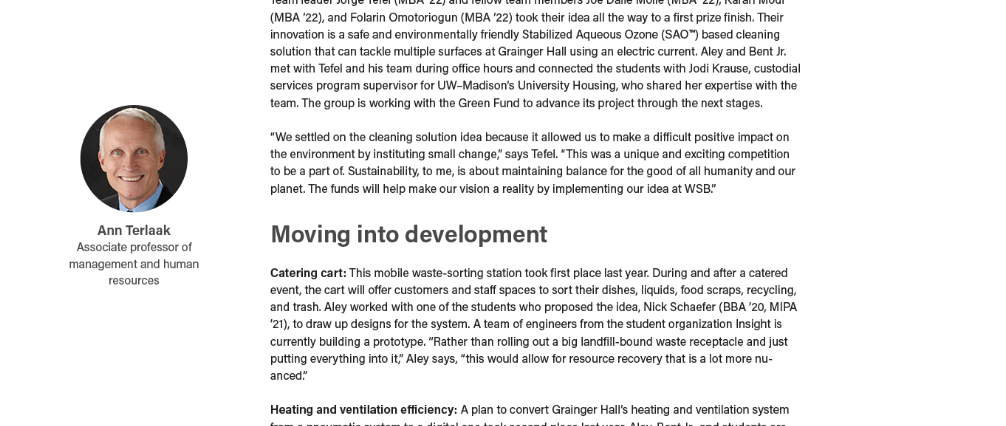
- Image - person (use with a square headshot)

- Ranking (no image)
- Image - person (use with a square headshot)
- Add the image (if applicable) and the text. We recommend only using a square image for this block. The "image - person" layout will crop your image to a circle for you.
Be sure to preview your content to make sure the aside is not cutting into content or overlapping with the footer content on the page.
- Click Preview > Preview in a new tab to check this. Resize your browser to as skinny as possible to mimic the view on a mobile device. Or you can publish the changes and pull up the post on your phone to see how it looks.
- If the aside is overlapping other content, splitting up content, or making the article difficult to read, move the aside block up or down the page and preview again to make sure the issue is resolved.
...