
...
- A flexible block that displays multiple cards/panels in a swiper.
- The block displays swiper arrows and creates swiping functionality when the content requires them.
- There is also an option to display navigation badges above the cards.
- Currently, this block can display either text only with an optional image or a video with optional text content.
- Click and drag swiping is disabled for video content on desktop.
...
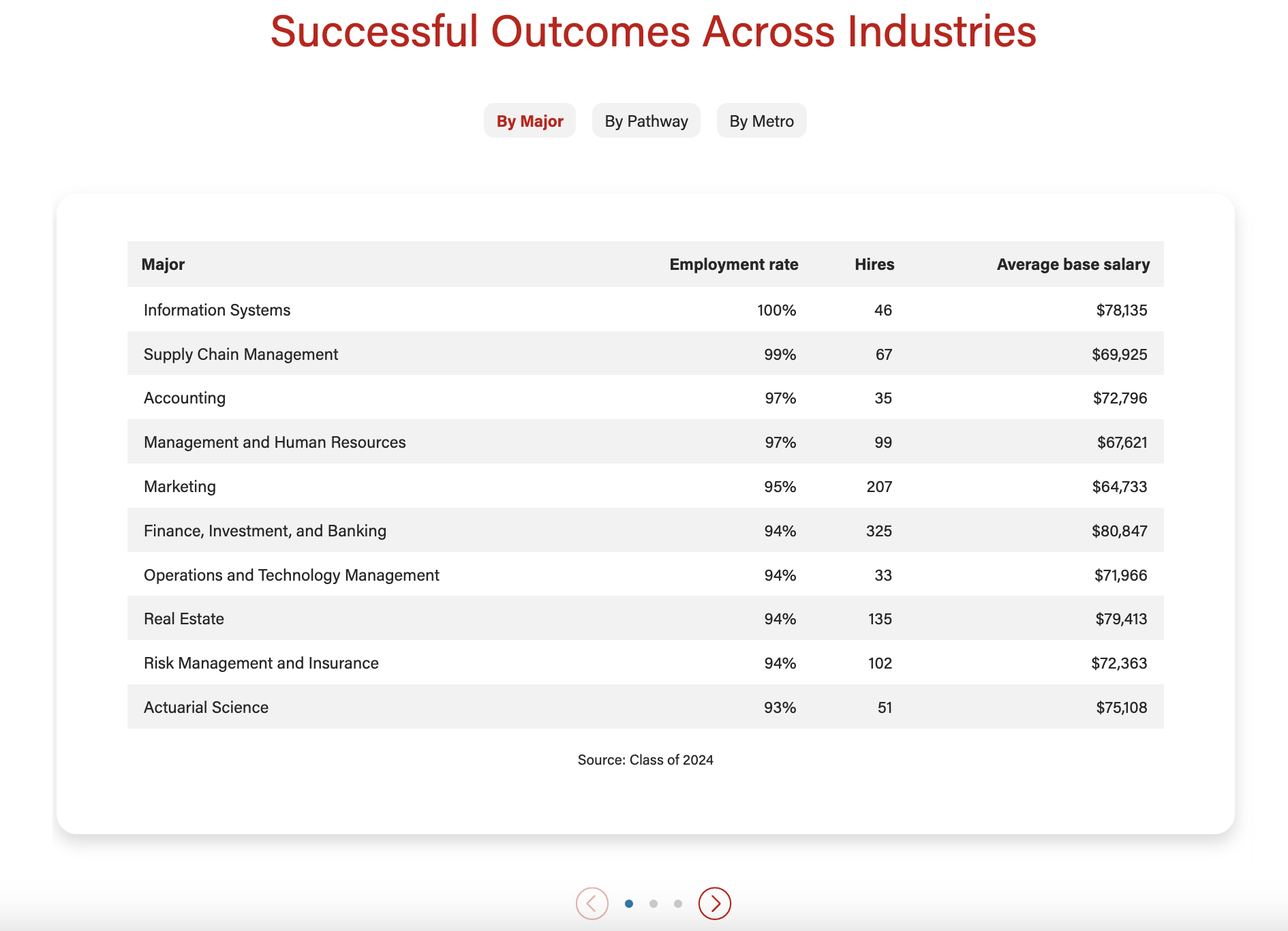
Text content and one column layout with badges
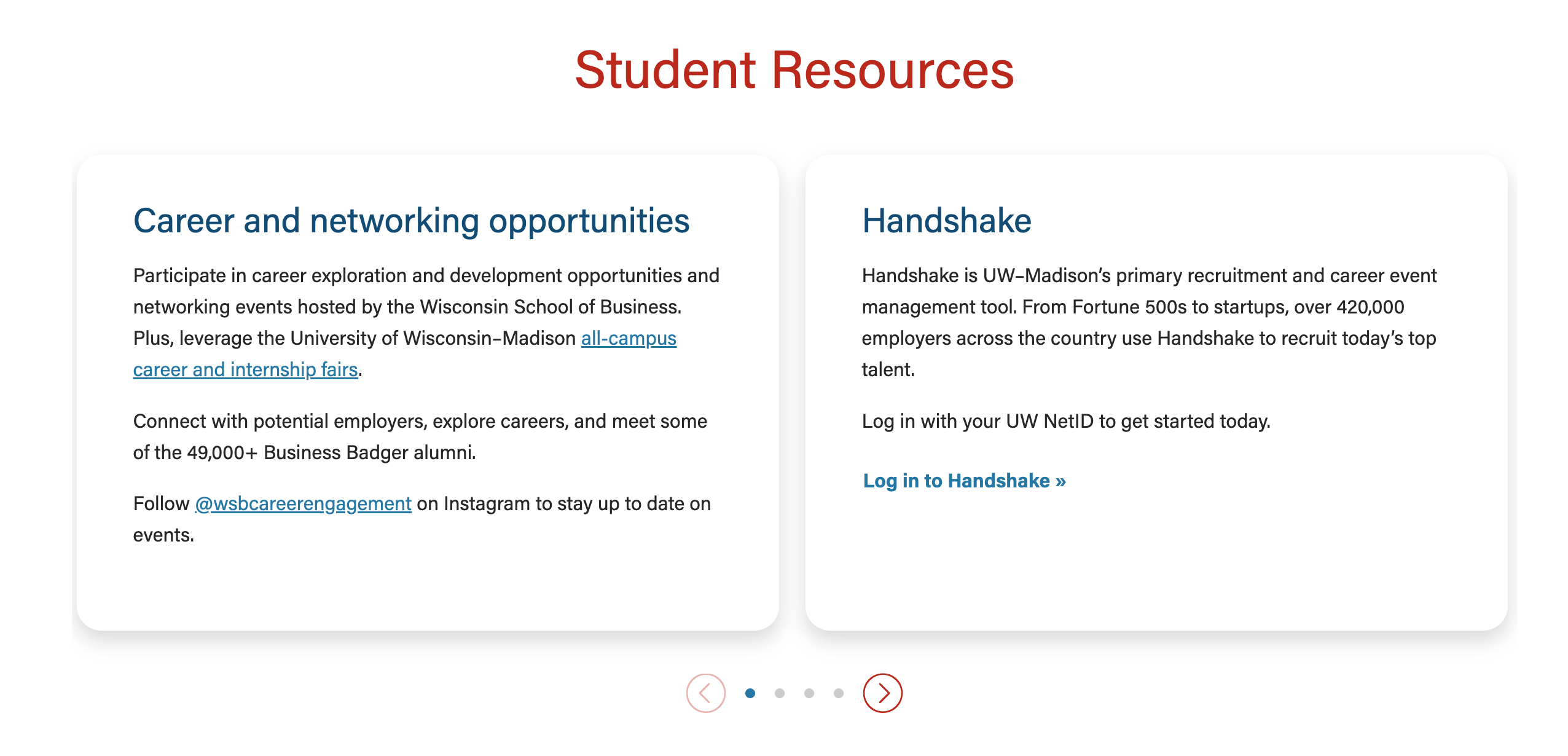
| Text content and two column layout
|
|---|---|
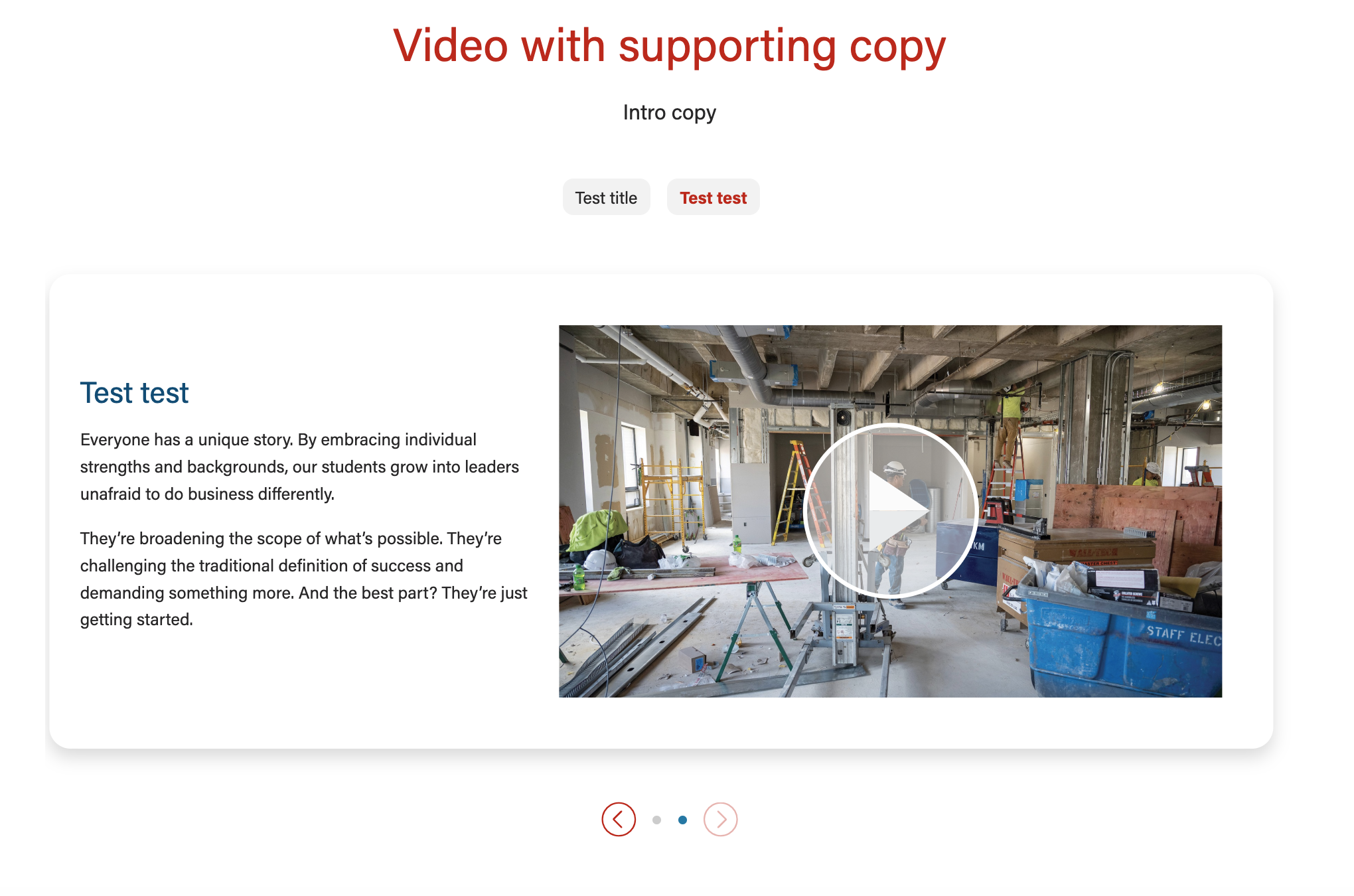
Video content with badges and supporting text
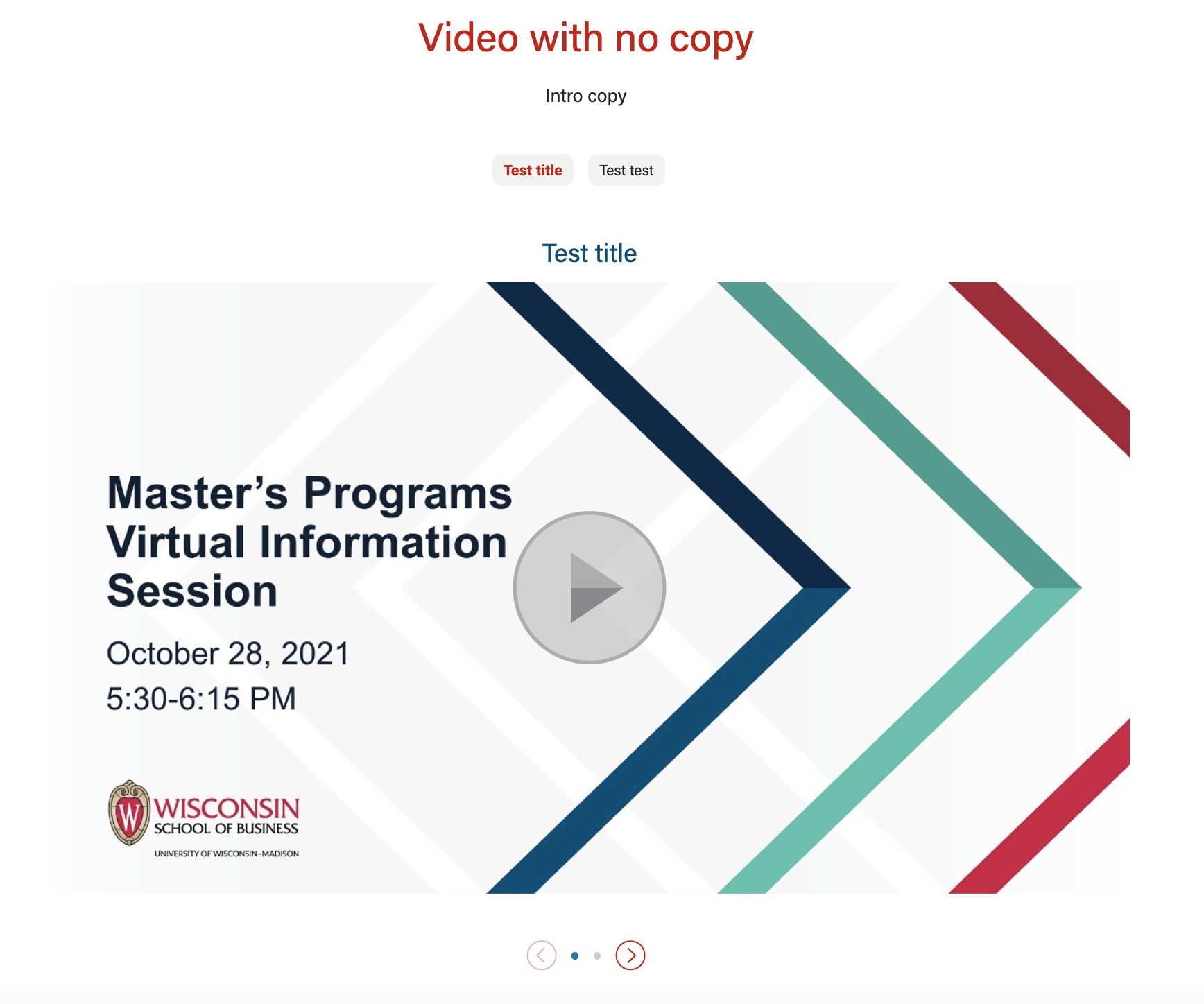
| Video content with badges and no supporting text
|
Social video (video content + mobile video)
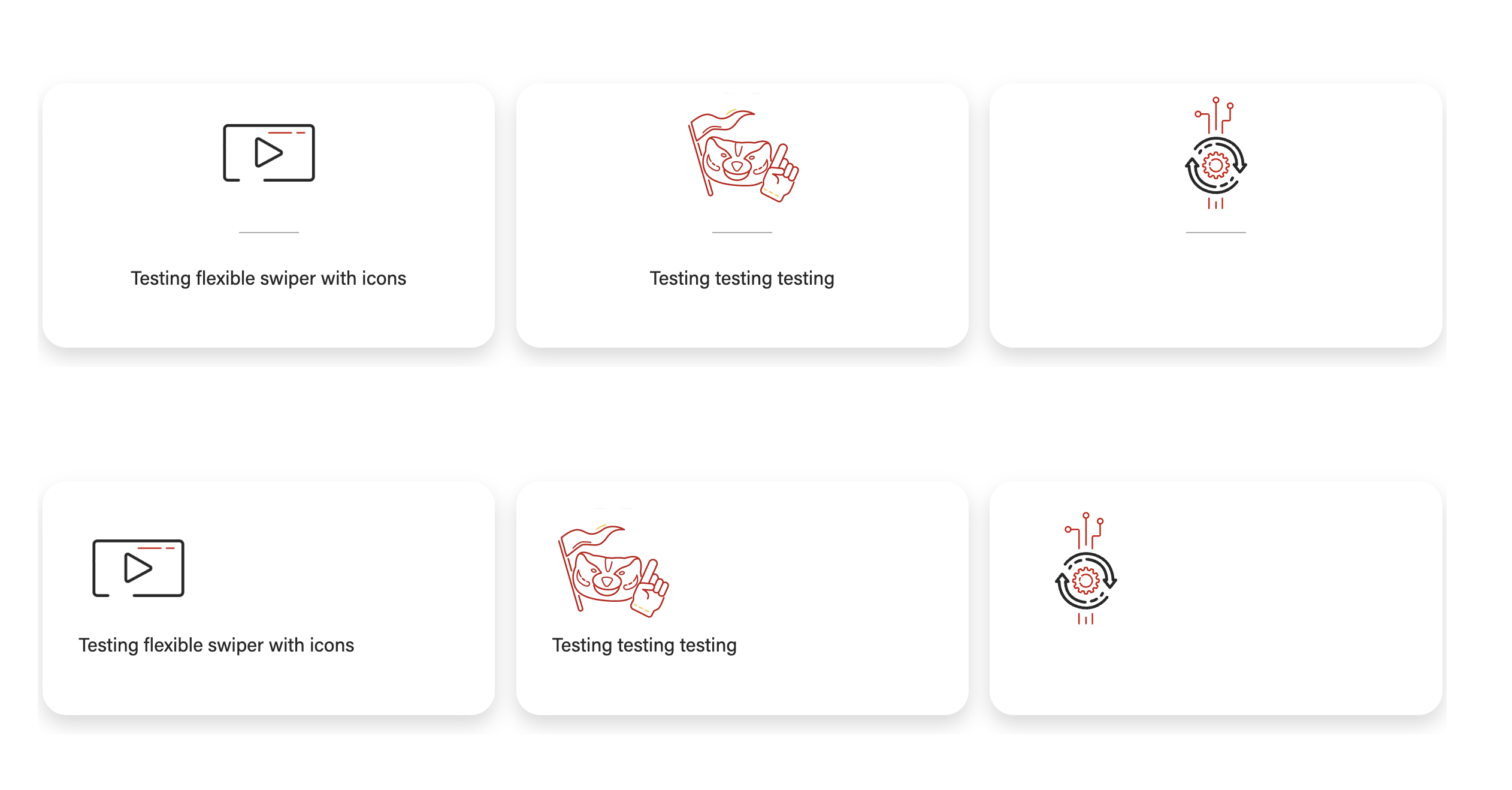
| Text/image content with icons (top - icons centered, bottom - icons not centered)
|
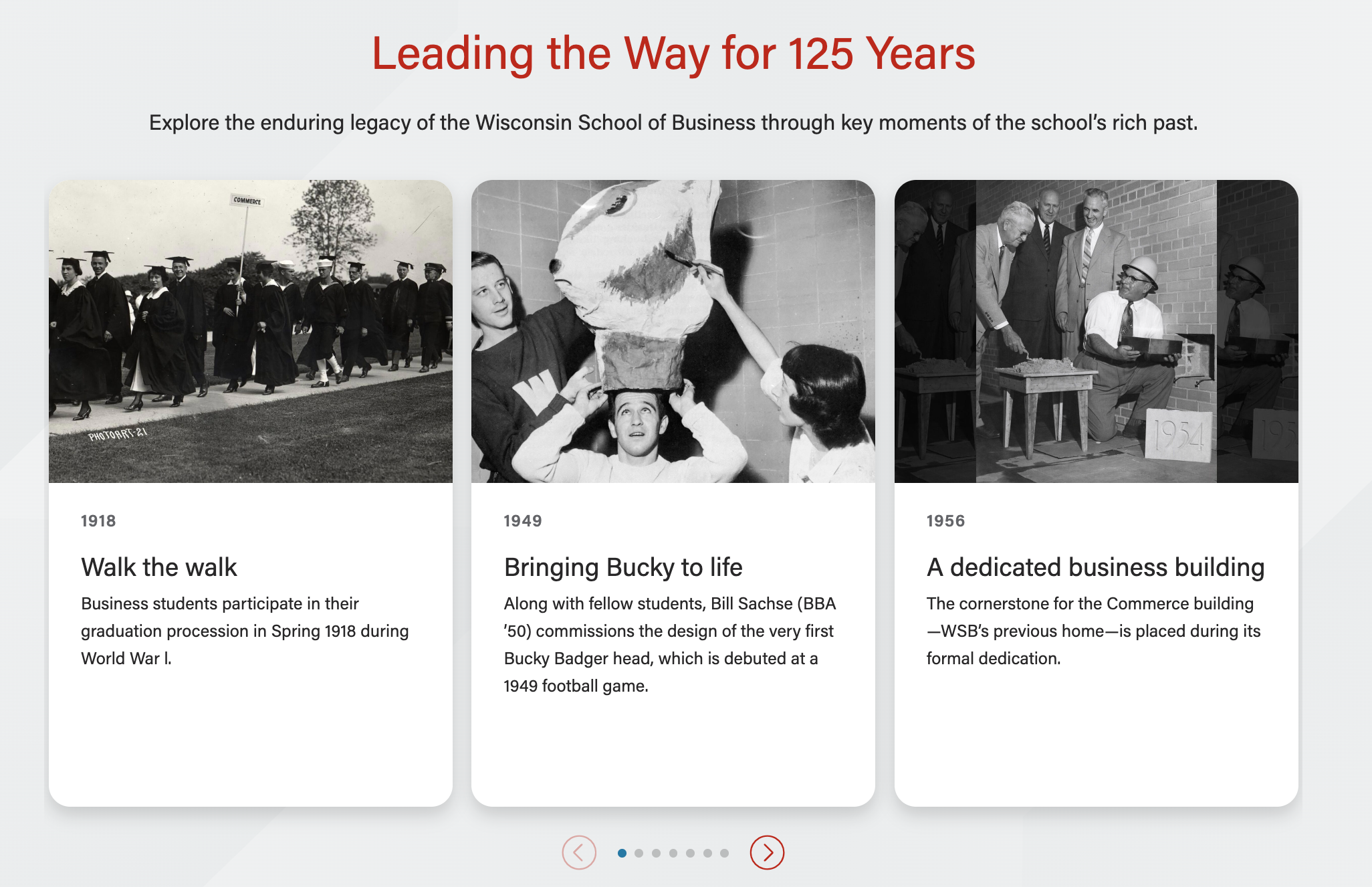
Text/image content with photos
|

Use Cases
Use Case 1
Use the text/image content option to display multiple html tables in a swiper. Example: https://business.wisc.edu/undergraduate/careers/#data
Use Case 2
Use the text/image content option to display multiple cards (with or without images) in a single row with the swiper. Example: https://business.wisc.edu/undergraduate/careers/#resources
...
Use the video content option to display multiple video webinars videos in a swiper, with or without supporting copy for each video.
...
Use the video content + mobile video option to display multiple youtube shorts. Example: https://business.wisc.edu/undergraduate/careers#badger-experience
Fields
Content type
- First you will need to select the type of content from two options: text/image or video
- This block has many conditional fields that depend on the content type chosen
...
- Doesn't currently work with landscape videos!
- Only appears with Video content type selected
- Sets video to a lazy load instead of a modal view.
Add/Edit Cards
- Card details - (accordion)
Card image
- Image field
- Select the photo or icon you would like to display
- Be sure to choose an appropriate image aspect ratio under the block configuration tab.
Title (required)
- Text field
- Text that displays inside badges (if shown) and title for the card
- For badges layout: this content will go inside the badge, so keep this as short as possible; recommend no more than 30 characters.
...
- Text field
- Displays in the lower right corner of the video thumbnail/placeholder image. Disappears when video is played
Video title
- on For modal videos - Used for aria labels, but does not display on the page
- on For lazyload videos - displays on video
...
Adaptive autoheight?
- Yes or no
- Default is Yes
Card image ratio
- If adding an image to any cards, select an appropriate aspect ratio
- Default - 16x9
- Options:
- icon
- 16x9
- 21x9
- 4x3
- 1x1
Center icons?
- Yes or No
- When image ratio is set to "icon", this field will appear
- Default - No (icon will be left aligned)
- If Yes, icon will be centered and a small gray horizontal rule will appear between the icon and the other card content
Anchor ID
Block Wrapper Classes
...