...
- Be brief. Provide enough information for users to enjoy the image and act on the information it provides, the same way a vision-abled user would. Make it a sentence (100 characters) or less and avoid redundant words like “photo of,” “image of,” “screenshot of.”
- If the image is a headshot, "John Doe headshot" is sufficient. Include first and last name.
- Be contextual. Consider how you are using the image in the context of your email, and provide the information
- Include any relevant text in the image. If the image has text in it, include it in your alt text. If there is more than one sentence of text in your image, make sure to include that text outside of the image, somewhere in your email.
- End in a period. This can help users know when the alt text ends.
- Examples:
- "aerial view of Grainger Hall."
- "Bascom Hall in winter."
- "professor John Doe lectures on a stage."
- "students discuss around round tables."
- "Grainger logo"
Image to text ratio in emails
...
How to decrease image file size
You can don't need fancy software to do these basic edits, most computers have built-in editors.
...
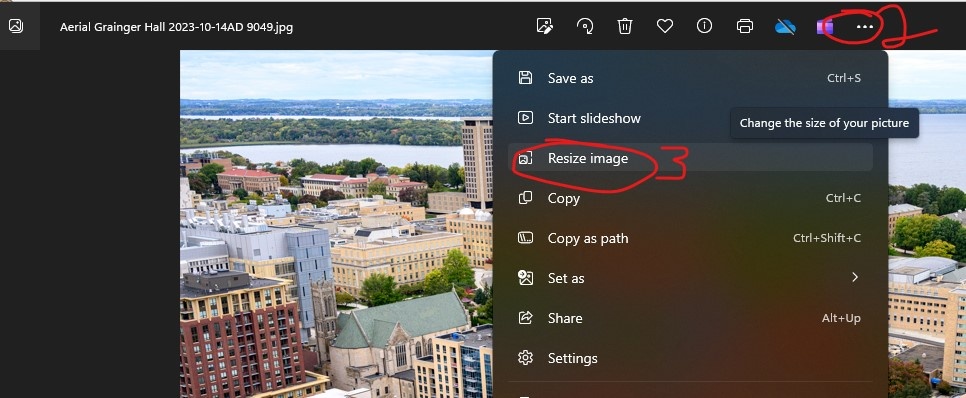
- Open your photo
- Click the three dots (right most option in the middle-top menu)
- Click "resize image"
- Change the width of your image to 1200px or less. The height will automatically adjust to be proportional to the width.
- Adjust the quality of your image by clicking and dragging the slider.
- Optional: Change the file type to JPG, since JPG files are generally smaller than other image types. (You cannot do this if you have transparency in the image)
- You will see underneath the slider info for the "Current" image vs the "New" image, which will tell you how many KB the file size of the image is. If it's under 300KB, you are good to go!
- If it's not small enough, you can also run your image through an image optimizer like tinypng.
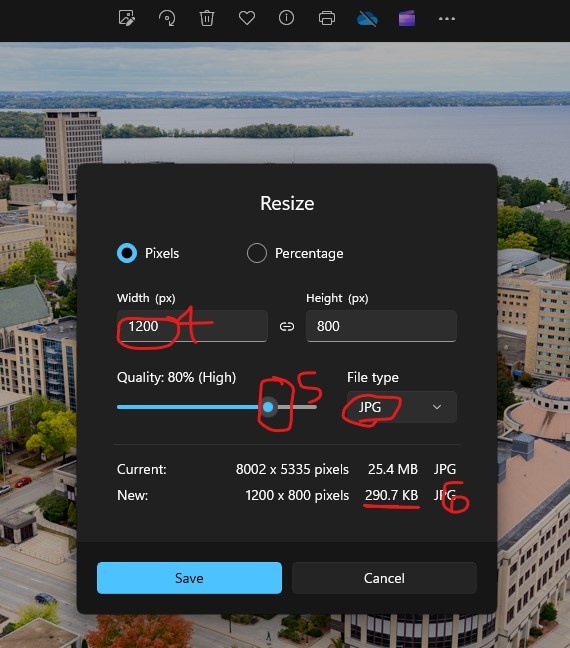
- Click "Save"
Modifying a Square Image to a Circle
Eloqua does not have a built in function for circle images, so you will need to edit the image before uploading it to look like a circle. We recommend using circle crops for headshots/profile images of people, particularly in signatures or testimonials.
If you don't have photoshop, the easiest way to crop an image to a circle is using Pixlr. The free version of pixlr only allows a few uses per day, but the premium version is available for free to educational institutions, so if you create an account with your wisc.edu email you should be able to access it for unlimited downloads.
Larger headshot circle images are usually 300x300px, while smaller signature images are 90x90px.
To create a circle image:
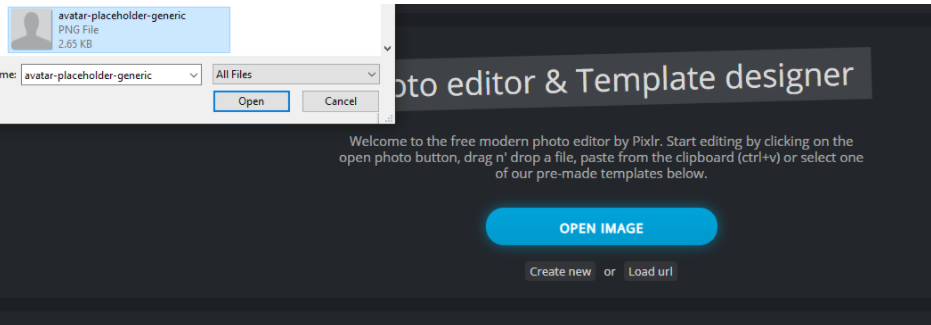
- Go to https://pixlr.com/x/ and select “Open Image” and select the photo you want
- If it’s not already, Crop your image to a square.
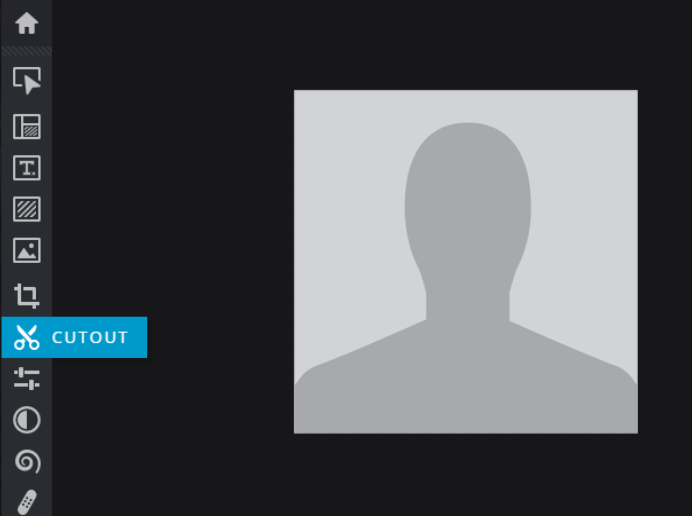
- Select the scissors icon “Cutout” in the left sidebar
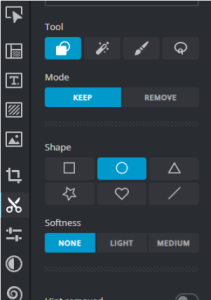
- Select the circle icon under “Shape”. Everything else can be left at the default.
- Place your cursor near the top left corner of the image, then click and drag to the bottom right corner. You should see the outline of a circle around your image.
- Let go of the cursor, and it will automatically crop the photo to the circle. If you aren’t happy with how it looks, click undo and try again.
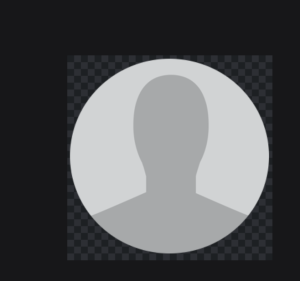
- Note: there isn’t a way within the basic pixlr editor to make sure it’s a perfect circle, but as long as it’s close, don’t worry about it looking perfect.
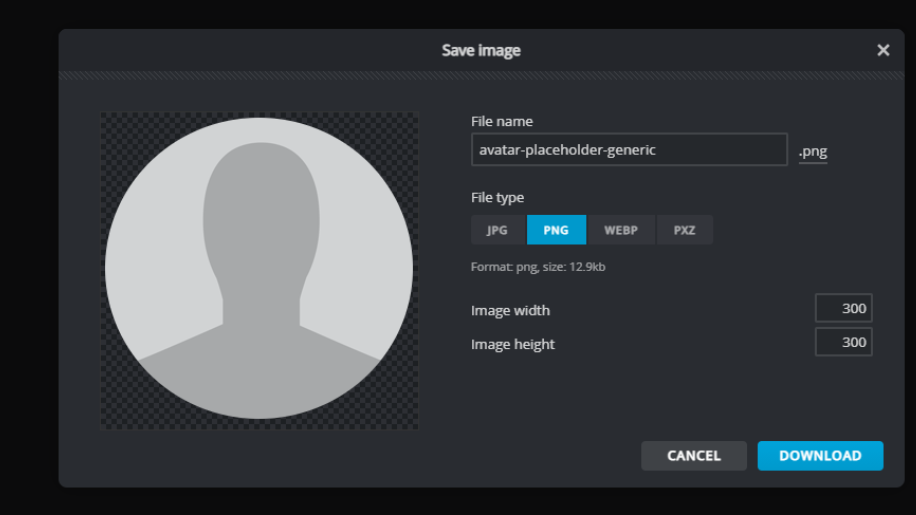
- Click save. It should default to PNG. rename your file and adjust the image size as needed, then download.