
...
- How to Request access
- How to Login
- Using WSB Email TemplatesBuilding an email in Eloqua
- Common pitfalls/mistakes to watch out for
- Accessibility quick tips
- Presend Checklist for WSB (UW Presend Checklist)
- Sending your first email
- File Organization within Eloqua
- WSB Brand Guidelines for emails
- How to create a non-Eloqua sent email in Eloqua
- Creating engaging email content (UW-Madison IT)
...
- Open up the Firefox browser (you may need to download the most recent version). Eloqua is buggy with other browsers.
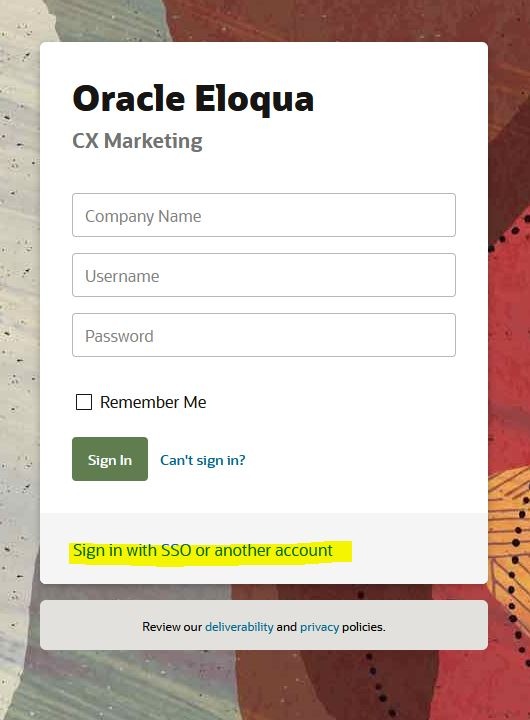
- Go to login.eloqua.com
- Ignore the sign in fields and select "Sign in with SSO or another account"
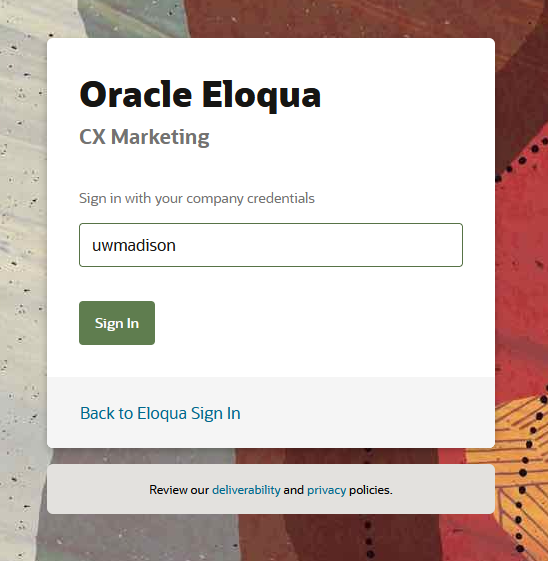
- In the "Company Name" field, type in "uwmadison" (not case sensitive) and click "Sign in"
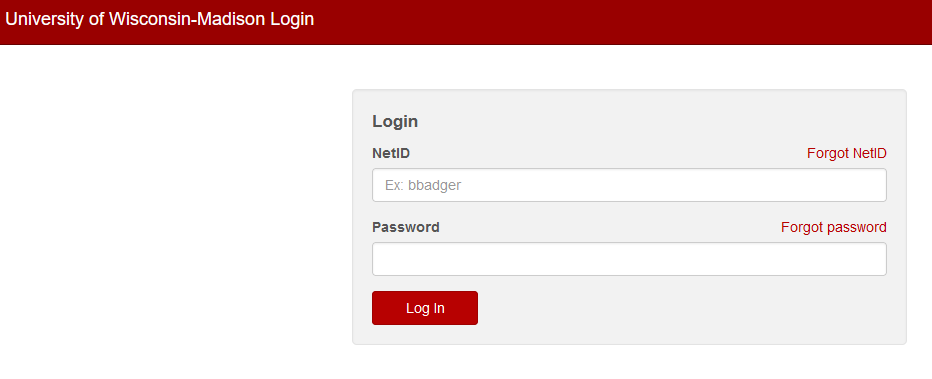
- It will redirect you to your typical wisc.edu login, where you can login as usual.
- If you get an error, you probably need to request Eloqua access
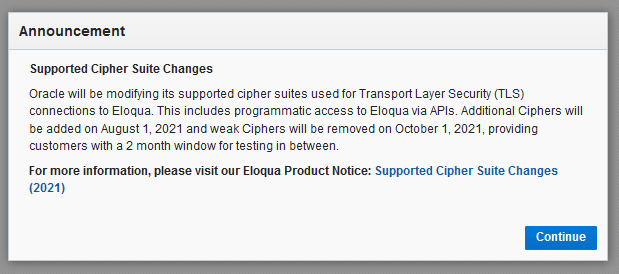
- You may see an Announcement page, you can ignore this and click "Continue"
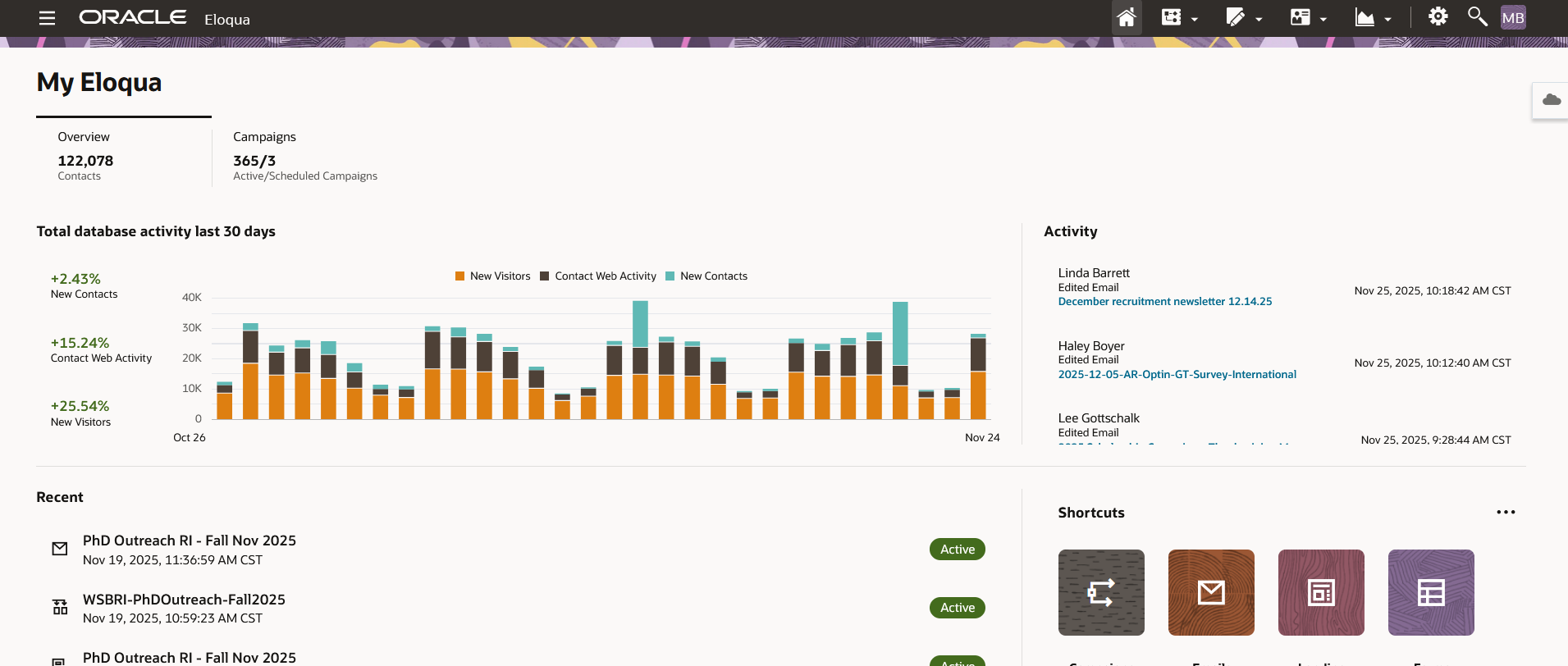
- Otherwise, you will be brought to the main Eloqua page. It will look something like this.
| Anchor | ||||
|---|---|---|---|---|
|
...
After you've logged in, you can start building emails!
Here is a recording of the training session for Eloqua Emails: Part 1
...
Using WSB Email Templates
Please wait to reference this section until after you've completed the Eloqua Canvas Training.
If you want a more specific breakdown of the email templates, check out the parts of the email documentation.
...
- Add alternate text to all photos, especially photos with text.
- After you've inserted a photo into the email, select it, and type into the alt text field in the left sidebar.
- Alt text should include any text that's within the photo, or a basic description of what's in the photo. If it's a headshot of a person, simple type in their name.
- Don't use images that are larger than necessary. Images can slow down your email and consume a lot of data, which is especially problematic for people with limited internet. It also increases the odds of your email being blocked by a spam filter.
- Full-width images should be 600 pixels wide. (If image quality is a priority, 1200px is okay)
- Half-width (and smaller) images should be 300 pixels wide.
- For bonus points, run your image through tinypng.com before uploading it to further shrink the file size.
- Photo editing quick guide
- Only use all caps for acronyms. Screen readers read anything in all caps letter by letter, not as a word. If you wish to emphasize text, use bold. (don't use underlines, those should be reserved for links only).
- Do not use underlines unless it's for a link! Users expect underlines to be links, and it will be confusing if they are not.
- Do not use phrases like "click here", "use this link" for links/buttons. Link text should make it clear where the user is going, with as much context as possible. "Sign up for our newsletter" "Read more about ____" "Apply now" are all decent examples of button/call to action text. When an action doesn't make sense, link text like "student resources", "list of business organizations", "our career team" might be appropriate. (This is done because screen reader users sometimes navigate by link to "skim" content. If the text linked doesn't provide enough context, a user will have to spend time figuring it out.)
- Likewise, don't include the entire URL as text in your email. Don't use: "https://www.reallylongurl.com/morewordscontinously" (this is because screen readers will spell out every letter in the link. You can imagine how tedious that is.)
- Pay attention to header hierarchy. In the case of our email templates, the H1 is used exclusively for the department name, and after that the main headers of the email are H2s. H3s should be used as subheaders of H2s.
- Design note: Please don't bold headers. They are already styled to be large.
- Use sentence case for links, buttons, and headings
...
| HTML |
|---|
<iframe id="kaltura_player" src="https://cdnapisec.kaltura.com/p/1660902/sp/166090200/embedIframeJs/uiconf_id/25717641/partner_id/1660902?iframeembed=true&playerId=kaltura_player&entry_id=1_26gzug08&flashvars[streamerType]=auto&flashvars[localizationCode]=en_US&flashvars[leadWithHTML5]=true&flashvars[sideBarContainer.plugin]=true&flashvars[sideBarContainer.position]=left&flashvars[sideBarContainer.clickToClose]=true&flashvars[chapters.plugin]=true&flashvars[chapters.layout]=vertical&flashvars[chapters.thumbnailRotator]=false&flashvars[streamSelector.plugin]=true&flashvars[EmbedPlayer.SpinnerTarget]=videoHolder&flashvars[dualScreen.plugin]=true&flashvars[Kaltura.addCrossoriginToIframe]=true&&wid=1_86dm1mwm" width="649" height="401" allowfullscreen webkitallowfullscreen mozAllowFullScreen allow="autoplay *; fullscreen *; encrypted-media *" frameborder="0" title="Kaltura Player"></iframe> |
Download for contact uploads: wsb-contact-upload-example.xlsx Note: we no longer use "CL2"- make sure to use "Contact Label" when uploading contacts.
Eloqua Analytics Documentation
If you Note: in this video it says you can't upload custom data objects, this has since been fixed. It is recommended that if you intend to use a variable in your email (such as "Dear First Name"), you may want to upload your contacts using custom data objects. The file below gives you the template you need, and you can follow the Eloqua documentation for for uploading records to a CDO. Uploading contacts this way is often slower than using the regular contact uploader, so do so well in advance of when you need it.
...