
...
A block with a dropdown selector which allows the user to select a topic and see more details about it appear on in the pagecard below.
Design
Displays a dynamic card with a dropdown/select element. The card content below the dropdown updates as the user chooses a different select item. This block utilizes the Web 2.0 (and UX) principle of progressive disclosure, which means showing a little content at first and allowing the user to see more if they choose to interact with the block.
- The block behaves like a tab group to show different options (i.e. tabs) along with related details (i.e. tab panels).
- Variations:
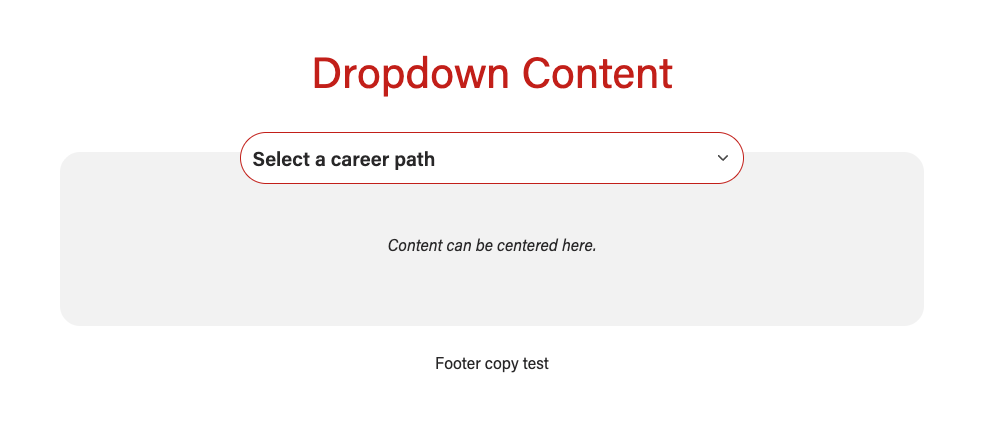
- No background - the card will be light gray
- With a background - the card will be white
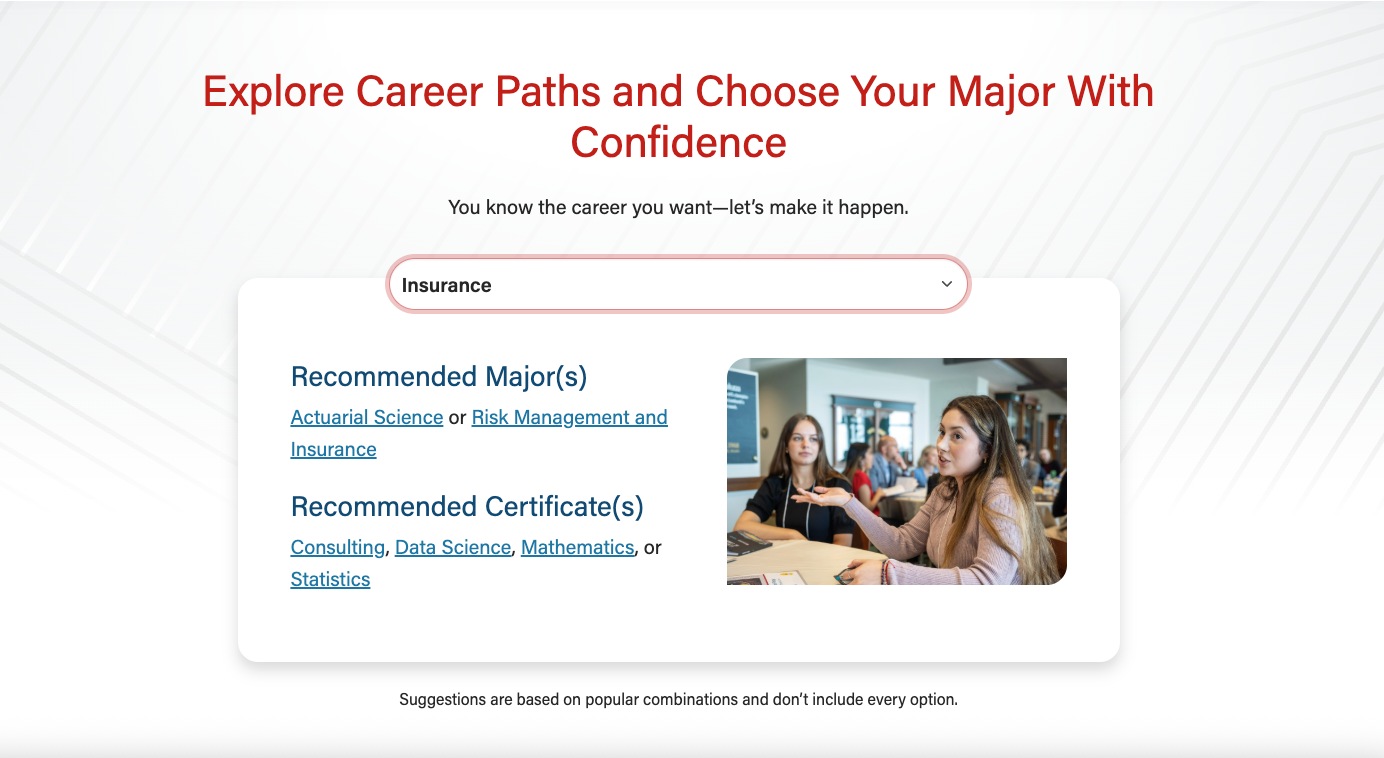
- Dimensional lines light background pattern - see second screenshot below
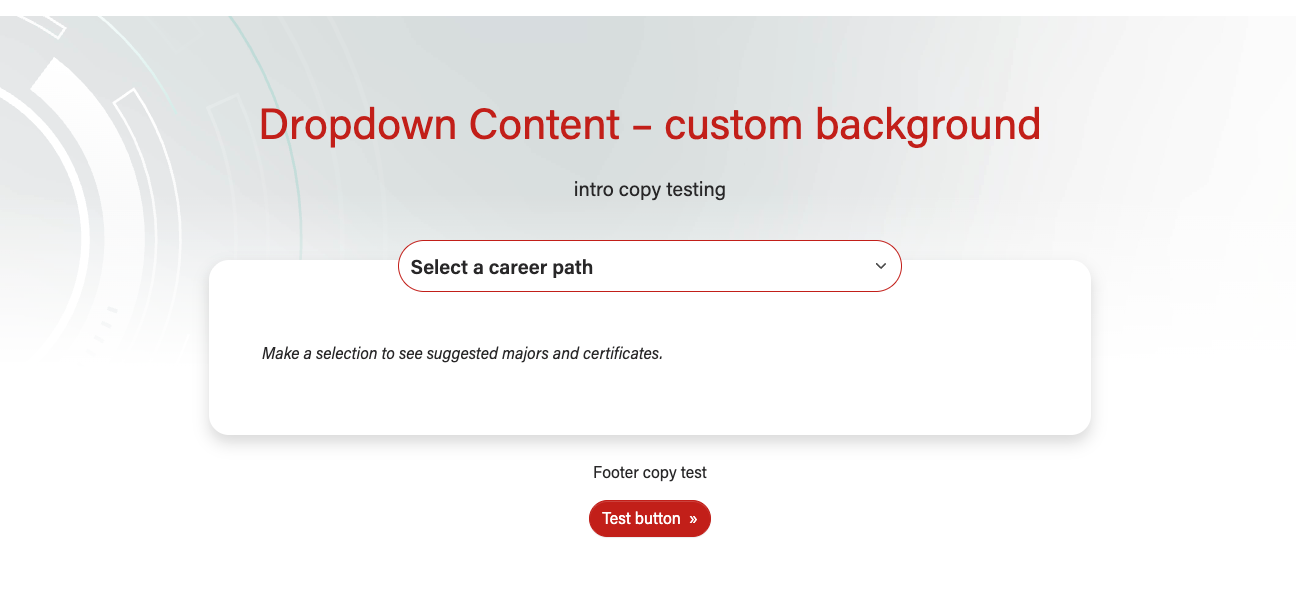
- Custom background pattern - upload an svg pattern to the WP media library and add it to the block
...
No background and a gray card
...
With light dimensional lines bg pattern
...
With custom bg pattern
| Expand | ||||
|---|---|---|---|---|
| ||||
|
Design
Career Pathways - result
|

Use When
- Displaying
Use Cases
- For displaying a large number of options (up to 15) with supporting content
- Example: Popular career pathways on the BBA Majors overview page
- For displaying Displaying a few options (at least 3) with varying amounts of supporting content
Editorial Guidelines
Follow our general Web Copy General Guidelines in addition to the following:
Dropdown items
- The options displayed in the dropdown when the user opens it
- 30 characters max for each item
- 3-15 items total
Supporting content (for each dropdown item)
- The details about each dropdown item that will go inside the card
- No exact character limit, but keep the length within reason. This content could include a short paragraph or bulleted list.
- Follow web best practices for keeping content easy to digest and scannable
- Use bulleted lists and subheads when appropriate
- We can include a variety of content here, such as:
- headings/subheadings
- sentences/phrases
- bulleted lists
- supporting images
Design Assets Needed
Images
Photo A (required/optional)
- Dimensions:
- Other details to note (e.g. keep faces vertically centered)
Photo B (required/optional)
- Dimensions:
- Other details
Implementation
ACF Fields
Add/Edit Content
Disable first item in dropdown?
- Switch to Yes if your first dropdown item acts as a placeholder or label telling the user what to do
- Leave at No if your first dropdown item is an actual choice the user might select
Dropdown content (repeater)
- Dropdown item - the text that will go inside the dropdown
- Ideal character limit: 30 characters (all char. characters should be visible on mobile)
- True character limit: 40 characters
- Supporting content - details about the dropdown item that will go inside the card
- This is a WYSIWYG field. Add content inside HTML tags and
Introduction and Footer sections
- These are standard sections for many of our custom blocks.
Configuration
- Background pattern - choose or upload a background pattern
- Recommend only using light background patterns with this block. There is a fade to white gradient overlay for all background patterns and this effect can look jarring with bold, medium-dark, or dark colored backgrounds. Make sure to communicate this with a designer if they plan to create a pattern for use in this block.
- Options:
- None(default value)
- Dimensional lines - light
- Custom pattern (upload svg to media library)
- Text color - choose the color for the text in the intro section
- Conditional field (custom background pattern must be selected above)
- This field should be used rarely, since it is strongly recommended to only use light bg patterns in this block.
- Options:
- Default - uses our default web font colors
- Dark - makes all text dark gray for contrast with
- White -
- Custom background pattern - image field
- Block wrapper class(es) - common field for styling our custom blocks
Code Templates for Card Content
Supporting content is added in a WYSIWYG field, so you'll need to add HTML elements with classes for styling. Copy the code below for the content you need:
Image + Text (2 column flexbox layout, responsive)
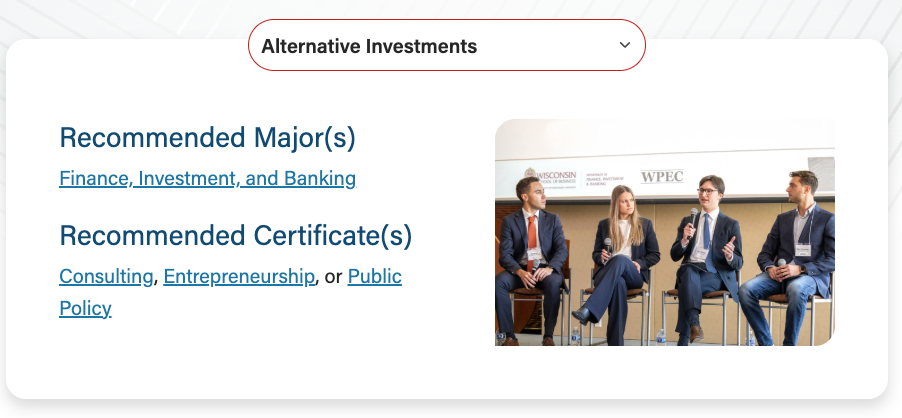
- Use if you want an image next to some text. Columns will stack for small screens and down.
- Where it says <img />, either
- Use the Add Media button and find the photo in the media library, then add classes from image in code snippet below
- Or copy the HTML for the image below and add the image URL and alt text yourself.
- Make sure to include <p> tags around any text that isn't inside another element.
...
| Code Block | ||||||
|---|---|---|---|---|---|---|
| ||||||
<div class="d-md-flex flex-md-row">
    <div class="flex-md-fill mb-5 mb-md-0">
        <h3>Subhead</h3>
        <p class="lead">Large copy</p>
		<p>Normal copy</p>

        <h3 class="mt-4">Subhead</h3>
        <span class="lead"><a href="#">Link</a>, <a href="#">Link</a>, or <a href="#">Link</a></span>
    </div>

    <div class="flex-md-shrink-0 ps-md-5" style="flex-basis: 50%;">
        <img src="#" alt="ADD ALT TEXT HERE" class="img-fluid brand-border-radius" />
    </div>
</div> |
Resources
- Figma mockup (link)