
Also known as: photo card, card with shadow, white card, icon card, filterable cards
Description
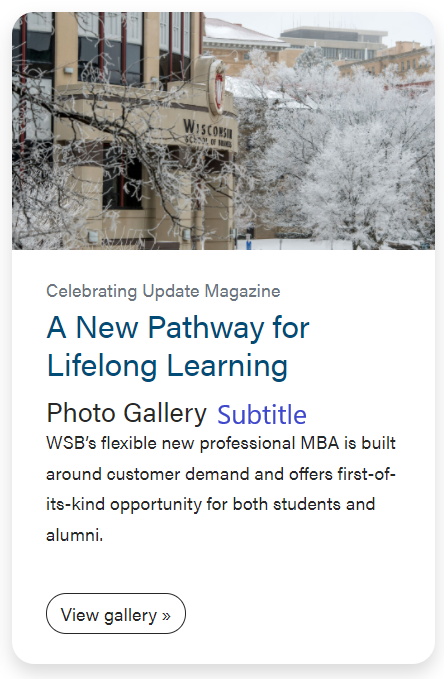
A standard white card with an outline and shadow that can display a subheading and a small amount of copy. Optional features include a photo or icon and a link.
| Expand | ||||
|---|---|---|---|---|
| ||||
|
Design

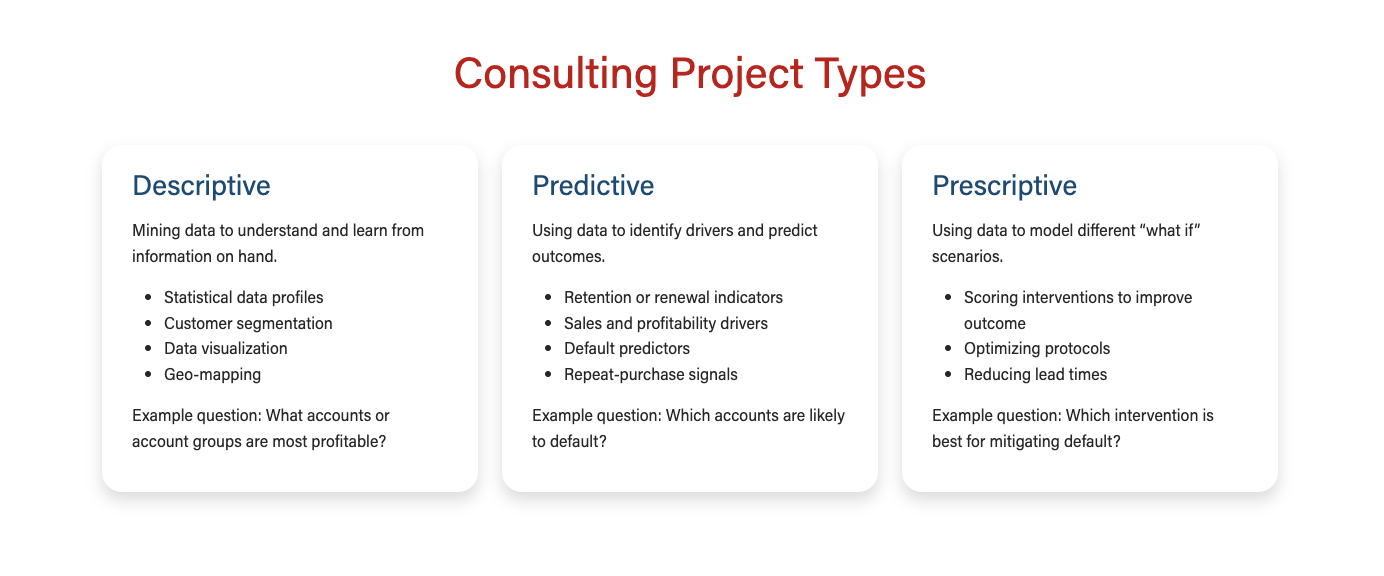


Use When
- Displaying multiple topics or chunks of information
- Linking to other resources or webpages
- Pulling in News or Blog posts from
Editorial Guidelines
Follow our general Web Copy General Guidelines in addition to the following:
Card microtitle (optional)
- Small text displayed above the card title that provides a bit of context
- Not used often in this block
- Example: PMBA Culture and Community – "For Women" and "For Active Duty, Reserve Duty, and Veterans" text in Student Support cards

Card title/Subheading (recommended)
- Keep each subhead limited to one short phrase
- Character limits:
- 1-3-column layout → ~45 characters max
- 4-column layout → 25 characters max
- Keep all subheads in the same row similar in length
Subtitle (optional)
- Not used often in this block, since card copy should remain short enough that a subtitle isn't necessary
Supporting copy (recommended)
- Keep this copy short; one or two short phrases for each topic.
- Character limit: ~125 characters max
- Keep in mind that if your card titles vary in length, we may need to adjust the length of supporting copy to maintain a consistent content height across the card row
- E.g. for cards with longer titles, we may need to shorten the supporting copy.
- If possible, organize content into bulleted lists to make it more scannable.
- Include 2-3 list items of similar/equal length in each card
- ~65 characters max for each list item
- Keep all card supporting copy in the same row similar in length and structure (e.g. if you include a bulleted list in one card, the other cards in its row should have similar lists)
Link (optional)
- Provide URL and desired link text
- If the link text essentially repeats the card title, the button can be hidden and we can link the card heading instead
- Example: Graduate Programs – program cards under "View All Graduate Programs"
Design Assets Needed
- Cards can display either a photo or an icon
- Be consistent with cards in the same row or grid. If one card has a photo, they all need to have a photo. If one card has an icon, they all need one.
Card photo (optional)
- Standard horizontal photo; use a portrait or environmental shot
- Dimensions: 2400x1600px
- jpeg file
- We can change the aspect ratio for card photos. The aspect ratio will be the same for all photos in the same card grid.
- Options:
- 21x9 (can be used if the images are appearing too large/tall in the default ratio)
- 16x9 (default)
- 4x3 (not used often)
- 1x1 (not used often)
- Options:
Icon (optional)
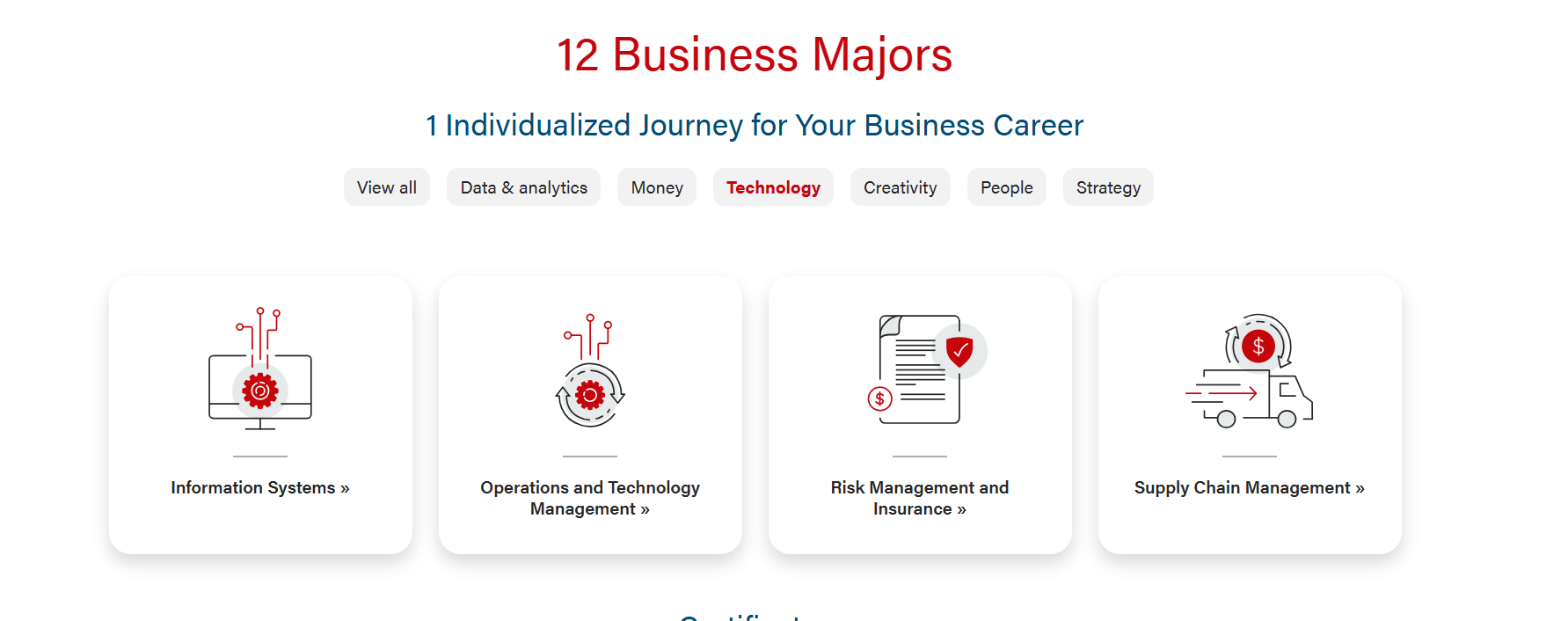
- Icons will be centered in the card and a small horizontal gray bar will display below the icon
- Example: BBA Majors – filterable cards
- Share the file name for the icon and the developer will look for your desired icon in the WP media library icon folder, if it has been used on the web previously.
- If the icon is new or the developer cannot find it in the media library, you will need to provide an svg file. The file can be saved to the MSC Web Google Drive, in the Icons folder
Implementation
ACF
Design
...
Card with no image

...
Card with an image
...
Card with an icon

...
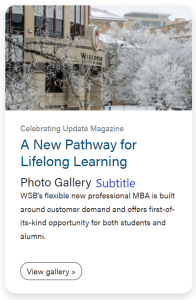
Card pulling a post (will also display featured image if there is one)

...
Card with stretch link and no CTA
...
Card without stretch link and no CTA (no use cases yet)
Filtered cards
Use Cases
Use when displaying content.
- Organizing multiple chunks of information
- Linking to other resources/pages
Fields
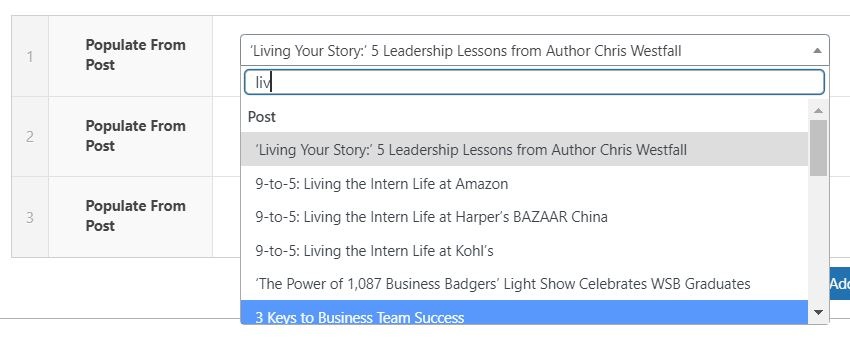
- You can manually select a post from the dropdown. Since the dropdown pulls all posts, you can type the title of a post to filter through them.
- Note: When pulling a post, a CTA is automatically created. The CTA text is "Read full article", with an aria-label on the link that says "Read full article: {Article Title]"
- Check the "Stretch Link" and "Remove CTA" checkboxes in Configuration for better accessibility/less redundancy when using Populate From Post.
Title
- Add the title of the card.
- Note: The class size of the title heading depends on the Title Heading Size under Introduction. For example, if Title Heading Size is h2, the card title will be h3.
- Note: If you check "Remove CTA" in the Configuration, you must have something in this field for the link to work.
Subtitle
- You can add a subtitle to the card. This subtitle is It will be displayed below the card title.
Filter Names (hidden)
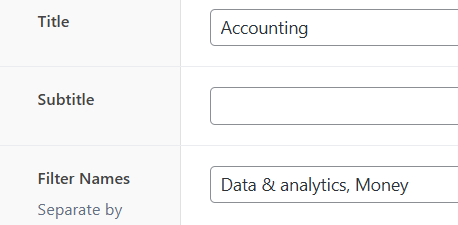
- Text field that's revealed if "Add Filters?" in Configuration is checked
- Content of this field is not displayed anywhere- it is in the data of the card's html element.
- Add the list of filters, separated by commas, you want the card to be included in.
- These filter names must be ones already listed in "All Filter Names" in Configuration.
- All cards are automatically included in "View all", so you don't need to include that one.
- There's no minimum or maximum number of filters per card, but you'll probably want there to be at least one filter per card.
Image
- You can add an image from the Media Library to the card.
Microtitle
- You can add a microtitle to the card. This microtitle is displayed above the card title.

Content
- Add the content of supporting copy for the card.
Link
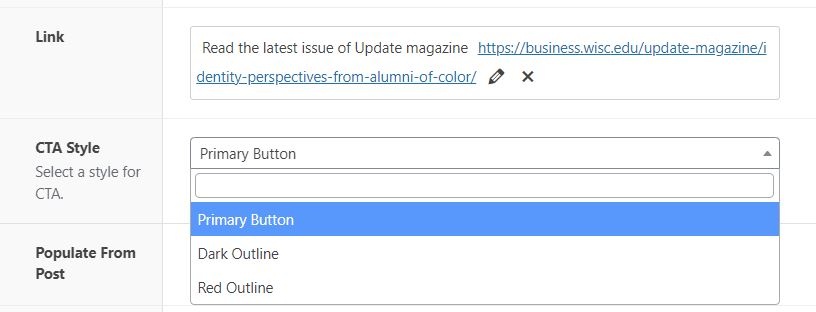
- You can add a link to a card. Add the URL and link text for the card's CTA.
CTA Style
- Select the CTA style of for the CTA of the card and footer CTA. Default style is primary (red) button
- Recommend choosing text link or red outline style, especially if you have 3 or more cards
- We typically choose the same CTA style for all cards in a block, but there are times this rule can be broken (e.g. if there are two cards and one has a more important CTA, like "Apply now", make that one a primary button and the other one a red outline button)
Intro fields
...
Standard block introduction heading and intro copy fields.
Footer fields
Standard block footer fields – footnote and CTAs/links.
Configuration fields
These fields are at the block level, meaning they affect all cards in a single instance of the component
...
- You can adjust the aspect ratio of the image. Default ratio is 16x9.
- Icon
- This option should be selected when an svg icons are icon is added to the image field of the cardscard
- This will style the icon so that it is centered vertically and horizontally in the top of the card
- It also adds a subtle gray accent line (or <hr>) below the icon
- Note: do not mix icons and photos in cards within the same block; a cards within the same group should all have icons, or no images OR photos or , no images at all
Stretch Link
- Check to add hover effect to the card and make whole card clickable.
- Only use on cards that contain one CTA
Remove CTA
- Check to remove hide CTA from the bottom, linking the header/title field content instead
Enable Card Shadows
- Adds shadow around cards
- Default = checked
Add Filters
- Check to add interactive filters to the card componentcards. When checked:
- Reveals additional fields:
- All Filter Names (under Configuration)
- Filter Names (on each card)
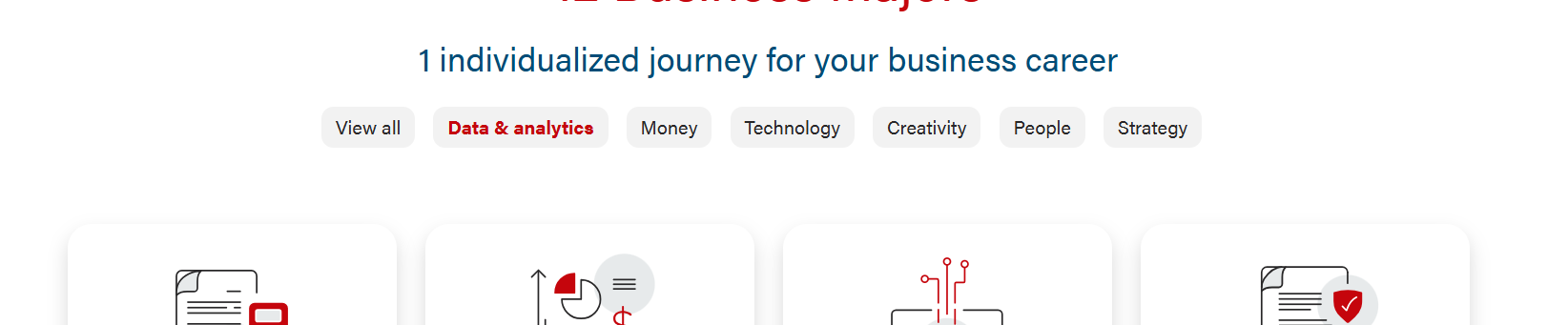
- Adds filter buttons/badges below the Introduction and above the cards.
- Automatically adds "View all" button, and any filter buttons listed in "All Filter Names"
- Reveals additional fields:
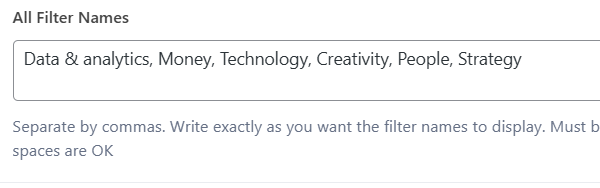
All Filter Names (hidden)
- Text field that's revealed if "Add Filters?" is checked
- Add the names of the filter buttonsfilters, in order as you want them to be displayed (case sensitive), separated by commas
- Special characters/numbers are okay but each name must start with a letter.
- The "View all" filter is added automatically as the first button and cannot be edited.
Coding Notes
02/2024 Changes:
- Added "Remove CTA" functionality
- Fixed "Populate From Post" link
- Removed aria-role=button from CTA
To implement a Remove CTA option on other cards:
- Add a "Remove CTA?" checkbox to the ACF fields in configuration. You'll want it to default to false to avoid issues with changing existing blocks.
- Add line in php for the block that defines the variable
- $remove_cta = get_field('remove_cta');
- Edit the line of code that displays the $title of the card
- Add if statement checking that there is a link, and that $remove_cta is true (checked)
- Add <a> element around the title. (You can basically copy the <a> element from the CTA in the card-footer, but remove the btn class and add a class for styling and remove the $link_title)
- Add a class onto the heading itself for styling- using if statement that checks for the $link_url, $remove_cta, and $stretch_link (class will be used to add »)
- Example:
Code Block language php firstline 78 linenumbers true <?php if ($link_url && $remove_cta) : ?><a href="<?php echo esc_url($link_url); ?>" class="<?php if ($stretch_link) : ?>stretched-link stretch-link-heading<?php endif; ?> " <?php if ($link_target) : ?>target="<?php echo esc_attr($link_target); ?>" rel="external nofollow noreferrer" <?php endif; ?>><?php endif; ?> <?php if ($title) : ?><h<?php echo ($section_title_heading_size + 1); ?> class="card-title <?php if ($link_url && $remove_cta && $stretch_link) : ?>heading-link<?php endif?>"><?php echo $title; ?></h<?php echo ($section_title_heading_size + 1); ?>><?php endif; ?> <?php if ($link_url && $remove_cta) : ?></a><?php endif; //if remove CTA is checked, place link around title/heading and add 'stretch-link-heading' class to the link and 'heading-link' class to the heading for styling?>
- Edit the line of code that displays the CTA
- Add '&& !$remove_cta ' to the if statement checking if there's a link, so that it only adds the CTA if remove_cta isn't checked
Code Block language php <?php if ($link_url && !$remove_cta) : //if remove CTA is NOT checked, add CTA link at the bottom?> <div class="card-footer"> <a href="<?php echo esc_url($link_url); ?>" class="btn <?php the_sub_field('cta_style'); ?> <?php if ($stretch_link) : ?>stretched-link<?php endif; ?>" <?php if ($link_target) : ?>target="<?php echo esc_attr($link_target); ?>" rel="external nofollow noreferrer" <?php endif; ?> <?php if ($post_object) : ?>aria-label="Read the full article: <?php echo $title ?>"<?php endif; //added aria label for more accessible link text?>><?php echo esc_html($link_title); ?></a> </div> <?php endif; ?>
Filter Names (hidden – on each individual card)
- Go back to each card and add the matching filter name(s) to this revealed field.
- If done correctly, each card should appear when the correct filter(s) is/are applied. Be sure to test thoroughly as any typos will break the functionality.
Resources
- Figma mockup
...