
...
- Make sure you are on your academic department's top page.
- Click on the “Create” button at the top red bar.
Note: Clicking the “Create” button will automatically create a subpage below the page you are currently on, so make sure you are on the main department page. Name the page by typing into the “Page title” section, the top line. The page should be named by Semester Year: Department Name. Note: always keep the department name in the heading.
You can now add paragraphs, tables, and links to your new page.
...
- Click the "Insert Table" button
- Choose the size of your table, based on the number of rows and columns (You can always add and remove rows after creating a table).
- Hover your mouse to the right until you have the number of vertical rows you need.
- Hover your mouse down until you have the number of horizontal columns you need.
- You should see the number of rows and columns you're creating (such as 4x6).
- Click to create
Once the table is inserted, text can be entered in each cell.
You can add or remove columns and rows from the table using the editing toolbar's second row of buttons.
- The standard columns for tables are: Date, Time, Room, Speaker, Affiliation, Synopsis, Paper
Pictured below: insert table button.
...

Pictured below: the standard table columns:

...
| Anchor | ||||
|---|---|---|---|---|
|
...
Step Eight: Add Photos with Text (Optional)
See also: Image Editing – Quick Guide
If you'd like to add photos and text, such as details of a speaker and their topic, you would do the following:
- Re-size your photo before uploading it into confluence (See also: Image Editing – Quick Guide)
- Standard image size for head-shot 150 x 188 pixels
- Click the "Insert files and images" button on the editing toolbar.
- Click "Upload files"
- Find the image you wish to use (Please resize with an image editor before adding to allow your page to load faster).
- Click "insert" and you will now see your image on the page. You can move this image around as needed.
- To align your photo select your photo and use the left, center, and right align options.
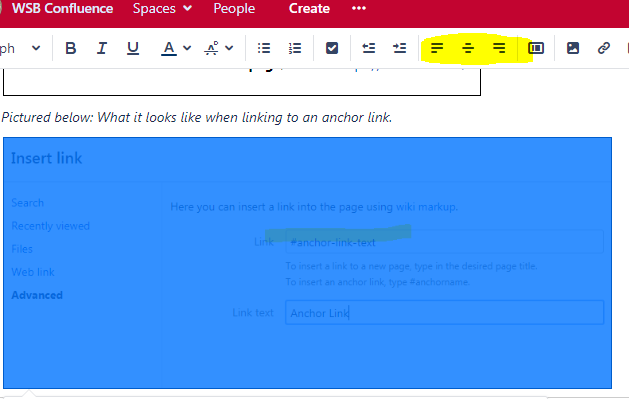
- To align your photo select your photo and use the left, center, and right align options.
- Click on the image to see options to add a border.
- Add alt text to images - after you have your image on the page, click on the image, then click "properties" and add text describing the image.
...
| Info | ||
|---|---|---|
| ||
You can quick toggle watching by pressing the "W" key on any page. |
...
How-to Share Links to Research Seminar Pages
If you want to share a link to a Reasearch Seminar page:
- Login to Confluence
- Find the page you want to share
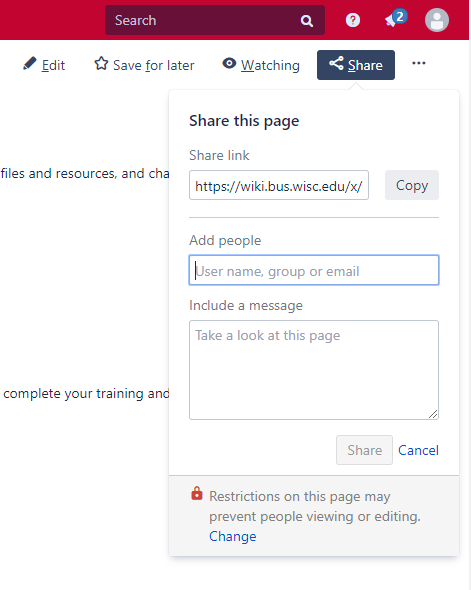
- Click the "Share" icon
- Copy the URL with the unique id
Other Helpful Resources and How-to Guides
...