
...
- Listen to the audio provided for the podcast and ensure it meets our Video Creation, Editing Guides and Best Practices
- Use the provided PowerPoint them PowerPoint to create a YouTube Video Thumbnail. You can use one of the WSB branded 16x9 powerpoint templates PowerPoint templates to create a thumbnail.
- Take a screen-shot of the PowerPoint slide, or save the slide as a .jpg.
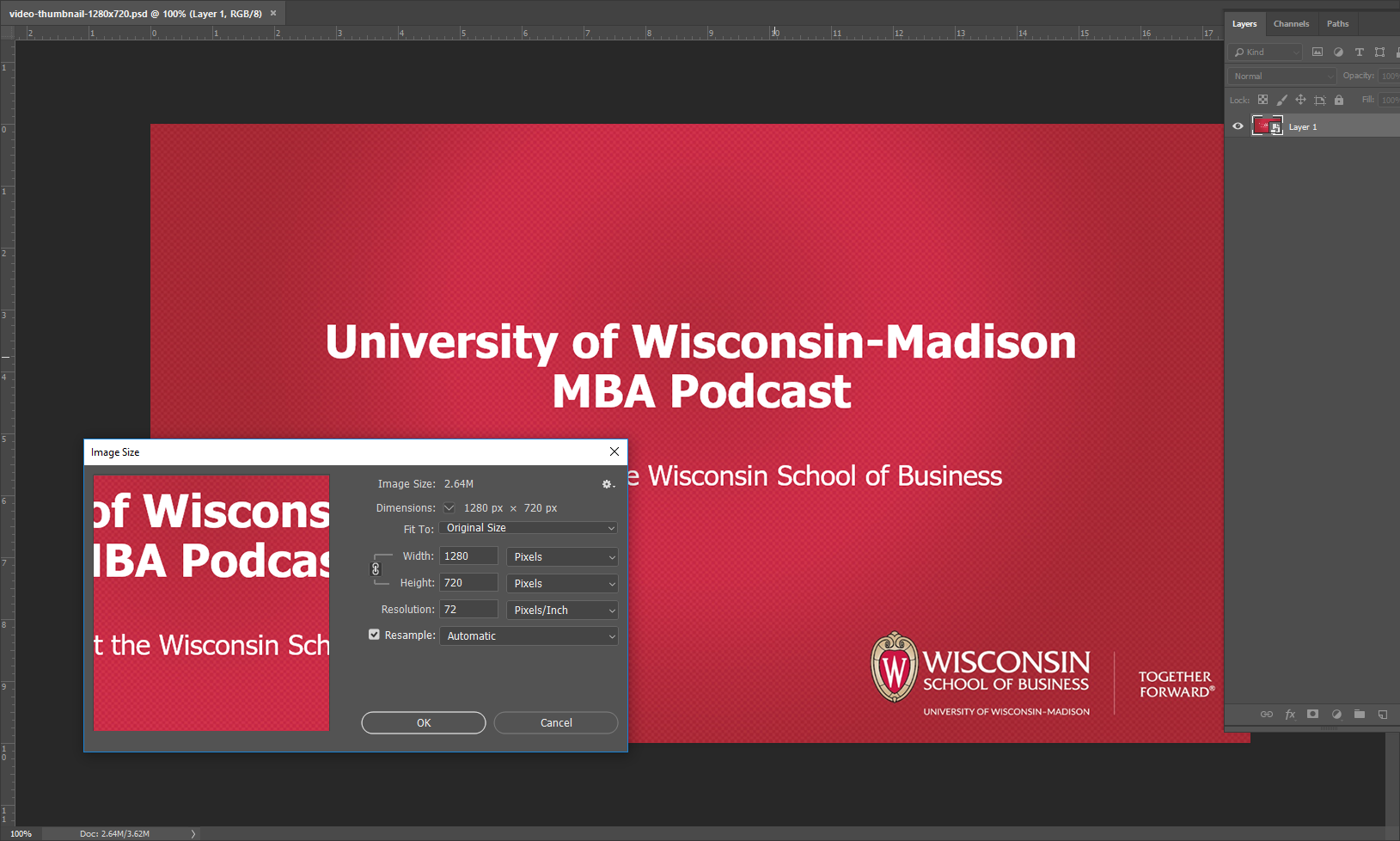
- Edit the image in Adobe Photoshop and ensure it is 1280 x 720 pixels .jpg.
- Using Camtasia (request licence from Teaching and Learning team) create an MP4 video using the audio and the thumbnail as the background.

- Share > Local File
- Custom production settings
- Default settings plus
- MP4
- Size > Video Size 1280 x 720 (Checked) Keep Aspect Ratio
- Add audio to track 1
- Add the thumbnail to track 2 and extend it to display the entire length of the video
- Listen to the video
- Export the video file.
- Upload the video to Youtube.com using Lastpass and the wsobmkt@gmail.com account
- Use YouTube as the Wisconsin School of Business at the University of Wisconsin-Madison
- Upload the MP4 Video File to YouTube
- Add the provided “Title” and “Description”
- Add the custom Video thumbnail
- Click “Next” and select “No, It’s not made for kids”
- Click “Next” and “Next Again
- Under Visibility > Publish Now set the video to be “Unlisted”
- Click “Done”
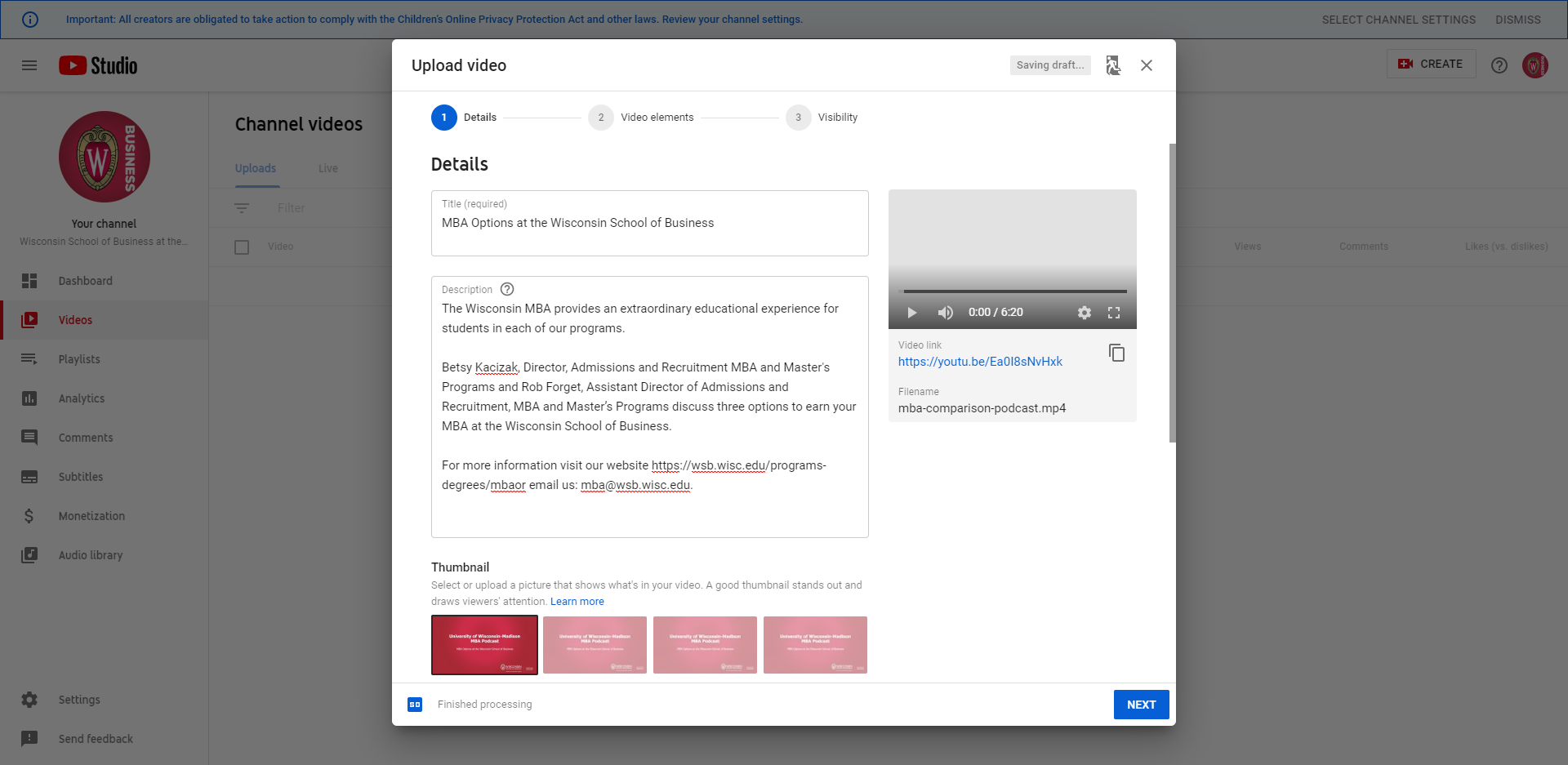
- Use the share link to add a link to the video to the website
...