
...
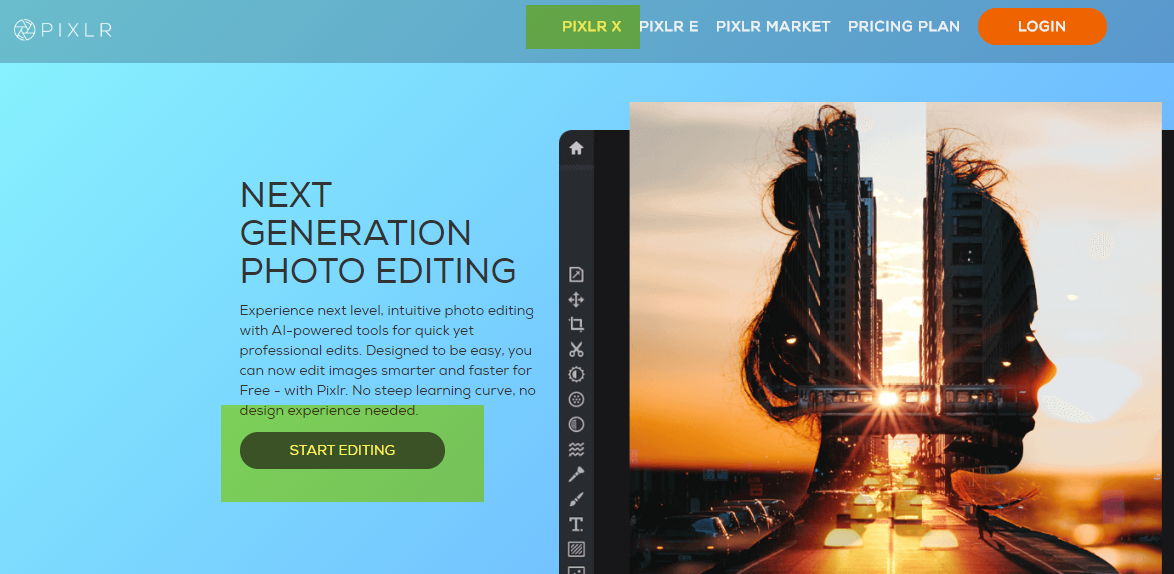
- Go to https://pixlr.com/ and open PIXLR X. There is no need to login or sign up for an account on PIXLR.
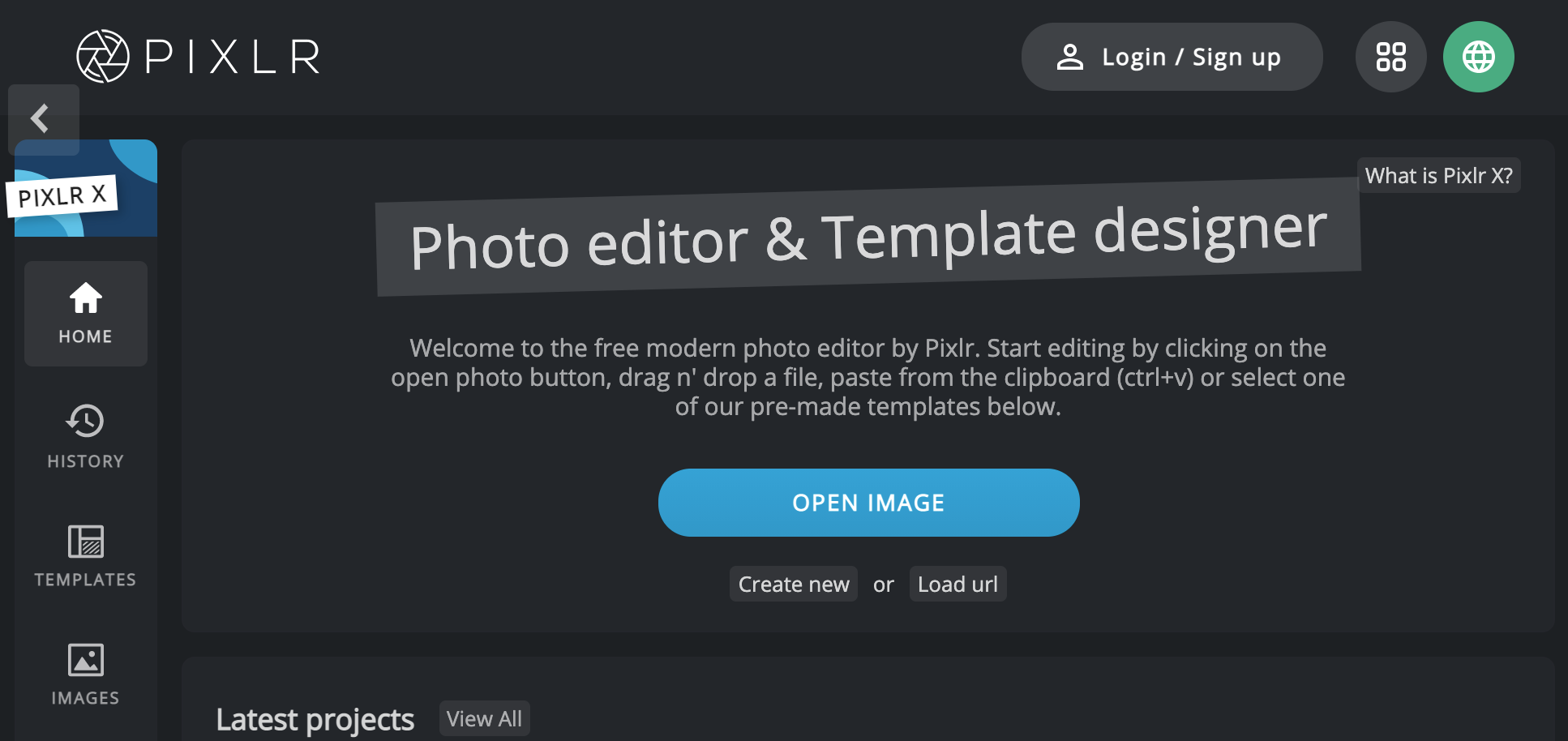
- Click Open Image and select a photo you want to re-size.
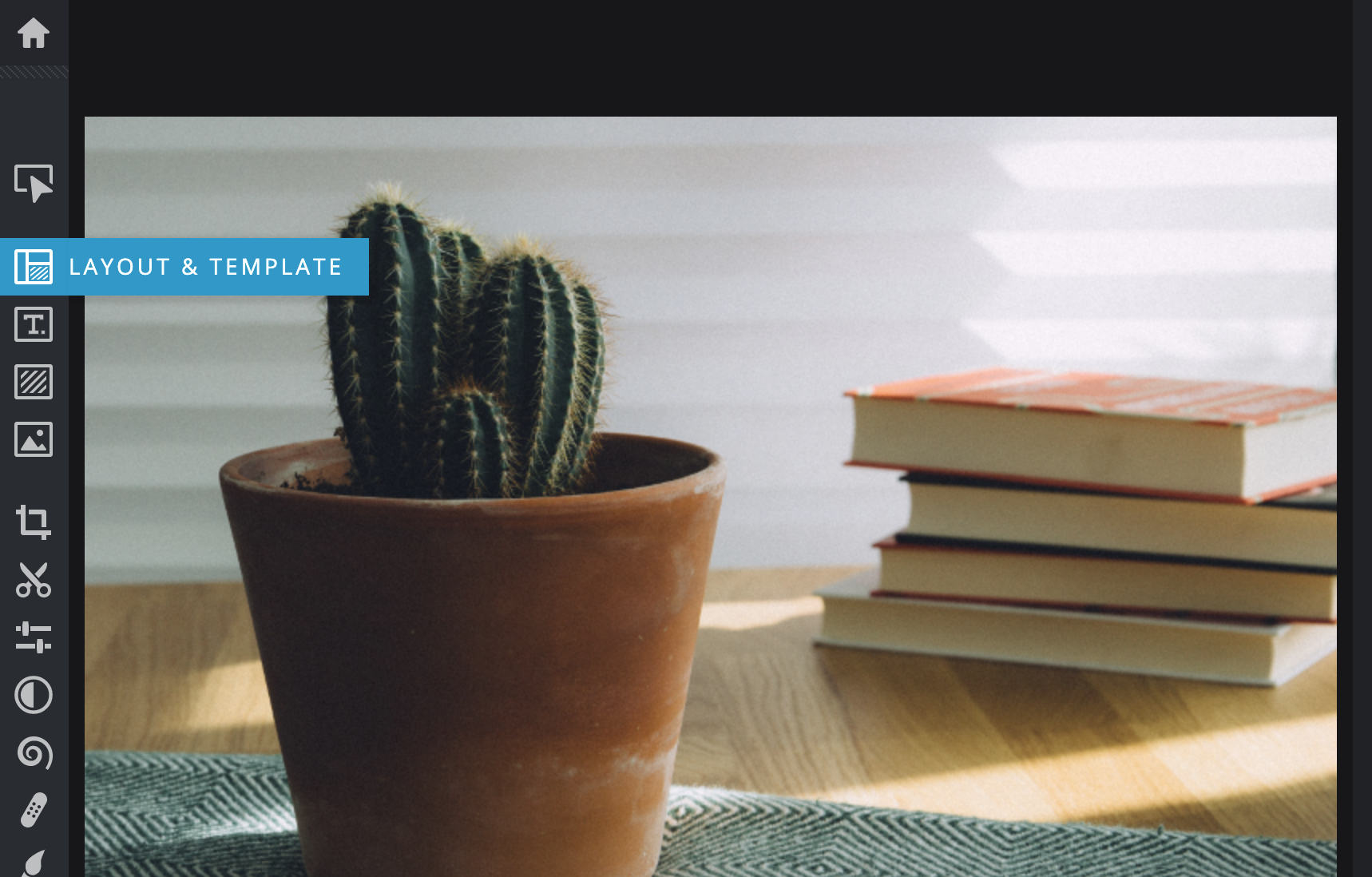
- Click on "Layout & Template"
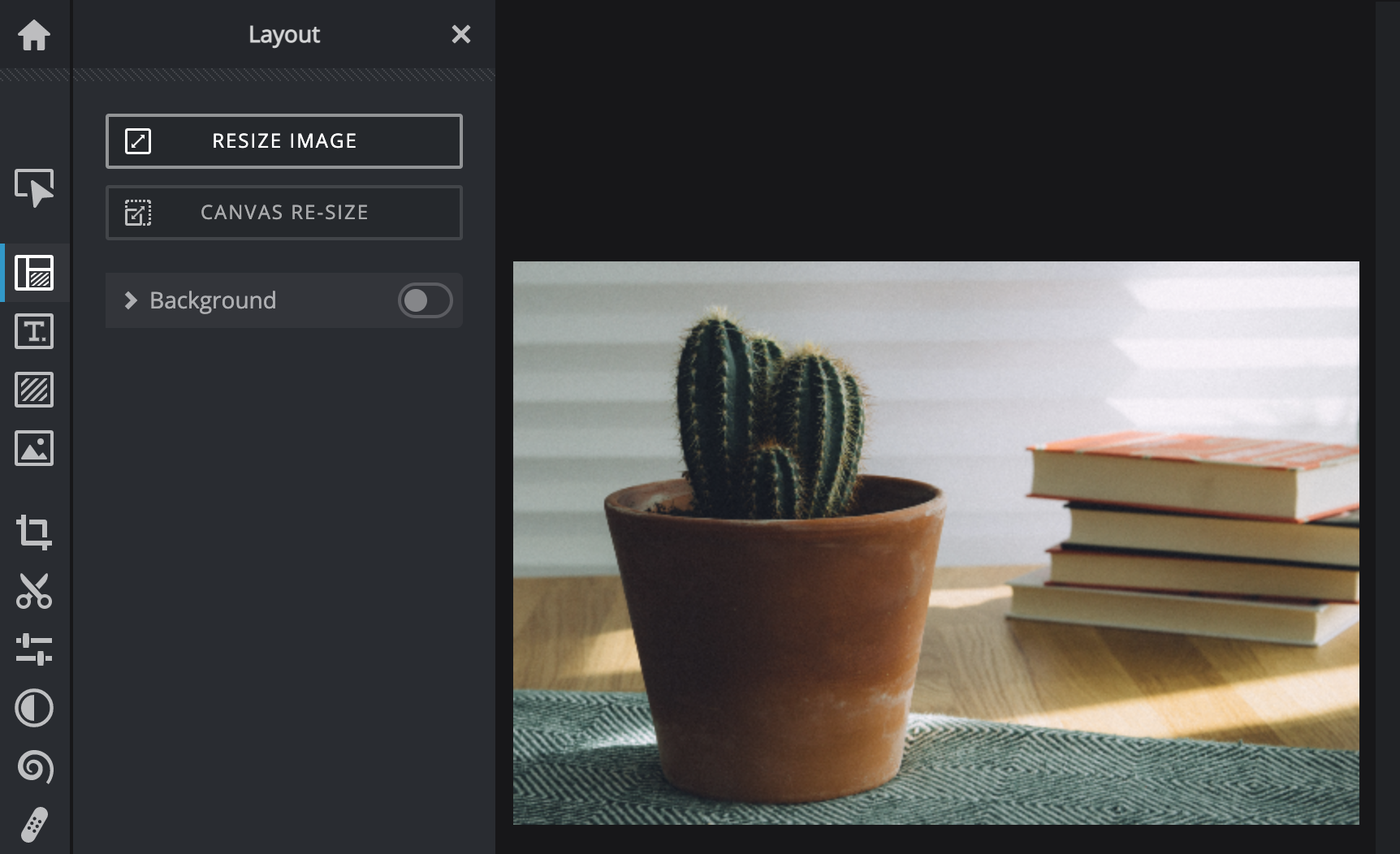
- Select "Resize Image" to view the dimensions.
- Verify the image is larger than the final image size needed. (Never increase the original size of an image, as that will distort it and create a blurry/pixelated image.) Compare the current width and height to the needed size (e.g. if the image is 1200 x 802 pixels(px) it can be cropped down to 580 x 300px or 116 x 116px).
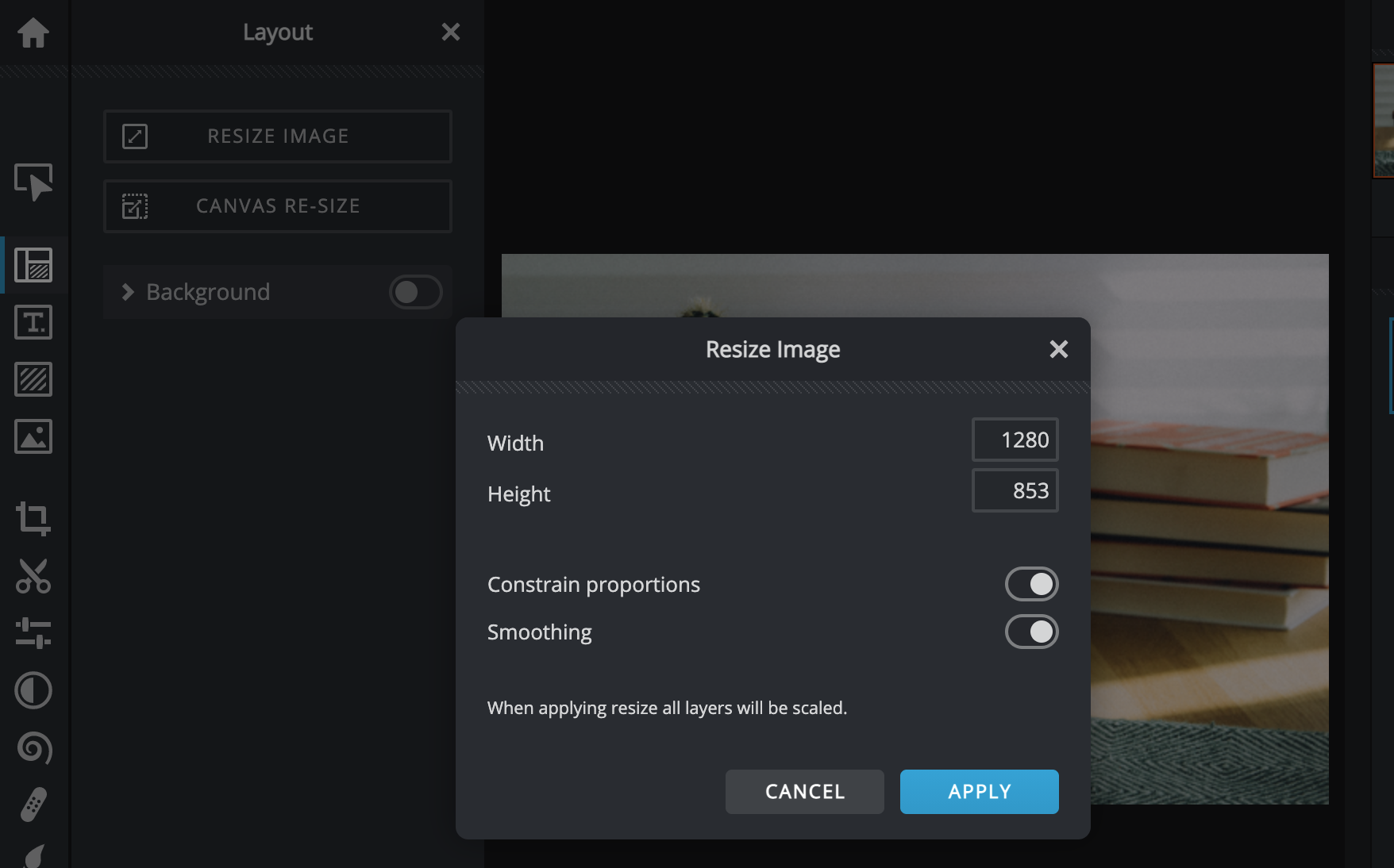
- To resize an image, first make sure "Constrain proportions" is turned on (it should be on by default). Change the width or height to the desired size and the other dimension will automatically update to keep the aspect ratio of the image.
- Click Apply.
...