
There are three folders your team will be viewing:several individual folders for each part of the email process. They should all be organized the same way.
Table of Contents
Emails> All > WSB
You can get to the list of emails by going to Assets> Emails then selecting “All Files” from the right sidebar.
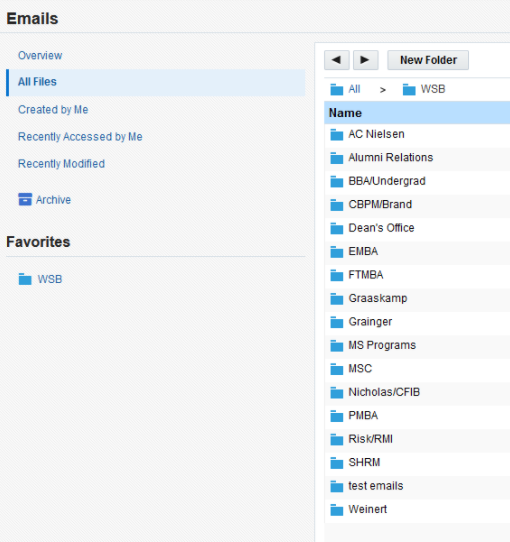
You will also see these folders when you save your email.
...
Be careful not to save your emails into other department’s email folders. If you do by accident, please move the email to the correct folder right away to prevent confusion.
Images > All > WSB
You can get to the image library by going to Assets (or the pencil and paper icon)> Components> Images
You can also view the library when browsing for an image from the email editor.
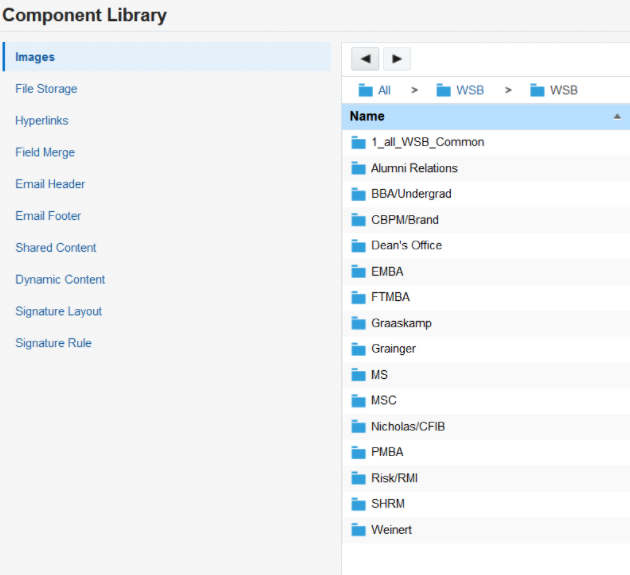
Organization: similar to how we’ve done in the past with sitecore, images will be organized by the year and month of when the email the image is in is sent. You should save and organize your images according to:
...
The WSB > 1_all_WSB_Common folder contains images that can be used across departments.
Templates> All (All Files) > WSB Templates
Where we store all our custom email templates. You will not edit this folder, but you will use it when you create an email and it prompts you to select a template.
...
Note: You should not be creating emails without selecting one of these templates, as they have already been designed for accessibility, brand standards, and usability.
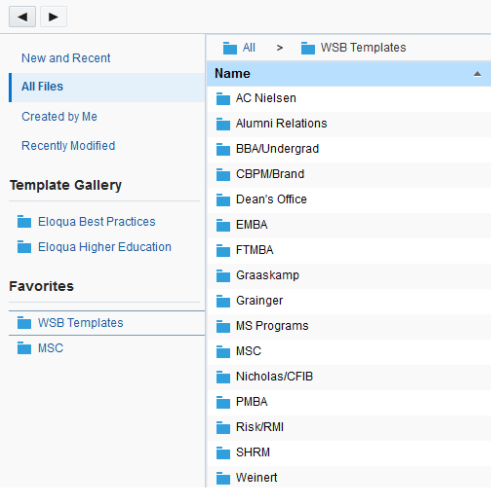
Campaigns> All (All Files) > WSB
Pretty much identical to the Email file structure:
All>WSB>[your department]>[year]>[month]
Individuals in each department are responsible for creating the folders necessary to follow this file structure.
Audience>Tools>Shared Lists>WSB
When you upload a list of contacts, it creates a Shared List.
Make sure to name your list clearly prior to clicking the upload icon (otherwise you'll have to rename it later).
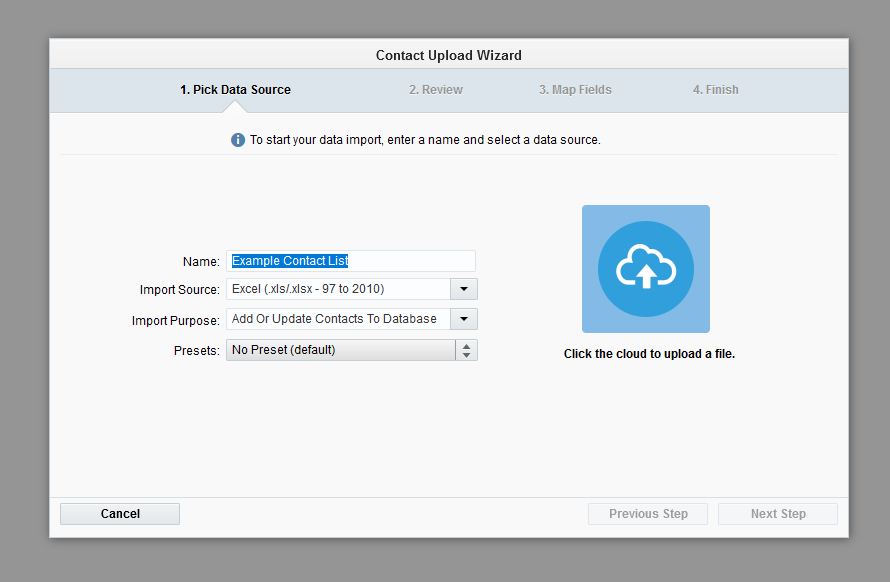
On Step 4 of the Contact Upload Wizard, make sure to select your department folder in the "Create in folder" dropdown. If you can't find your folder, at least select the "WSB" folder.
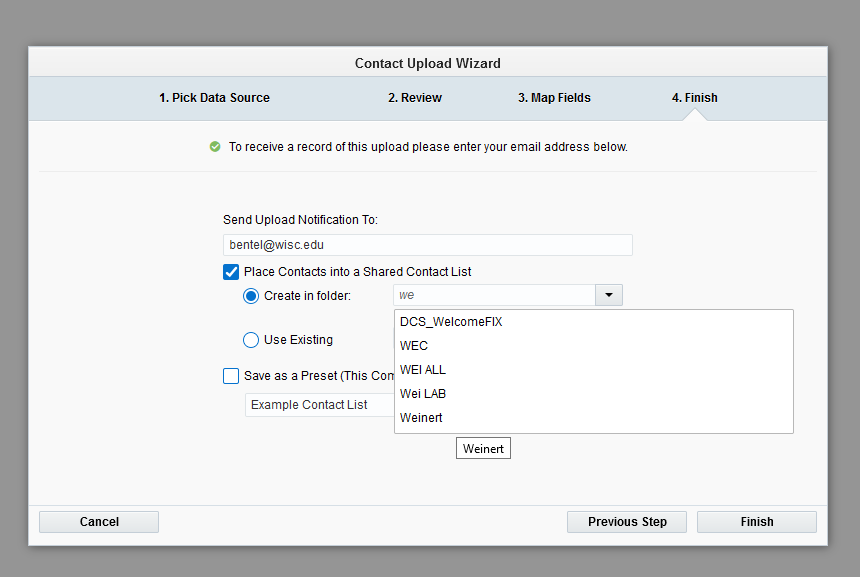
After you upload your contacts, you can find your shared list by going to Audience>Tools>Shared Lists>WSB and further organize them within your department folder as needed.
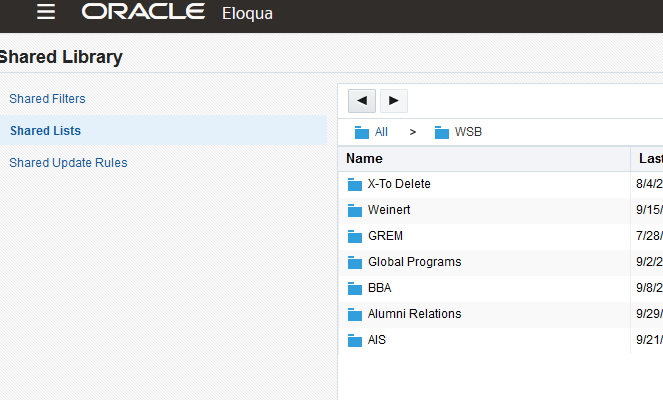
If you upload a new list every time you send an email, use the year>month structure. If you're reusing your lists, you can keep them in your main department folder, but make sure to name them clearly.
Benefits of Organized Folders
There are many benefits to keeping your emails organized. They include:
...