
...
Helpful hint: If you use consistent subject names for specific types of activities, you will be able to search and query on activities by subject name in the future.
To add any activity, use the Ribbon tools.
1. Open person record.
2. Select "Add" from top ribbon.

navigate to the 'Communications and Notes' section of the person record:
- Open the person record.
- Scroll down to 'Communications and Notes', or use the navigation bar next to the person record's name to quickly jump to it.
- Under appointments, click on the ellipsis next to Add Task.
- Select the activity you would like to create.


| Anchor | ||||
|---|---|---|---|---|
|
- Complete required information and add appointment details.
- Constituent Role = Lead or Applicant
- Subject =
...


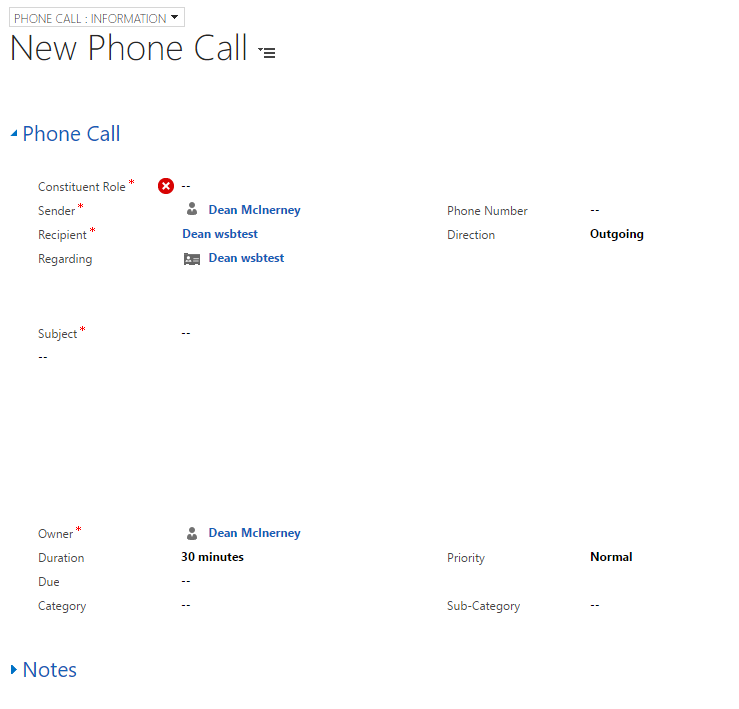
- Complete required information and add phone call details.
- Constituent Role = Lead or Applicant
- Subject =

Open a Person Record
Select the appropriate Constituent Role
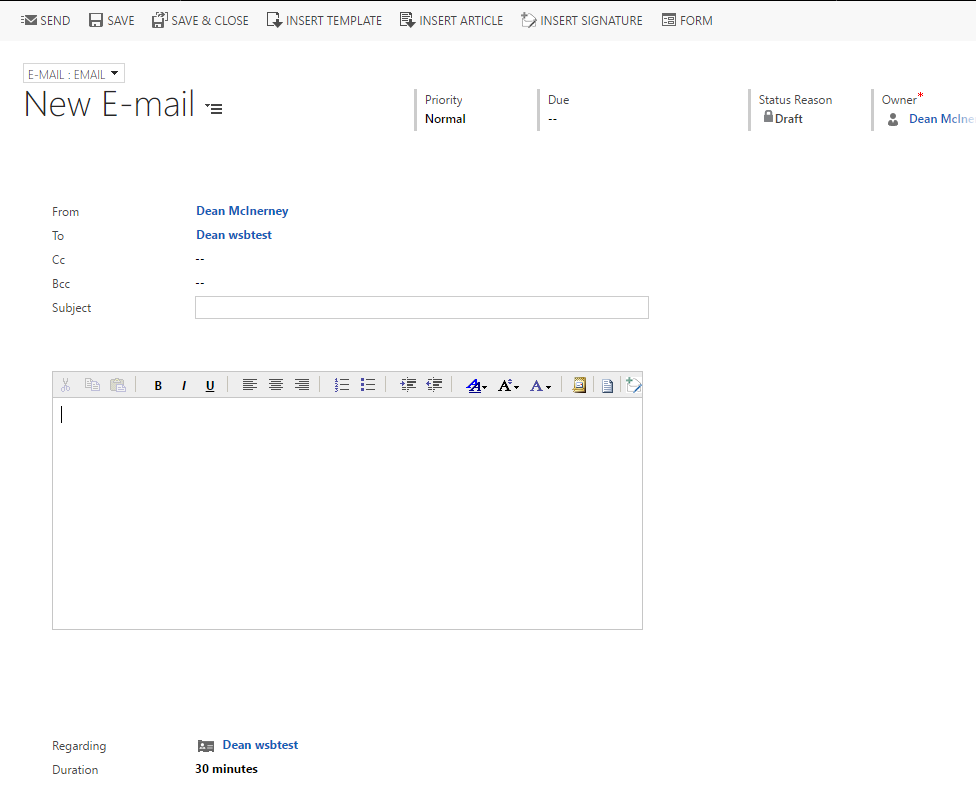
Add Subject and Email Body content
- Verify it is being sent to the correct person, and fill in the information for the email (CC, Subject, and the body of the email).
- To send the email, select
...

The Regarding field defaults to the Person Record. Select the search button, change Look for: Account and select the appropriate Account record.


| Anchor | ||||
|---|---|---|---|---|
|
Add a Task
- Open a person record.
- Navigate to 'Communications and Notes', as shown in the screenshots at the beginning of this article.
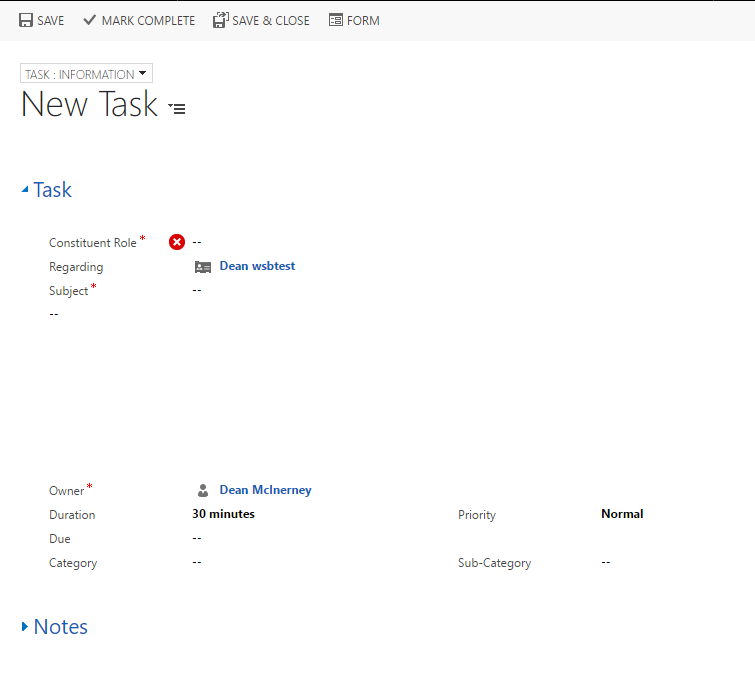
- Enter the constituent role, and then select the action which is occurring.
- Enter the subject.
- Enter in any relevant information about the task, such as what the agenda is, when it is due, etc.
- Once the task has been finished, make sure to select "Mark Complete" at the top left of the screen.
Add a Note. from
Click on "Add a new note..." hyperlink and add your note.
The note will include a default title, date/time, and your user name.

Attach a file to a Note.
Add a New note or open an existing note.
Select Attach and choose your file to attach to the note.



