
Also known as: video swiper, card swiper, social videos
Description
A multi-purpose block that displays multiple cards/panels in a swiper. Can showcase videos, text, and/or images.
...
- Badges (optional)
- Small navigational buttons displayed above the cards that feature a word or two to indicate the topic of each card in the swiper
- Character limit: 1-2 words, 30 characters for each badge
- Cards must have similar amounts of copy
- Images are optional, but if one card has a photo, they all need to have a photo
- Card title (recommended)
- If using badges, the card title should match or contain the badge copy for continuity
- Card content
- Ideal length is one or two short phrases or 3-4 bullet points
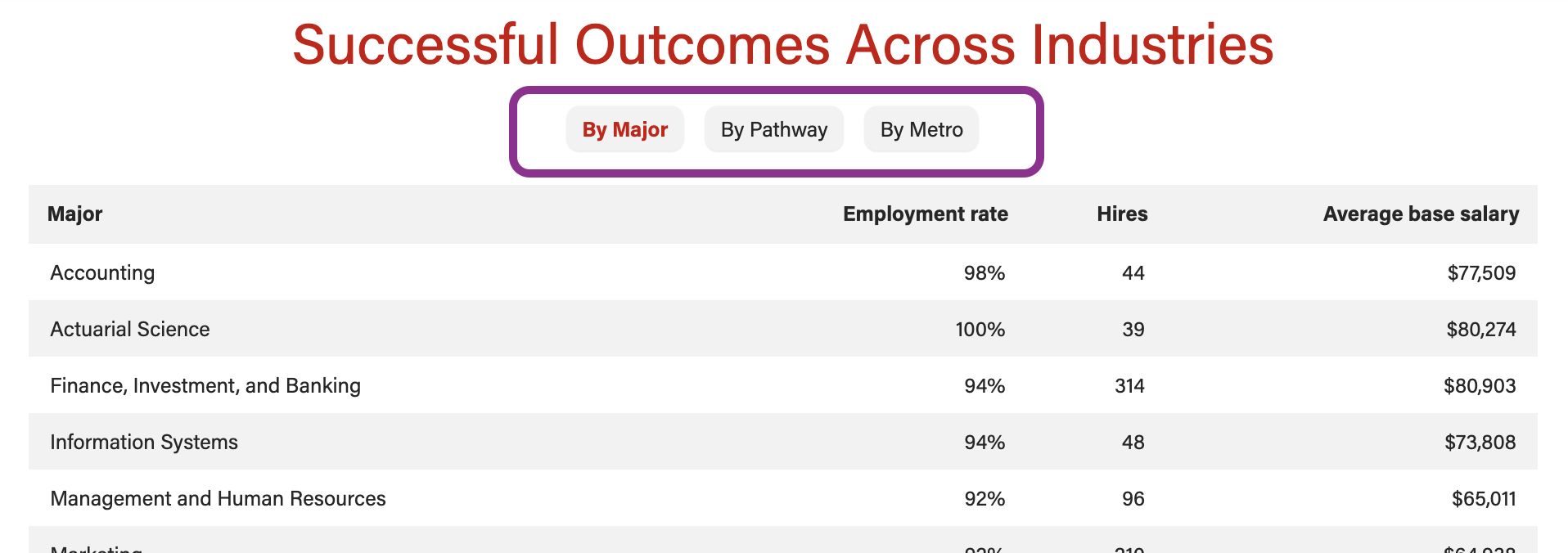
- For data tables, limit number of rows to ~10
- Card button/link (optional)
- Link text should be specific to each topic/card
...
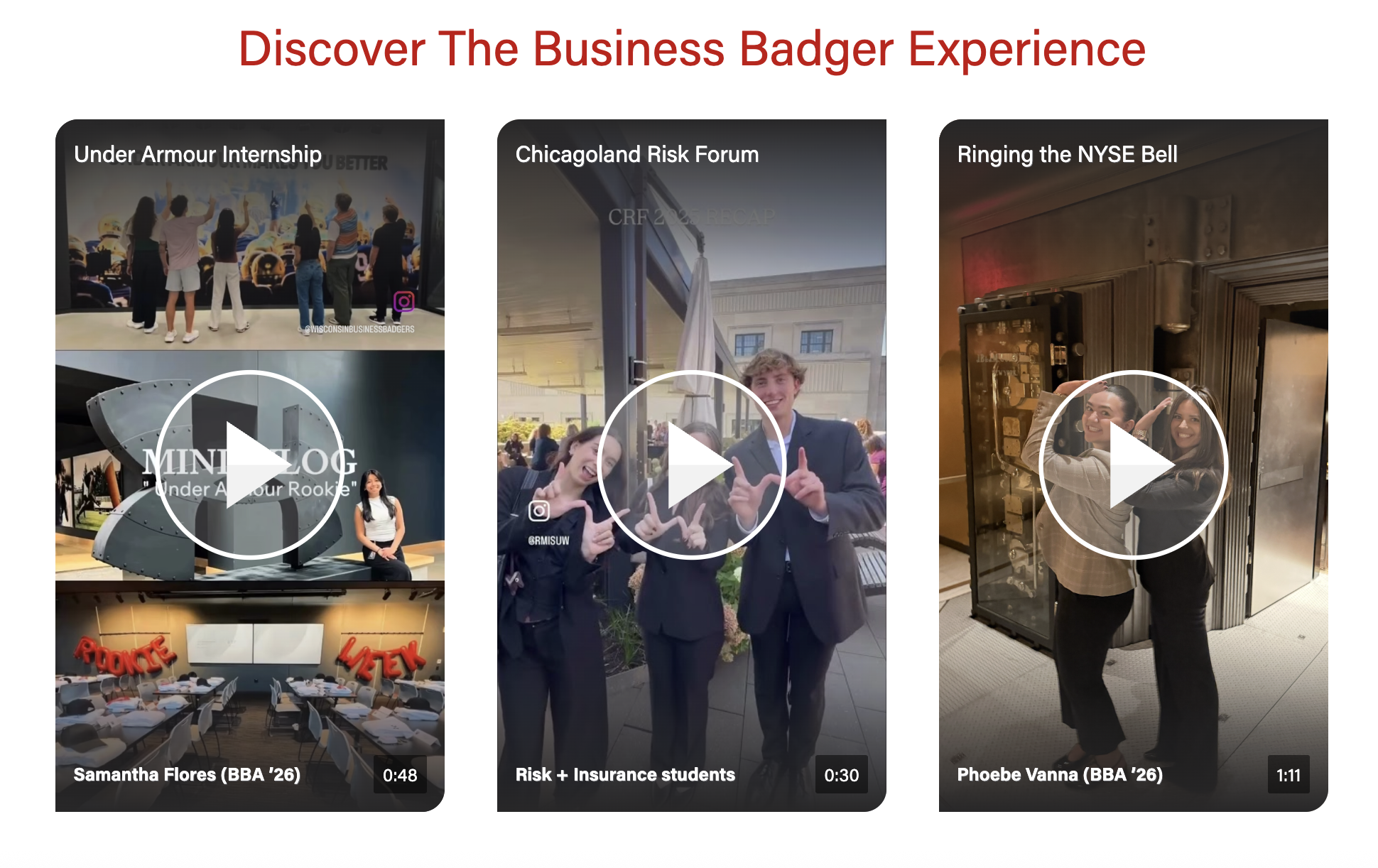
- These are typically Instagram Reels uploaded as Shorts to our YouTube channel.
- Need 3 or more videos for this layout.
- Note that we cannot show a mix of content (e.g. we can't show a YT Short next to a photo with some copy)
- Video title (required for all videos)
- Character limit: 30 characters
- Recommend matching (or shortening) the title of the video on Youtube. Can move subjects name subject's name to the bottom text for length
- Bottom text (optional)
- Character limit: 30 characters
- Used to display name, grad. year, major, or other details about the video's subject(s)
Design Assets Needed
Images
Card image (optional)
...
- We can use the cover image from YT or upload a different one to override it
- Cover image override - jpeg
- Face should not be perfectly centered, as it will be covered by the play button. We recommend cropping so the face is in the top third of the image.
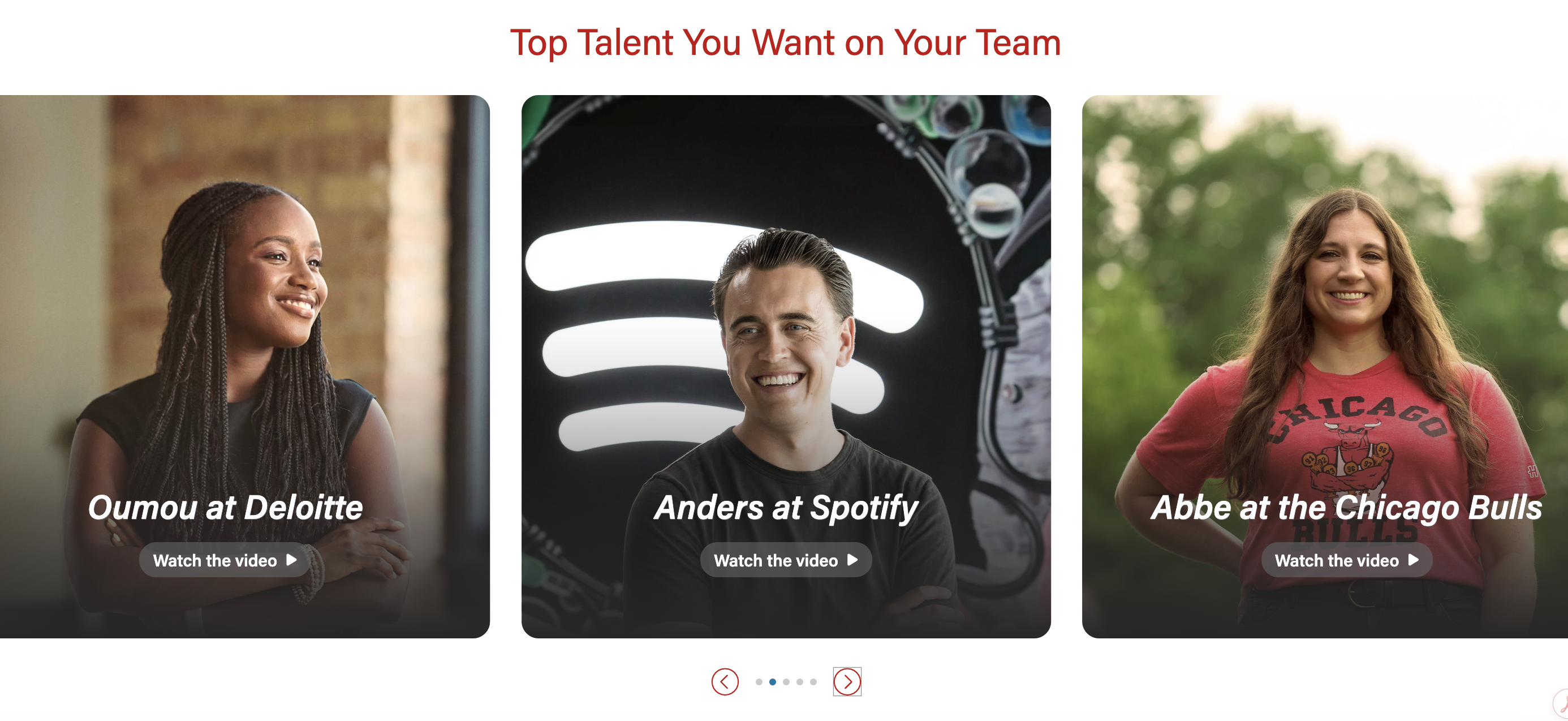
- For traditional, landscape videos
- Dimensions: 1176x662px
- Aspect ratio: 16:9
- For vertical, social videos
- Dimensions: 1170x1807px or 585x904px
- Aspect ratio: 9:16
Variations
Columns
- Choose to display 1, 2, 3, or 4 columns for desktop
- Smaller screens will automatically have fewer columns
Badges
- Show users teaser text for each card in the swiper
- Badges are like small navigational buttons displayed above the swiper cards and feature a word or two
- Available for the single column layout only
- For mobile, badges can be listed out or collapsed into a dropdown
Card shadow
- Display or hide card outline and shadow
- Examples:
- No shadow - Career outcomes data tables on BBA Careers
- Shadow - Cards on PMBA Webinars and Podcasts
- Only available for text/image layout (not for videos)
Video options
Video player type
- Embed video on the page or have it open in a modal (popup window)
- Embedded video - use when a video is displayed large or for social videos
- Example: Student Experiences on BBA Majors
- Video modal - use when overflow layout is selected, when you want the video watching experience to have more impact, or when the video is better viewed full screen
- Example: Alumni videos on Companies & Recruiters
- Embedded video - use when a video is displayed large or for social videos
Video layout options


Implementation
Dev Notes
- The block displays swiper arrows and creates swiping functionality when the content requires it.
- Click and drag swiping is disabled for video content on desktop.
...
- Includes standard block footer fields
- Footer content
- Footer CTAs
| Expand | ||
|---|---|---|
| ||
Columns
Enable card shadows
Adaptive autoheight
Card image ratio
Center icons
Anchor IDBlock Wrapper Classes |
...