
Also known as: borderless card, bare card, plain card, minimal card, shadowless card, sections with separators/dividers
Description
A block that groups short content into sections like cards, with no card outline or shadow. Used often at the top of program pages to introduce three important claims or differentiators.
| Expand | ||||
|---|---|---|---|---|
| ||||
|
Design




Use when
- Displaying multiple chunks of content with no supporting images. Common uses include:
- At the top of program pages to display 3 claims or differentiators
- At the bottom of a dept./center page to display "Contact Us" content or other CTA content
- A page already has lots of cards with outlines and shadows, to add visual interest
- Adding visual interest to a news story or Update magazine article
Editorial guidelines
Follow our general Web Copy General Guidelines in addition to the following:
Card titles/Subheadings (required)
- Keep each subhead limited to one short phrase
- Character limits:
- 1-3-column layout → ~45 characters max
- If not including any supporting text, the subheads can run slightly longer, 60 characters max.
- 4-column layout → 20 characters max
- 1-3-column layout → ~45 characters max
- Keep all subheads in the same row similar in length
Supporting copy (optional)
- Keep this copy short; one or two short phrases for each topic.
- Character limit: 115 characters max
- Keep all supporting copy in the same row similar in length
Link (optional)
- This field is not used often for this block.
- Provide URL and your desired link text.
Design Assets Needed
- None - typically no assets are needed for this block
Implementation
- This block can be used in News or Update post pages. Be sure to check the Restrict Width checkbox in Configuration for these use cases. The xl column needs to be set to 0 if there is 1 card or a 1 column layout.
ACF Fields
Design
Component Library
Link to figma doc with component if it exists
Screenshot
Example of 3 columns in desktop and tablet. There are no background, red pattern, blue pattern, gray pattern, and image backgrounds. You can also select to have a yellow divider line between the cards.
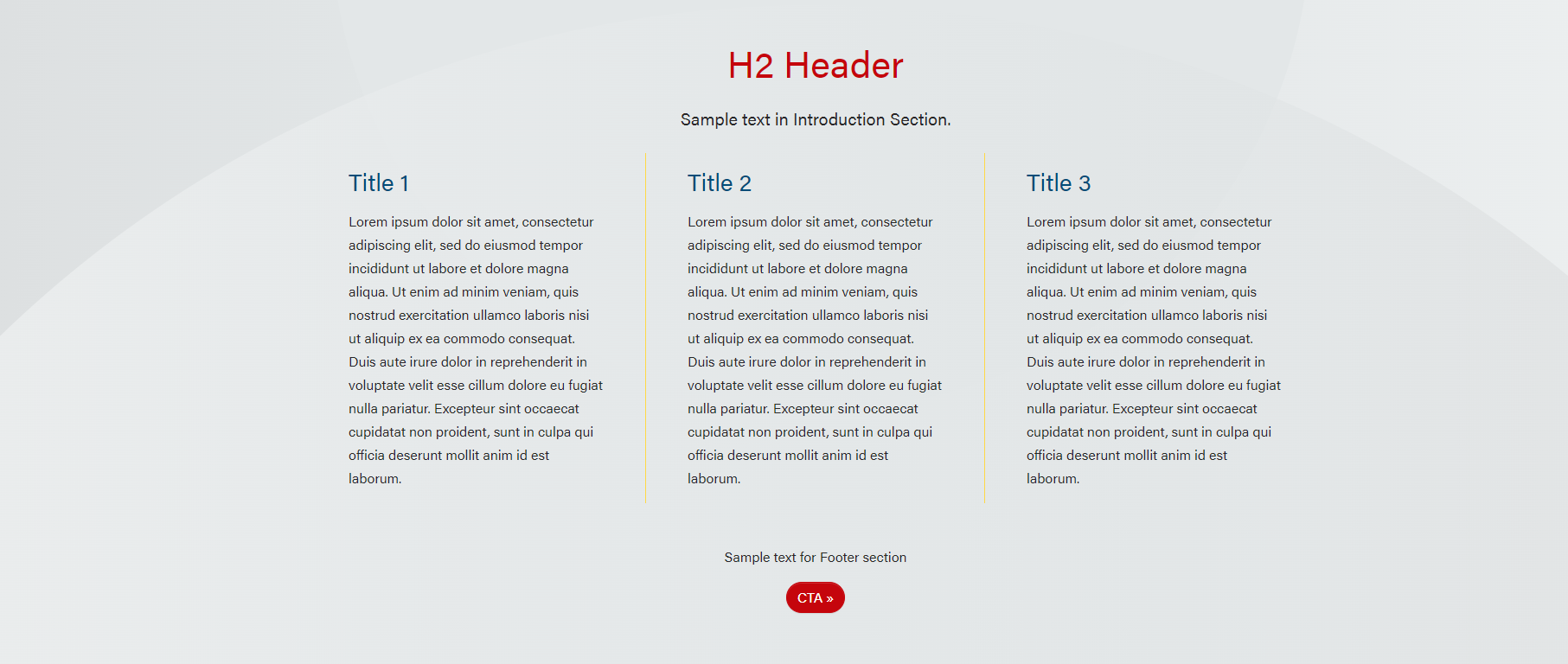
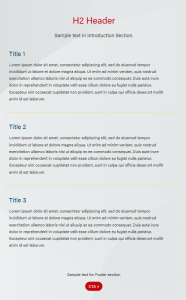
Note: There is too much text in cards in these screenshots. Keep it short! Users don't read on the web.
Use Cases
Use Case 1
Use this block when columns are needed for copy or sets of copy. Reminder, keep copy short. Users don't read on the web.
Use Case 2
The block can be used at the bottom of a page for Contact Us or other CTA
In brief, it's a simple card with Section Title, one card with this html/copy in it: <p class="text-center" style="max-width: 700px; margin:auto;">Sign up to get the latest information</p>, and then the button in the Footer.
Use Case 3
The block can be used in Update post pages. The Restrict Width checkbox in Configuration needs to be checked. The xl column needs to be 0 if there is 1 card.
...
Add/Edit Cards
Title
- Add the
...
Content
...
- card title or subheading
Content
- Add supporting copy for the card.
- Images can be added to the content
...
- , but this is rarely done for this block.
- Upload the image to the WP media library and copy its URL; then add the URL to the text editor.
Keep copy short!
Link
...
Link
- Add the URL and link text. The link will be styled as a primary button.
- Alternatively, links can be added via HTML in the Content section if you need
...
- a different button style.
- See Button Styles for
...
- commonly used styles and to grab the relevant class name.
- Add the link and your desired button style class like this:
Code Block language html title Custom button code <a class="btn [insert-button-style-class]" href="[insert URL]">[Insert link text]</a>
Introduction
Standard block introduction heading and intro copy fields.
Footer
Standard block footer fields – footnote and CTAs/links.
Configuration
Background (optional)
- Background options include no background (white), red pattern, blue pattern, gray pattern, and image.
- The image option is not used often and should only be used with a simple background pattern that provides enough color contrast with the card text. Upload the pattern to the WP media library.
- If you select "image", you will also need to choose the text color, either black or white.
- The image option is not used often and should only be used with a simple background pattern that provides enough color contrast with the card text. Upload the pattern to the WP media library.
Divider line?
Fields for Introduction
Section Title
The main header will go in this field. You can change the title heading size.
The main header will be centered above the card, but in the same block.
Section Paragraph
Similar to Content in Fields for Add/Edit Cards. As with the Section Title, the content will be centered above the cards.
Fields for Footer
The footer as a content section, which is similar to the Introduction except it will be centered below the cards.
Footer CTAs
Links can be added to this field (or to the footer content) to be centered at the bottom of the block.
Additional Notes
...
- Check to display a yellow divider line between the cards.
- Only check this box if the block has two or more cards in multiple columns (the divider line is meant to be displayed between columns in the same row.
- When this field is checked, the column structure must be set to the following:
Columns Default: 1
Columns Small:
...
0
Columns Medium: 0 (columns must be stacked for medium screens, or the divider lines will look broken)
Columns Large:
...
>1 (set to the number of cards in 1 row)
Columns Extra Large:
...
>1 (set to the number of cards in 1 row)
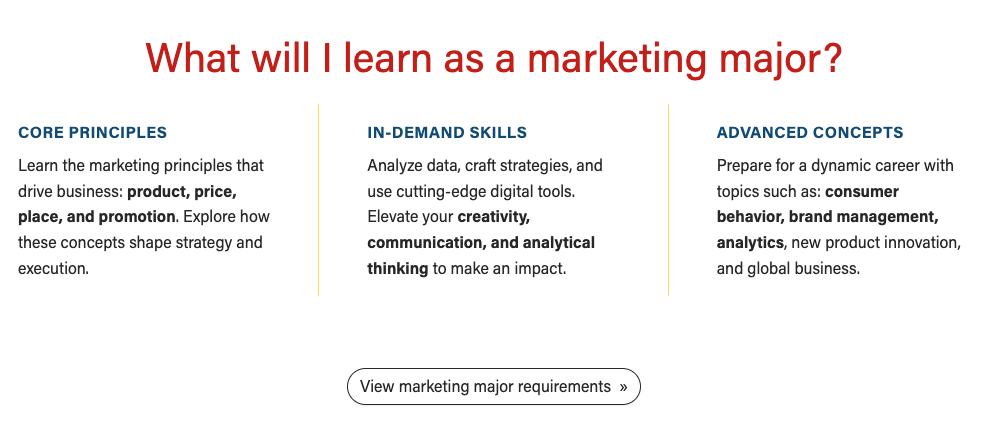
Microtitle style for card titles?
- Use when the card titles are short and do not need as much visual emphasis as our standard h3 headings.
- Example: Marketing Major page
Restrict width?
- Check when adding the block to News or Update posts to make the width of the card content match the article width.
- When Restrict Width checkbox is checked, the extra large column will need to be set to 0 if there is only 1 card.
...
Block wrapper classes
Anchor ID
Column Structure
...
- The block columns default to:
- Columns Default: 1
- Columns Small:
...
- 0
- Columns Medium:
...
- 0
- Columns Large:
...
- 0
- Columns Extra Large: 0
Figma mockup set to the number of cards in 1 row