
...
- General Eloqua documentation 🡥 (UW-Madison wide)
- How to Request access
- How to LoginLogin ▼
- Using WSB Email TemplatesTemplates ▼
- Common pitfalls/mistakes to watch out for
- Accessibility quick tips
- Uploading Contacts ▼
- Presend Checklist for WSB (UW Presend Checklist 🡥)
- Sending your first email ▼
- File Organization within Eloqua
- WSB Brand Guidelines for emails
- How to create a non-Eloqua sent email in Eloqua
- Creating engaging email content🡥 (UW-Madison IT)
UW-Madison vs School of Business Documentation
Most Eloqua documentation is available on the UW-Madison wide Eloqua Marketing Automation Knowledge Base. Use this to reference basics like navigating Eloqua, uploading contacts, and setting up email campaigns. The Marketing Automation team, which serves all of UW-Madison, can be reached at marketingautomation@wisc.edu, and usually responds to emails within a couple business days. They can answer most questions on how to use Eloqua, but may not be able to answer questions on WSB Templates or other design recommendations.
The documentation below, as well as the subpages of this page on the wiki, are for WSB specific needs, such as using our custom templates, as well as some of our team's guidelines. The WSB Web Team can be reached at webteam@wsb.wisc.edu. We aim to complete Eloqua related requests within one week of receiving your email.
Eloqua Canvas Course
Basic Eloqua training is done through the UW-Madison's Eloqua Canvas course (created by the Marketing Automation team). All new users will automatically gain access to the course. How to Request access to Eloqua.
...
Do not delete or edit the headers and footers of your email! These are all branded elements.
Review the Email Template Breakdown to learn about each part of the WSB custom template.
Anchor pitfalls pitfalls
Common Pitfalls/ Things to be careful of:
| pitfalls | |
| pitfalls |
...
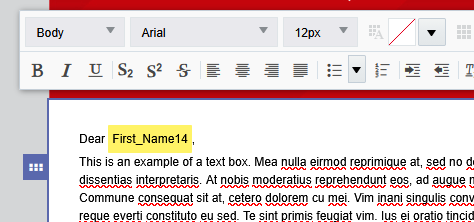
If you want to have a personalized greeting in your email, such as "Dear First Name", you can use a Field Merge to pull in that name from your Contact list.
| Expand | ||
|---|---|---|
| ||
Just include a column in your contact list spreadsheet with the info for each contact- add a column for "First Name" and a column for "Last Name" (if you're including that) before you upload your contact list.
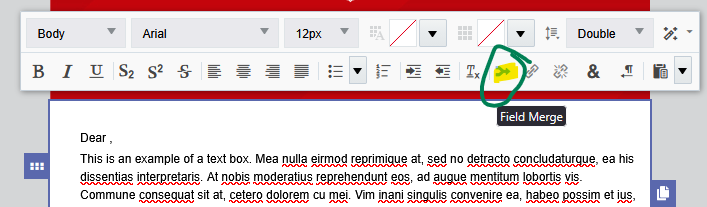
Then, in a text box in your email, click the Field Merge icon.
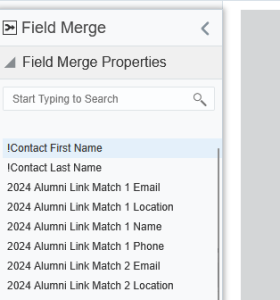
Double click "!Contact First Name" from the left sidebar. It will insert a bright, highlighted chunk of text. You can test to see if it works by previewing your email as different members of your contact list.
Keep in mind that updates to the person's contact happen across all of UW-Madison, so another school or department might override what you uploaded. This is usually fine, but they may not know your contact's preferred name, or they may upload the name in all caps, with a typo, etc. If you would need to upload your own data that is private and specific to WSB for customization or segmentation, you may want to use a custom data object or CDO. To find out more about CDOs, please contact us for assistance. Here's the CDO example template: custom-data-object-example |

| Anchor | ||||
|---|---|---|---|---|
|
...