
...
This plugin allows us to display all upcoming WSB events in one place – business.wisc.edu/events – and to dynamically pull upcoming, categorized events onto relevant pages across our site, such as the Alumni Events page, Weinert Center Events page, and FTMBA Events page.
Example Events:
- Wisconsin Real Estate and Economic Outlook Conference
- WSB in NYC
- AI Marketing Symposium
- Badgers in Finance
- BBA Graduation
- AI Day
On This Page:
| Table of Contents |
|---|
...
Add the name of your event. Note that this will become the slug (the last part of the URL). You can modify the slug later if desired; tips for doing so can be found below.
If you are copying and pasting the title, you will need to use plain text. The following are shortcuts for plain text pasting:
...
Short event description example:
Join the admissions team for an informative chat/webinar series designed to familiarize you with the admissions process, and provide guidance on how to produce a competitive application. This is a virtual event.
Long event descriptions:
See the example event for layout and styling reference. You must be logged in to WP to view this private event.
...
These are automatically added to all events. These cannot be edited, but can be removed if you prefer.
To remove the calendar export buttons:
- Click on or near the calendar buttons to get a blue outline around all buttons in the row.
...
You can ignore this section.
Right Side Menu Options
...
Slug (
...
optional)
This is the last part of the page URL. WP feeds the event name here, but you can modify it if you'd like. One reason to modify the slug is to make it shorter if your event name has more than 4 words in it. Make sure you choose a slug that is specific enough to not be duplicated or confused with another event. For instance, if your event is an info session, the slug "/info-session/" is very broad and is likely to already be in use. Try adding a dept. or center specific identifier, which could be an acronym, to make the slug more unique, such as "/ftmba-info-session/" or "/accounting-info-session/".
Tags (do not use)
Do not use any tags. Use only categories with events.
Categories (required)
Categories are what pull specific events onto different pages across our website.
- If an event doesn't have a category, it will only appear in the main event calendar listing. This is not the primary place our users are looking at events, so it is
Do not use any tags. Use only categories with events.
Categories (required)
Categories are what pull specific events onto different pages across our website.
- If an event doesn't have a category, it will only appear in the main event calendar listing. This is not the primary place our users are looking at events, so it is important that all events are categorized.
- You can choose multiple categories for a single event.
- Some categories are nested within a specific program. For instance, BBA program has a leadership events category. If your program has leadership events and you would like a category for those, you will need to create a new category nested beneath your program/dept. category. Please reach out to the web team if you need help adding categories for your events.
- Note: Creating a new category will not automatically start to pull related events onto a specific web page. Please reach out to the web team if you have questions about which pages show which types of events or if you would like to create a new event category for a specific web page.
...
- Add your image by clicking the box that says Set featured image and following the directions above for selecting or uploading images to the media library.
- Check your image in a preview window to make sure it looks good.
- Images must have alt text – this is a requirement for accessibility.
- Alt text should include a brief description of what is in the image
- If the image has text in it, alt text must include all of that text for accessibility (someone using a screenreader needs to be able to access the text in the image – alt text is the only way to do that).
- To display the featured image at the top of an event detail page
- In the event editor, hover your cursor just below the event date and time until you see a plus button and horizontal line appear. Click the plus button to add a block.
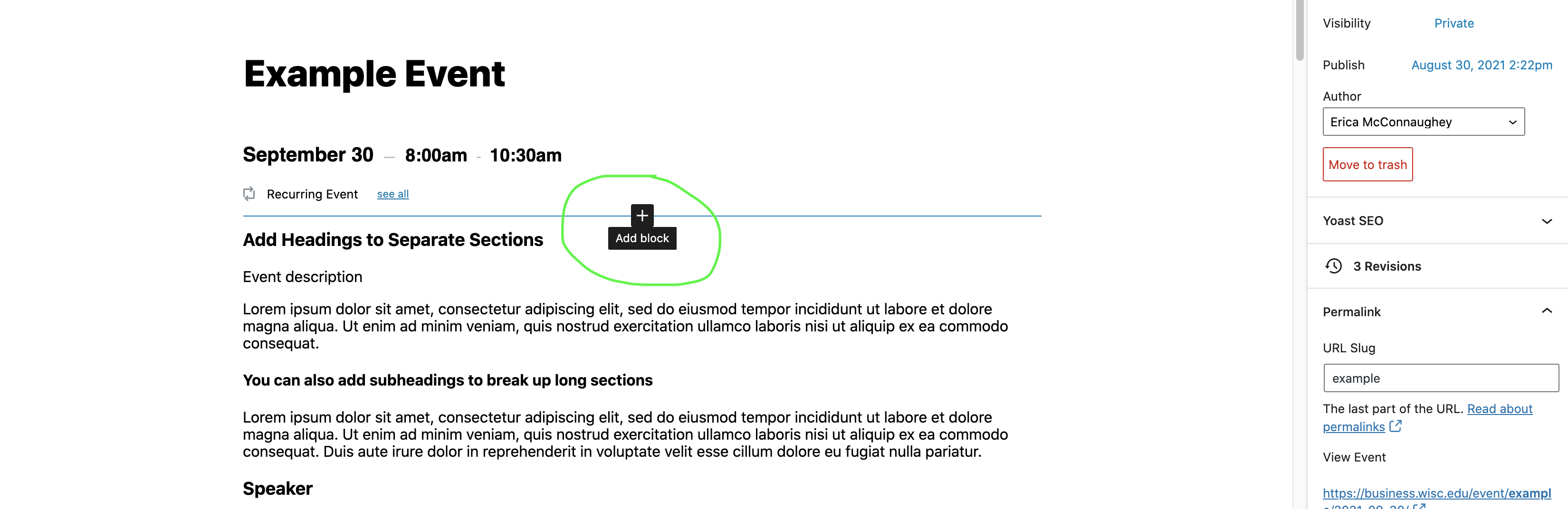
- In the pop-up window, type "featured image" and select that block from the list.
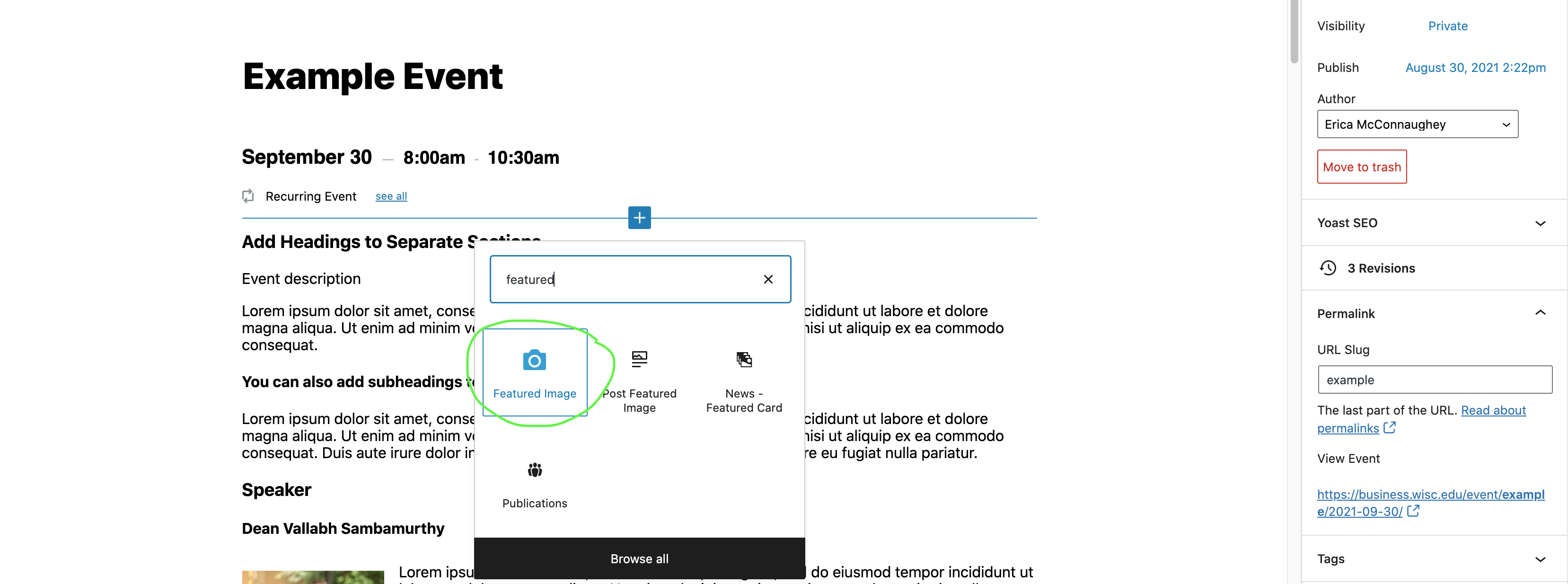
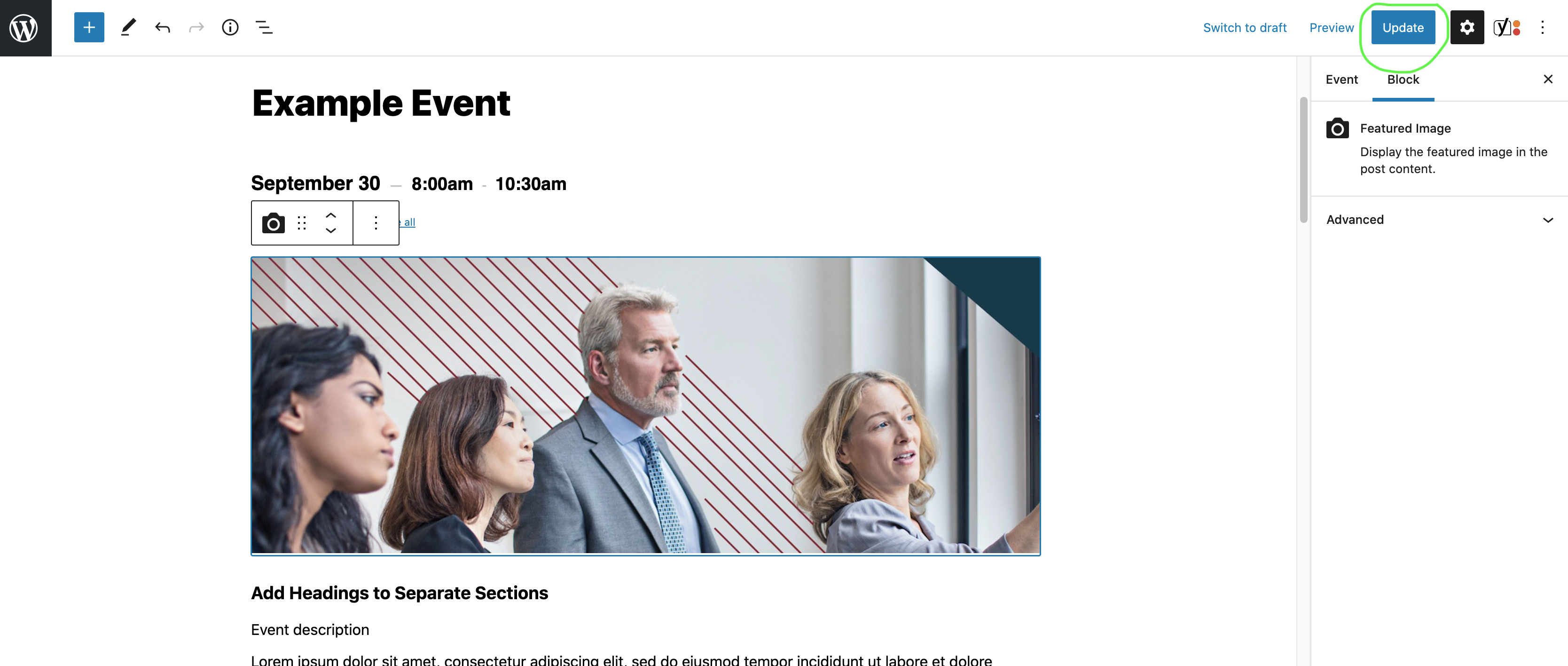
- Be sure to save your draft, publish your event, or update your published event so the featured image is viewable on the event page. These options are in the upper right hand corner.
Preview an Event
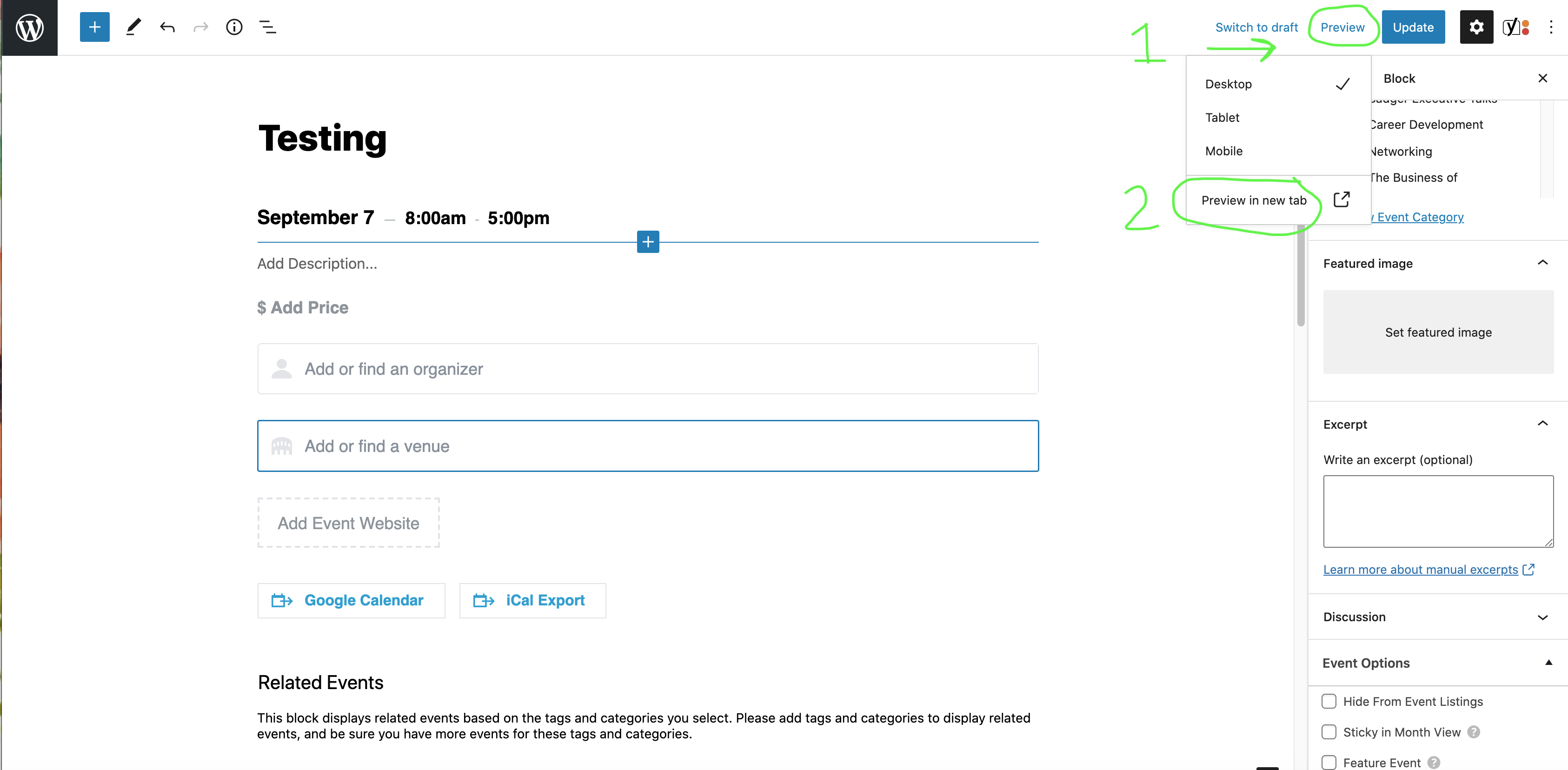
In upper right corner of the event editor, click Preview, then Preview in a new tab.
Save as a Draft vs. Publish
Save as a draft
- Choose this option when you need to save your event, but you aren't ready to publish it yet.
- You can share the draft with others on your team who have event editing access. They can finish editing if needed.
Publish
- You must publish your event for it to be visible to everyone on the website.
- All subsequent changes to your event must also be published, by clicking the Update button. (This will appear where the Publish button was originally.)
Edit/Delete Existing Events
- Similar to creating an event, navigate to Events and choose yours from the list or use the search to find it.
- Hover over the name of the event to see options for editing or deleting your event.
Unpublish Past Events
- To display the featured image at the top of an event detail page
- In the event editor, hover your cursor just below the event date and time until you see a plus button and horizontal line appear. Click the plus button to add a block.
- In the pop-up window, type "featured image" and select that block from the list.
- Be sure to save your draft, publish your event, or update your published event so the featured image is viewable on the event page. These options are in the upper right hand corner.
Preview an Event
In upper right corner of the event editor, click Preview, then Preview in a new tab.
Save as a Draft vs. Publish
Save as a draft
- Choose this option when you need to save your event, but you aren't ready to publish it yet.
- You can share the draft with others on your team who have event editing access. They can finish editing if needed.
Publish
- You must publish your event for it to be visible to everyone on the website.
- All subsequent changes to your event must also be published, by clicking the Update button. (This will appear where the Publish button was originally.)
Edit/Delete Existing Events
- Similar to creating an event, navigate to Events and choose yours from the list or use the search to find it.
- Hover over the name of the event to see options for editing or deleting your event.
Unpublish an Event
| Info | ||
|---|---|---|
| ||
We now recommend unpublishing your events once they have passed. Unpublishing means that you can still access the content for the event when logged into WP, but the event will no longer be displayed on our website or in the calendar listing. Why is this important? Published events that have passed can still be found via Google search. This can cause confusion and frustration for our audience, especially when an old event page is easier to find than the new, upcoming event page. |
To remove an event If you would like to remove events from the calendar on our website, but keep a draft of the event page for future reference, you can can unpublish the event.
- Open the editing page for your published event.
- In the right sidebar, make sure the "Event" tab is selected.
- Within the Summary section (beneath author), find the Switch to Draft button and select it.
- A pop-up will ask "Are you sure you want to unpublish?" and choose Ok
...