
...
The instructions on this page are for adding/editing members on the following advisory board listing pages:
- WSB boards:
AI Hub
- AIS Advisory Board (note: also see specific instructions for AIS board updates)
- Bolz Center Board
- Erdman Center Boards (Executive and Academic)
- Graaskamp Center Board (Patron, Sustaining, Corporate, AREIT, and Emeritus members)
- Grainger Center Advisory Boards (Executive and Alumni)
- Hawk Center Boards (Equity Portfolio, Fixed Income Portfolio, and Placement and Networking)
- Marketing Leadership Institute Advisory Board
- Nicholas Center Board (Advisory and Emeritus members)
- Risk Management and Insurance Advisory Board (Emeritus and Advisory Board members)
- Weinert Center Boards (WAVE and Advisory)
On This Page:
| Table of Contents |
|---|
...
| Info | ||||||
|---|---|---|---|---|---|---|
| ||||||
The following requirements must be met in order for a headshot to be displayed on the WSB website. Images must:
MSC reserves the right not to display images that do not meet our quality standards. |
Resource: How to check an image's dimensions (ignore instructions about uploading to a library)
Why are my old advisory board headshots not displayed?
Advisory board headshots from wsb.wisc.edu were not moved to the new website (business.wisc.edu) in 2021 if they did not meet the image standards outlined above. Many of these images were black and white, low resolution, and too small to display on the new site. And the web team did not keep the original image files. You will need to submit original headshots that meet our standards in order to have them displayed on your advisory board page (this could simply be a matter of resubmitting original headshots that you have had for a while).
Gather and Submit your Images
- Request images from your board members.
- Gather your images in a Google Drive folder, Box folder, or another cloud storage location that can be shared with the web team.
- Open a web ticket and share the link to your image folder along with a message explaining that you would like the images to be cropped and added to the board members for (insert name of advisory board).
- The web team will review the images and let you know if any do not meet our quality standards. You can reach back out to those board members to request new headshots that do meet our standards.
- The web team will crop the qualifying images into squares. We will add them to the website and send you a message in the ticket when this has been completed.
- You can continue to share replacement images in the same web ticket. Please keep all communication about board member headshots in one web ticket.
Training and Access
You must receive training from the web team before you will be granted access to edit advisory board members.
...
Add a New Advisory Board Member
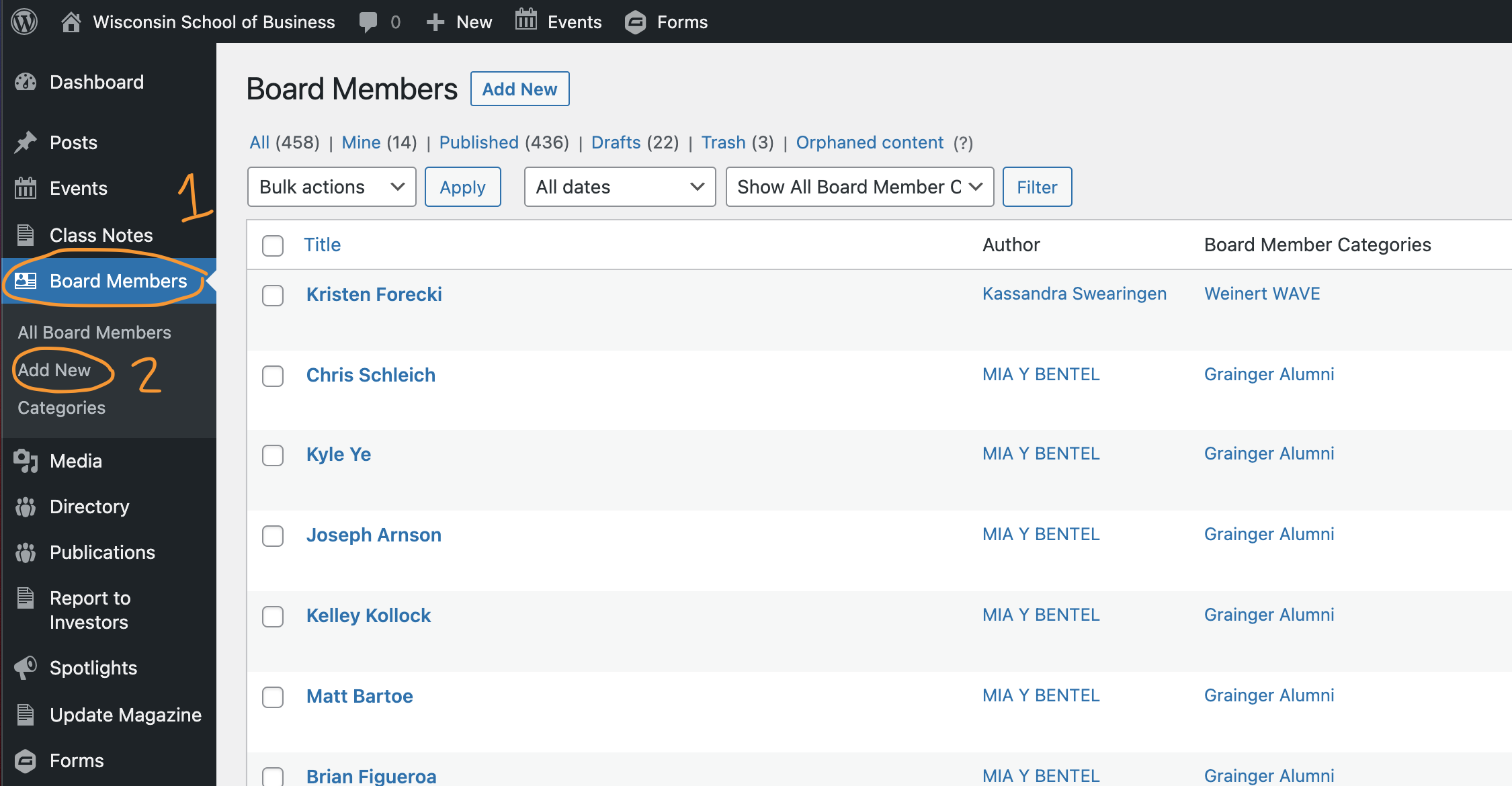
- From your WP dashboard, select Board Members in the left menu.
- If you don't see this option, you will need to request advisory board editing access from the web team.
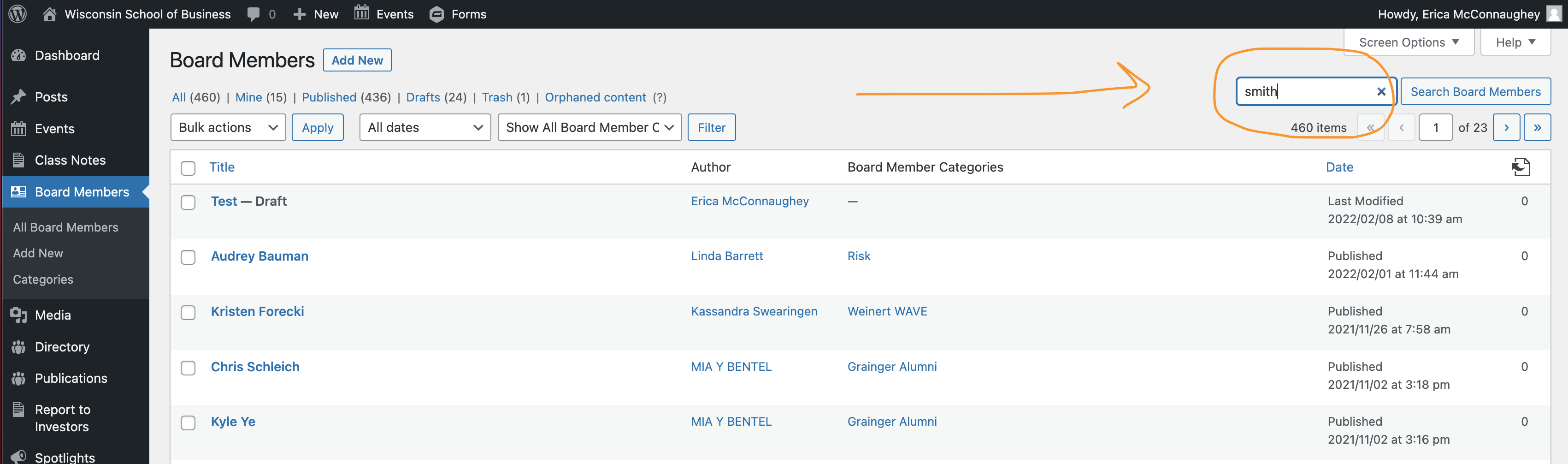
2. First, search to see if the individual has an existing advisory board profile. Search for the person's name – the search box is on the upper righthand side. If a profile exists, lick on the person's name to edit it.
3. If there is no existing profile, click Add New at the top of the page or in the left menu to create one.
Adding your content
Board member bio pages should only have the following blocks/elements (do not add other media/blocks):
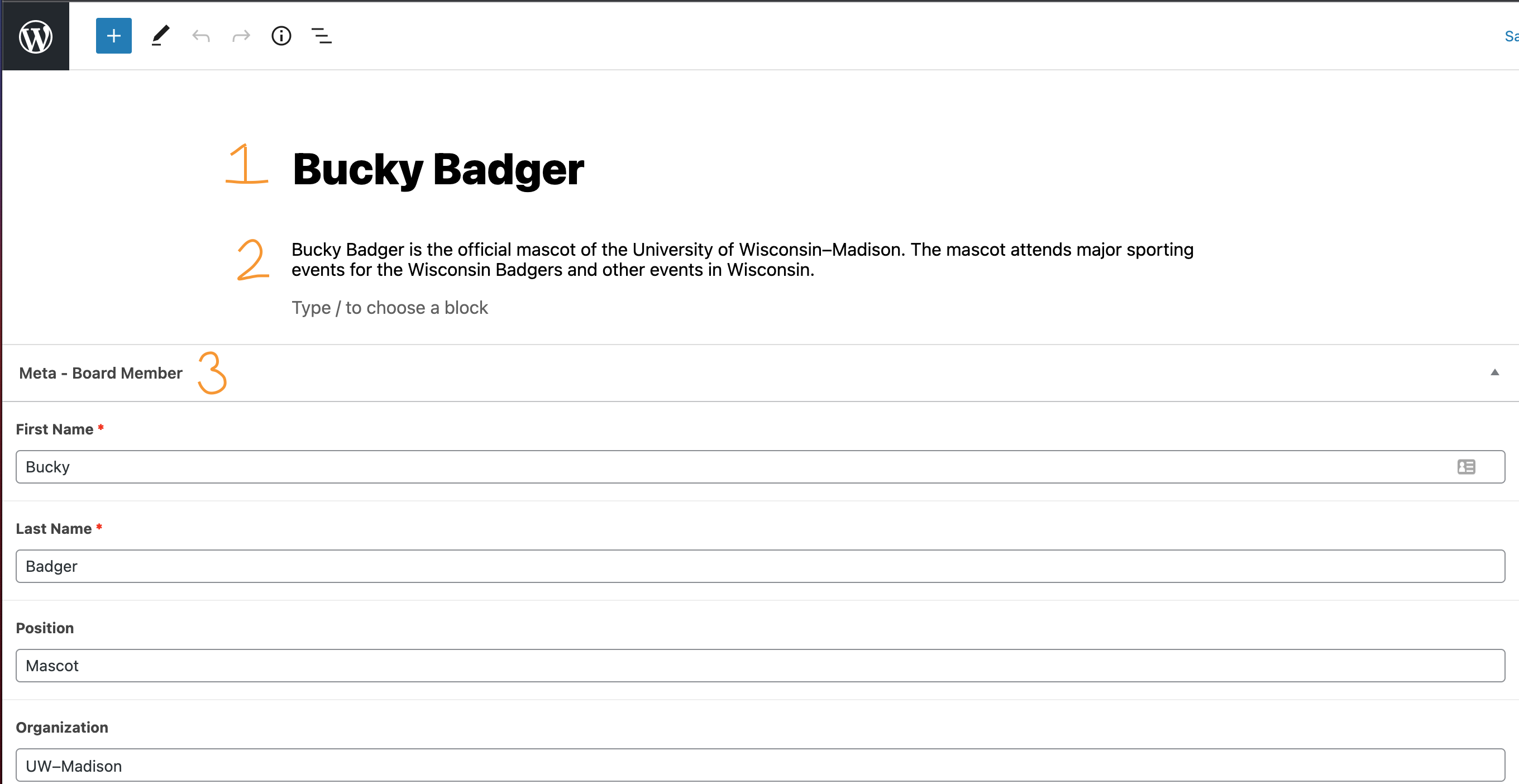
1. Title = Name (required)
- Add the board member's first and last name where it says "Add Title".
- Make sure this is spelled correctly because it will become part of the URL for the board member's profile page.
If you are copying and pasting the title, you will need to use plain text. The following are shortcuts for plain text pasting:
- For Windows - Ctrl+Shift+V
- For Macs - Cmd+Shift+V
2. Biography (optional*)
*Advisory board biographies are optional, but you should be consistent with all of your board members. (Either all members have a bio or none of them do.)
- You can ignore the message that says "Type / to choose a block" and click on it to add a cursor and start typing your content. Or you can copy and paste your text from another document.
- Hit the enter/return key to begin a new paragraph.
- Formatting the text:
- Highlight the text you want to format.
- A small toolbar should appear above the selected text.
- In this toolbar, you can choose to bold or underline your text.
- To maintain consistency with all board member bio pages, do not change the text color or the text alignment and do not add other WordPress blocks.
3. Meta - Board Member (some fields required)
- First Name (required)
- Last Name (required)
- Position (recommended)
- Organization (recommended)
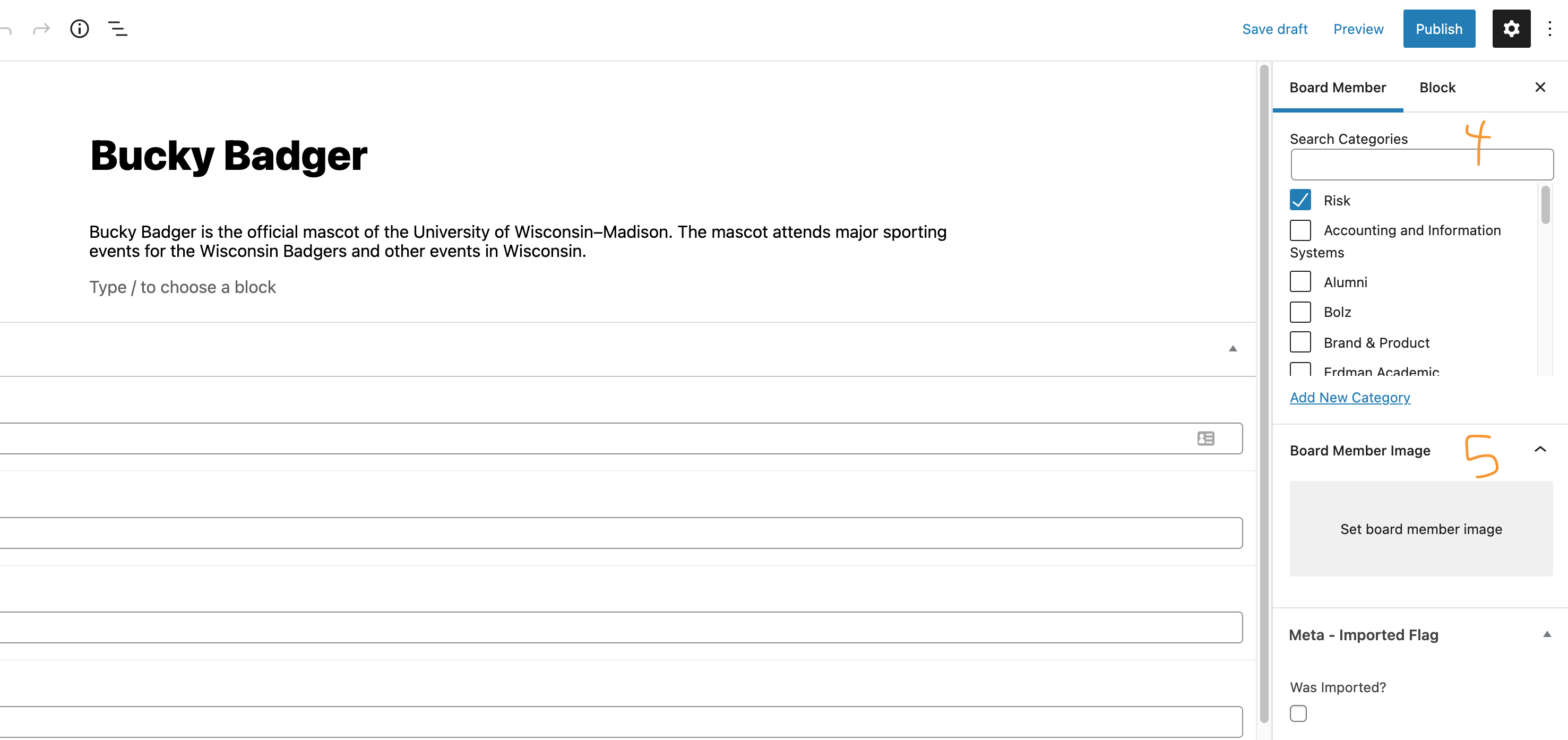
4. Category (required)
In order for a board member to appear in the correct advisory board(s), you must select the category/categories.
- In the righthand menu, select the "Board Member" tab.
- Scroll down until you see "Categories".
- Be sure Uncategorized is unchecked and pick the correct advisory board(s) from the list.
- Reach out to the web team if you don't see the category you need.
5. Board Member Headshot (optional)
Once your headshots have been submitted via a web ticket and MSC has determined the images meet our standards, the web team will add the headshots to your advisory board for you.
See more information about gathering headshots above.
Saving, Previewing, and Publishing
- On upper right side, click Publish to make your board member public.
- Other options:
- If you need to leave the page and come back before you publish, click Save Draft.
- To see what the board member profile page will look like before publishing, click Preview, then Preview in a New Tab.
Edit an Existing Board Member
- Navigate to Board Members in the left menu of the dashboard
- Search for the person's name – the search box is on the upper righthand side. Click on the person's name to edit their profile.
- Make your changes (follow steps outlined under "Add a new Advisory Board Member" above)
- Be sure to click Update in the top right corner to make your changes appear on the website.
Screenshot: shows the location of the search box
...
AIS Board Updates
| Expand | |||
|---|---|---|---|
| |||
AIS Board Members display different information
When editing an AIS board member's info, you will see HTML tags enclosed in angle brackets. These affect how the information is displayed on the website. Be sure to leave these alone. If an angle bracket "<" or any other part of the HTML is deleted or changed, it will affect what is displayed on the website, and it may look broken (e.g. you may see some of the HTML displayed on the page). The only exception here is if you are updating someone's email address. You will need to update the email address in two places (one displays the email on the page, the other creates the link so that a user can click on the email address and start writing an email easily) If you have any issues with updating this content, please submit a web ticket so the web team can help you fix it.
|
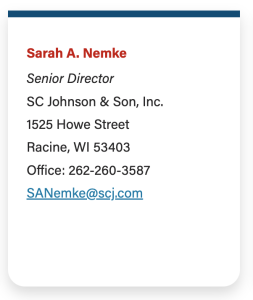
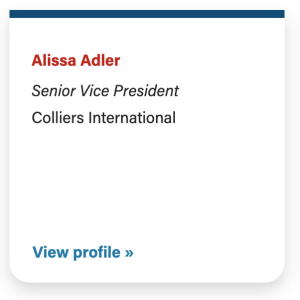
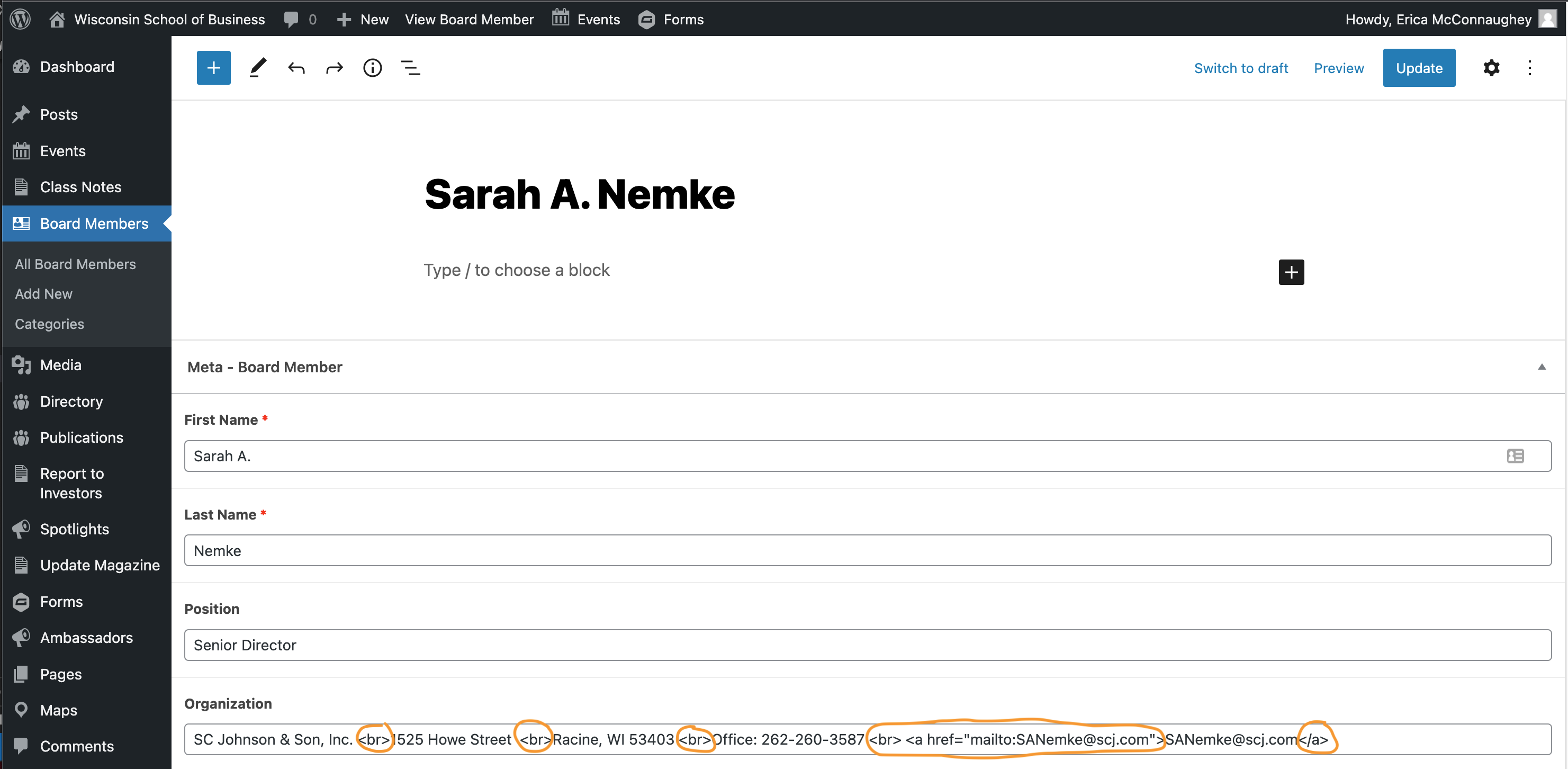
...
Deleting a Board Member
IMPORTANT: Before you delete a board member, make sure their profile is not displayed on another advisory board at WSB. . If their profile has more than one category, they are on more than one advisory board and their profile should not be deleted. Instead, remove your board category from the profile to remove them from your board only.
From the Dashboard
- Navigate to Board Members in the left menu of the dashboard
- Find the board member you want to delete in the list or search for them on the upper righthand side.
- Look at the category/categories selected for the individual.
- If there are multiple categories, DO NOT delete the profile. Simply open the profile to edit it and remove your board category from the profile. Save your changes by clicking "Update" in the upper right corner.
- If your category is the only one on the profile, it is safe to delete it. Hover over the person's name to see options appear. Click Trash to delete.
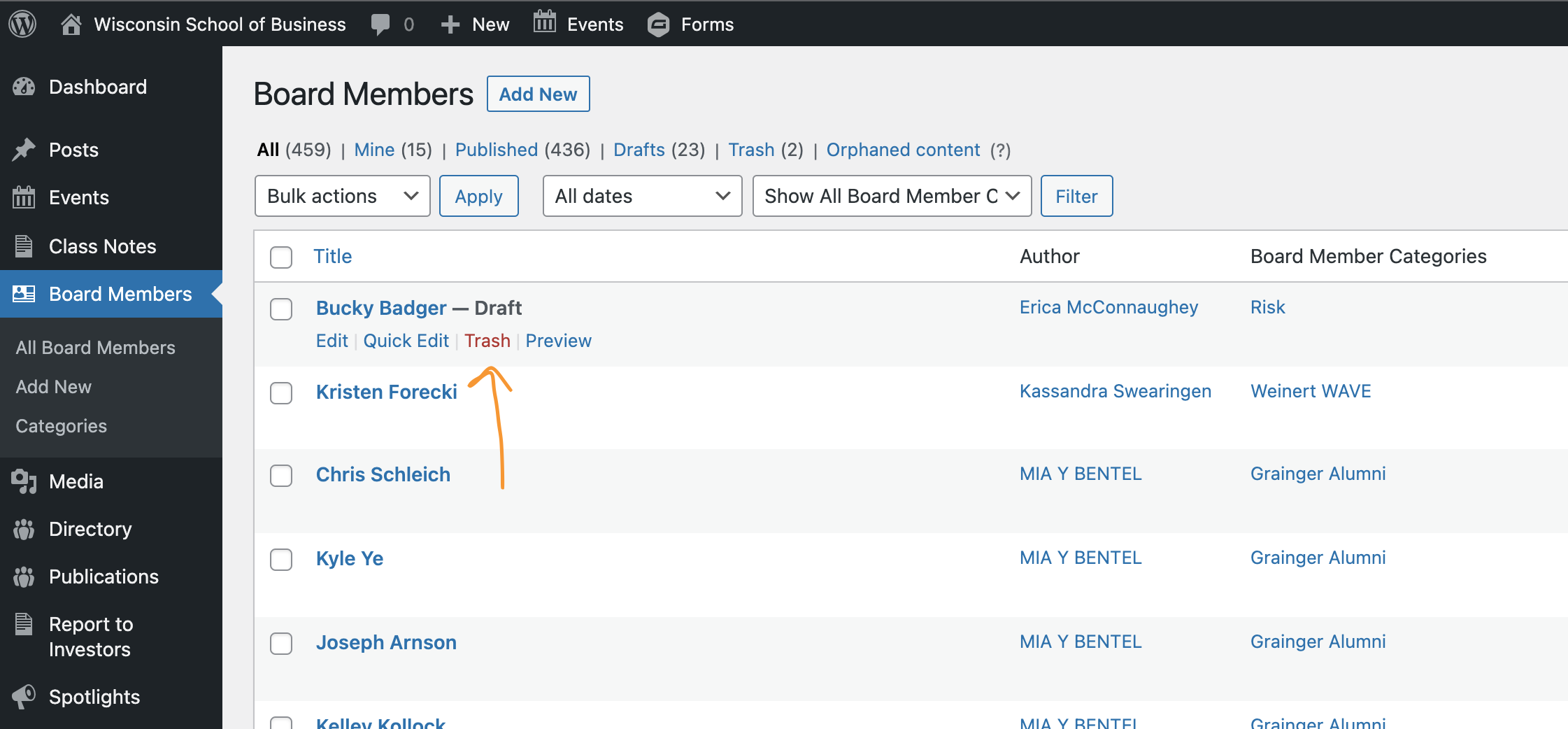
From a Board Member's Profile
- On the right side of the editor, select the Board Member tab.
- Look at the category/categories selected for the individual.
- If there are multiple categories, DO NOT delete the profile. Simply remove your board category from the profile. Save your changes by clicking "Update" in the upper right corner.
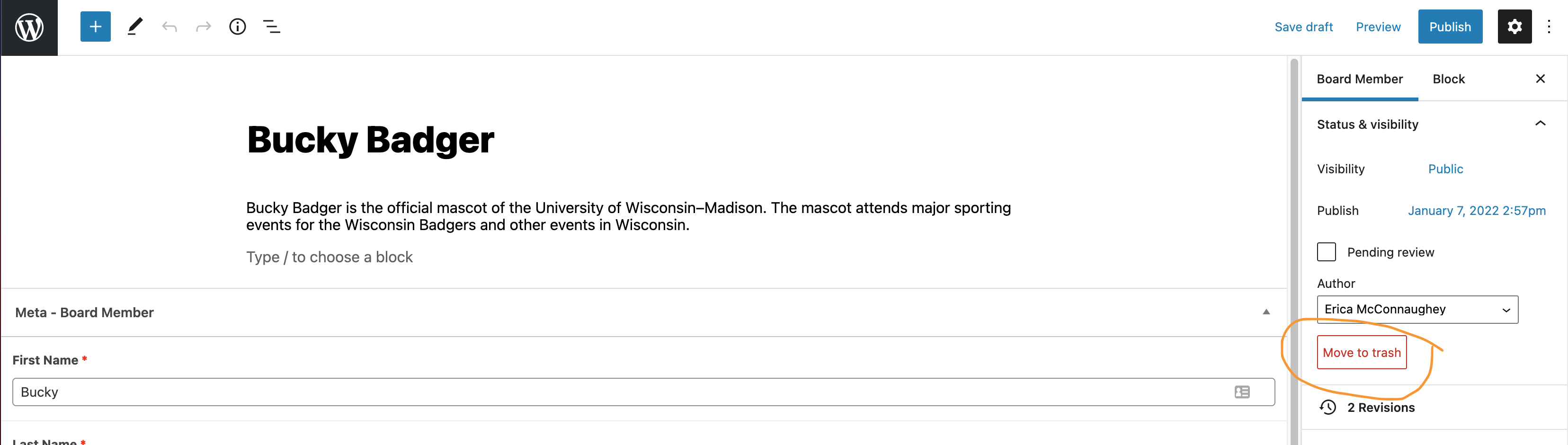
- If your category is the only one on the profile, it is safe to delete it. Click Move to Trash.
| Anchor | ||||
|---|---|---|---|---|
|
...
| HTML |
|---|
<iframe id="kaltura_player" style="border: 1px solid black;" src="https://cdnapisec.kaltura.com/p/1660902/sp/166090200/embedIframeJs/uiconf_id/25717641/partner_id/1660902?iframeembed=true&playerId=kaltura_player&entry_id=1_wqkbedw3&flashvars[streamerType]=auto&flashvars[localizationCode]=en_US&flashvars[leadWithHTML5]=true&flashvars[sideBarContainer.plugin]=true&flashvars[sideBarContainer.position]=left&flashvars[sideBarContainer.clickToClose]=true&flashvars[chapters.plugin]=true&flashvars[chapters.layout]=vertical&flashvars[chapters.thumbnailRotator]=false&flashvars[streamSelector.plugin]=true&flashvars[EmbedPlayer.SpinnerTarget]=videoHolder&flashvars[dualScreen.plugin]=true&flashvars[Kaltura.addCrossoriginToIframe]=true&&wid=1_4krt2pwv" width="649" height="401" allowfullscreen webkitallowfullscreen mozAllowFullScreen allow="autoplay *; fullscreen *; encrypted-media *" frameborder="0" title="Kaltura Player"></iframe> |
Why are my old advisory board headshots not displayed?
Advisory board headshots from wsb.wisc.edu were not moved to the new website (business.wisc.edu) in 2021 if they did not meet the image standards outlined above. Many of these images were black and white, low resolution, and too small to display on the new site. And the web team did not keep the original image files. You will need to submit original headshots that meet our standards in order to have them displayed on your advisory board page (this could simply be a matter of resubmitting original headshots that you have had for a while).