
These instructions are for the following blogs:
- BBA blog
- DEI blog
- Grad Consulting blog (coming soon)Capstone Projects blog
- Center blogs
- Newsroom posts (also see this documentation for more specific details about editing newsroom posts)
- Risk and Insurance Dept. blog
- RMI specialization blog
- AI Hub blog
On This Page:
| Table of Contents |
|---|
...
- Guidelines:
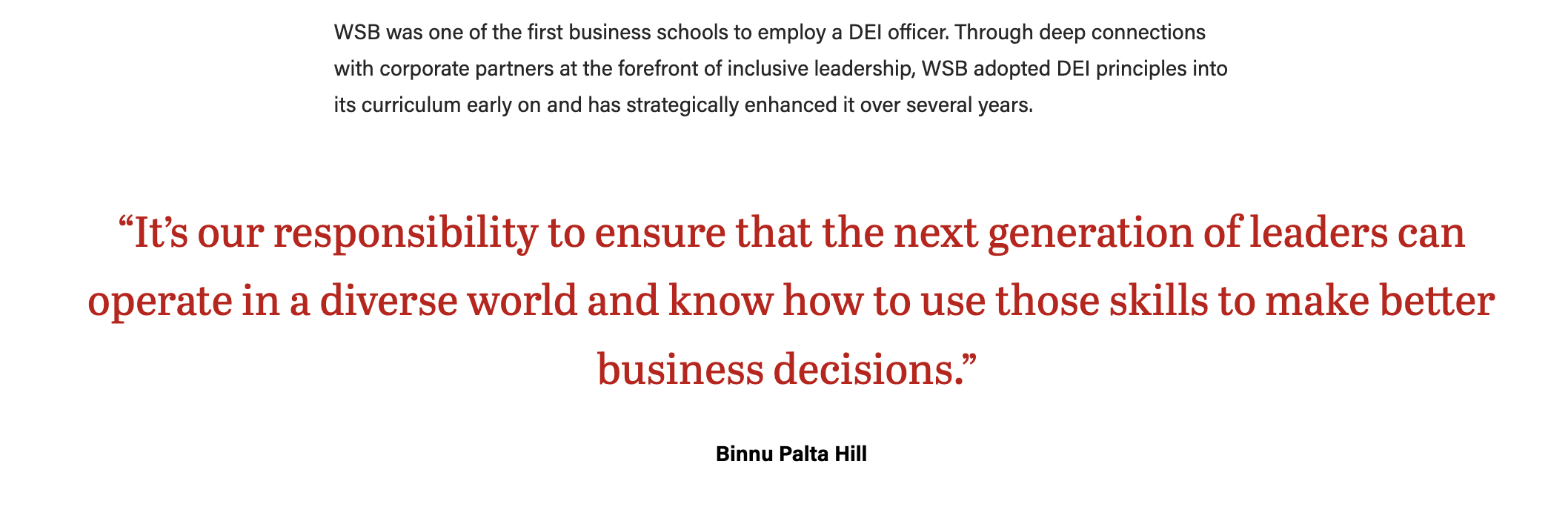
- Use this block to display a quote.
- The quote text will be large and red – do not change the formatting or color of the text.
- Quote will be centered and it will be wider than the post content above and below it (unless it is a short quote).
Aside callouts
- Guidelines:
- Use to display a small amount of copy and an optional, small image (a headshot or icon) next to the post content.
- Use the top-most text fields
- Top level text goes in the "headline" field, even if it isn't a heading (e.g. person's name can go here)
- If you have 2 levels of content, use the top two fields (headline and subtitle). Only use the 3rd field if you have already filled in the first two levels.
- Aside blocks are meant to be used with a very small amount of copy, ~100 characters or fewer.
- Asides should be used sparingly in a single article – use 3 asides max.
- If using more than one aside, they should be separated by at least one paragraph.
- The aside block cannot be the last item in your post (this will push it down to overlap the footer content and mess up formatting on the page)
- Move it above some of the copy to fix this issue
- Be sure to preview your article to make sure there are no formatting issues
...
- Guidelines:
- Use a single callout box at the end of an article to display sidebar/endbar content
- Content should not exceed 125 words.
- Photo sizes can vary.
- Options:
- Background style - light gray, light blue, or gray pattern
- Image (optional) - add a photo, square headshot, or WSB icon
- Alignment - default is left aligned or you can choose to center the image
- Crop the image to a circle? Yes/No (Note: only choose Yes for a square image!)
- Heading (recommended)
- Heading size - most of the time this should be an H2 or an H3
- Alignment - default is left aligned or you can choose to center the heading
- Text - add your content and format it (e.g. add a hyperlink, paragraph breaks, or bullet points)
- Text should remain left aligned in most cases
- Button (optional)
- Alignment - default is left aligned or you can choose to center the button
|
|---|

Meta Fields
These optional fields can be found below your post content. If you don't see subtitle, author override, etc. you need to click the arrow next to Meta to expand this section.
...
Yoast SEO Premium (bottom section)
...
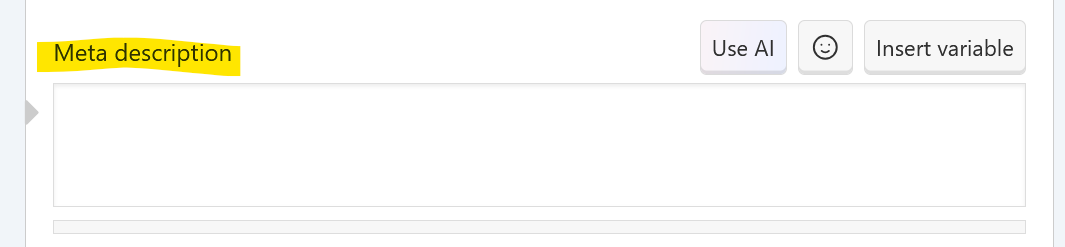
- Add a meta-description to your post-- a short description of what the post is about.
- Check the "Social" tab to see a preview of what your post will look like when shared on social media. If you want to change something, use the fields below the preview.
Right-hand menu options
- Categories (optional)
- Be sure Uncategorized is unchecked and pick the category your post falls under.
- Category options vary for each blog. Make sure to follow our blog category and tag standards.
- Be sure Uncategorized is unchecked and pick the category your post falls under.
- Post Tags (optional)
- Add your tag(s).
- Tag options vary for each blog. Make sure to follow our blog category and tag standards.
- Add your tag(s).
- Featured Image (recommended)
- Featured images must be high resolution, jpg or png files, 2400 pixels (px) wide, and between 1500 and 1700px tall.
- Click Set Featured Image.
- Follow instructions above for adding images to the media library.
...