
-
Created by
 Erica McConnaughey, last updated on Mar 17, 2023
4 minute read
Erica McConnaughey, last updated on Mar 17, 2023
4 minute read
Design
A block with a background image or pattern that spans full-width.
Background Image - desktop 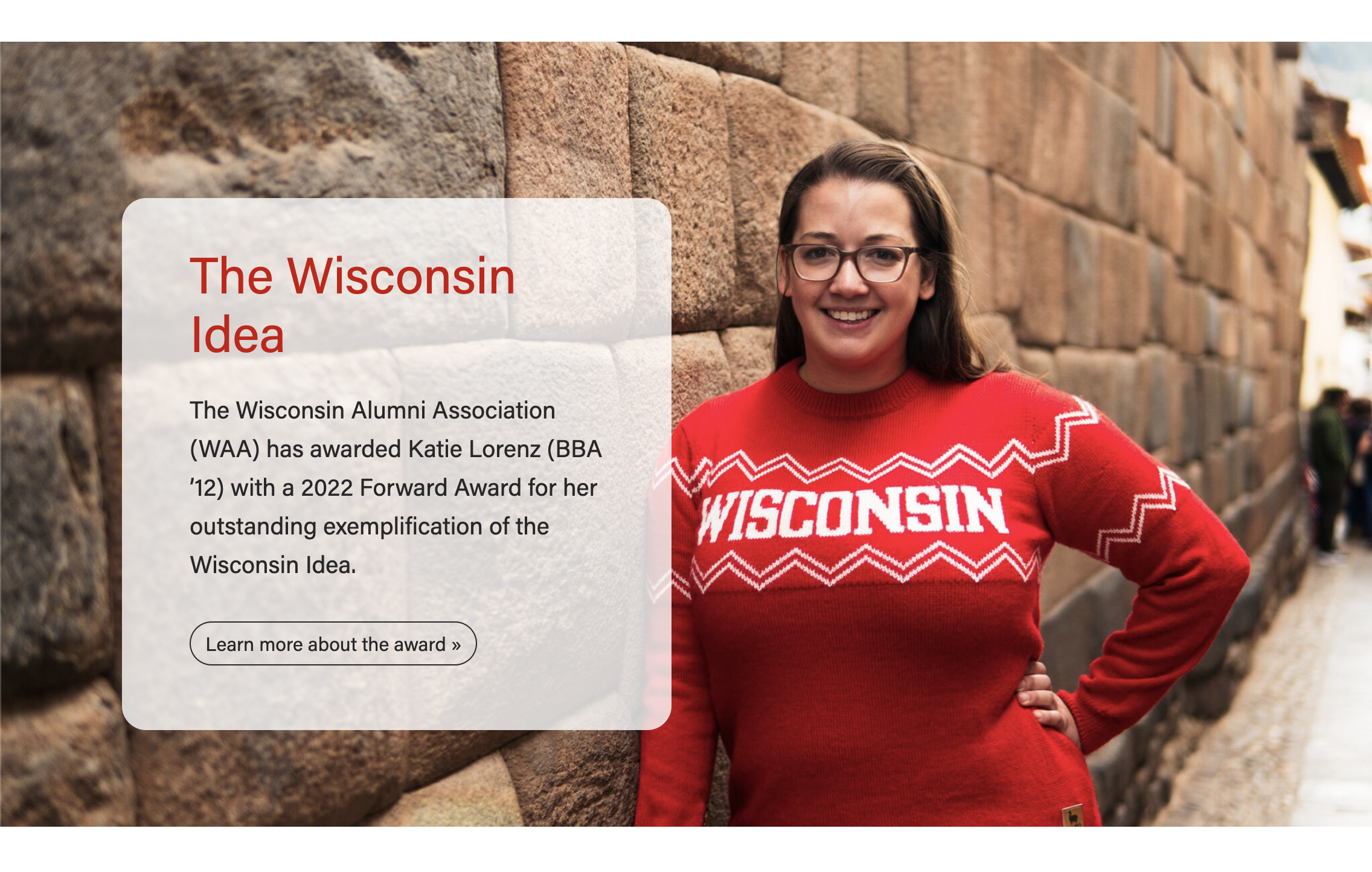 | Background Image - mobile
|
|---|
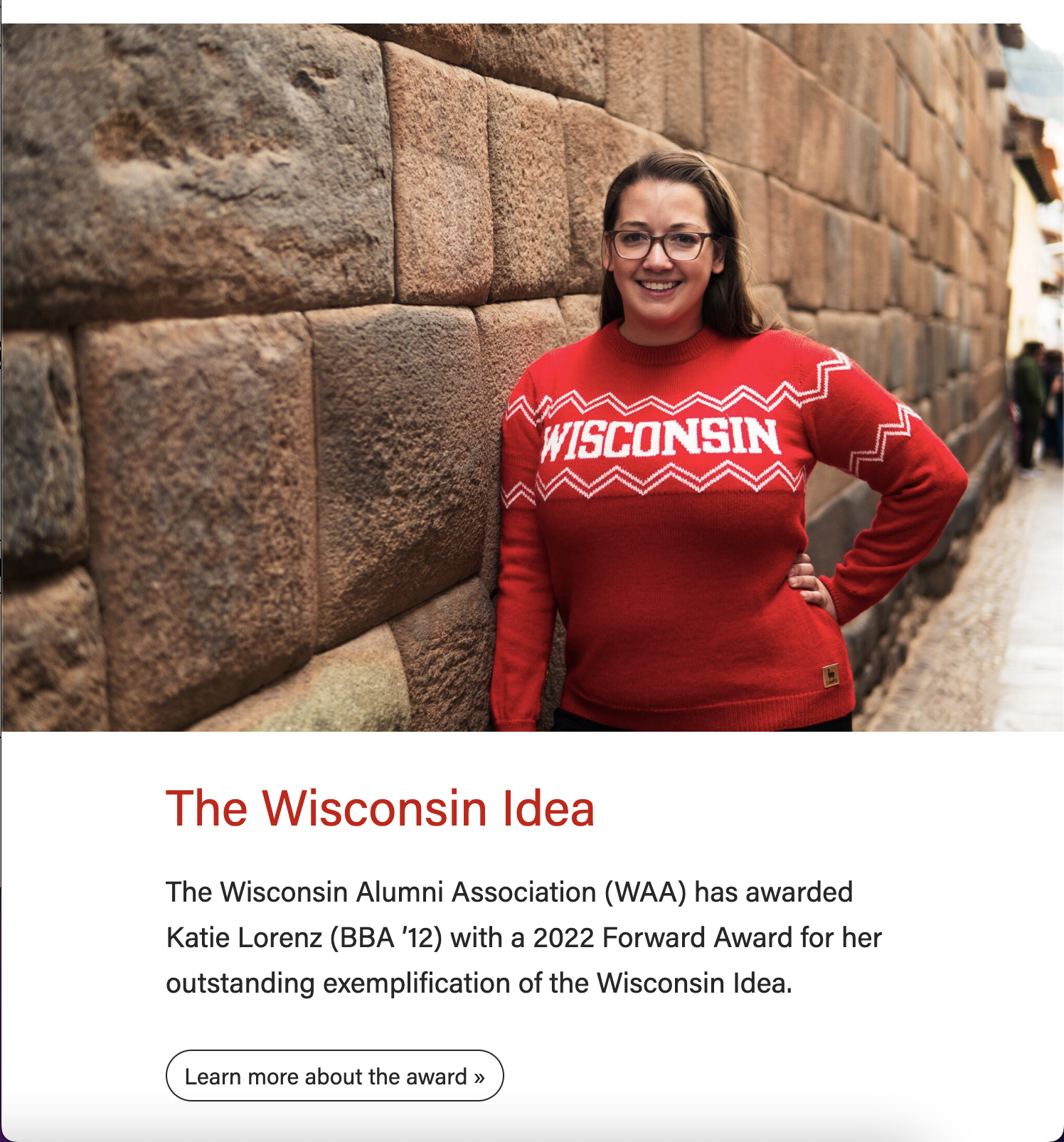
Gray Pattern - desktop
| Gray Pattern - mobile
|
|---|


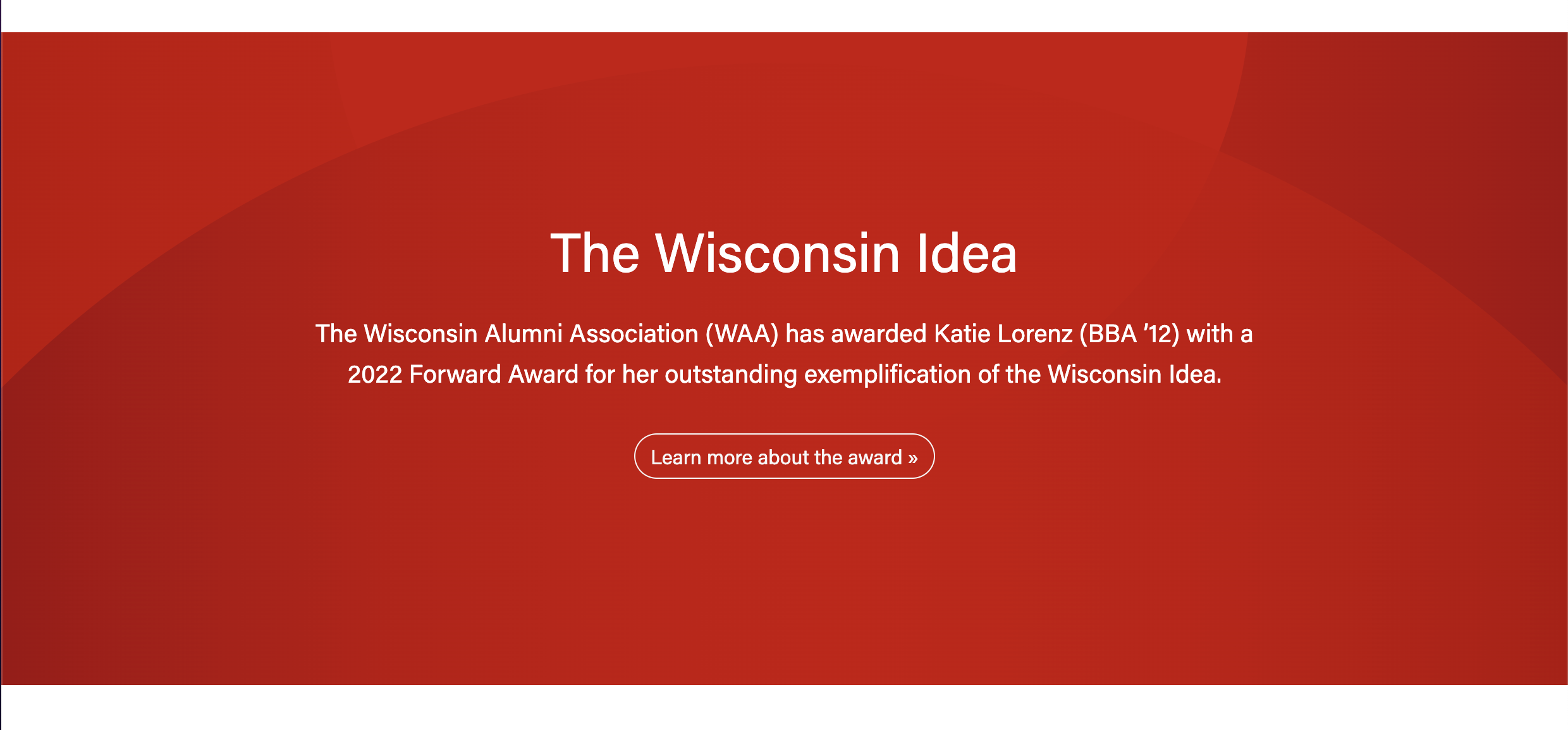
Red Pattern
| Blue Pattern
|
|---|

Use Cases
Use to showcase a high quality image on a Page or Post.
Use in a featured/high profile News post.
Use in Update or Report to Investors.
Fields
- Choose Photo or one of the Pattern options.
- For Photo type:
- Background image
- Make sure the image is high-quality and at least 2400px wide.
- The subject should be vertically centered in the image to avoid important features getting cropped out. You may need to request a different crop of the image from a designer.
- The content will display on top of the image for desktop and tablet screens, but will drop below the image for mobile. (see screenshots above)
- Display a different image for mobile? Toggle to Yes if you want to select a different image to display for mobile screens
- See example of a full-width background block that displays a different image on mobile.
- Hide image for mobile? Toggle to Yes if you prefer to hide the image for mobile
- See example of a full-width background block that hides the image on mobile.
- Background image
- For Pattern types:
- Choose between a Gray, Blue or Red background.
- The content will display on top of the pattern for all screen sizes. (see screenshots above)
- For Photo type:
- Add parallax effect?
- Creates a special type of scrolling effect, where the background image moves slower than the foreground objects.
- Note: This effect is removed for users who have turned on an OS setting to reduce motion. Learn more about reduced motion and accessibility.
Text Content
Title
- Add your text
- Conditional fields:
- Title heading size – select the desired heading size (h2, h3, h4, h5)
- Subtitle – add your text; this heading level will automatically be set to the title heading size +1
Link
- Add a link and button copy
- The button style will either be .btn-outline-light or .btn-outline-dark, depending on the background pattern or text color chosen.
- Note: If you also add Custom Content in the next field, this button will appear below that content.
Custom Content
- A WYSIWYG field for adding paragraph text or other custom content
- Keep copy short, up to 50 words
- This content will be placed in a <div> with the "lead" class. This class will only affect paragraph elements (it will make the font size larger to ensure content is legible)
- Note: Be sure to use semantic HTML tags around all content
- Text Color*
- Options: Default colors, Black, White
- Be sure to choose a color that meets color contrast standards.
- Horizontal Placement
- Options: Left, Center, Right
- Vertical Alignment*
- Options: Center, Bottom
- Add transparent background?*
- If the background photo has a lot of color variation, add a transparent background behind the text to ensure all of it is legible.
- Stretch link?
- Options: Yes or No;
- Toggle to yes if you want all text in the block to be clickable; this field only appears if you have added a link
- Animation: add text fade-in?
- This animation is triggered when the user scrolls to the block on the page. The content fades in and moves up slightly.
- Note: This effect is minimized for users who have turned on an OS setting to reduce motion. The fade-in effect occurs with no vertical movement.
Configuration
- Anchor ID
- Add an ID to target the block in an anchor/jump link.