
-
Created by
 Erica McConnaughey, last updated on Mar 31, 2026
6 minute read
Erica McConnaughey, last updated on Mar 31, 2026
6 minute read
Also known as: video swiper, card swiper, social videos
A multi-purpose block that displays multiple cards/panels in a swiper. Can showcase videos, text, and/or images.
Examples
Use When
- Displaying multiple chunks of content with optional images and/or badges
- Examples:
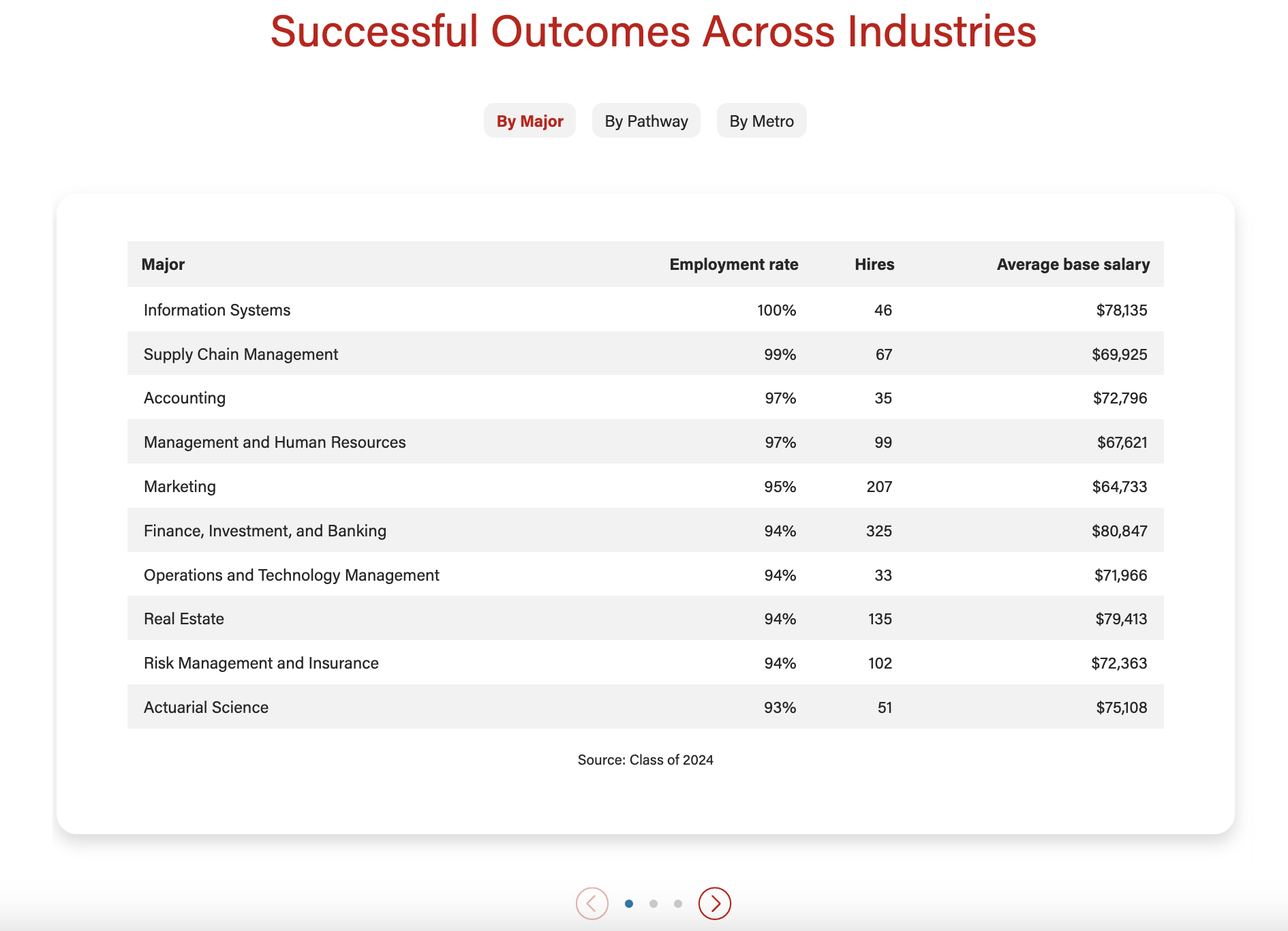
- Career outcomes data tables on BBA Careers
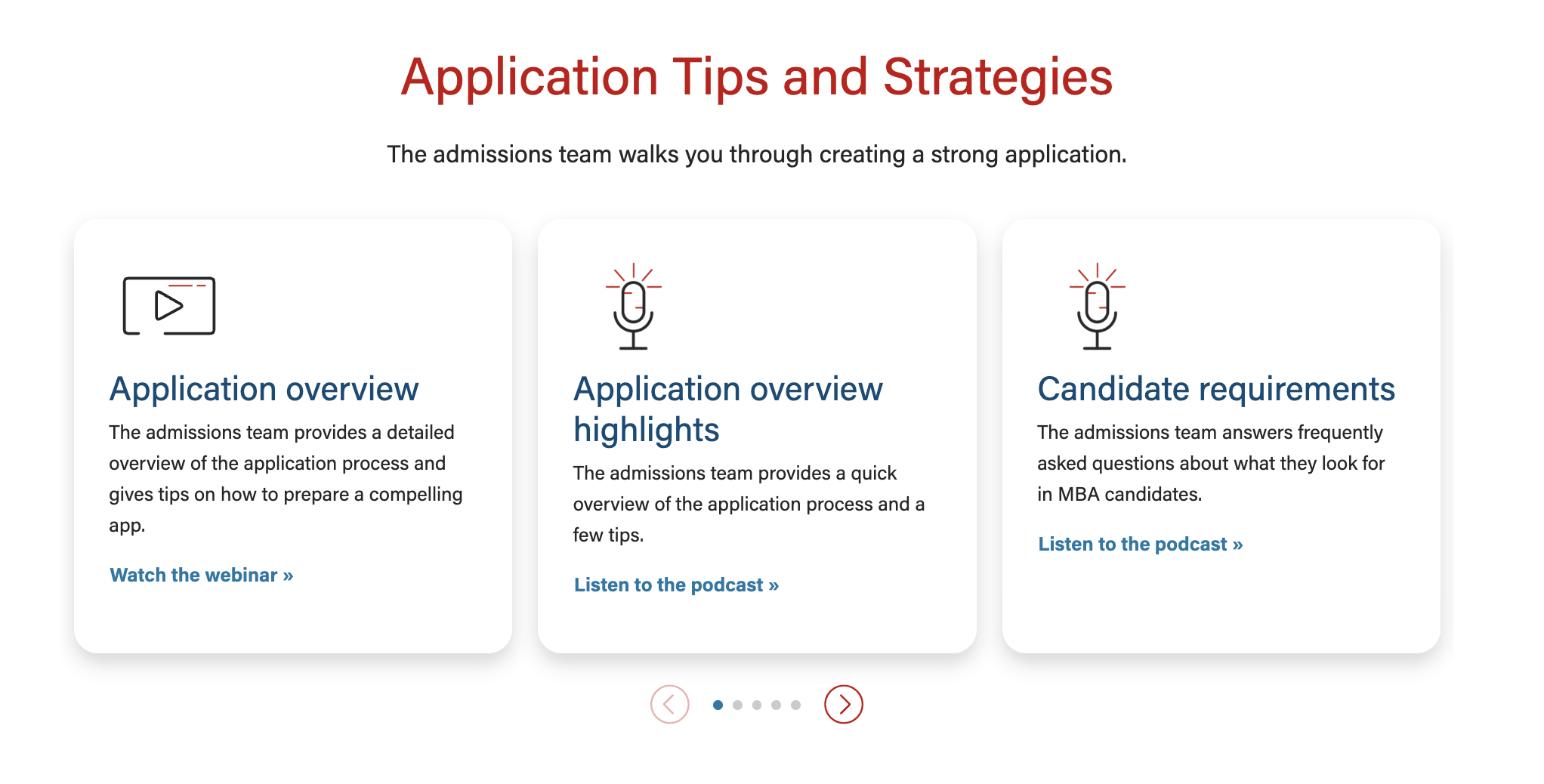
- Student resources on BBA Careers
- Popular major and certificate pairings on BBA Majors
- (Badges) Partnership levels and company logos on BBA Recruit and Hire
- Examples:
- Displaying multiple videos
- Examples:
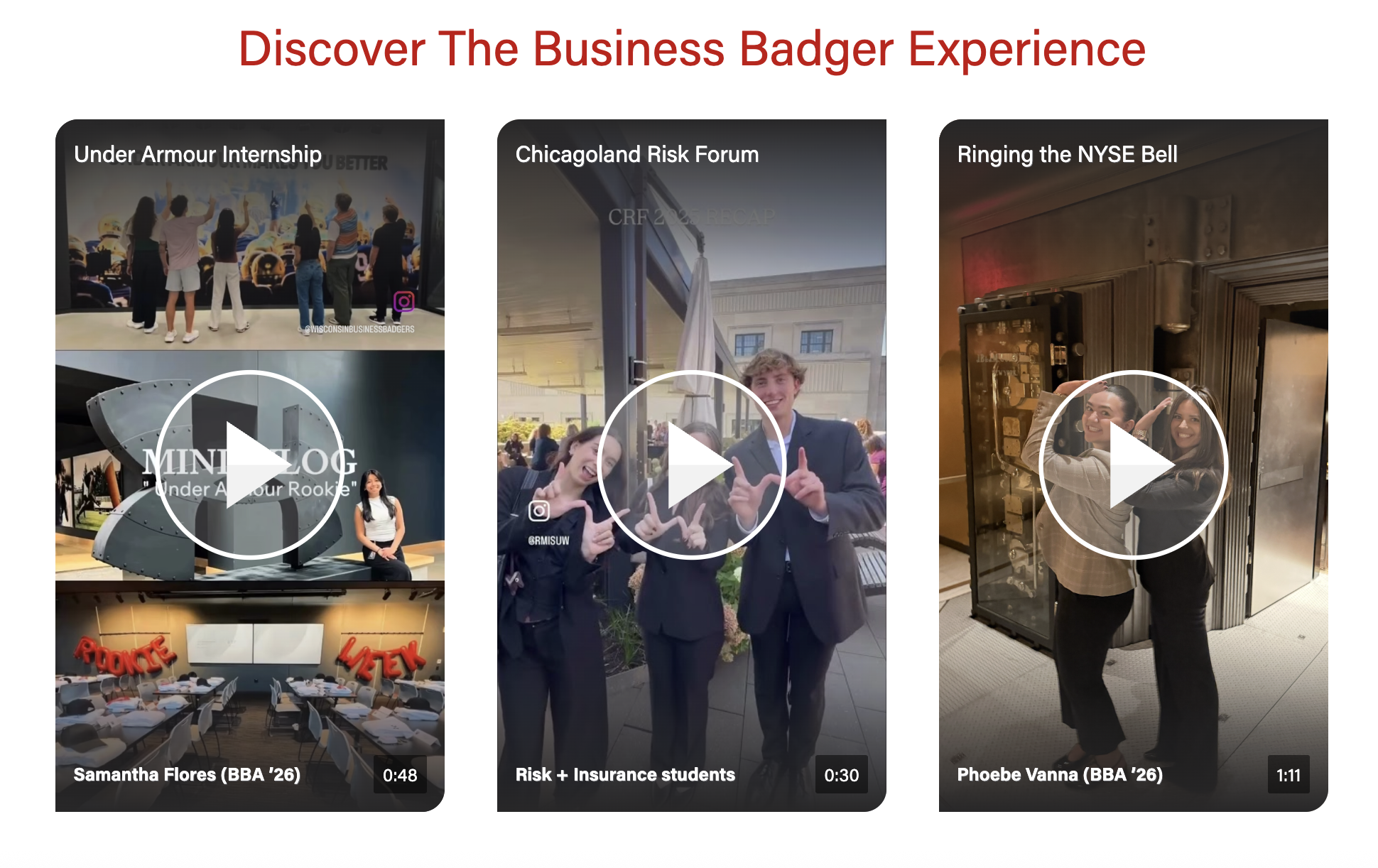
- Student experience YT Shorts videos on BBA Majors and BBA Careers
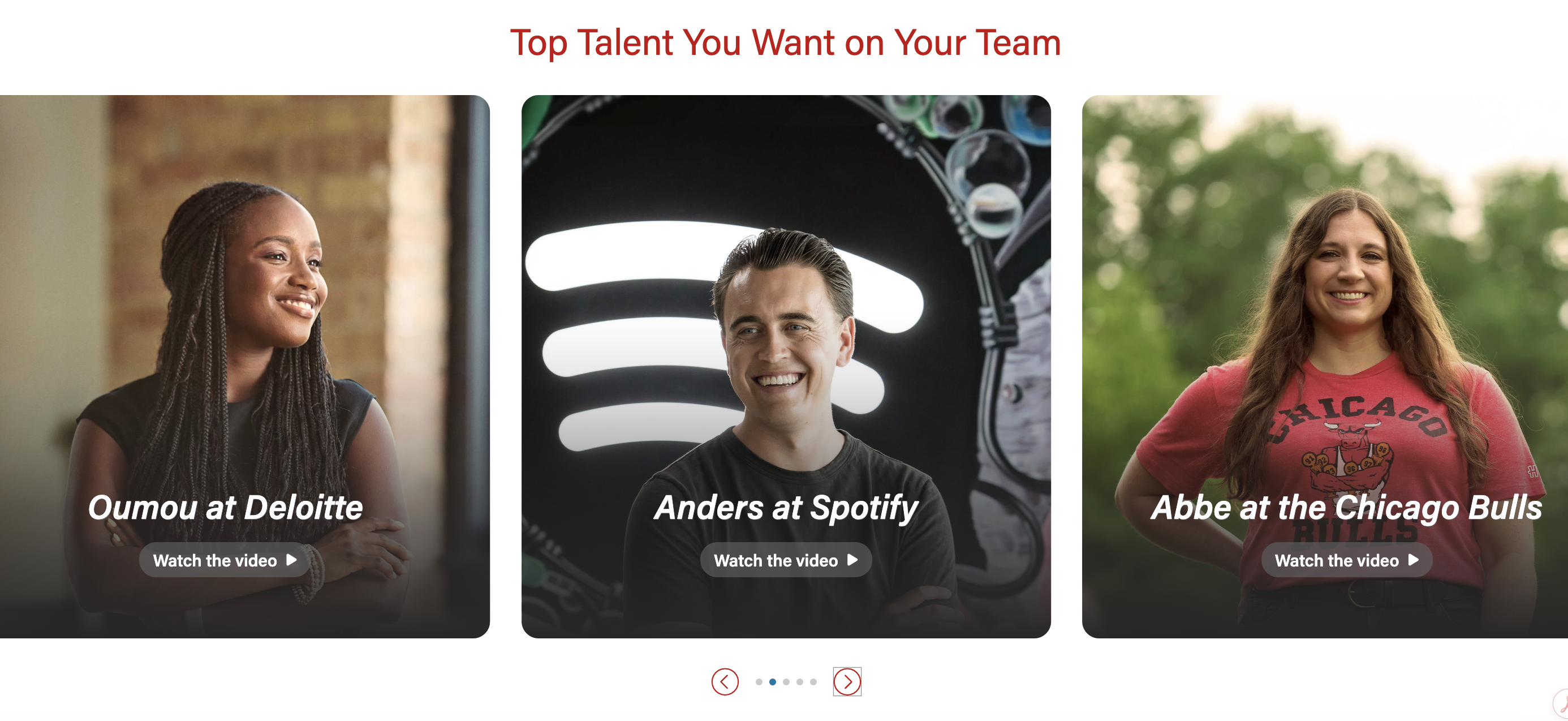
- Trusted to Lead alumni videos on Companies and Recruiters
- Examples:
Editorial Guidelines
Follow our general Web Copy General Guidelines in addition to the following:
For text/image cards
- Cards must have similar amounts of copy
- Images are optional, but if one card has a photo, they all need to have a photo
- Card title (recommended)
- Card content
- Ideal length is one or two short phrases or 3-4 bullet points
- For data tables, limit number of rows to ~10
- Card button/link (optional)
- Link text should be specific to each topic/card
For videos
- Videos must be uploaded to YouTube and captioned accurately. Share the YT link with the web developer when ready.
Traditional Videos (landscape)
- Video title (required for all videos)
- Character limit: 30 characters
- Recommend matching (or shortening) the title of the video on Youtube
- When you want the video to appear next to some copy
- Card title (required)
- Card content (optional)
- Ideal length is one or two short phrases or 3-4 bullet points
- Give users a few highlights from the video
- Card button/link (optional)
Social Videos (vertical)
- These are typically Instagram Reels uploaded as Shorts to our YouTube channel.
- Need 3 or more videos for this layout.
- Note that we cannot show a mix of content (e.g. we can't show a YT Short next to a photo with some copy)
- Video title (required for all videos)
- Character limit: 30 characters
- Recommend matching (or shortening) the title of the video on Youtube. Can move subjects name to the bottom text for length
- Bottom text (optional)
- Character limit: 30 characters
- Used to display name, grad. year, major, or other details about the video's subject(s)
Design
Images
Card image (optional)
- Photo - jpeg file; standard horizontal size
- Dimensions: 2400x1600px
- We can choose the aspect ratio for card photos, options:
- 16:9, 21:9, 4:3
- Icon - svg file
Videos
- Videos must be uploaded to YouTube.
Video cover image
- We can use the cover image from YT or upload a different one to override it
- Cover image override - jpeg
- Face should not be perfectly centered, as it will be covered by the play button. We recommend cropping so the face is in the top third of the image.
- For traditional, landscape videos
- Dimensions: 1176x662px
- Aspect ratio: 16:9
- For vertical, social videos
- Dimensions: 1170x1807px or 585x904px
- Aspect ratio: 9:16
Documentation updates in progress
Variations
Columns
- Can choose to display 1, 2, 3, or 4 columns for desktop
- Columns for smaller screen sizes will automatically be calculated
Badges
- For single column layout only
- Badges can collapse into a dropdown for mobile
Text/image
Video
Implementation
Dev Notes
- The block displays swiper arrows and creates swiping functionality when the content requires it.
- Click and drag swiping is disabled for video content on desktop.
ACF Fields
Content type
- First you will need to select the type of content from two options: text/image or video
- This block has many conditional fields that depend on the content type chosen
Display badges?
- Yes or no
- Only works with a 1 column layout with more than one card
Mobile layout for badges
- Dropdown (default) or stacked
- Only choose stacked when you have 7 or fewer cards and the stacked badges look good on mobile
Mobile video
- Only appears with Video content type selected
- Crops videos to 9:16
Lazy load (video)
- Only appears with Video content type selected
- Doesn't currently work with landscape videos
- Sets video to a lazy load embed instead of inside a modal
Show Overflow
- Video columns expand the width of the page, with parts of the left and right cards will be partially off the page
- Randomize Order? - only available when Show Overflow is toggled to yes.
- When checked, the order of the videos will be randomized.
- Adaptive autoheight is not necessary as the override images should always be the same size.
Add/Edit Cards
- Card details - (accordion)
Card image
- Image field
- Select the photo or icon you would like to display
- Be sure to choose an appropriate image aspect ratio under the block configuration tab.
Title (required)
- Text field
- Text that displays inside badges (if shown) and title for the card
- For badges layout: this content will go inside the badge, so keep this as short as possible; recommend no more than 30 characters.
- For show overflow: the title is toward the bottom of the card
Hide title in card?
- Yes or no
- This field is only visible if Display badges? is checked
- Allows the title field to show in the badge only, so you can have a different title or no title in the card.
Content
- WYSIWYG
- Add text and/or HTML code for content displayed in the card
CTA Link
- Add URL and link text
CTA Style
- Select your preferred button style
- Video Details - (accordion)
Youtube Embed Code
- Insert embed code from YouTube. Example: CqZeezv9xqw.
Video length
- Displays in the lower right corner of the video thumbnail/placeholder image. Disappears when video is played
Video title
- For modal videos - Used for aria labels, but does not display on the page
- For lazyload videos - The title displays on video, near the top
Image Override
- Tooltip: Image will override YouTube thumbnail. Make sure video image dimensions are the same for all cards in the block. Youtube thumbnails are 1176x662px
- TIP: Recommend using an image with 4:3 aspect ratio if there is a lot of text content next to the video. Dimensions of 1024px by 768px have worked well before.
- Image (Array)
- If Show Overflow is toggled yes, make sure all the images are the same size.
- The images can be vertical or horizontal
Image Alt text
- Describe what’s in the youtube thumbnail image. Not necessary if you use the Image Override.
Play Button Color
- Select: dark, light, or red
- Red Button is only used for low contrast, grayscale images where light and dark buttons won't work.
- Play button colors won't apply when Show Overflow is toggled to yes
- Instead, the play button says "Watch the video" with an arrow
Play Button Alt Text
- Aria-label for the play button. Defaults to “play video”. Example: “Watch Sennai’s video”
Introduction
- Includes standard block intro fields
- Section Title
- Section paragraph
Footer
- Includes standard block footer fields
- Footer content
- Footer CTAs
Configuration
Columns
Select the number of columns to display for XL screens. Other column breakpoints will be set for you.
- Default = 1 column
- Options: 1, 2, 3, 4
- For social videos, recommend 2-3 columns
Enable card shadows
- Yes or no
- Default is Yes
Adaptive autoheight
- Yes or no
- Default is Yes
- Toggle to no if Show Overflow is toggled yes
Card image ratio
- If adding an image to any cards, select an appropriate aspect ratio
- Default - 16x9
- Options:
- icon
- 16x9
- 21x9
- 4x3
- 1x1
Center icons
- Yes or No
- When image ratio is set to "icon", this field will appear
- Default - No (icon will be left aligned)
- If Yes, icon will be centered and a small gray horizontal rule will appear between the icon and the other card content