Creating a Test Account for use in the Admissions Web Application.
In order to improve security around test accounts and add additional functionality, a user with the LastName of 'wsbtest' is not inherently treated a test account. That LastName should still be used in order to exclude test accounts from reports.
NOTES:
Access limitations:
- These instructions only work for LRM-admins and WSB-analysts. If you need test accounts created but are not in those groups, please contact your Programs WSB-analyst or submit an LRM support request.
There are two mechanisms to create test accounts, depending on what part of the process you would like to test.
Auto-Generated Step-by-step guide
If you would like to skip the registration process applicants go through, or create bulk test accounts, follow these instructions
- Login to the admissions application you'd like to use (dev, uat or prod)
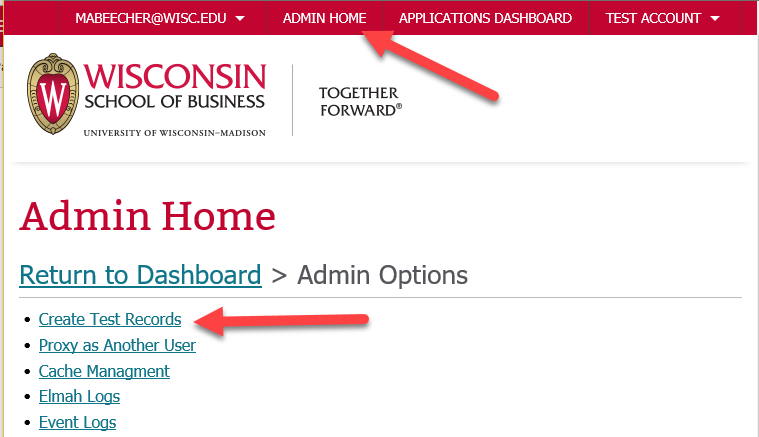
- Navigate to the "Admin" section in the top-navigation panel
- Select "Create Test Records"
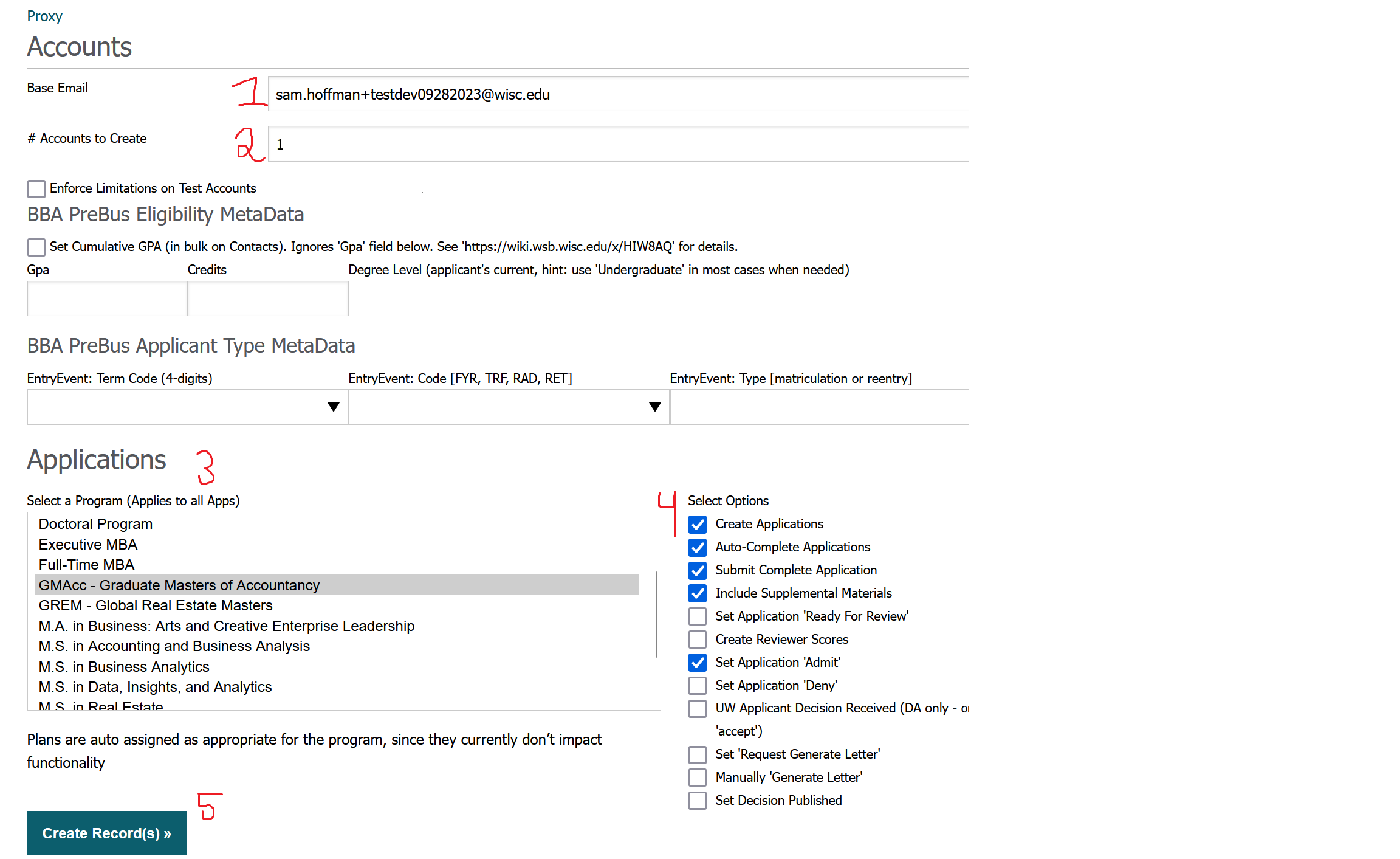
- Please reference the image titled "Create Test Records Page" for the following steps
- (1) Create an email
- Note * the email format <youremail> + <something to differenciate the test account> @wisc.edu will send your email messages while being a different account
- Note** once the account is created it will append a "_1" to your base email to use in the LRM
- So john.smith@wisc.edu will become john.smith_1@wisc.edu
- (2) Number of accounts you want
- if creating more than one account the "_1" will be incremented to a "_2", "_3" and so on
- (3) Choose your program
- (4) Choose what stage you want the application to be in
- If you want to test filling out the application yourself only click the "Create Applications" checkbox
- If you want to test decision letters it might be helpful to click every checkbox leading up to "Set Decision Published"
- (1) Create an email
- The following sections are for BBA Eligibility
- "BBA PreBus Eligibility MetaData"
- Set Bulk Cumulative GPA - When checked this will set the Contact's CumulativeGPA value from a set of values ranging from 2.4 to 4.0 based on the number of Contacts being created. Note: Checking this box will cause the GPA field below it to be ignored.
"BBA PreBus Applicant Type MetaData" - aka EntryEvent info - how/when did the applicant enter the UW-Madison system?
- EntryEvent: Term Code (4-digits) – When did the Matriculation or Re-Entry happen?
- EntryEvent: Code [FYR, TRF, RAD, RET] - What type of Matriculation or Re-Entry was it?
- "BBA PreBus Eligibility MetaData"
Manual Step-by-step guide
If you would like to mirror the registration process applicants go through, follow these instructions
- Fill in the registration information in the portal of your choice using a Program Login
- In Dev or Prod, you will receive a confirmation email: click the link to confirm your registration. At this point, the account is subject to all of the limitations of a standard user.
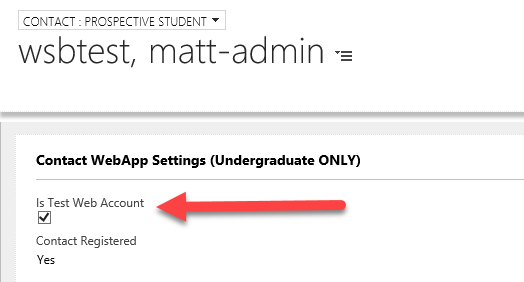
- Find the contact in the environment you registered the contact for, and navigate to the "Administration" tab. In the 'Contact WebApp Settings" section there are two critical checkboxes
- 'Is Test Web Account': if checked, the user is treated as a test-account and will override limitations on the account (ToDo..enumerate them)
- 'Force WebApp-Constraints For Test Account': pending enhancements. More information to come.
Related articles
Create Test Records Page