
-
Created by
 Kassandra Swearingen, last updated by Erica McConnaughey on Sept 13, 2024
3 minute read
Kassandra Swearingen, last updated by Erica McConnaughey on Sept 13, 2024
3 minute read
Design
Component Library
Link to figma doc with component if it exists
Screenshot
Example of 3 columns in desktop and tablet. Background options include no background, red pattern, blue pattern, gray pattern, and image. You can also select to display a yellow divider line between the cards.
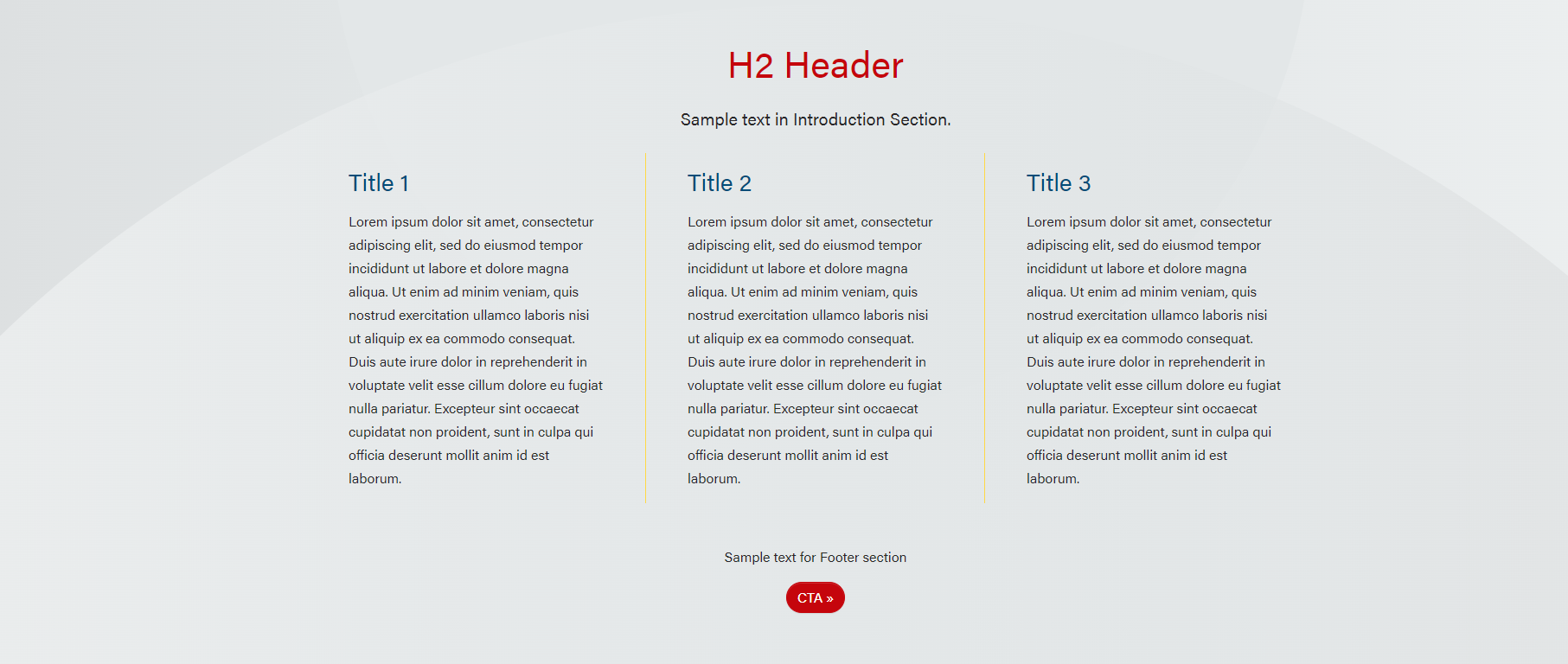
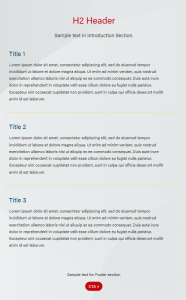
Note: There is too much text in cards in these screenshots. Keep it short! Users don't read on the web.
Use Cases
Use Case 1
Use this block when multiple columns are needed for copy. Reminder, keep copy short.
Use Case 2
The block can be used at the bottom of a page for Contact Us or other CTA
In brief, it's a simple card with Section Title, one card with this html/copy in it: <p class="text-center" style="max-width: 700px; margin:auto;">Sign up to get the latest information</p>, and then the button in the Footer.
Use Case 3
The block can be used in Update post pages. The Restrict Width checkbox in Configuration needs to be checked. The xl column needs to be set to 0 if there is 1 card.
Fields for Add/Edit Cards
Title
Add the title of the article.
Content
Text and images can be added to the content. Images will need the URL and added in the text editor.
Keep copy short!
Link
Links can be added here or to the Content section if you need it to look different. See Button Styles for more information.
Fields for Introduction
Section Title
The main header will go in this field. You can change the title heading size.
The main header will be centered above the card, but in the same block.
Section Paragraph
Similar to Content in Fields for Add/Edit Cards. As with the Section Title, the content will be centered above the cards.
Fields for Footer
The footer as a content section, which is similar to the Introduction except it will be centered below the cards.
Footer CTAs
Links can be added to this field (or to the footer content) to be centered at the bottom of the block.
Additional Notes
The columns are automatically set at
Columns Default: 1
Columns Small: 0
Columns Medium: 0
Columns Large: 0
Columns Extra Large: 0
When Restrict Width checkbox is checked, the extra large column will need to be set to 0 if there is only 1 card. This will make the width of the columns match the article width.
When the Divider Line checkbox is checked, the columns should be as followed:
Columns Default: 1
Columns Small: 0
Columns Medium: 0
Columns Large: set to the number of cards in 1 row
Columns Extra Large: set to the number of cards in 1 row