
-
Created by
 Erica McConnaughey, last updated by Mia Bentel on Mar 07, 2025
6 minute read
Erica McConnaughey, last updated by Mia Bentel on Mar 07, 2025
6 minute read
Design
A block with a background image or pattern that spans full-width.
Background Image - desktop 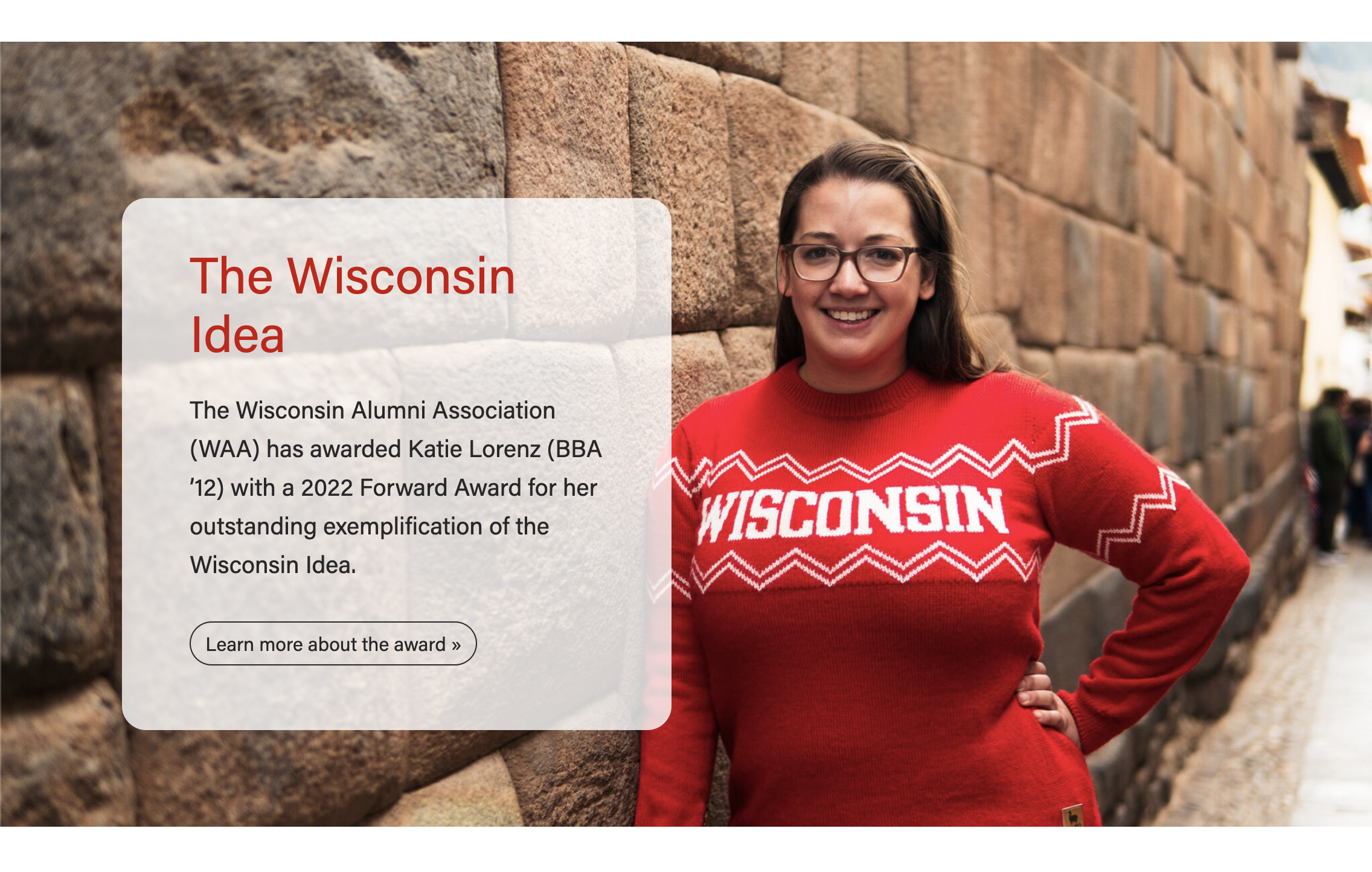 | Background Image - mobile
|
|---|
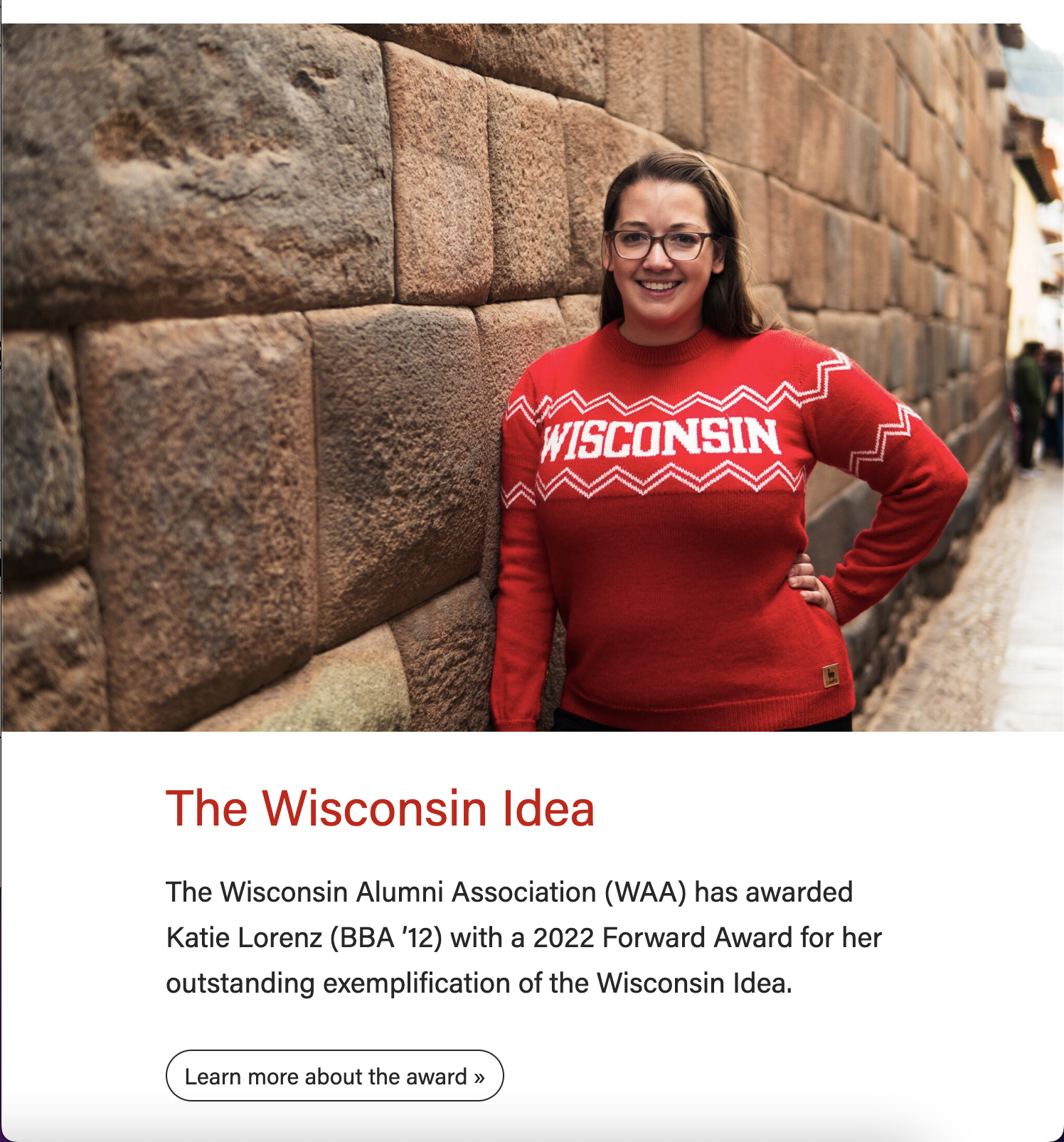
Gray Pattern - desktop
| Gray Pattern - mobile
|
|---|


Red Pattern
| Blue Pattern
|
|---|
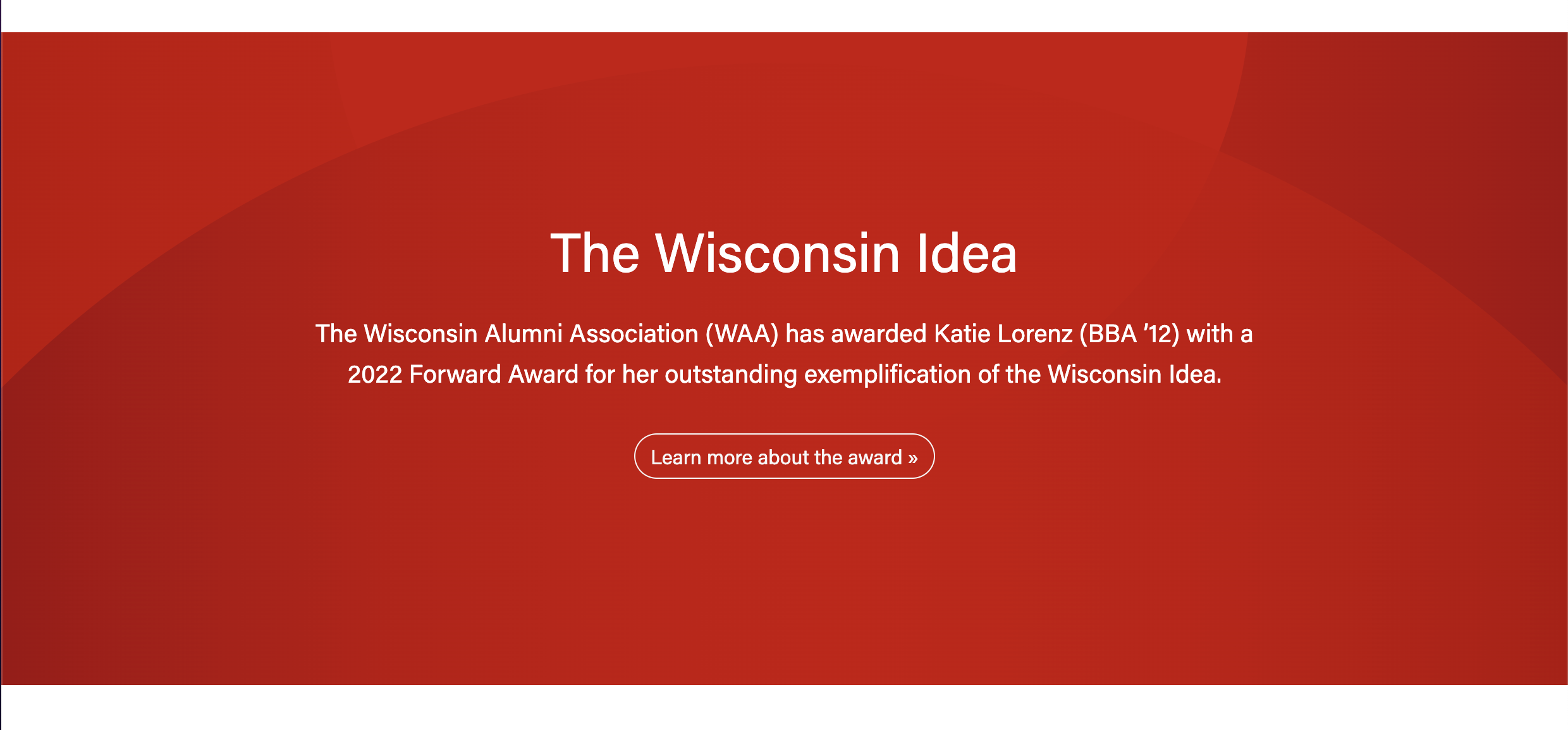

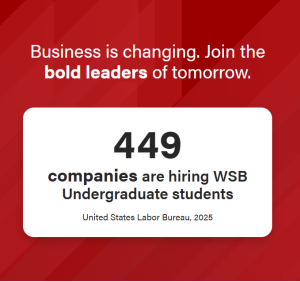
Stat Layout- blue pattern, angled red pattern
| Mobile
|
|---|

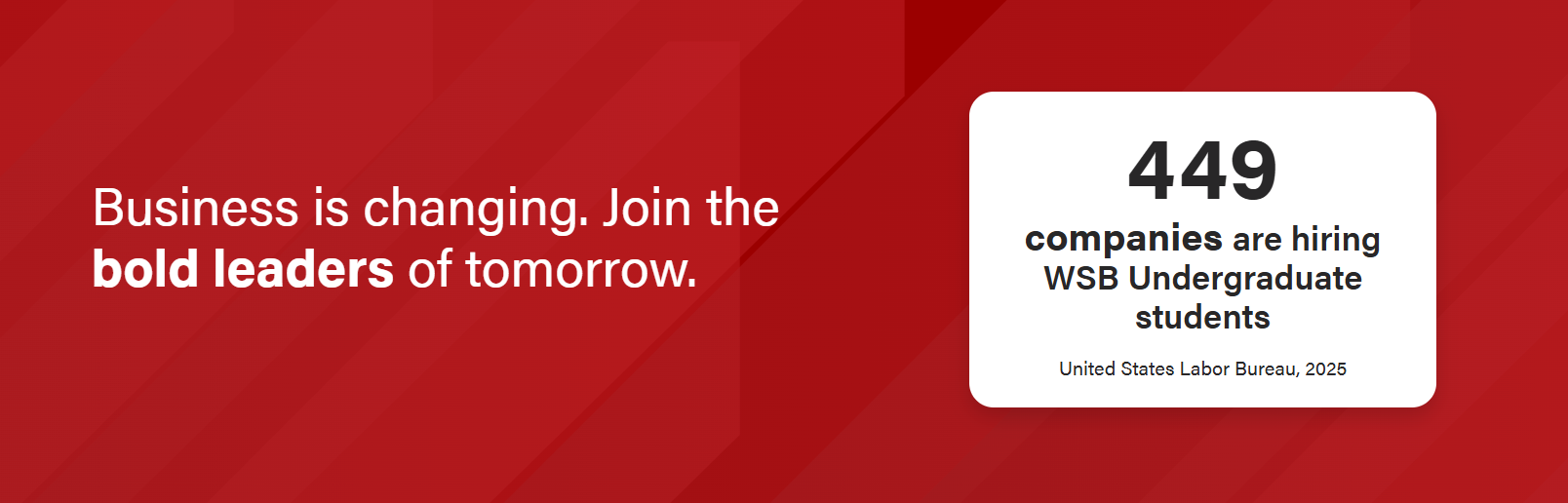
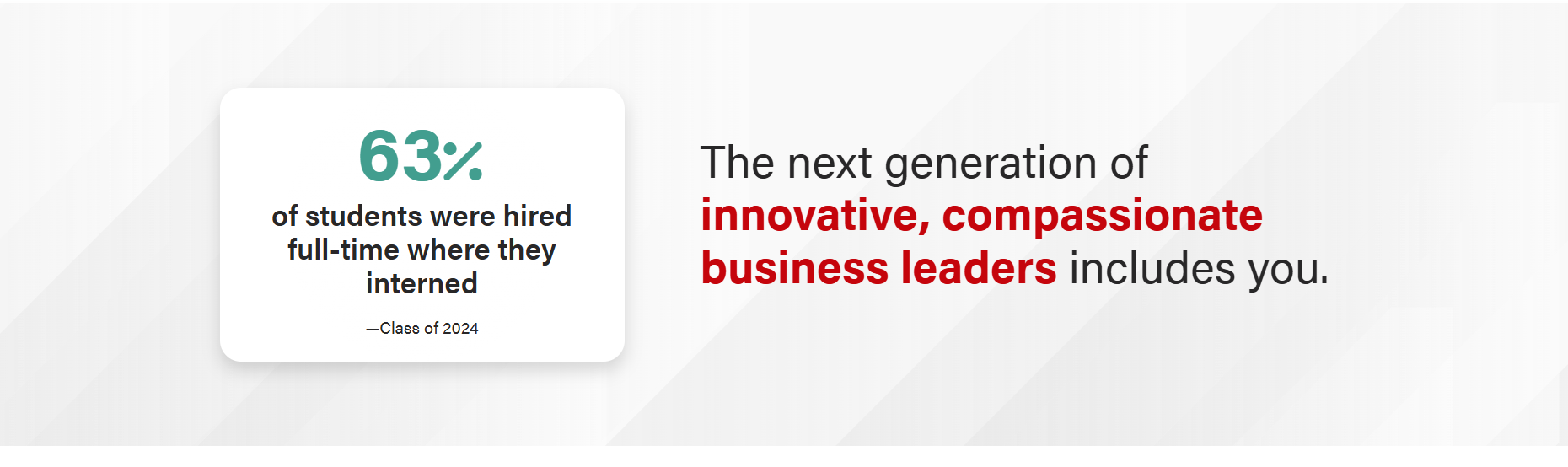
Stat Layout- Angled Gray Pattern- icon, number
| Mobile
|
|---|


Use Cases
Use to showcase a high quality image on a Page or Post.
Use in a featured/high profile News post.
Use in Update magazine posts.
Fields
- Choose Photo or one of the Pattern options. Do not use photo with Stat Layout.
- For Photo type:
- Background image
- Make sure the image is high-quality and at least 2400px wide.
- The subject should be vertically centered in the image to avoid important features getting cropped out. You may need to request a different crop of the image from a designer.
- The content will display on top of the image for desktop and tablet screens, but will drop below the image for mobile. (see screenshots above)
- Display a different image for mobile? Toggle to Yes if you want to select a different image to display for mobile screens
- See example of a full-width background block that displays a different image on mobile.
- Hide image for mobile? Toggle to Yes if you prefer to hide the image for mobile
- See example of a full-width background block that hides the image on mobile.
- Background image
- For Pattern types:
- Choose between a Gray, Blue or Red background.
- The content will display on top of the pattern for all screen sizes. (see screenshots above)
- For Photo type:
- Add parallax effect?
- Creates a special type of scrolling effect, where the background image moves slower than the foreground objects.
- Note: This effect is removed for users who have turned on an OS setting to reduce motion. Learn more about reduced motion and accessibility.
- Stat Layout
Changes the fields to support a ranking/statistic layout
Text Content (Non-stat layout)
Title
- Add your text
- Conditional fields:
- Title heading size – select the desired heading size (h2, h3, h4, h5)
- Subtitle – add your text; this heading level will automatically be set to the title heading size +1
Link
- Add a link and button copy
- The button style will either be .btn-outline-light or .btn-outline-dark, depending on the background pattern or text color chosen.
- Note: If you also add Custom Content in the next field, this button will appear below that content.
Custom Content
- A WYSIWYG field for adding paragraph text or other custom content
- Keep copy short, up to 50 words
- This content will be placed in a <div> with the "lead" class. This class will only affect paragraph elements (it will make the font size larger to ensure content is legible)
- Note: Be sure to use semantic HTML tags around all content
Text Content (Stat layout)
Title
- Add your text.
- You can add <b> </b> tags around the portion of the title you'd like bolded, and it will style automatically.
- Conditional fields:
- Title heading size – select the desired heading size (h2, h3, h4, h5)
- No subtitle.
Link
- Add a link and button copy
- The button style will either be .btn-outline-light or .btn-outline-dark, depending on the background pattern or text color chosen.
Stat Layout specific items:
- Stat Alignment: Left/Right. Where the stat sits relative to the heading
- Add card around stat? Adds traditional card styling around the ranking/stat
- Icon Image: displays a 150px wide image that shows above the stat information. Use a transparent png or svg. Optional, but if you use it the ranking number will display smaller.
- Number Prefix: Dropdown with same choices as rankings block, plus the + sign. Displays using font awesome solid, at 3rem.
- Statistic: The number for the stat. Displays at 4.5rem Acumin Pro Black on all screen sizes. Do not use long numbers or words, since it's so massive (use the Bolded stat text field instead).
- Number Suffix: Dropdown with same choices as rankings block. Displays using font awesome solid, at 3rem.
- Text Color*
- Options: Default colors, Black, White
- Be sure to choose a color that meets color contrast standards.
- Horizontal Placement
- Options: Left, Center, Right
- Vertical Alignment*
- Options: Center, Bottom
- Add transparent background?*
- If the background photo has a lot of color variation, add a transparent background behind the text to ensure all of it is legible.
- Stretch link?
- Options: Yes or No;
- Toggle to yes if you want all text in the block to be clickable; this field only appears if you have added a link
- Animation: add text fade-in?
- This animation is triggered when the user scrolls to the block on the page. The content fades in and moves up slightly.
- Note: This effect is minimized for users who have turned on an OS setting to reduce motion. The fade-in effect occurs with no vertical movement.
- Animation: add text fade-in?
- This animation is triggered when the user scrolls to the block on the page. The heading moves in from the left or right on desktop (whichever side the heading is on), or from the bottom on mobile. The ranking number (or icon image, if there is one) zooms in.
- Note: This effect is minimized for users who have turned on an OS setting to reduce motion. The fade-in effect occurs with no movement.
Configuration
- Anchor ID
- Add an ID to target the block in an anchor/jump link.