
...
You may need to change an image's aspect ratio, so it fits in a square when it was originally a rectangle.
You may need to convert the image file to sRGB if the image quality is affected once live on the website.
Or, you may want to reduce the size of an image so it is smaller and loads easier and faster in an email.
...
- Click "Save" .
- Update the file name to meet the File Naming Conventions and Best Practices (e.g. name-widthxheight).
- Select the File Type JPG, unless there is a transparent background, in which case you should choose PNG.
- Leave the Quality at 90% and High.
- Click "Download".
- Optimize the image using https://tinypng.com/ (Image Optimization/Compression Recommendations and Settings).
- Upload the photo into the media library and add it to your blog post or email. (Media Library: How to Upload an Image or File).

...
How-to Save as sRGB
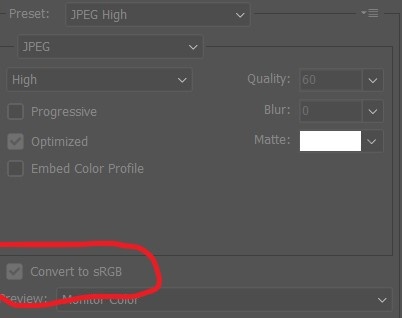
If the quality of the image changes once uploaded to the site, it could be that the image wasn't saved as sRGB. The easiest way to save as sRGB is through Photoshop.
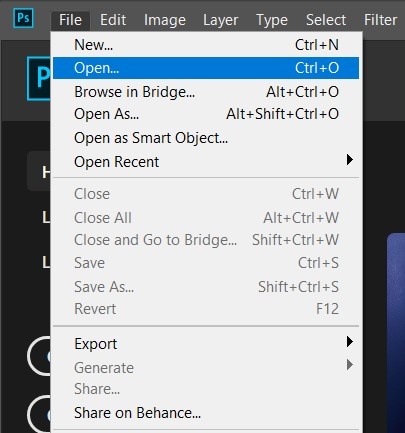
Once you have Photoshop open, you can open your image by navigating to File > Open
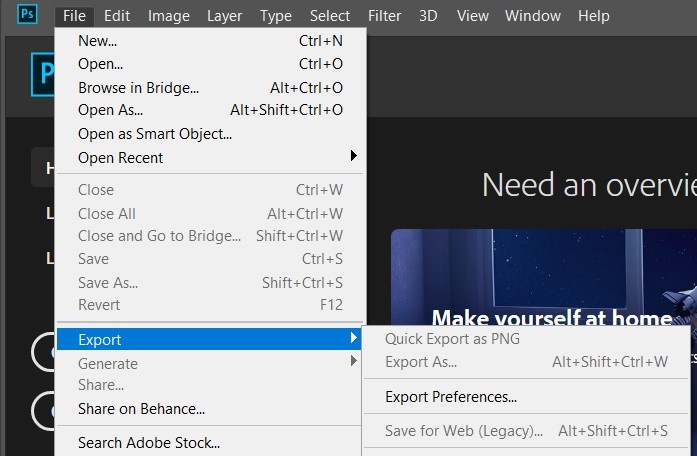
Then, to save as sRGB, navigate to File > Export > Save for Web.
On the pop-up window, make sure Convert to sRGB is checked (Photoshop does this automatically), and then save.
Learn More
...