
...
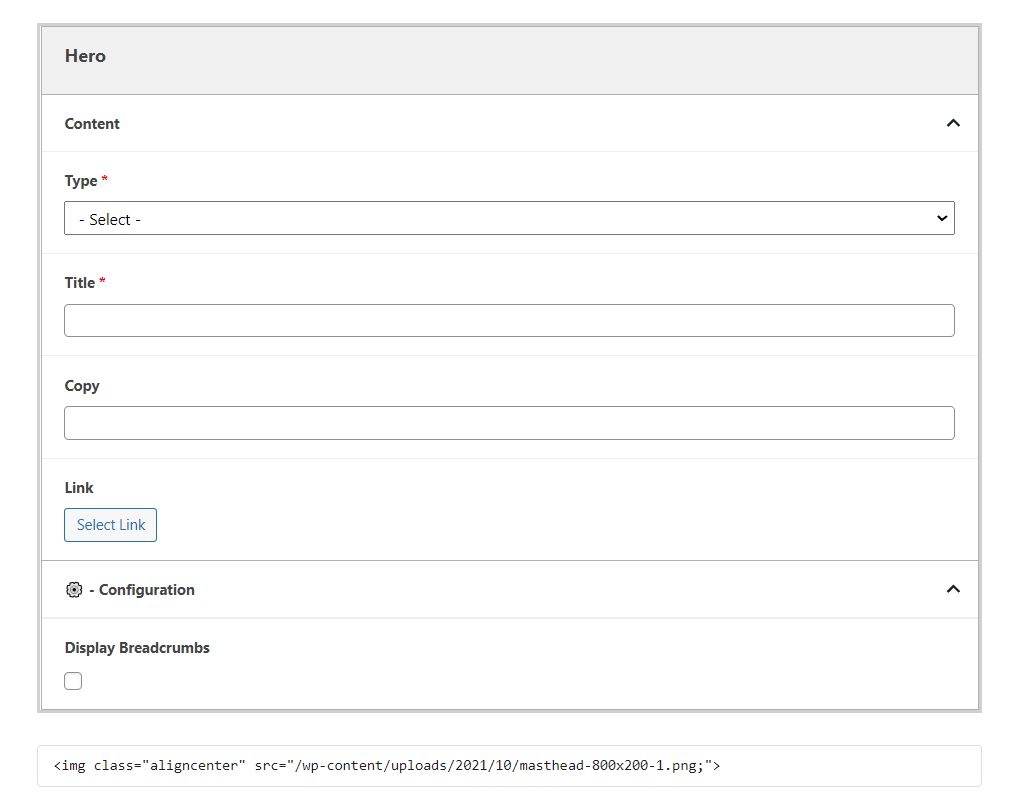
- Choose between a Jumbotron, 50/50 Split or Pattern.
- Note: With a Jumbotron and 50/50 Split types, you can add an image. Make sure the image is high - quality and around 2400x1200.
- Note: With Pattern type, you can add a Micro Title (usually a tagline or a secondary title) above the H1.
- With Pattern type, choose between a Gray, White, Blue or Red background.
...
- Add the H1 of the page.
- Note: Without a Hero, the page will display the title of the page as a black-text H1.

Copy
- Add supporting copy to introduce the page.
- Note: We usually typically add copy to parent pages (aka: program landing pages).
- Keep copy short, up to 40 words max.
- Note: We usually typically add copy to parent pages (aka: program landing pages).
Link
- Add a link to the pagehero.
- Note: Buttons are typically either application links or links a link to a form to request more information about a program (aka: RFI).
- Enable to display the breadcrumbs of a page.
- Note: Some parent pages with no subpages do not need to display breadcrumbs (see Diversity, Equity, and Inclusion and About pages for example).
Additional Notes
- Even if the hero block doesn't work on a particular page, you may want to add the block with no content and check the "Hide breadcrumbs" option.
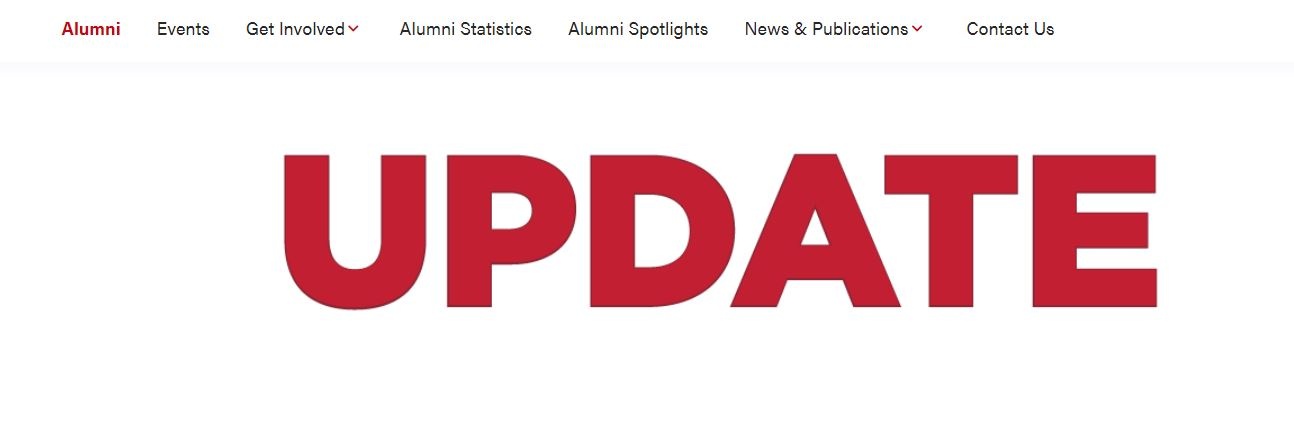
- In some cases, such as for Update magazine issue landing pages, the image for the Hero doesn't work within the block. You can add the image before the Hero (in either the WordPress Image block or as HTML with the Custom HTML Wordpress widget), not select a Type, not add any Title or Copy, and disable breadcrumbs.
- This will allow you to display an image as the page banner. This will also remove the black-text H1 that appears by default without a Hero on the page. See Update Fall 2020 as an example.
Blocks/format:
| How it looks on the page:
|
|---|
...