-
Created by
 Sonia Villa, last updated by mkcummins on May 06, 2026
9 minute read
Sonia Villa, last updated by mkcummins on May 06, 2026
9 minute read
Also known as: page header, banner, headline, primary section, above the fold
Description
A block used once at the top of every Page to display the H1 heading/page title and catch the users attention. The block spans full-width and has 7 layout options.
Design
Commonly used hero layouts | |
Jumbotron (full-width photo) with optional linkSource: Executive MBA  | |
Limited-use hero layouts | |






Use When
- Use as the first block on a page, to display the H1/page title and catch the users attention with a large photo, video, or background pattern.
- The hero layout is typically determined by the page's level in the hierarchy
- Primary, top-level pages → jumbotron
- e.g. program landing pages like FTMBA page
- Secondary, subpages or other important pages → 50/50
- e.g. program career, major, or curriculum pages like Accounting Major page
- Tertiary or informational pages (or pages that don't have good photo options) → pattern
- e.g. contact, tuition, or webinar/podcast pages like PMBA Tuition page
- The limited-use layouts are used on a case-by-case basis.
- Primary, top-level pages → jumbotron
Editorial Guidelines
Follow our general Web Copy General Guidelines in addition to the following:
For all hero layouts (except animated and video layouts)
- Title (required)
- This is the H1 heading or Page Title.
- Keep this short and factual. Avoid marketing and descriptive language here.
- Character limit: ~35 characters (there is flexibility for a longer title if needed)
- Supporting copy (optional)
- Used to introduce the page.
- We typically only add this copy to top-level pages (e.g. program landing pages)
- Keep copy short!
- Character limit depends on the layout chosen; find more information for each layout below
- Used to introduce the page.
- Button (optional - use sparingly)
- Add a CTA; consider whether the CTA makes sense first-thing at the top of the page
- We typically only add a button for lead-generating CTAs on select pages (e.g. RFI button on FTMBA landing page hero)
- Add a CTA; consider whether the CTA makes sense first-thing at the top of the page
Jumbotron
A photo spans the full width of the page. A red text box with white text appears on the left side of the photo.
- Supporting copy (optional)
- Character limit: 150 characters max (copy should fit on two lines for desktop)
50/50
A photo spans 50% of the page's width and copy fills the other 50%.
- Supporting copy (optional)
- Character limit: 125 characters max (copy should fit on two lines for desktop)
Patterns and Custom patterns
A pattern spans full width across the page. This could be one of our standard patterns (red, blue, or gray) or a custom pattern.
- Microtitle (optional - use sparingly)
- add a tagline or a secondary title above the H1
- example: AI Hub for Business
- Supporting copy (optional)
- Character limit: 150 characters max (copy should fit on two lines for desktop)
Randomized photos with captions
- An image caption is displayed in the lower righthand corner for each image.
- Character limit: ~100 characters for each caption
Animated (slideshow)
A photo spans the full page width and a phrase animates on top of it. Additional photos and phrases can be added to create a slideshow effect.
- One phrase per photo (recommended)
- If using one photo and phrase, the phrase must be the H1 heading/page title
- If using multiple photos and phrases, the H1 must be displayed directly below the hero so it is always present on the page.
- The hero copy can contain other content relevant to the purpose of the photos and the page as a whole.
- Character limit: 40 characters per phrase
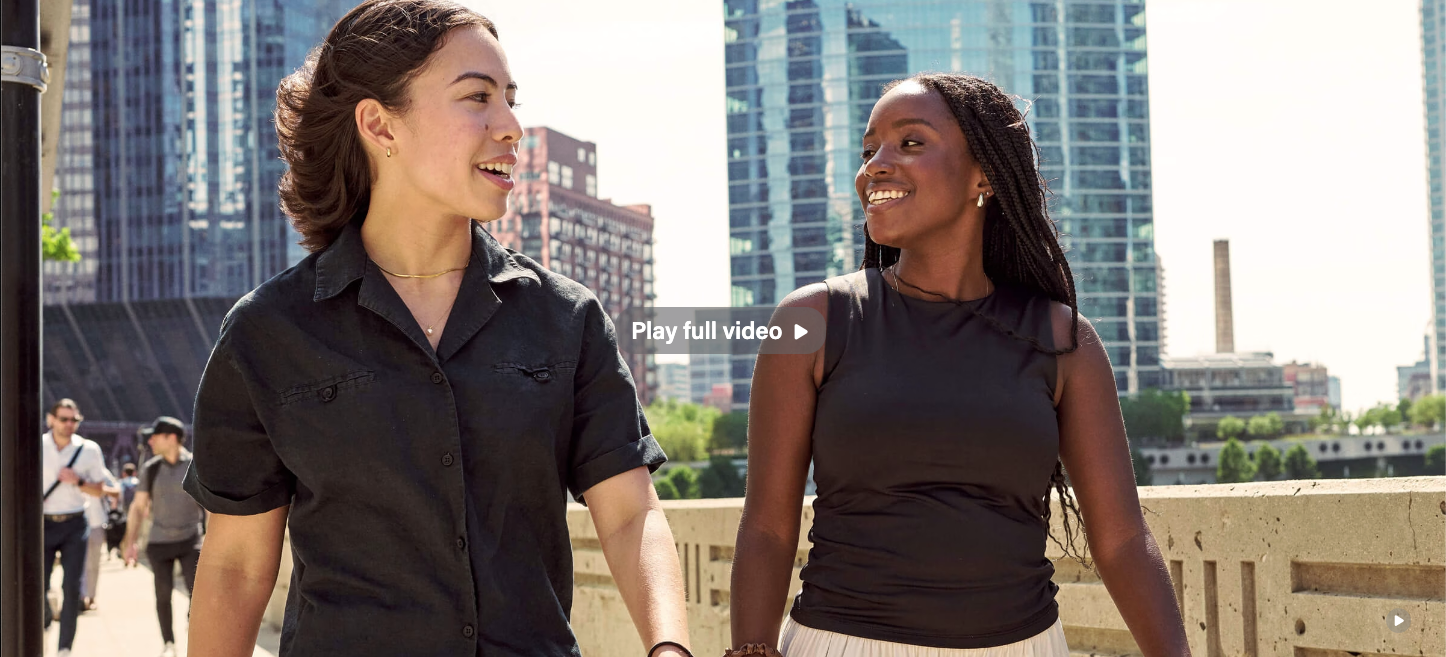
Video
A video spans the full width of the page and autoplays, looped with no audio. A button allows the user to play the full video with audio in a modal (popup)
- The H1 must be displayed directly below the hero.
- Button copy - can add custom copy here if desired, otherwise the button will say "Play full video"
Design Assets Needed
Images
- Make sure all images are high quality, jpeg files that are around 2400x1200px. Heights can vary between 1200-1600px.
- Taller photos will be cropped more on the page.
- If there are people in the photo, make sure their faces are vertically centered.
- Dev note: You can crop the image in the WP media library or request a designer's help with this.
Jumbotron
- Important faces or subjects must be on the right side of the photo. If someone is on the left side or directly center, they will be covered by the red text box.
Custom pattern
- File type: svg
- Custom background patterns shouldn't have transparent sections as a background color (which we add for color contrast with the text) will show through, changing the look of the pattern.
Animated slideshow
- If showing more than one photo, use images with the same file dimensions.
- Add up to 5 photos.
Video
Poster image (shown when video is paused or hasn't loaded)
- Dimensions: 2400x1600, aspect ration 16:9
Preview video (short, looping video that autoplays, no audio will sound)
- Need a video file for desktop and a separate, smaller video file for mobile.
- The mobile version should be the same video clip, just compressed so it is a smaller file that is more likely to load on mobile.
- File type: mp4
- Length: 5-10 seconds
- Desktop
- File size: 3MB max
- Dimensions: 1920x1080px
- Mobile
- File size: 1MB max
- Dimensions: 1280x720px
Full video (with audio)
- Need a video file for desktop and a separate, smaller video file for mobile.
- The mobile version should be the same video clip, just compressed so it is a smaller file that is more likely to load on mobile.
- FIle type: mp4
- Length can vary; recommend no longer than 1 minute to keep user attention
- Desktop
- File size: 15MB max
- Dimensions: 1920x1080px
- Mobile
- File size: 10MB max
- Dimensions: 1280x720px
Implementation
- Use with the Hero - News block to hide breadcrumbs from the Newsroom page.
- Add this block and choose "Hide breadcrumbs"; then add the Hero - News block below
- See Additional Notes at the bottom for a special use case.
ACF Fields
Choose a layout:
Jumbotron - full width image with red box behind text
50/50 Split - image fills half the width, text is on other half
Pattern - choose one of our standard background patterns
Custom Pattern - add a custom background pattern
Video - a full width video that loops with no sound
Animated - a full width background image with animated text; adding multiple images will create an animated slideshow, each photo having a unique animated phrase
Jumbotron - full width image with red box behind text
- Randomize images? Check this box if you plan to add multiple images and you want a random one to load each time the page is loaded
- Images repeater - Add a row for each image and choose your images from the media library. Be sure to add a description to each image file; this will become the caption.
- Image - Choose image from the media library
- Title
- Copy
- Link
- Container alignment
50/50 Split - image fills half the width, text is on other half
- Image
- Title
- Copy
- Link
Pattern - choose one of our standard background patterns
- Pattern - choose between a Gray, White, Blue or Red background
- Microtitle - add a tagline or a secondary title above the H1
- Example: "A People-First Focus on Business" microtitle shown below

- Title
- Copy
- Link
Custom Pattern - add a custom background pattern
- Image - add your custom pattern
- Custom background images shouldn't have transparent sections as the background color will show through the transparent sections.
- Bg pattern color
- Add a hex color (i.e. #c5050c with hashtag included) - choose a brand color that best matches the bg image
- Branded colors must be used - please see Brand Toolkit or variables.scss file for colors
- Add a hex color (i.e. #c5050c with hashtag included) - choose a brand color that best matches the bg image
- Button color
- The color will be for the text in the button and background color when the hover effect is active
- Add a hex color (i.e. #c5050c with hashtag included) - choose a brand color that works well with the bg image, this will often be a color from the bg pattern or a darker shade of one
- Branded colors must be used - please see Brand Toolkit or variables.scss file for colors
- Text color
- There are 3 options: default, white, and black - choose the best option for optimal contrast with the background image
- default will have $red (#c5050c) H1 and $gray-800, or #494949, for the rest of the copy
- white - all the copy will be white
- black - all the copy will use $body-color variable, which is $gray-900 or #282728
- There are 3 options: default, white, and black - choose the best option for optimal contrast with the background image
- Microtitle - add a tagline or a secondary title above the H1
- Title
- Copy
- Link
Video - a full width video that loops with no sound and a button to go to the full video overlay
Use sparingly.
- Poster Image - 2400x1600, aspect ration 16:9
- Preview video is muted.
- You need a video file for desktop and a separate, smaller video file for mobile
- Full video is an overlay, and you need one video for desktop and a separate video for mobile
- You can escape the overlay by: clicking the X button, scrolling, clicking outside of the video, or using the ESC key
- Can add a vtt file for closed captions
- Can add copy for the play full video button or leave it empty and the button will automatically read "Play full video"
Animated - a full width background image with animated text
Use sparingly.
- Images repeater - add a row for each image
- Image
- Use images with the same file dimensions
- Animated text
- Max 40 characters
- Make sure content is wrapped inside HTML tags
- Default value is set to <p class="display-2">Add text here</p>
- Use existing styling classes for this content
- "display-#" classes to modify the font size; change "display-2" to a larger number, such as "display-4" if you want the text to be smaller
- Preview on mobile to make sure text displays properly over image
- Image
Images
- Make sure all images are high quality and around 2400x1200. Height can vary for these.
- If there are people in the photo, make sure their faces are vertically centered. You can crop the image or request a designer's help for this.
Title
- Add the H1 of the page.
- Note: Without a Hero block, the title of the page will display as a black-text H1.

Copy
- Add supporting copy to introduce the page.
- We typically add copy to parent pages (aka: program landing pages).
- Keep copy short, 150 characters max.
- We typically add copy to parent pages (aka: program landing pages).
Link
- Add a link to the hero.
- Buttons are typically either application links or a link to a form to request more information about a program (aka: RFI).
- Enable to display the breadcrumbs for a page.
- Some parent pages with no subpages do not need to display breadcrumbs (see Inclusion and About pages for example).
Additional Notes
- Even if the hero block doesn't work for a particular page, you may want to add the block with no content and check the "Hide breadcrumbs" option.
- You will need to select a type and optional to add a title such as hero or hidden hero and add the class d-none to the additional CSS classes under Advanced on the right side of the editor; otherwise, the hero is hidden from view on the editor, and you'll need to go to click on document overview to see it.
Update Magazine Heroes
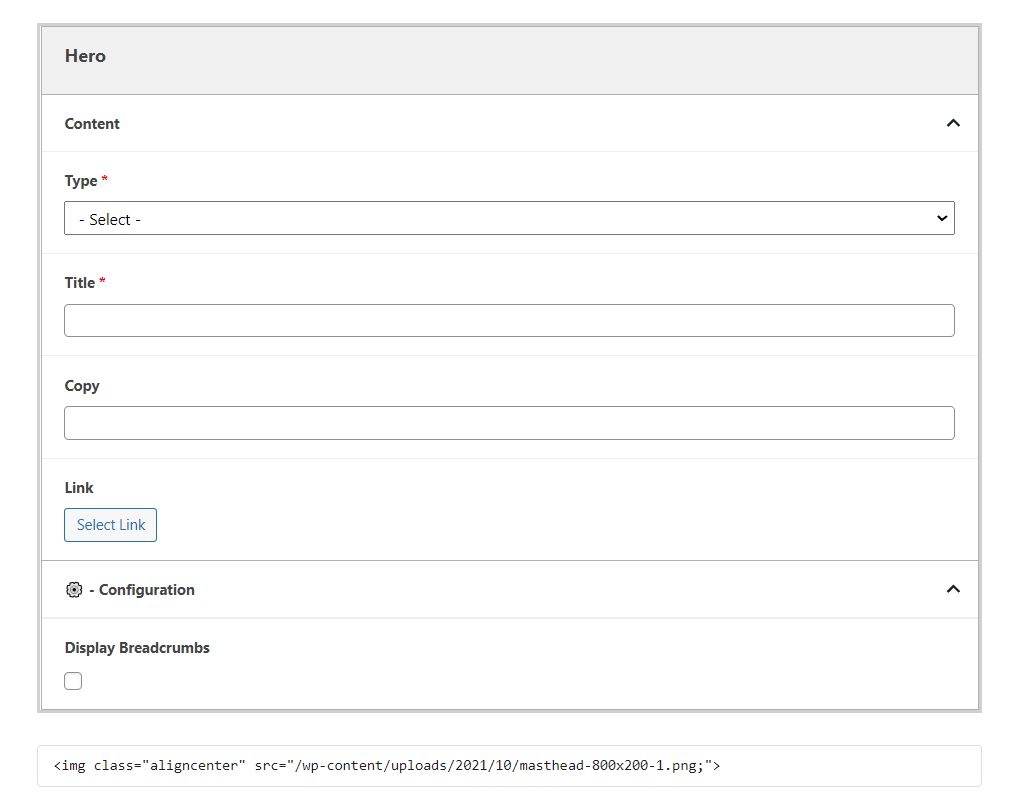
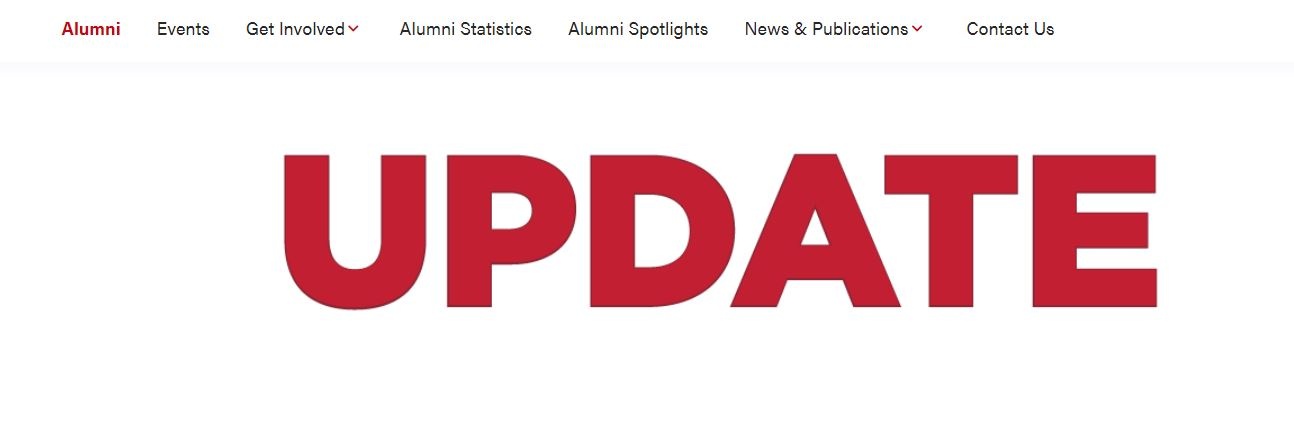
- In some cases, such as for Update magazine issue landing pages, the image for the Hero doesn't work within the block. You can add the image before the Hero (in either the WordPress Image block or as HTML with the Custom HTML Wordpress widget), then on the Hero block don't select a Type, don't add any Title or Copy, and disable breadcrumbs (the Hero will not appear on the page, but will hide breadcrumbs)
- This will allow you to display an image as the page banner. This will also remove the black-text H1 that appears by default without a Hero on the page. See Update Fall 2020 as an example.
Blocks/format:
| How it looks on the page:
|
|---|