
Design
Card with no image
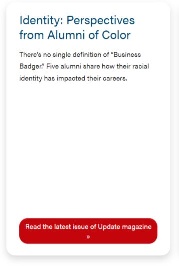
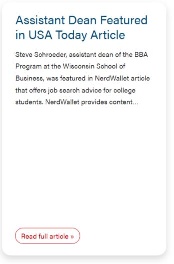
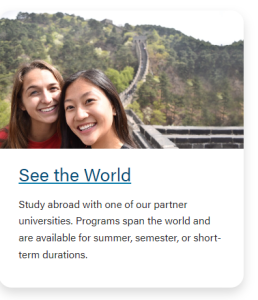
| Card with an image 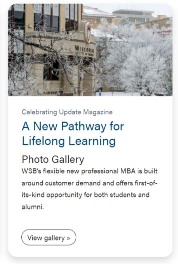 | Card pulling a post
| Card with stretch link and no CTA | Card without stretch link and no CTA (no use cases yet) |
|---|

Use Cases
Use when displaying content.
- Organizing multiple chunks of information
- Linking to other resources/pages
Fields
- You can manually select a post from the dropdown.
- Note: Since the dropdown pulls all posts, you can type the title of a post to filter through them.
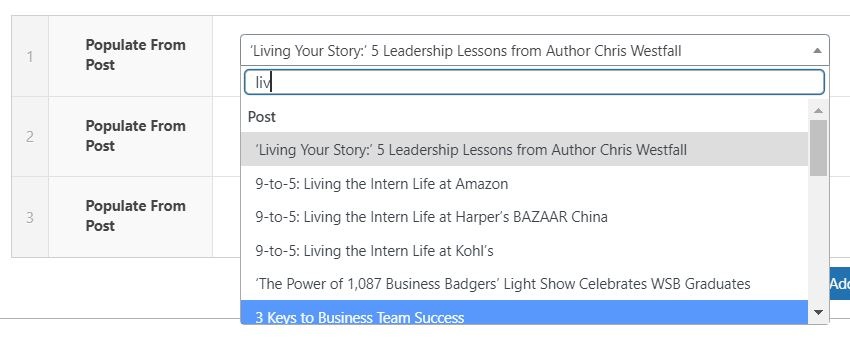
Note: When pulling a post, a CTA is automatically created. The CTA text is "Read full article", and you can select the style of the CTA.
Title
- Add the title of the card.
- Note: The class of the title depends on the Title Heading Size under Introduction. For example, if Title Heading Size is h2, the card title will be h3.
- Note: If you check "Remove CTA" in the Configuration, you must have something in this field for the link to work.
Subtitle
- You can add a subtitle to the card. This subtitle is displayed below the card title.
...
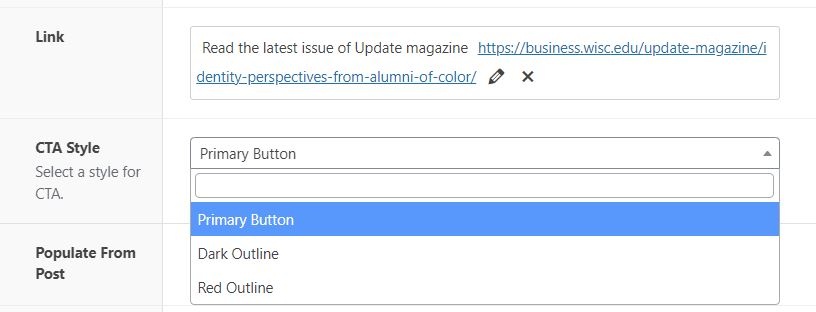
- Select the style of the CTA of the card and footer CTA. Default style is primary.
Configuration Fields (affects all cards in a component)
- You can adjust the ratio of the image. Default ratio is 16x9.
...
- Check to add hover effect to the card and make whole card clickable.
Remove CTA
- Check to remove CTA from the bottom, linking the header/title field instead
Enable Card Shadows
- Adds shadow around cards