
...
A block designed to be used once at the top of every Page. The block spans full-width and has 4 6 layout options.
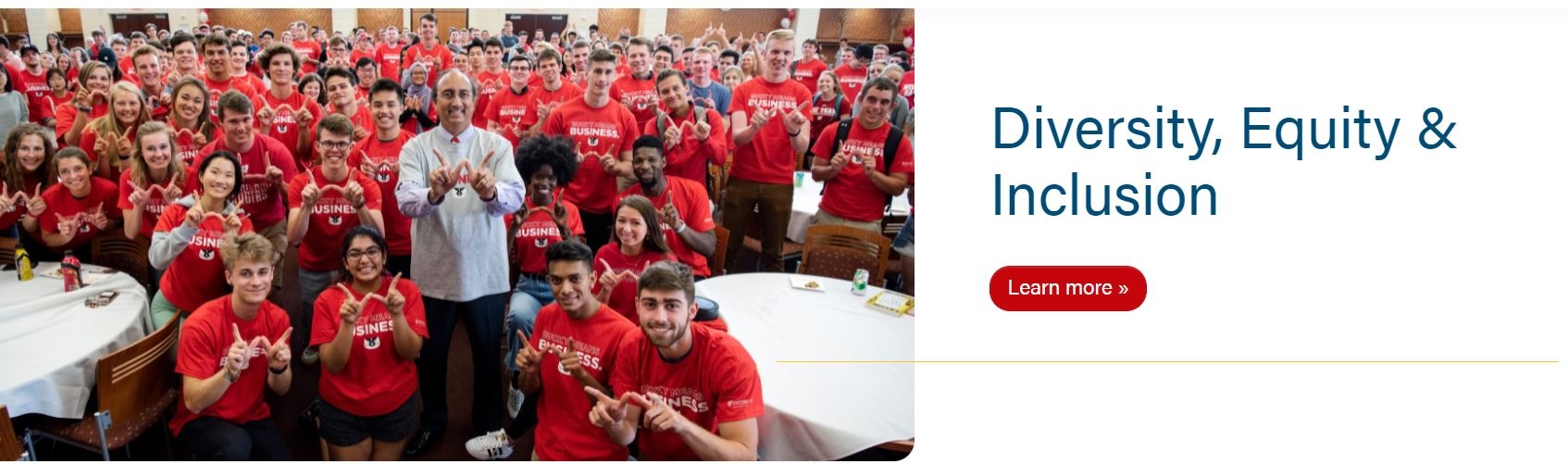
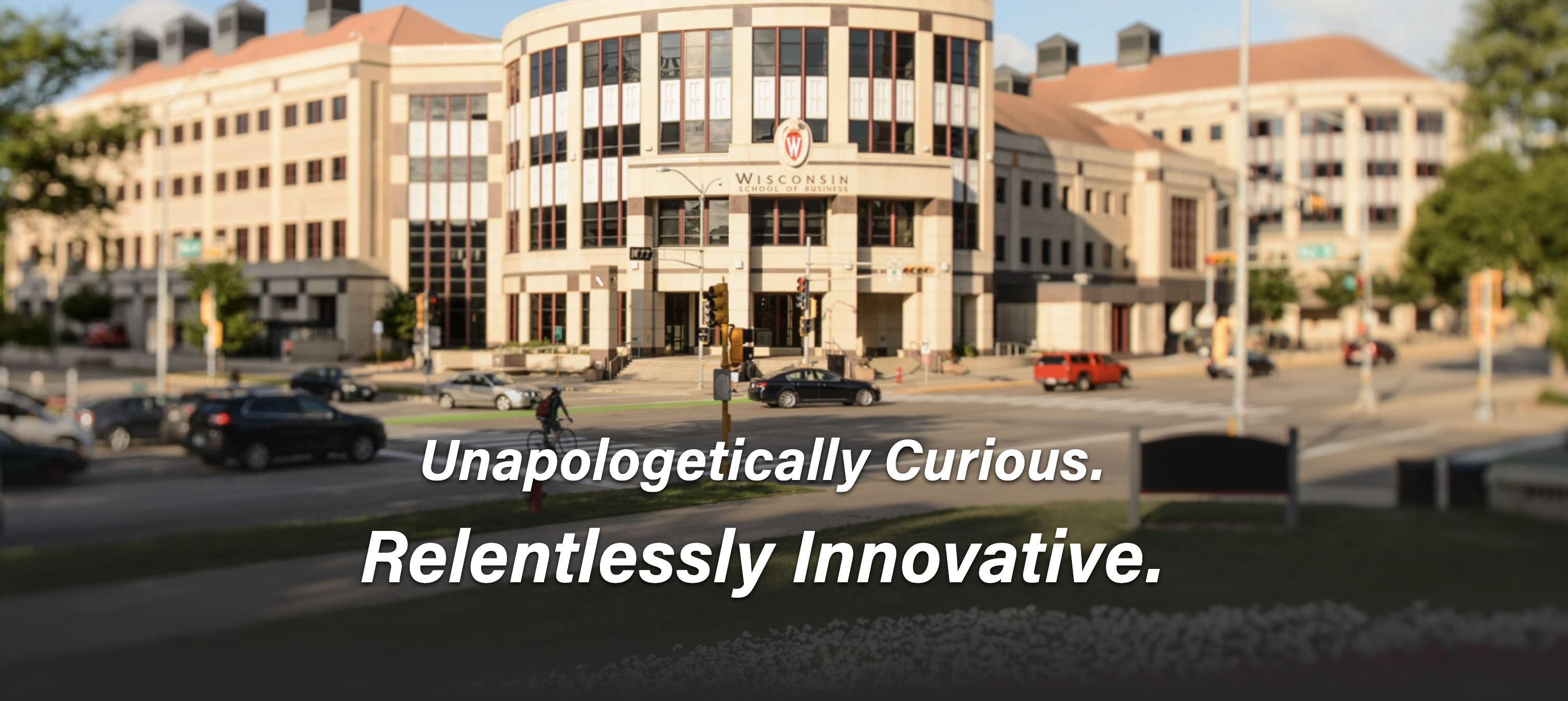
Jumbotron with link  | Jumbotron with no link
|
|---|---|
50/50 with link
| 50/50 with no link
|
Pattern with no link
| Custom Pattern with link
|
Animated
|




Use Cases
Use as the first block to introduce a page.
Use when using a Hero - News block to hide breadcrumbs from the page.
See Additional Notes at the bottom for a special use case.
Fields
Choose
...
a layout:
Jumbotron - full width image with red box behind text
Jumbotron, 50/50 Split - image fills half the width, text is on other half
Pattern - choose one of our standard background patterns
Custom Pattern - add a custom background pattern
Video - a full width video that loops with no sound
Animated - a full width background image with animated text, coming soon: ability to add multiple images with a phrase for each; photos will loop through like a slideshow
Jumbotron - full width image with red box behind text
- Randomize images? Check this box if you plan to add multiple images and you want a random one to load each time the page is loaded
- Images repeater - Add a row for each image and choose your images from the media library. Be sure to add a description to each image file; this will become the caption.
- Image - Choose image from the media library
- Title
- Copy
- Link
- Container alignment
50/50 Split - image fills half the width, text is on other half
- Image
- Title
- Copy
- Link
Pattern - choose one of our standard background patterns
- Pattern, or Custom Pattern.
- With Jumbotron and 50/50 Split types, you can add an image. Make sure the image is high quality and around 2400x1200. With Pattern type, you can add a Micro Title (usually a tagline or a secondary title) above the H1. With Pattern type,
- Pattern -
- choose between a Gray, White, Blue or Red background .
- Jumbotron has a random hero image option. You will need to check the Randomize images? field.
- You will need to add copy to the description field of an image for the caption.
Use Custom Pattern type to - Microtitle - add a tagline or a secondary title above the H1
- Example: "A People-First Focus on Business" microtitle shown below

- Title
- Copy
- Link
Custom Pattern - add a custom background pattern
- image (SVGs are generally used). Custom Pattern has a Micro Title, text color, and two fields for background color and button color (the color will be for the text in the button and background color when the hover effect is active).
- Image - add your custom pattern
- Custom background images shouldn't have transparent sections as the background color will show in the transparent sections.
Title
- Add the H1 of the page.
- Note: Without a Hero, the page will display the title of the page as a black-text H1.

Copy
- Add supporting copy to introduce the page.
- We typically add copy to parent pages (aka: program landing pages).
- Keep copy short, up to 40 words max.
- We typically add copy to parent pages (aka: program landing pages).
...
- Bg pattern color
- Add a hex color (i.e. #c5050c with hashtag included) - choose a brand color that best matches the bg image
- Branded colors must be used - please see Brand Toolkit or variables.scss file for colors
- Add a hex color (i.e. #c5050c with hashtag included) - choose a brand color that best matches the bg image
- Button color
- The color will be for the text in the button and background color when the hover effect is active
- Add a hex color (i.e. #c5050c with hashtag included) - choose a brand color that
best fits - works well with the
image and button - bg image, this will often be a color from the bg pattern or a darker shade of one
- Branded colors must be used - please see Brand Toolkit or variables.scss file for colors
- bg image, this will often be a color from the bg pattern or a darker shade of one
- Text
...
- color
- There are 3 options: default, white, and black - choose the best option for optimal contrast with the background image
- default will have $red (#c5050c) H1 and $gray-800, or #494949, for the rest of the copy
- white - all the copy will be white
- black - all the copy will use $body-color variable, which is $gray-900 or #282728
- There are 3 options: default, white, and black - choose the best option for optimal contrast with the background image
- Microtitle - add a tagline or a secondary title above the H1
- Title
- Copy
- Link
Video - a full width video that loops with no sound
Use sparingly.
- Image
- Video (desktop)
- Mobile video
Animated - a full width background image with animated text
Use sparingly.
- Images repeater
- Image
- Animated text
Images
- Make sure all images are high quality and around 2400x1200. Height can vary for these.
- If there are people in the photo, make sure their faces are vertically centered. You can crop the image or request a designer's help for this.
Title
- Add the H1 of the page.
- Note: Without a Hero, title of the page will display as a black-text H1.
Copy
- Add supporting copy to introduce the page.
- We typically add copy to parent pages (aka: program landing pages).
- Keep copy short, up to 40 words max.
- We typically add copy to parent pages (aka: program landing pages).
Link
- Add a link to the hero.
- Buttons are typically either application links or a link to a form to request more information about a program (aka: RFI).
- Enable to display the breadcrumbs of a page.
- Some parent pages with no subpages do not need to display breadcrumbs (see Diversity, Equity, and Inclusion and About pages for example).
...