
...
- Speaker Name* (required)
Expand title How to upload a Speaker Photo - Click "Add Image"
- Select the Media Library tab
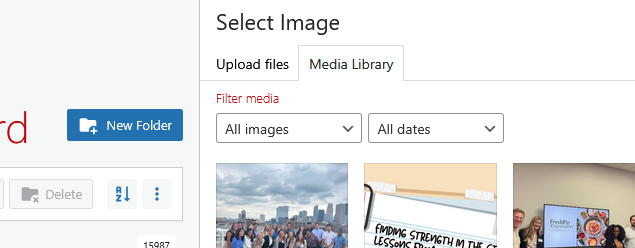
- Navigate to the correct folder:
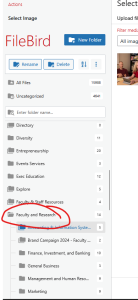
- In the left sidebar, find the "Faculty and Research" folder, and click on the folder icon to open it.
- Find your department name, and click on the folder icon to open it.
- Select the "Research Seminars" folder. (If you don't have one, click the "New Folder" blue button at the top of the sidebar to create it)
- Once you're in the correct folder, go back to the Upload files tab
- Click "Select Files" or drag and drop your photo
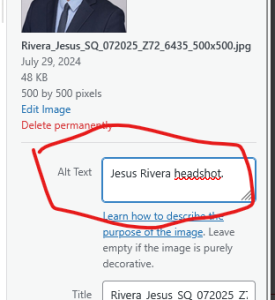
- Add Alt Text (required). In most cases "[Speaker Name] headshot." is sufficient.
- Click the blue "Select" button in the bottom right corner.
Description (optional)
If you have any further information you want to include that is not covered by the Meta - Research Seminars fields, you can add them to the description, underneath the Title.
...