
-
Created by
 Mia Bentel, last updated on Aug 24, 2026
9 minute read
Mia Bentel, last updated on Aug 24, 2026
9 minute read
Under Construction
This is a new feature of the website that isn't fully set up yet. The following documentation is for our pilot users. Please contact the web team if your Faculty Department is interested in setting up Research Seminars on the website.
Training and Access
You must review the training below before you will be granted access to edit research seminars.
To request access, please email webteam@wsb.wisc.edu with your request and the following:
- Subject line: "Research Seminars WordPress Access"
- Your first and last name
- Your netID (this is your username, not your ID number)
- Your status (student employee, staff, or faculty)
- Which dept/program you work for
Let us know if you have any questions- and we are happy to meet with you if you need any assistance with creating research seminars.
Login to WordPress
- Go to business.wisc.edu/wp-admin (bookmark this page for easy access).
- Click "Sign in with your Net ID" button. Login using Duo.
- Typing in your Net ID with the associated password will not work on this login page.
Note on Different Departments
Every faculty department does their research seminars differently. The web team has created a solution on WordPress to try to account for all department needs.
Before creating seminars, decide within your department:
- Which fields you are going to use.
- The seminar name (title), the speaker name, the semester, and the date are all required.
- The remaining fields are optional. Try to be consistent - use the same fields for all your seminars.
- Whether your seminar listing will be linked.
- Each seminar has its own page, where it includes additional details. However, if you don't make use of the optional fields and the description, it might not provide any additional information.
- Decide if you want the seminars listed on your department page to be linked, and let the web team know which you are doing.
- See below for more info on listings vs pages.
Understanding Seminar Listings vs Pages
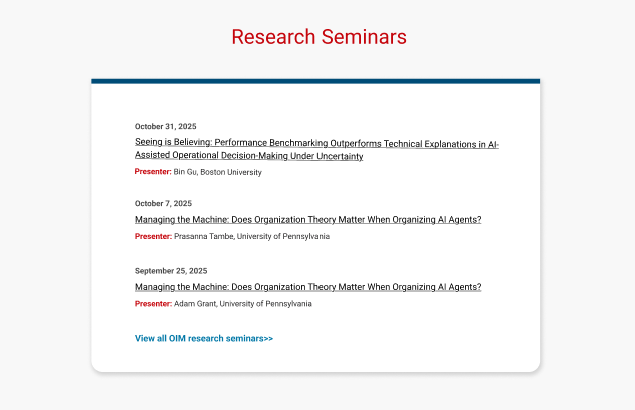
The Seminar Listing is where your seminars are listed so they are visible at a glance. Your department page has a seminar listing that displays 3 seminars, and links to the main Research Seminars page which lists them all.
If you do not have a Seminar Listing on your department page
If you do not have a Seminar Listing on your department page yet, reach out to the web team and we can add one for you.
You must have at least one seminar created for us to add the listing.
If you have additional information/links about your seminars you'd like written underneath your seminar listing (such as a link to sign up, or who to contact for more information), let us know.
Listings display:
- The date (but not the time) of the seminar.
- The Title (Topic) of the seminar.
- The Speaker Name.
- The Speaker's affiliation/school. (optional)
The Seminar Page is where the details of each seminar are displayed. Your department may not have a need for these additional details, and you can leave them blank.
Pages display:
- The Department of the seminar.
- The Title (Topic) of the seminar.
- The Speaker Photo (optional)
- The Speaker Name.
- The link to the Speaker's profile (optional)
- The Speaker's affiliation/school. (optional)
- The date of the seminar
- The time of the seminar (optional- set to 12am if you don't want it displayed)
- The location of the seminar (optional)
- A registration link to the seminar, which is automatically hidden once the date has passed. (optional)
- The description for the seminar (optional)
- A link to the seminar topic's paper (optional)
- A link to the recording of the seminar (optional)

Add a New Seminar
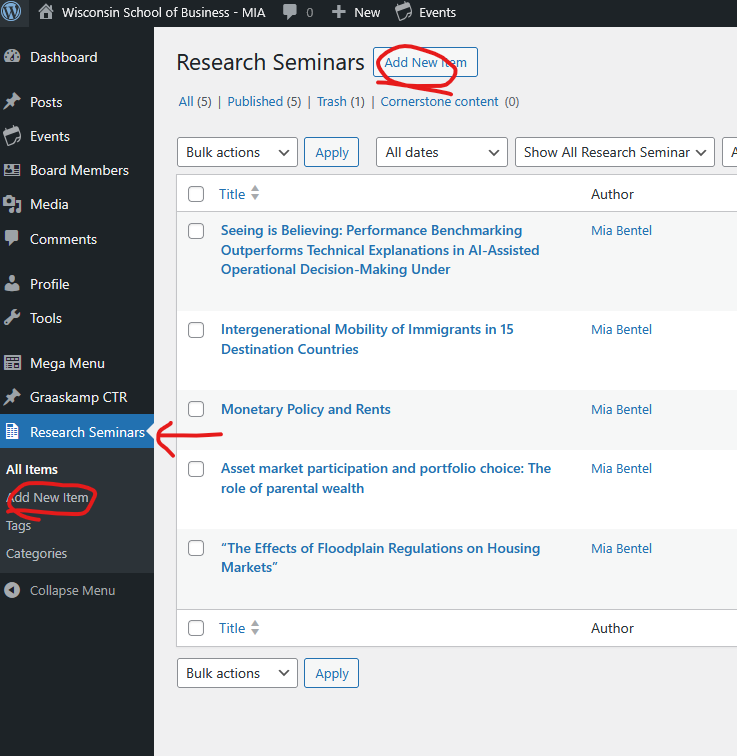
- Navigate to Research Seminars in the left menu. It should be at the bottom.
- If you don't see Research Seminars, you will need to request seminar editing access from the web team.
- Click Add New Item (see the two locations for this button in the screenshot below)
Title (required)
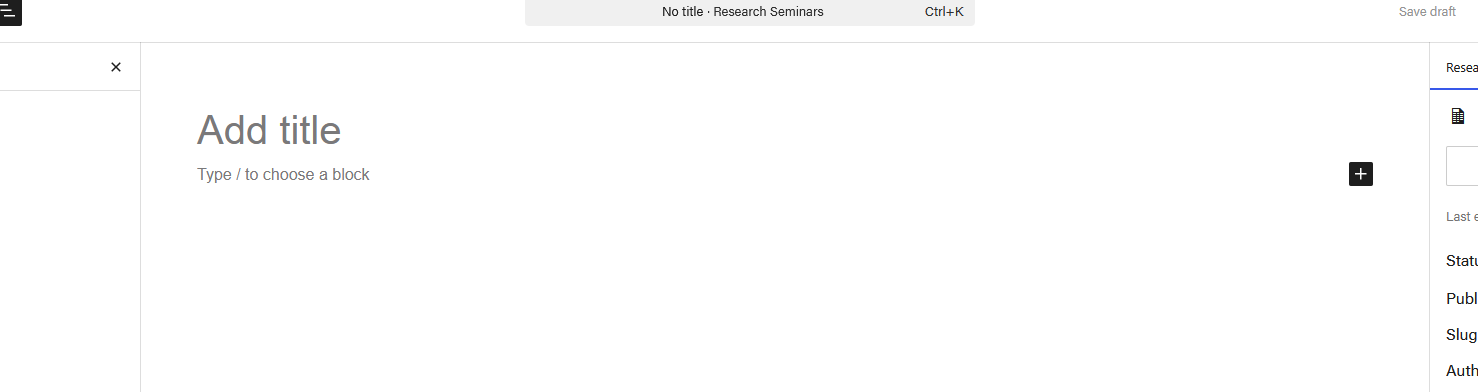
Add the topic of the research seminar as your title. Note that this will become the slug (the last part of the URL). You can modify the slug later if desired; tips for doing so can be found below.
If you are copying and pasting the title, you will need to use plain text. The following are shortcuts for plain text pasting:
- For Windows - Ctrl+Shift+V
- For Macs - Cmd+Shift+V
Do not use "TBD"
Whenever possible, please do not use "TBD" as your title name. If there is more than one "TBD" title, the slug (URL) will be written as "/tbd-2", "/tbd-3", etc and will remain that even after you update the title.
Meta- Research Seminars

In your editor, you'll see a bar at the bottom labeled "Meta Boxes". Click and drag the bar up to see the section labeled "Meta - Research Seminars". This is where you will put the bulk of your seminar information.
Any field with a red asterisk next to it is required. You cannot publish the seminar until you fill out all required fields.
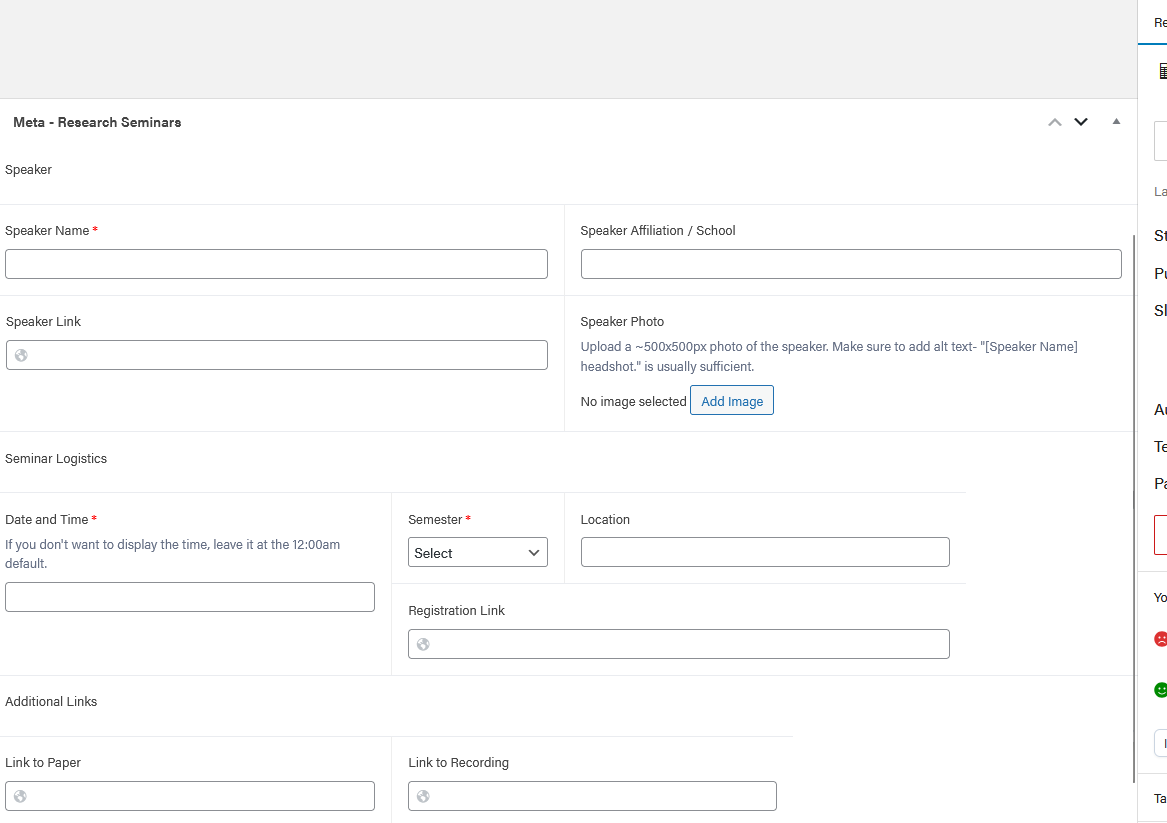
Speaker
- Speaker Name* (required)
- Click "Add Image"
- Select the Media Library tab
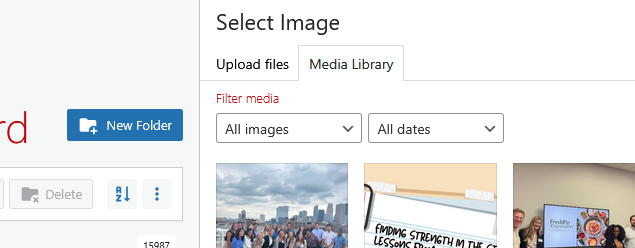
- Navigate to the correct folder:
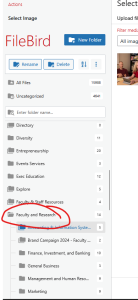
- In the left sidebar, find the "Faculty and Research" folder, and click on the folder icon to open it.
- Find your department name, and click on the folder icon to open it.
- Select the "Research Seminars" folder. (If you don't have one, click the "New Folder" blue button at the top of the sidebar to create it)
- Once you're in the correct folder, go back to the Upload files tab
- Click "Select Files" or drag and drop your photo
- Add Alt Text (required). In most cases "[Speaker Name] headshot." is sufficient.
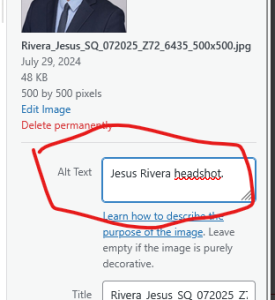
- Click the blue "Select" button in the bottom right corner.
Seminar Logistics
- Date and Time* (required) - opens a calendar, where you can navigate to the exact date.
- Select the month and year first, then click on the day in the calendar.
- Select the time, or leave it at 12am if you don't want to include the exact time.
- Click Done
- Semester* (required) - select the semester the seminar takes place. This is used to allow filtering by semester on the Research Seminars listing page.
- If the semester you need isn't listed, contact the Web Team.
- Location (optional) - type in the location of your seminar.
- Registration Link (optional) - if you have a place for people to register, paste in the URL here, and it will add a button to the Seminar Page. This button is automatically hidden once the date passes.
- Multiday Start Date (optional) - If you have a multiday seminar (such as a conference) you can add a start date in this field.
- It's just a text field- you'll need to write in the date, spelling out the month, but do not include the year or time. (eg, "May 14")
- The Date and Time field should be set to your end date. (do not include a time)
Additional Links (optional)
- Link to Paper (optional) - paste in the URL of the seminar topic's paper. This will add a "Read the paper" button to the bottom of the Seminar Page.
- Link to Recording (optional) - paste in the URL of the video of the recording. This will add a "View the recording" button to the bottom of the Seminar Page.
Description (optional)
If you have any further information you want to include that is not covered by the Meta - Research Seminars fields, you can add them to the description, underneath the Title.
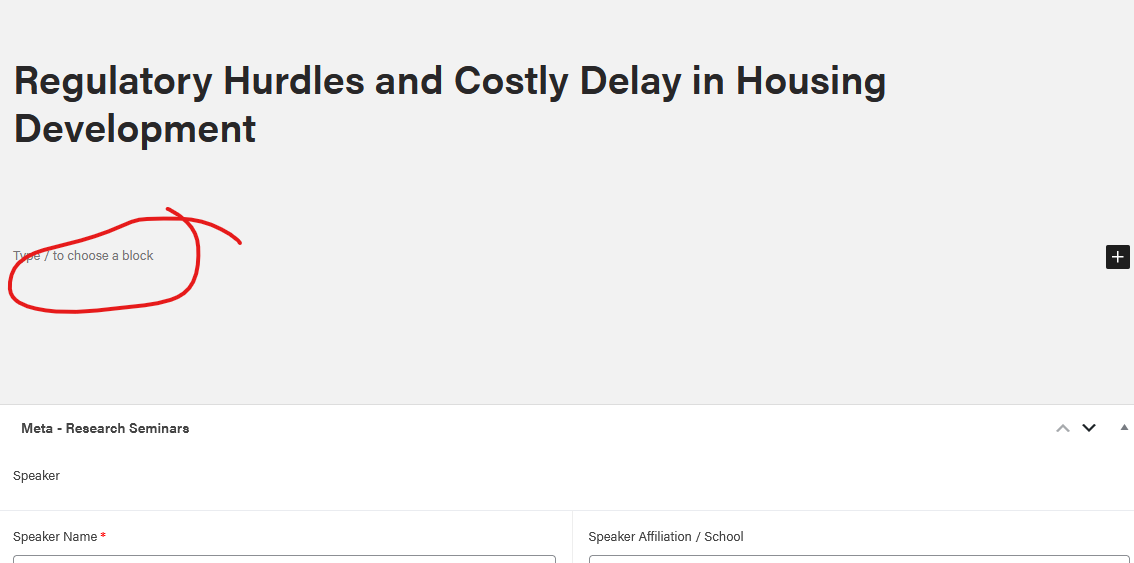
Add a description to your seminar by typing (or pasting in your content) where it says "Type / to choose a block"
- You can bold or italicize text.
- Add multiple paragraphs as needed.
- You can also upload additional images. (View our documentation for adding images to blog posts for tips and detailed instructions)
Right Side Menu Options
Categories* (required)
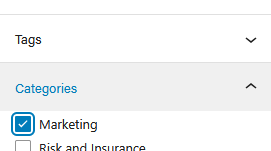
In the right sidebar, you will see a "Categories" section. This is where you select your Department name.
- Click on your department. A blue checkmark will appear next to the one you selected.
- You must select your department in order for the seminar to be listed correctly. Your seminar will not display on your department page, nor will it link back to your department, if you do not select a category.
- Make sure not to accidentally select multiple departments.
Slug (optional, advanced)
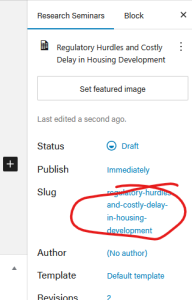
This is the last part of the page URL. WP feeds the seminar title (topic name) here, but you can modify it if you'd like.
Because seminar topic names tend to be long, you may want to make the URL shorter if you're planning on sharing this seminar in emails, social media, etc. Make sure you choose a slug that is specific enough to not be duplicated or confused with another seminar.
For example:
- Original: /regulatory-hurdles-and-costly-delay-in-housing-development/
- New: /regulatory-hurdles-housing-development/
Featured Image (do not use)
This image will not appear anywhere on a Research Seminar.
Tags (do not use)
You may notice a "Tags" dropdown above Categories. This does not do anything, so leave it blank.
Yoast SEO - Meta description (required)
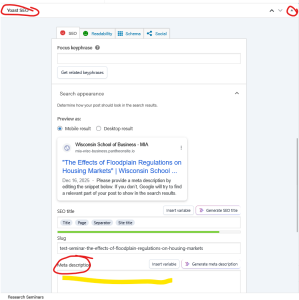
- Scroll down to where it says "Meta description"
- Here, you can write a description of the seminar.
- The default says '(Speaker_name) presents a research seminar on the topic, "(Title)".'
- (Speaker_name) and (Title) are variables that automatically insert info from the research seminar that you've already entered. Note that you may need to save and refresh to see these come through.
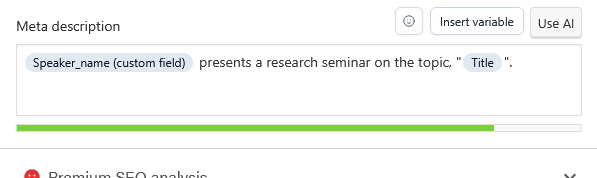
- (Speaker_name) and (Title) are variables that automatically insert info from the research seminar that you've already entered. Note that you may need to save and refresh to see these come through.
- We recommend editing this to include the speaker affiliation, date, and any other important information to make it easier to find via search engines (like Google):
- [Speaker] of [Affiliation] presents a research seminar on the topic, "[Title]" on [date].
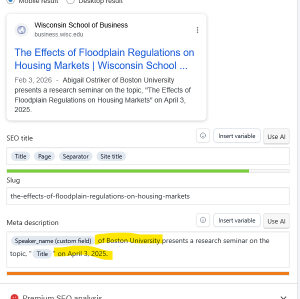
- The default says '(Speaker_name) presents a research seminar on the topic, "(Title)".'
The meta description is required. This is because all seminar pages can be found via a google search, and lacking a meta description hurts our website's search engine scores.
Preview a Seminar
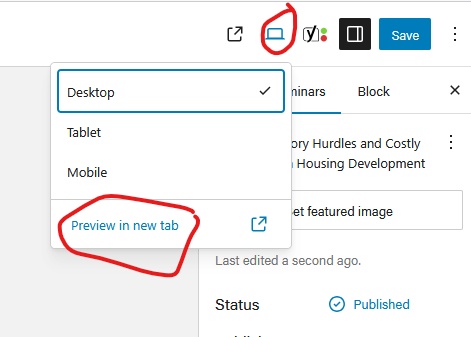
In upper right corner of the editor, click the View icon, then Preview in a new tab.
Save as a Draft vs. Publish
Save as a draft
- Choose this option when you need to save your seminar, but you aren't ready to publish it yet.
- You can share the draft with others on your team who have seminar editing access. They can finish editing if needed.
Publish
- You must publish your seminar for it to be visible to everyone on the website.
- All subsequent changes to your seminar must also be published, by clicking the Update button. (This will appear where the Publish button was originally.)
Edit/Delete Existing Seminars
- Similar to creating a seminar, navigate to seminars and choose yours from the list or use the search to find it.
- Hover over the name of the seminar to see options for editing or deleting your seminar.
Unpublish a seminar
To remove a seminar from the listing on our website, but keep a draft of the seminar page for future reference, you can unpublish the seminar.
- Open the editing page for your published seminar.
- In the right sidebar, make sure the "Research Seminars" tab is selected.
- Within the Summary section (beneath author), find the Switch to Draft button and select it.
- A pop-up will ask "Are you sure you want to unpublish?" and choose Ok