
...
- Speaker Name* (required)
Expand title How to upload a Speaker Photo - Click "Add Image"
- Select the Media Library tab
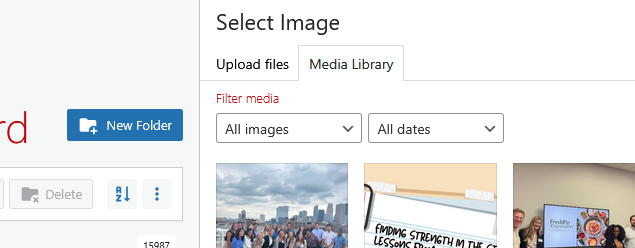
- Navigate to the correct folder:
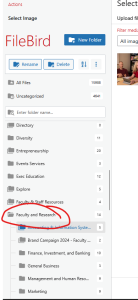
- In the left sidebar, find the "Faculty and Research" folder, and click on the folder icon to open it.
- Find your department name, and click on the folder icon to open it.
- Select the "Research Seminars" folder. (If you don't have one, click the "New Folder" blue button at the top of the sidebar to create it)
- Once you're in the correct folder, go back to the Upload files tab
- Click "Select Files" or drag and drop your photo
- Add Alt Text (required). In most cases "[Speaker Name] headshot." is sufficient.
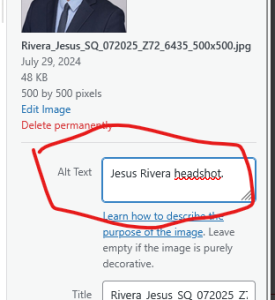
- Click the blue "Select" button in the bottom right corner.
Seminar Logistics
- Date and Time* (required) - opens a calendar, where you can navigate to the exact date.
- Select the month and year first, then click on the day in the calendar.
- Select the time, or leave it at 12am if you don't want to include the exact time.
- Click Done
- Semester* (required) - select the semester the seminar takes place. This is used to allow filtering by semester on the Research Seminars listing page.
- If the semester you need isn't listed, contact the Web Team.
- Location (optional) - type in the location of your seminar.
- Registration Link (optional) - if you have a place for people to register, paste in the URL here, and it will add a button to the Seminar Page. This button is automatically hidden once the date passes.
Additional Links (optional)
- Link to Paper (optional) - paste in the URL of the seminar topic's paper. This will add a "Read the paper" button to the bottom of the Seminar Page.
- Link to Recording (optional) - paste in the URL of the video of the recording. This will add a "View the recording" button to the bottom of the Seminar Page.
Description (optional)
If you have any further information you want to include that is not covered by the Meta - Research Seminars fields, you can add them to the description, underneath the Title.
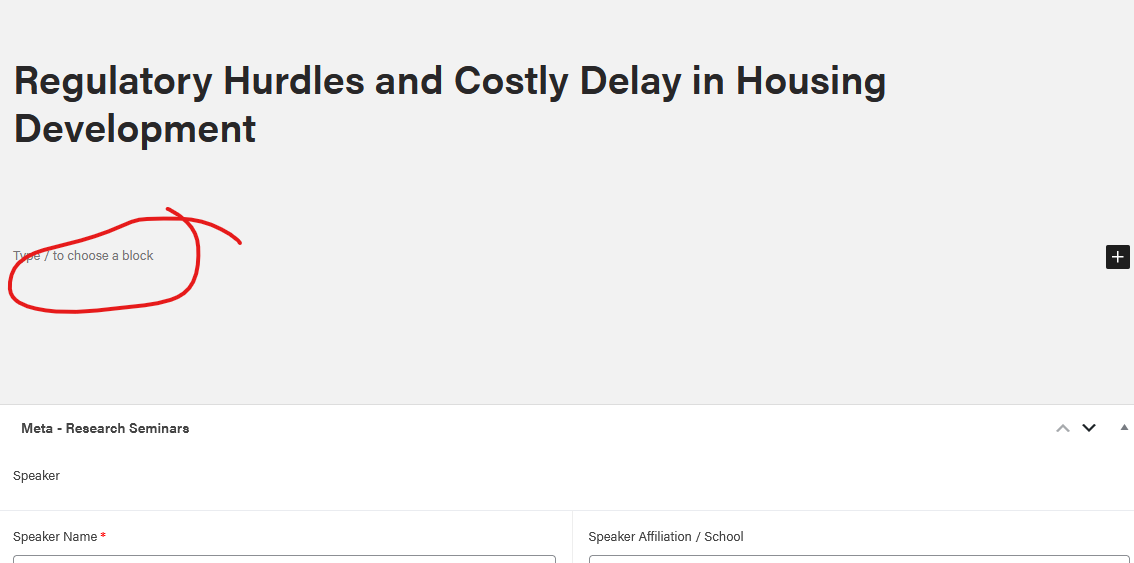
Add a description to your event by typing (or pasting in your content) where it says "Type / to choose a block"
- You can bold or italicize text.
- Add multiple paragraphs as needed.
- You can also upload additional images
Right Side Menu Options
Slug (optional, advanced)
This is the last part of the page URL. WP feeds the seminar title (topic name) here, but you can modify it if you'd like.
Because seminar topic names tend to be long, you may want to make the URL shorter if you're planning on sharing this seminar in emails, social media, etc. Make sure you choose a slug that is specific enough to not be duplicated or confused with another seminar.
Categories* (required)
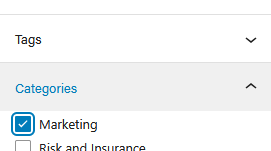
In the right sidebar, you will see a "Categories" section. This is where you select your Department name.
- Click on your department. A blue checkmark will appear next to the one you selected.
- You must select your department in order for the seminar to be listed correctly.
- Make sure not to accidentally select multiple departments.
Featured Image (do not use)
This image will not appear anywhere on a Research Seminar.
Yoast SEO (do not use)
You an ignore this section.
Tags (do not use)
You may notice a "Tags" dropdown above Categories. This does not do anything, so leave it blank.