
...
Add a description to your event seminar by typing (or pasting in your content) where it says "Type / to choose a block"
...
You may notice a "Tags" dropdown above Categories. This does not do anything, so leave it blank.
Preview a Seminar
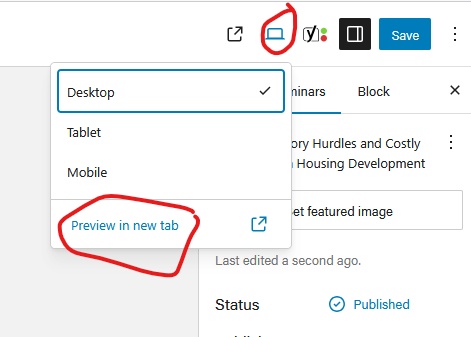
In upper right corner of the editor, click the View icon, then Preview in a new tab.
Save as a Draft vs. Publish
Save as a draft
- Choose this option when you need to save your seminar, but you aren't ready to publish it yet.
- You can share the draft with others on your team who have seminar editing access. They can finish editing if needed.
Publish
- You must publish your seminar for it to be visible to everyone on the website.
- All subsequent changes to your seminar must also be published, by clicking the Update button. (This will appear where the Publish button was originally.)
Edit/Delete Existing Seminars
- Similar to creating a seminar, navigate to seminars and choose yours from the list or use the search to find it.
- Hover over the name of the seminar to see options for editing or deleting your seminar.
Unpublish an seminar
To remove a seminar from the listing on our website, but keep a draft of the seminar page for future reference, you can unpublish the seminar.
- Open the editing page for your published seminar.
- In the right sidebar, make sure the "Research Seminars" tab is selected.
- Within the Summary section (beneath author), find the Switch to Draft button and select it.
- A pop-up will ask "Are you sure you want to unpublish?" and choose Ok