
...
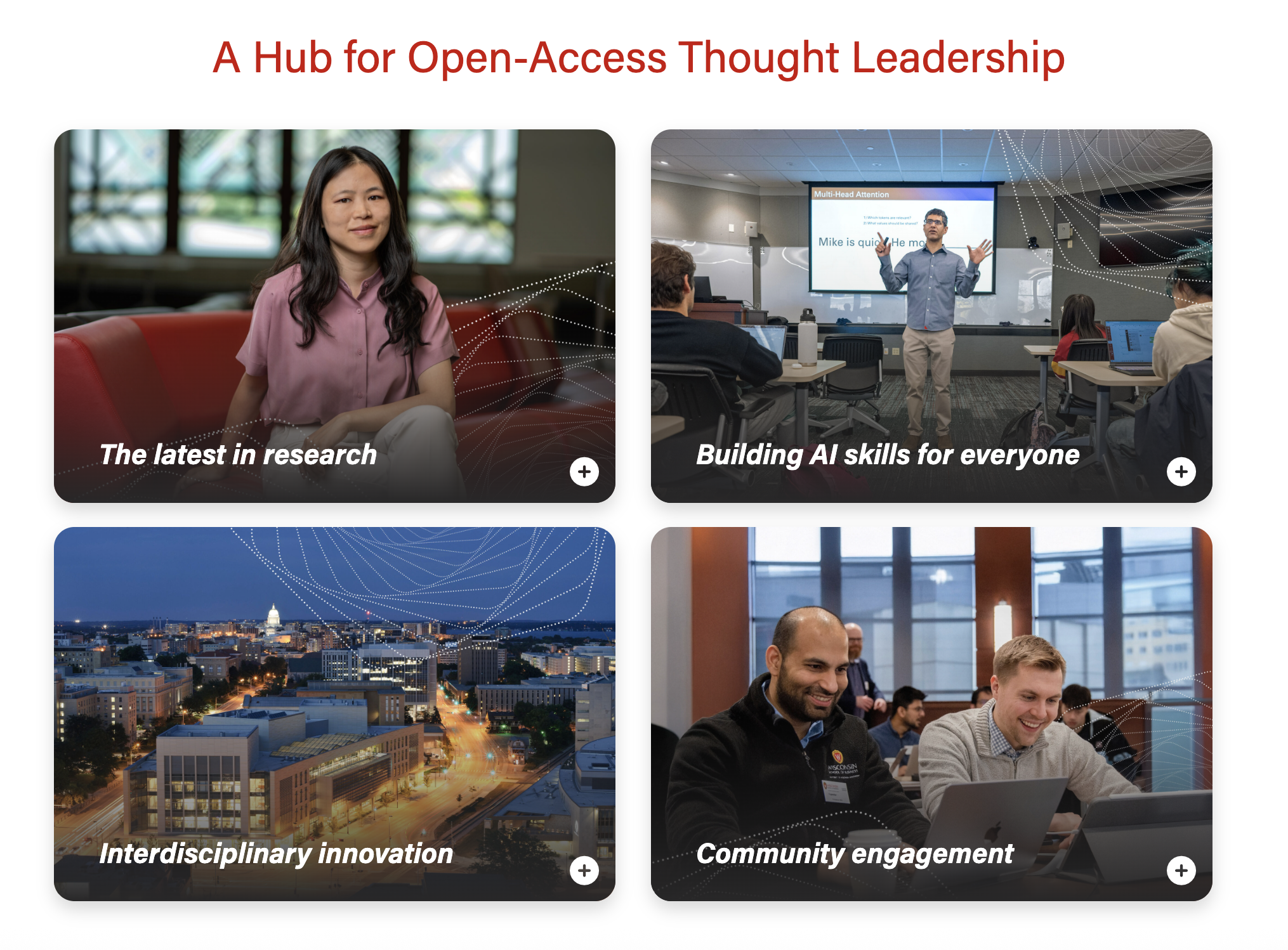
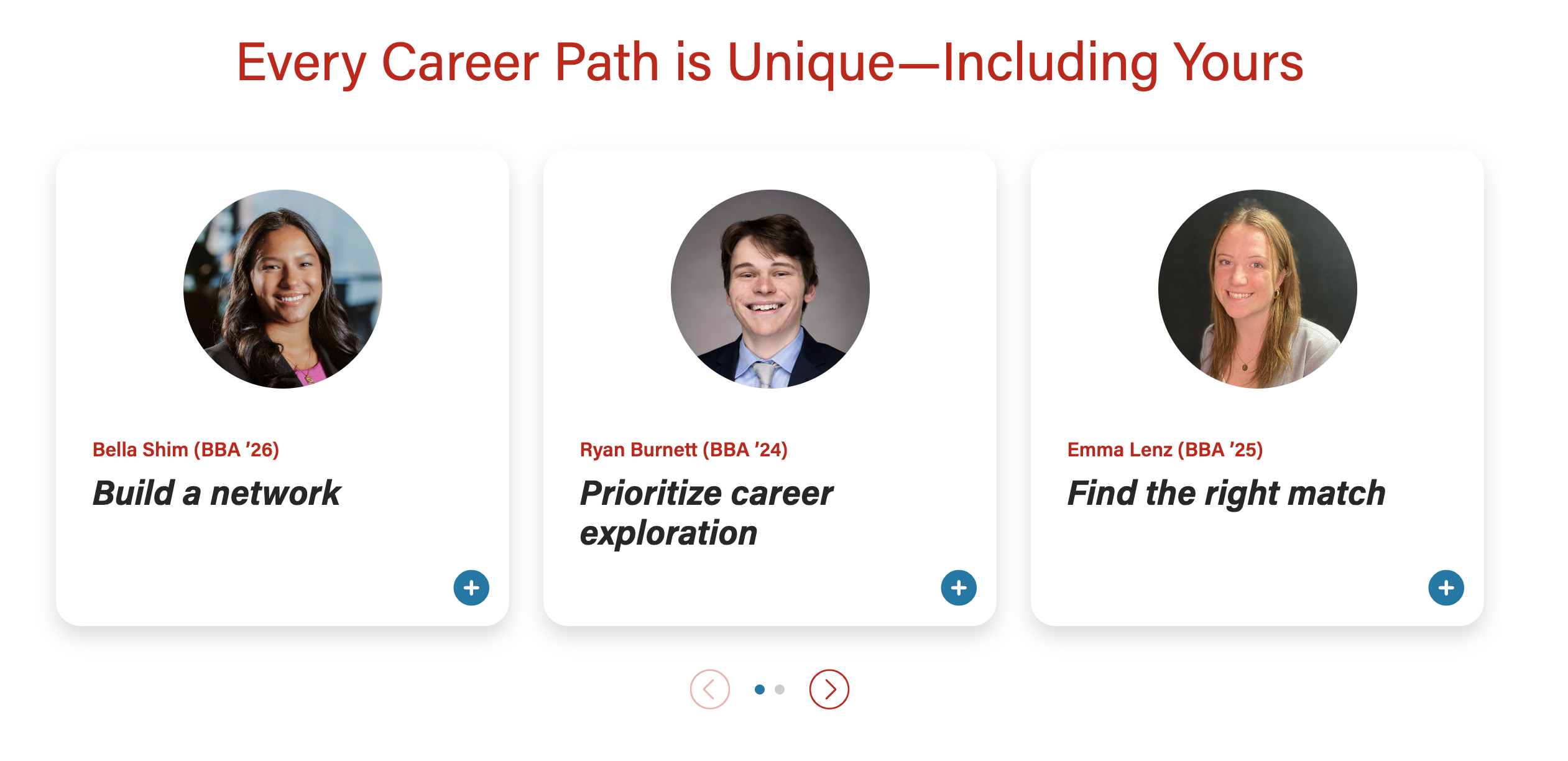
- Cards can be stacked or in a swiper
Stacked
Swiper
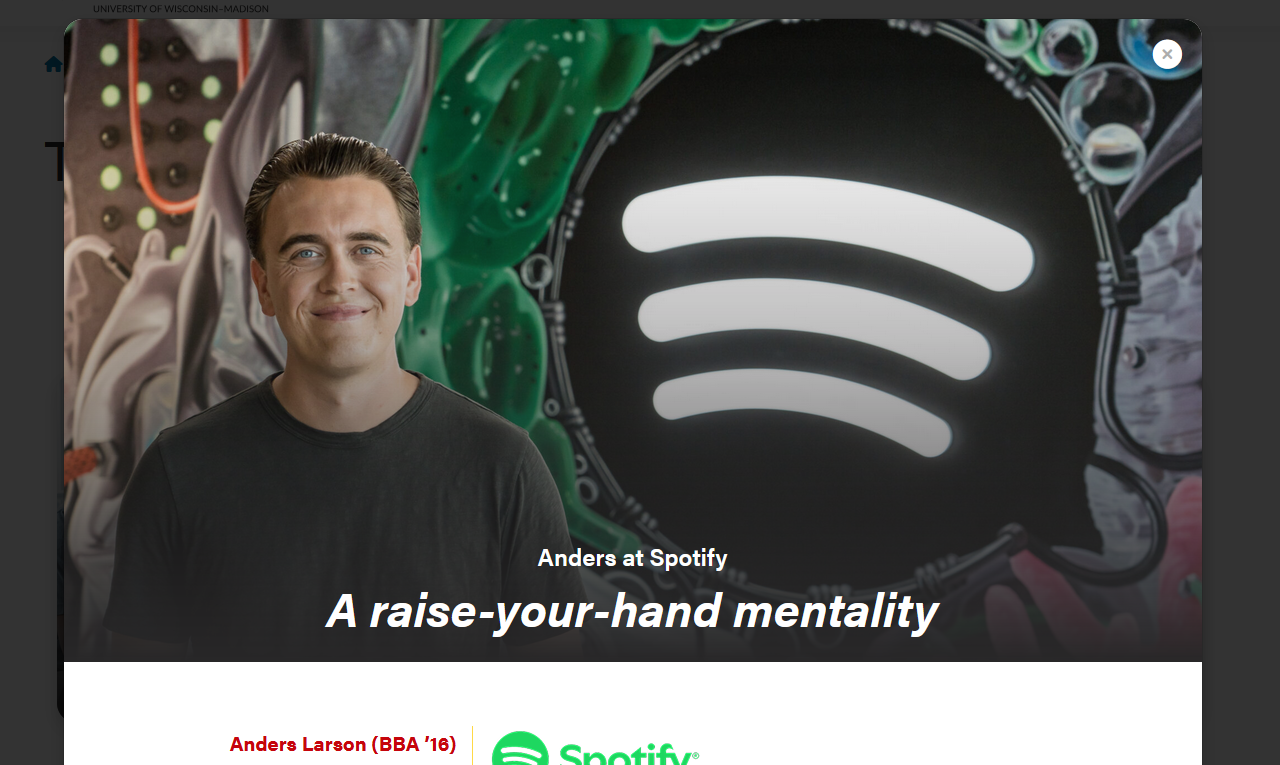
- When card images are full-width, the modal header can have a 50/50 or full-width image
50/50 modal header image

Full-width modal header image – text sits on the image, with a dark gradient overlay for contrast.
...
| Code Block | ||||||
|---|---|---|---|---|---|---|
| ||||||
Pullquote
* Can adjust or remove "my-4" class if needed. Author and cite elements are optional.

<figure class="wsb-pullquote mx-0 my-4">
    <p class="quote">add quote here</p>
    <p class="author"><cite> add speaker name here</cite></p>
</figure>


Horizontal rule
* Removing "hr-gray" will make the line yellow instead.

<hr class="hr-gray my-5" />


Microtitle style for subheads (with yellow triangle)
* These styles can be used on any heading level.

<h3 class="microtitle mb-3"><img class="microtitle-arrow" alt="" src="/wp-content/uploads/2024/10/Two-toned-yellow-arrow-digital-100x164-1.png" width="9" height="15" aria-hidden="true" /> Subheading</h3> |
Implementation
ACF Fields
Card
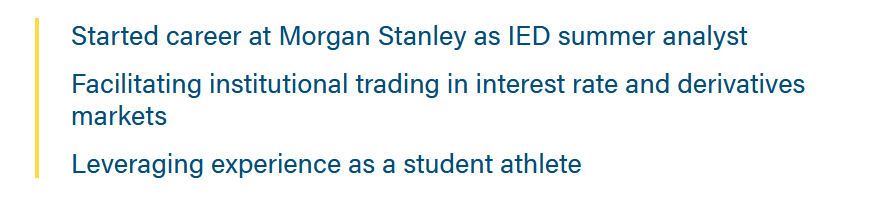
- Career Points (created for T2L4)
| Code Block | ||||||
|---|---|---|---|---|---|---|
| ||||||
Career Points
* Add the "career-points" class to any ul to get this styling.

<ul class="career-points">
 	<li>Point 1</li>
 	<li>Point 2</li>
 	<li>Point 3</li>
</ul> |
Implementation
ACF Fields
Card
Remind writer/strategist to limit the amount of copy in the cards, since more detail can be shown in the modal. This is especially true for the full-width photo layout, since we don't want the copy to wrap and be so tall it covers faces in the card photos.
- Microtitle (optional) - Keep this short.
- This
Remind writer/strategist to limit the amount of copy in the cards, since more detail can be shown in the modal. This is especially true for the full-width photo layout, since we don't want the copy to wrap and be so tall it covers faces in the card photos.
- Microtitle (optional) - Keep this short.
- This content will display in the modal header by default. Set the "Display card microtitle in modal header?" field to "no" if you want to hide it in the modal
- Title (required) - This field must have content so the card has an html heading
- This content will display in the modal header by default. Add content to the "Modal Title Override" field to replace it.
- Card Supporting Copy (optional) - Used sparingly.
- Use this field OR the microtitle field, especially for cards with full-width background images.
- This content will not be displayed in the modal
- Card Image
- For circle crop - face must be centered in a square photo
- For full-width image - face should be in top 1/3 of the image
- If using a vertical photo for the card, you will need to add a horizontal version to the modal image override field for the image to display correctly at the top of the modal.
- Crop image to circle? - use for square images, including headshots
Modal Popup
- Display card microtitle in modal header? - true/false, pulls Microtitle subfield from Card and displays in modal above title.
- Full width image? - makes image full width inside the modal header instead of half width.
- Recommend using Modal Image Override field with this, to ensure the card image and modal image work well with each other.
- Modal Title Override - Use this to override the card title with different text for the modal header. This field can have more characters than the card title, but it's still best practice to keep the title short.
- Supporting Details - WYSIWYG for job titles, company, or majors
- Modal Image Override - Use this to override the full-width card image. It is unlikely you will need this field for circle crop images.
- Modal Text - WYSIWYG for modal copy. You will need to use inline HTML and CSS classes for styles.
- Copy code snippets above
Configuration
- Number of columns - you can select one, two, or three columns. Three columns is the default.
- The headshot/circle crop style should only be used with two and three column layouts. (The image looks too small for a card in a single column layout)
- If you run into issues with card copy being too long, either ask the copywriter to shorten the copy or
- Stretch link? - this will make the modal open when a user selects anywhere on the card. Checked is the default.
Introduction and Footer
- These are standard sections for our custom blocks.
Code Templates for Modal Content
Modal content is added in a WYSIWYG field, so you'll need to add HTML elements with classes for styling. Copy the code below for the content you need:
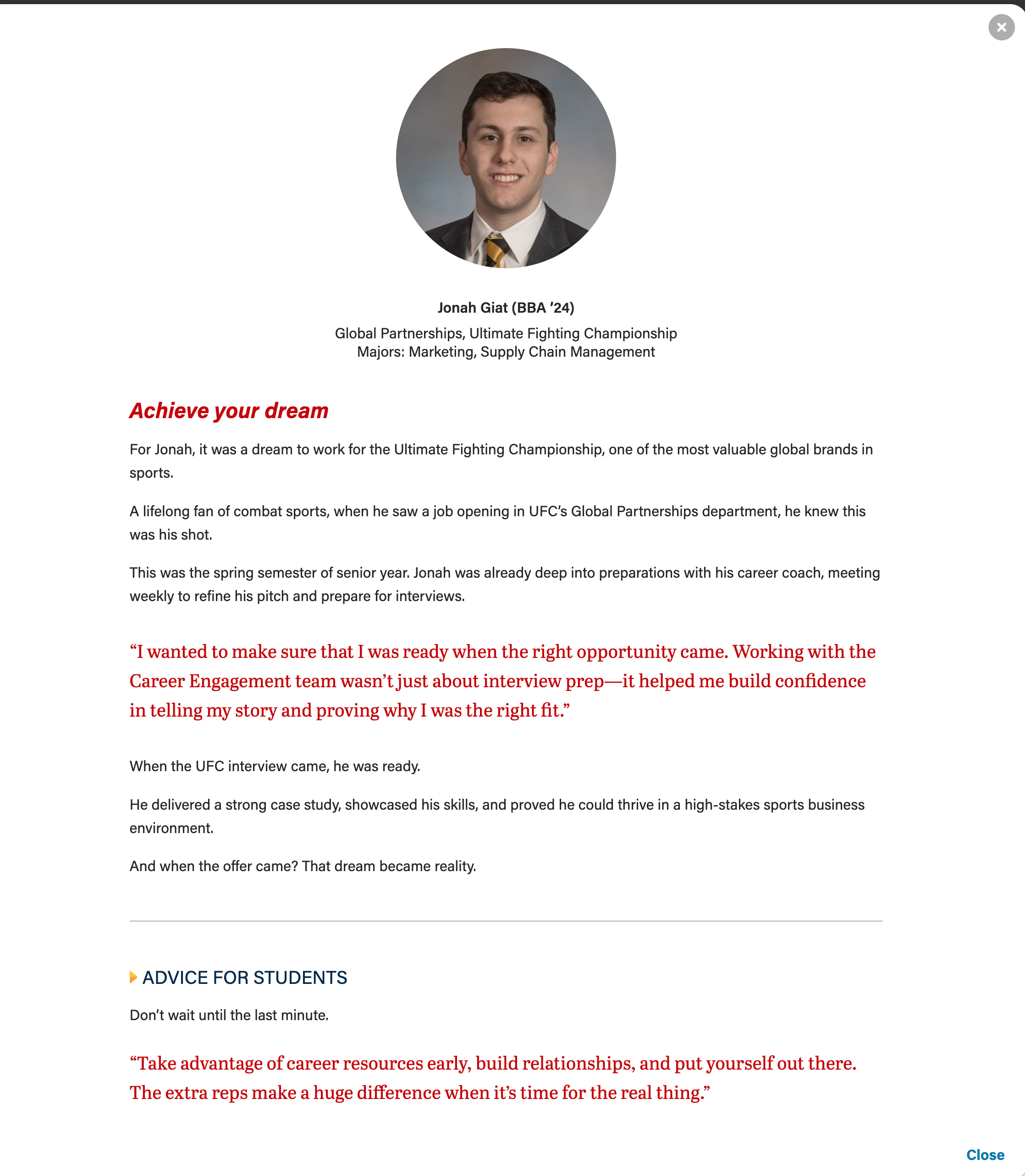
Modal with pullquote, horizontal rule <hr>, and microtitle styling for last subhead
...
| language | html |
|---|
Career Points (for T2L4)
Just add the "career-points" class to any ul to get this styling.
...
| language | html |
|---|---|
| collapse | true |
...
- Use this field OR the microtitle field, especially for cards with full-width background images.
- This content will not be displayed in the modal
- Card Image
- For circle crop - face must be centered in a square photo
- For full-width image - face should be in top 1/3 of the image
- If using a vertical photo for the card, you will need to add a horizontal version to the modal image override field for the image to display correctly at the top of the modal.
- Crop image to circle? - use for square images, including headshots
Modal Popup
- Display card microtitle in modal header? - true/false, pulls Microtitle subfield from Card and displays in modal above title.
- Full width image? - makes image full width inside the modal header instead of half width.
- Recommend using Modal Image Override field with this, to ensure the card image and modal image work well with each other.
- Modal Title Override - Use this to override the card title with different text for the modal header. This field can have more characters than the card title, but it's still best practice to keep the title short.
- Supporting Details - WYSIWYG for job titles, company, or majors
- Modal Image Override - Use this to override the full-width card image. It is unlikely you will need this field for circle crop images.
- Modal Text - WYSIWYG for modal copy. You will need to use inline HTML and CSS classes for styles.
- Copy code snippets found on this page
Configuration
- Number of columns - you can select one, two, or three columns. Three columns is the default.
- The headshot/circle crop style should only be used with two and three column layouts. (The image looks too small for a card in a single column layout)
- If you run into issues with card copy being too long, either ask the copywriter to shorten the copy or reduce the number of columns from 3 to 2.
- Stretch link? - this will make the modal open when a user selects anywhere on the card. Checked is the default.
Introduction and Footer
- These are standard sections for our custom blocks.
Resources
- link to component mockup in Figma
...