Also known as: page header, banner, headline, primary section, above the fold
Description
A block designed to be used once at the top of every Page to display the H1 heading/page title and catch the users attention. The block spans full-width and has 7 layout options.
...
- Use as the first block on a page, to display the H1/page title and catch the users attention with a large photo, video, or background pattern.
Editorial Guidelines
Follow our general Web Copy General Guidelines in addition to the following:
For all hero layouts (except video)
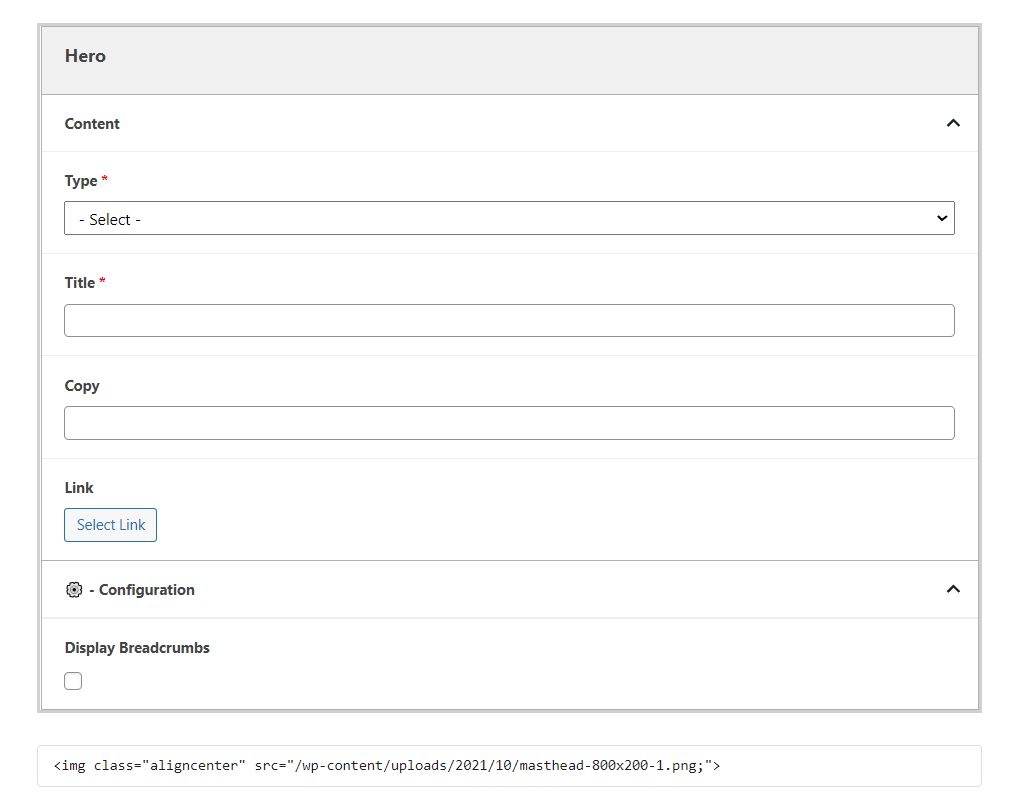
- Title (required)
- This is the H1 heading or Page Title.
- Keep this short and factual. Avoid marketing and descriptive language here.
- Supporting copy (optional)
- Used to introduce the page.
- We typically only add this copy to top-level pages (e.g. program landing pages).
- Keep copy short, 150 characters max.
- Used to introduce the page.
- Button (optional - use sparingly)
- Add a CTA; consider whether the CTA makes sense at the top of the page
- We typically only add a button for lead-generating CTAs on select pages (e.g. RFI button on FTMBA landing page hero)
- Add a CTA; consider whether the CTA makes sense at the top of the page
Pattern heroes
(in progress)
Design Assets Needed
Implementation
- Use when using a Hero - News block to hide breadcrumbs from the Newsroom page. (Add this block and choose "Hide breadcrumbs"; then add the Hero - News block below)
See Additional Notes at the bottom for a special use case.
...
- Add the H1 of the page.
- Note: Without a Hero block, the title of the page will display as a black-text H1.
...
- Even if the hero block doesn't work for a particular page, you may want to add the block with no content and check the "Hide breadcrumbs" option.
- You will need to select a type and optional to add a title such as hero or hidden hero and add the class d-none to the additional CSS classes under Advanced on the right side of the editor; otherwise, the hero is hidden from view on the editor, and you'll need to go to click on document overview to see it.
Update Magazine Heroes
- In some cases, such as for Update magazine issue landing pages, the image for the Hero doesn't work within the block. You can add the image before the Hero (in either the WordPress Image block or as HTML with the Custom HTML Wordpress widget), not then on the Hero block don't select a Type, not don't add any Title or Copy, and disable breadcrumbs.breadcrumbs (the Hero will not appear on the page, but will hide breadcrumbs)
- This will allow you to display an image as the page banner. This will also remove the black-text H1 that appears by default without a Hero on the page. See Update Fall 2020 as an example.
Blocks/format:
| How it looks on the page:
|
|---|